Toast POS: FAQ and Troubleshooting
Last updated: Mar 25, 2026, 1:50 PM
Check out some frequently asked questions and recommended solutions/troubleshooting steps for using Toast's POS experience.
- POS Display Settings
- I’m trying to use the terminal in vertical/portrait mode, but the screen doesn’t rotate.
- The POS screen layout is missing buttons / Payment buttons are missing buttons from the bottom of the screen.
- I’m using Bluestacks, and the experience is weird.
- Can I remove the search bar on my menu/order screen?
- How do I change to dark mode or light mode?
- Why does my ordering screen look different?
- Can I rotate the screen on a handheld to landscape mode?
- I'm not being prompted to select a seat number for each item.
- I don't want my orders to be split up by seat number.
- When placing an order, some of my items are held and not being sent to the kitchen.
- Why am I being prompted to add a course to every item before I can send the order to the kitchen?
- More payment options are showing on the payment screen.
- Can I prevent my staff from being able to split checks?
- During Shift Review, can I close multiple checks at once?
- Manage Your Tables
- Additional Resources
POS Display Settings
I’m trying to use the terminal in vertical/portrait mode, but the screen doesn’t rotate.
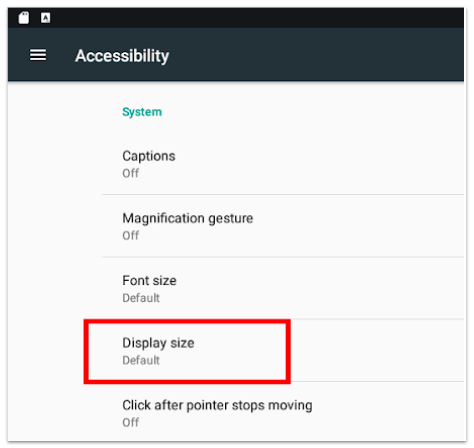
Toast's POSexperience does not support portrait (vertical) mode on terminals. To ensure the screen layout behaves as expected, set the Display Size setting in your Android device to Default.
The POS screen layout is missing buttons / Payment buttons are missing buttons from the bottom of the screen.
Within your Android device settings, navigate to Device Settings > Accessibility > Display size and check that the Display and Font sizes are set to Default. When either setting is turned up, the device may think it is a handheld device.
I’m using Bluestacks, and the experience is weird.
Change how the APK is output from Bluestacks to 1440p x 720p custom resolution within the Bluestacks emulator settings. Check out this article (external link) to learn how to customize Bluestacks settings.
Can I remove the search bar on my menu/order screen?
Yes. Follow these steps to remove the menu item search bar from your POS menu/order screen:
-
- Navigate to Front of house > Order screen setup in Toast Web.
- Next, toggle the Search bar for POS menu setting off.
- Save and publish your changes.
How do I change to dark mode or light mode?
On the main menu of your Toast app, navigate to Device Setup (in the Setup) section and scroll down to the POS Display Theme setting. For light vs. dark mode examples, see this Support Center article: Customize Your POS Experience.
Why does my ordering screen look different?
If your menu setup on the order screen looks different (using columns) than it used to, it may be because your device settings were changed from focus view (the classic order screen layout) to open view (a new simplified layout that allows you to view more menu items at once). To learn more or change it, see the instructions in this Support Center article: Get Started With Open View.
Can I rotate the screen on a handheld to landscape mode?
No, at this time, you cannot turn your handheld device to view your table layout in landscape mode.
Manage Your Orders
I'm not being prompted to select a seat number for each item.
In Toast's POS experience, the order-by-seat feature is the default for entering items with seat numbers. With this experience, you can select the seat number on the check details screen, and then any items you add to the order will automatically be added to that seat. Learn more in this Support Center article, Use Order by Seat.
I don't want my orders split up by seat number.
You can disable order by seat by navigating to the Front of house page in Toast Web and toggling the Order by seat setting to the Off position. Learn more in the Disable Order by Seat section of this Support Center article, Use Order by Seat.
When placing an order, some of my items are held and not being sent to the kitchen.
Server item firing is a feature that gives servers control over meal pacing. With this workflow, held items must be individually selected and sent. You can learn more about the different options for using server item firing here: Use Server Item Firing at Your Restaurant.
Server item firing and course pacing cannot be enabled simultaneously. If you'd like to continue using course pacing, you must turn off the Individually Hold and Send Items setting on the Front of house page in Toast Web.
Why am I being prompted to add a course to every item before I can send the order to the kitchen?
Required courses are a feature available as part of Toast's POS experience. Once enabled, you can decide whether they should be Required, Optional, or off for both Quick Order and Table Service modes.
This setting can prompt servers to have courses assigned to items before sending an order to the kitchen.
You can configure the Coursing setting for both Quick Order and Table Service mode on the Front of house page in Toast Web. Learn more in the Required Courses section of this Support Center article, Manage Course Firing Options.
More payment options are now showing on the payment screen.
You can hide other payment options that were previously hidden by default. For instructions, see this Support Center article: Set Up Other Payment Options.
Can I prevent my staff from being able to split checks?
Yes. By default, any existing user with the 1.1 Table Service Mode permission was given the new 1.20 Split Checks permission. You can disable this permission for specific jobs or employees in Toast Web.
Employees without the 1.20 Split Checks permission must enter a manager passcode when they select the Split Checks button on the order screen. Note that this will not be available on Elo V1 devices.
During shift review, can I close multiple checks at once?
Yes! See this Support Center article for more information: Manage Checks in Bulk on the POS.
Manage Your Tables
I must select "Update" on the check to open a table.
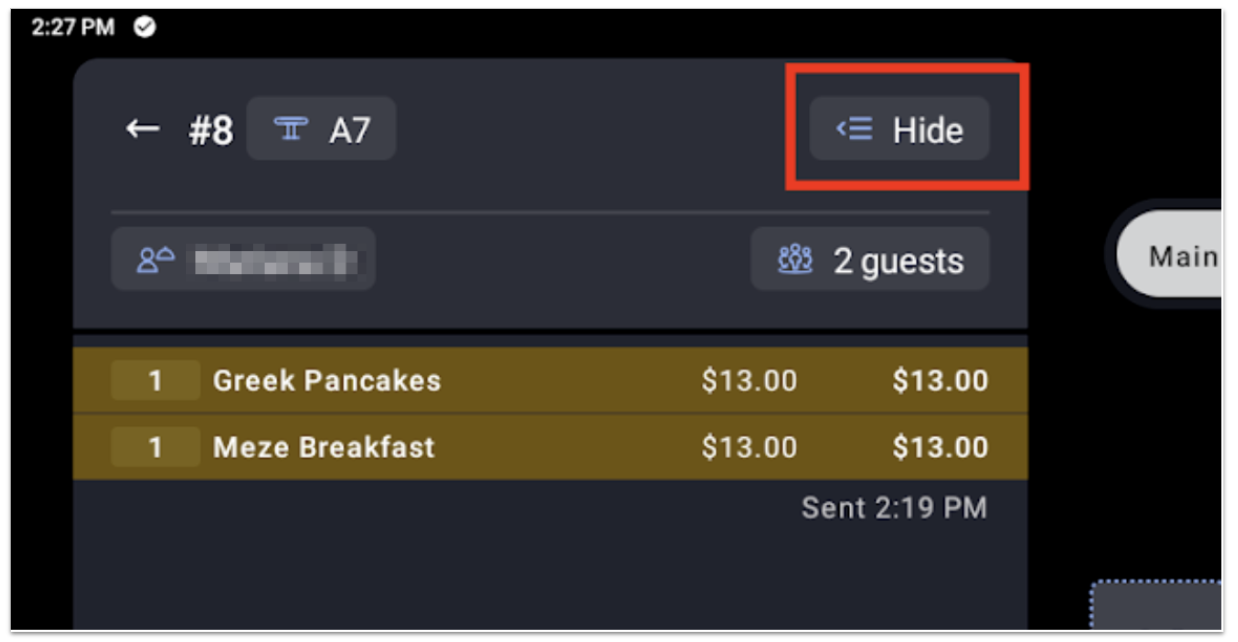
In the Toast POS, the table details pane is open by default, which shows you a preview of a check on a table when a table is selected. To avoid having to select the Update button in the details pane to open a table in the order screen, simply close the details pane or select Hide in the top right corner of the details pane. Learn more in the Table Details Pane section of this Support Center article, Toast POS: Manage Tables.
Can I turn off "Total table spend"? Can I hide table data from other servers?
The total table spend will always show on the current user's tables.
To hide the total table spend value for other tables, ensure employees do not have the 1.8 View Other Employees' Orders permission enabled for their user account or job in Toast Web. Disabling this permission will remove other employees’ checks from the All checks and Payment Terminal screens.