Toast Payroll: Manage Timesheets
Last updated: May 13, 2026, 6:08 PM
Approve, edit, unapprove, add, or delete employee timesheets in Toast Payroll so hours flow correctly to payroll runs.
- Before You Begin
- View Timesheets in Toast Payroll
- Approve Timesheets
- Unapprove or Reopen an Approved Timesheet
- Edit a Timesheet (in Toast Web)
- Delete a Timesheet
- Fix a Timesheet With Open Punches
- Salaried Employee Timesheets
- Frequently Asked Questions
- Related Articles
Before You Begin
Applies to: Toast Payroll, Toast Web
Permissions needed:
- HR+ user (to change the auto-approve timesheets toggle and the Make Timesheets Read Only setting)
- 3.14 Edit Time Entries (to edit time entries in Toast Web)
- 4.3 Labor Reporting (to view the Time entry management page in Toast Web)
What you'll accomplish: Approve the timesheets that need to run with this payroll, fix anything wrong on a timesheet (missing hours, open punches, wrong job, wrong payroll), and remove timesheets that should not run.
Important: Time entries cannot be edited inside Toast Payroll. To change an employee's clock in, clock out, break, job, or declared cash tips, make the edit in Toast Web on the Time entry management page. Edits made directly to a Toast Payroll timesheet will not sync back to Toast Web and can cause reporting inaccuracies.
View Timesheets in Toast Payroll
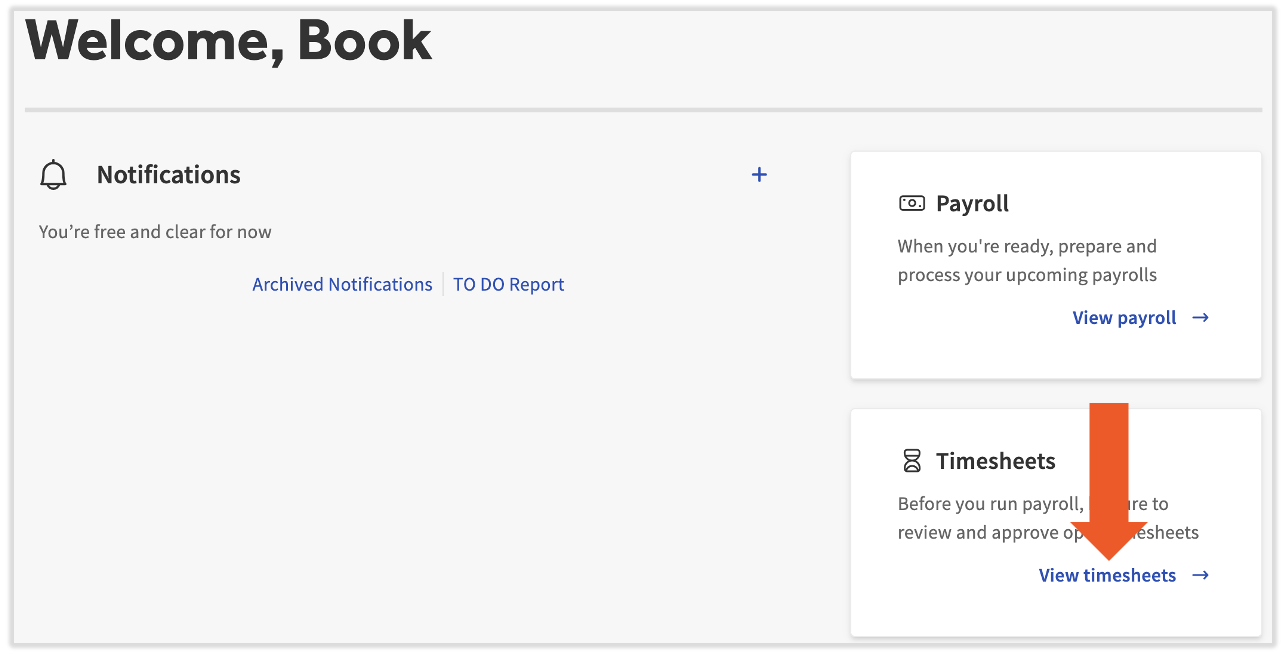
Employee hours sync from Toast POS into Toast Payroll. To see them, navigate to Toast Payroll and select the Time tab.
The page lists every employee with timesheets. Each row shows the employee, their hours, and the payroll the timesheet is currently tied to in the Payroll column.
- To filter to one payroll, select the All drop-down menu above the Payroll column. Toast highly recommends viewing this page per payroll, especially when approving timesheets manually.
- To open a detailed view, select the blue date link in the Timesheet column. The detail view shows dates, clock in and clock out times, and wage rates. If you have direct sync tips enabled with Toast Web, or if you are using Toast Tips Manager and have sent tips to payroll, those amounts appear here as well — see Toast Payroll: Manage and Integrate Tips for details.
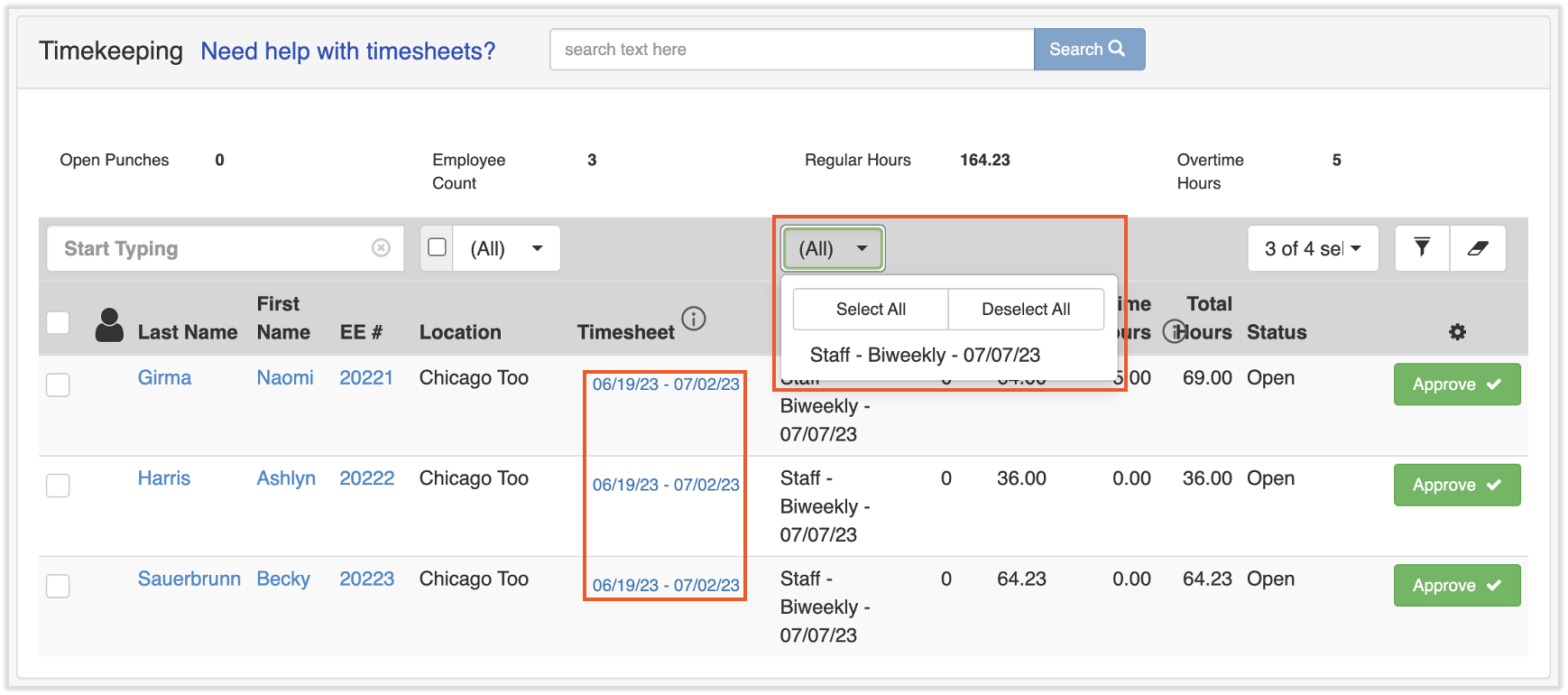
Expected outcome: You can see every timesheet for the open pay period and filter to the payroll you want to work with.
If you don't see a timesheet you expect — see Frequently Asked Questions below.
Approve Timesheets
Hours don't flow to a payroll run until their timesheet is approved. You can approve timesheets manually or for new customers timesheets will be approved automatically.
Enable Auto-Approved Timesheets
Auto-approval is enabled by default for new customers. With auto-approval on, time entries made by employees in Toast Web are automatically approved and applied to a payroll run when the payroll is started.
- In Toast Payroll, navigate to Time.
- At the top of the page, locate the auto-approve timesheets banner. To see common questions about the feature, select the ? icon.
- To turn auto-approval on, an HR+ user toggles the setting from Off to On. To turn it off, toggle it back from On to Off. Changes apply to payroll runs that have not been started yet.
Expected outcome: When you start a payroll, all timesheets are approved automatically. Approve buttons no longer appear on the Time page.
Note: If an employee forgets to clock out and auto-approved timesheets are enabled, their timesheet is flagged for review when you preview your payroll. Anyone who was automatically clocked out is also flagged in Time Entry Management in Toast Web.
If hours on an auto-approved timesheet are incorrect, you can reset payroll if necessary and edit employee time entries in Toast Web — see Toast Payroll: Reset a Payroll and Edit a Time Entry below.
If you want to disable auto-approve while you're processing payroll, first reset the payroll. Then return to Time and toggle the setting off. Refresh the page and the timesheets will appear with the option to Approve them.
Approve Timesheets Manually
If auto-approval is off, approving timesheets is one step of preparing to run payroll. Hours do not appear on a payroll run until the matching timesheet is approved. Toast Payroll recommends reviewing each timesheet before approving it.
To approve one timesheet, select the Approve button on its row.
To approve multiple timesheets:
- In Toast Payroll, navigate to the Time tab.
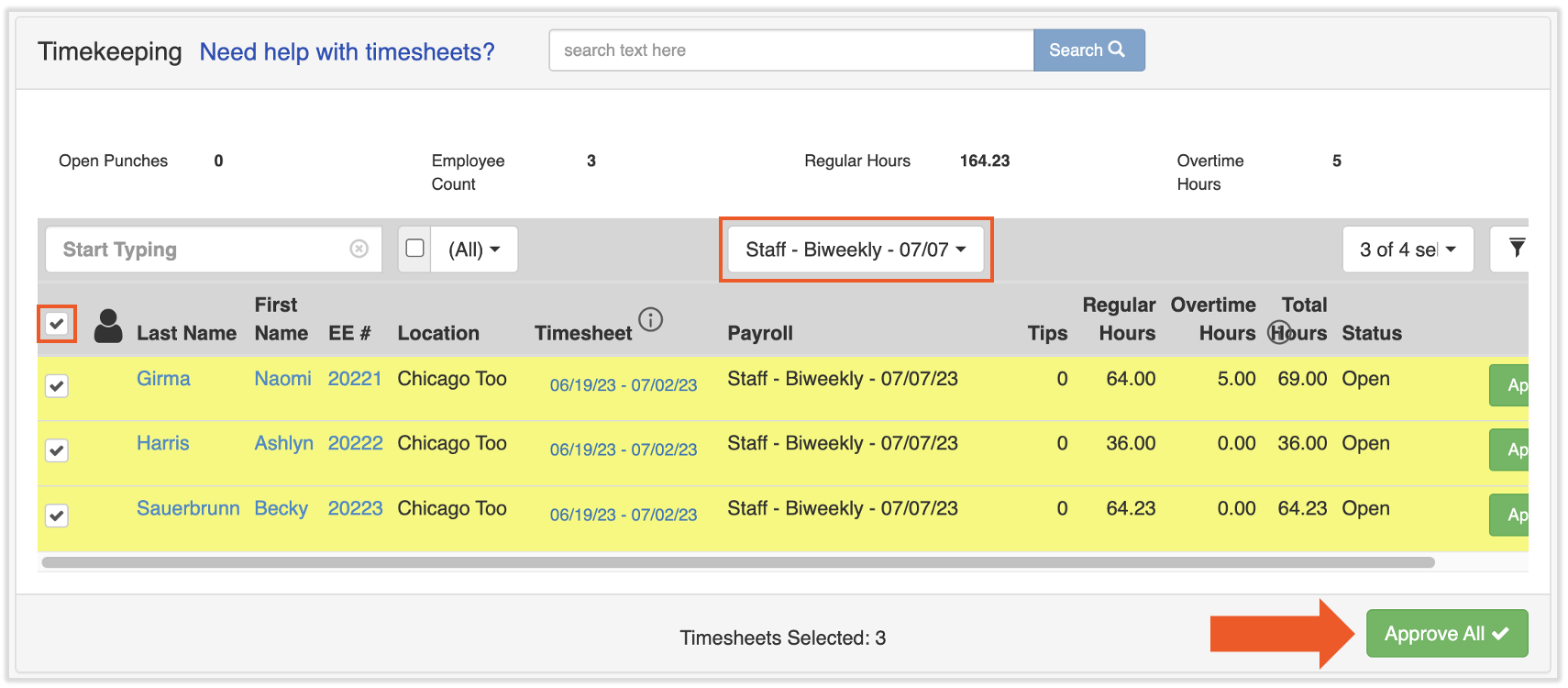
- Select the All drop-down above the Payroll column and filter to the payroll you want to approve. This avoids creating a second timesheet for an employee tied to a different payroll.
- Select the checkbox next to each employee whose timesheet you want to approve. To select every timesheet, select the checkbox to the left of the Last Name column header.
- Select Approve All at the bottom of the page.
Expected outcome: The approved timesheets show as approved, their hours flow to the matching payroll run, and you can move on to the next step of running payroll.
Note: If an employee has multiple timesheets in the same pay period (from syncing, additional tips, position changes, or approving early), you do not need to consolidate them. The end result on payroll is the same whether they are consolidated or not. Review them for overlaps or errors before approving.
If you think you're missing an employee's timesheet, the most common cause is a duplicate profile in Toast Web — see Frequently Asked Questions below.
Unapprove or Reopen an Approved Timesheet
If you approved a timesheet by mistake, approved it for the wrong payroll, or need to fix a time entry on it, reopen it. This is the same workflow customers ask about as "unapprove a timesheet," "un-approve," or "reverse the approve."
Important: Timesheets are reopened one at a time. There is no bulk un-approve option in Toast Payroll. If you have many timesheets to reopen, repeat these steps for each employee.
Important: If payroll has already been started, timesheets cannot be reopened or edited until the payroll is reset. See Toast Payroll: Reset a Payroll before continuing.
- In Toast Payroll, open the employee's profile.
- Navigate to Pay History > Timesheets.
- Select Re-Open on the approved timesheet you want to change.
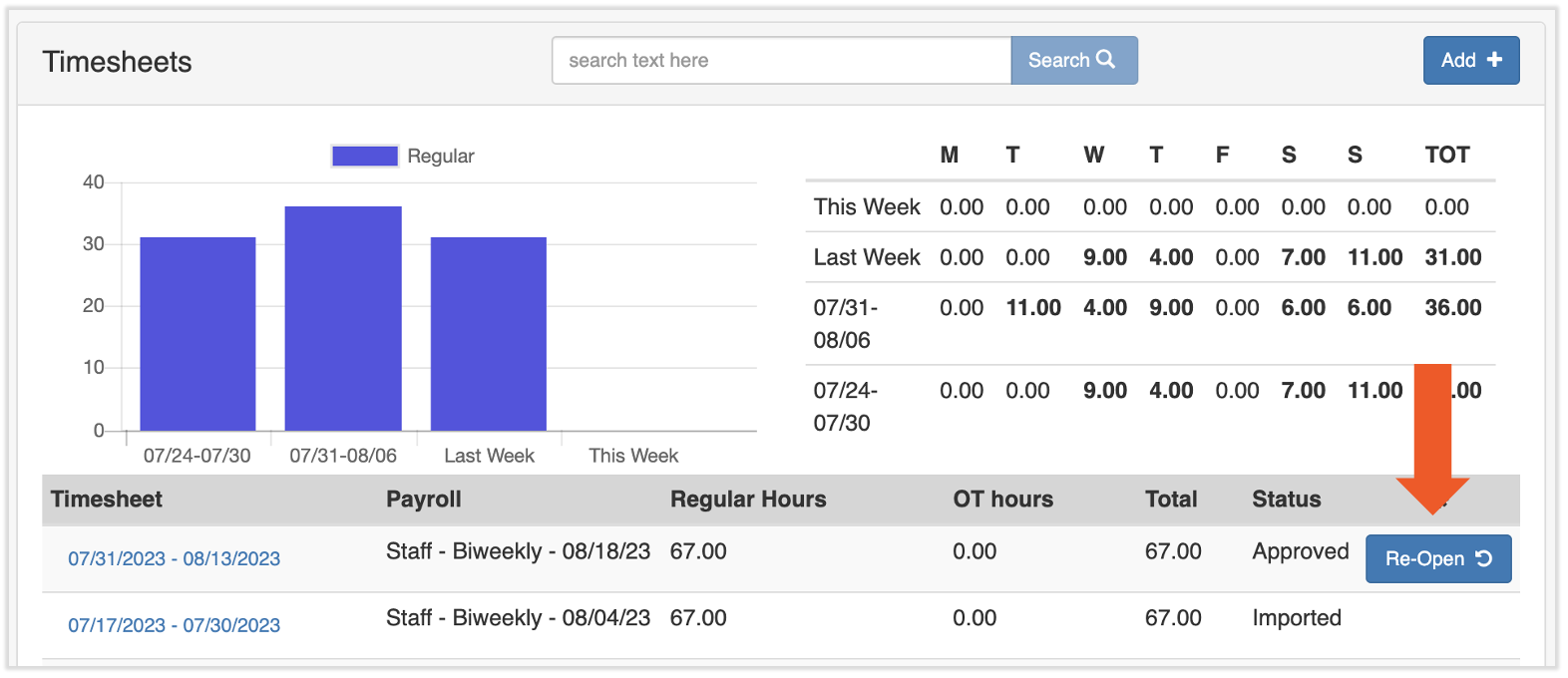
Expected outcome: The timesheet is now open and any time entry edits made in Toast Web will sync to it.
After reopening, edit the time entries in Toast Web. See Edit a Time Entry below.
If you don't use Toast Tips Manager, skip this step. If you use Toast Tips Manager: edits to a reopened timesheet will most likely affect pooled tip amounts, and any other employees in the same tip pool need their timesheets reopened too. After your timesheet edits are made:
- Reopen the timesheets for every employee in the same tip pool, using the steps above.
- Unsend the tips for the day(s) the timesheet was adjusted (see the Revert Sent Tips section of Tips Manager With Toast Payroll).
- Once edits are made and tips are unsent for that day, reapprove the day's tips and resend tips to payroll. See the Send Tips to Payroll from Tips Manager section of Tips Manager With Toast Payroll for the resend procedure.
- Return to Toast Payroll and reapprove every reopened timesheet in the same place you reopened them.
When updates are complete, return to Toast Payroll and reapprove the updated timesheet by selecting Approve in the same place where you reopened it.
Note: Time entry edits and additions sync from Toast Web to Toast Payroll immediately, but you may need to refresh the Toast Payroll page to see them.
There is also a setting that lets you edit time entries directly on Toast Payroll timesheets — but changes made to a Toast Payroll timesheet will not sync to Toast Web time entries, so this is not recommended for accurate reporting. To enable it, an HR+ user can navigate to Settings > Timekeeping > Settings and toggle Make Timesheets Read Only to No.
Edit a Timesheet (in Toast Web)
Time entries cannot be edited inside Toast Payroll. To change an employee's clock in, clock out, break, declared cash tips, or job, use the Time entry management page in Toast Web. Changes sync to Toast Payroll automatically.
Important: If you use the auto-approve timesheets feature, make Toast Web edits before selecting Preview for your payroll on the Pay Cycle Dashboard. If auto-approve is off, make Toast Web edits before approving the timesheet in Toast Payroll. If a timesheet has already been approved, reopen it first. If payroll has been started, reset it first — see Toast Payroll: Reset a Payroll. Resetting a payroll will remove any manual changes you've made.
Edit a Time Entry
- In Toast Web, navigate to Reports > Labor > Time entry management.
- Choose the correct date range and location from the drop-down menus at the top. You can also select a specific employee.
- Make edits to the Time in, Time out, or Cash tips decl. (declared) fields directly on the row. Select the check mark to save.
- To resubmit a time entry, edit an employee's job, or delete the entry entirely, select the row to open the shift details. Edit the Job field or select Delete, then select Save changes.
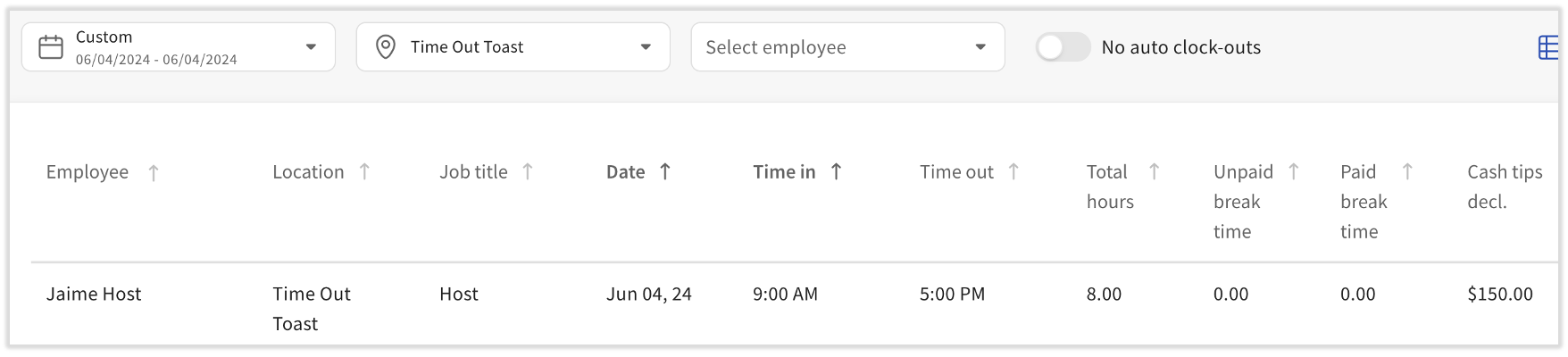
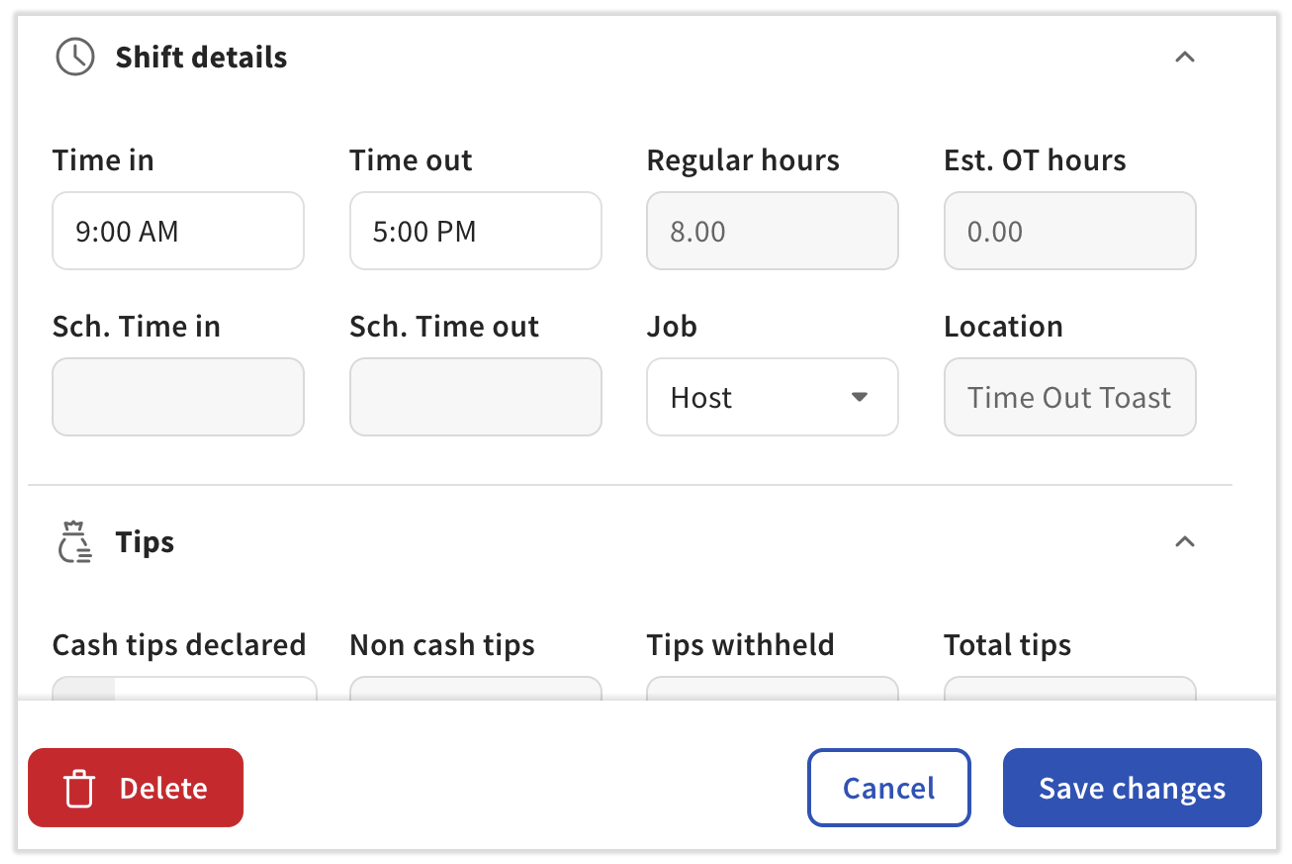
Expected outcome: Changes push to Toast Payroll immediately. You may need to refresh the Timesheets page in Toast Payroll to see them.
For the full Toast Web procedure (including legacy reports, break handling, and POS edits), see "Edit Employee Time Clock Entries."
Add a Time Entry
For a new entry to appear on a timesheet, the timesheet must be unapproved (or auto-approve must be on and payroll not yet started).
- In Toast Web, navigate to Reports > Labor > Time entry management.
- Select + Add Entry in the upper-right corner of the screen.
- Select an Employee from the drop-down menu, then enter the Job, Time in, Time out, and Cash Tips Declared / Breaks (if applicable).
- Select Save entry.
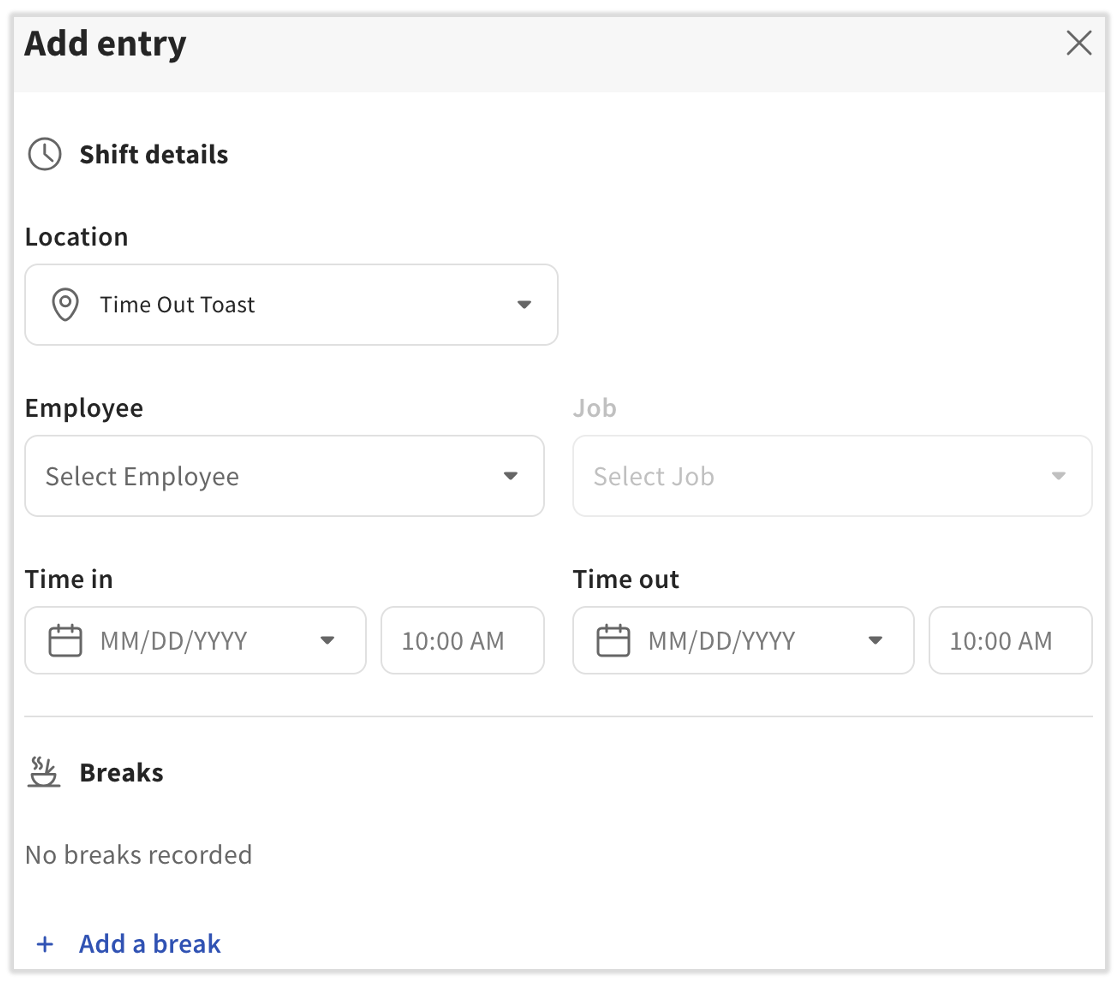
Expected outcome: The new entry syncs to Toast Payroll immediately. You may need to refresh the Time page in Toast Payroll to see it.
Delete a Timesheet
Deleting a timesheet works whether or not auto-approve timesheets is enabled. Use this when a payroll has passed and an unapproved timesheet associated with that payroll is still showing on the Time page, or when you have a duplicate or empty timesheet to remove.
- On the Time page in Toast Payroll, select the blue date link in the Timesheet column for the timesheet you want to delete.
- Select the trashcan icon next to each time and tips entry to remove every entry from the timesheet.
- Navigate back to Time. A Delete button appears where the Approve button used to be.
- Select Delete to permanently remove the timesheet from Toast Payroll.
Note: You may need to scroll your screen to the right to see the trashcan icon or the Delete button, especially on mobile.
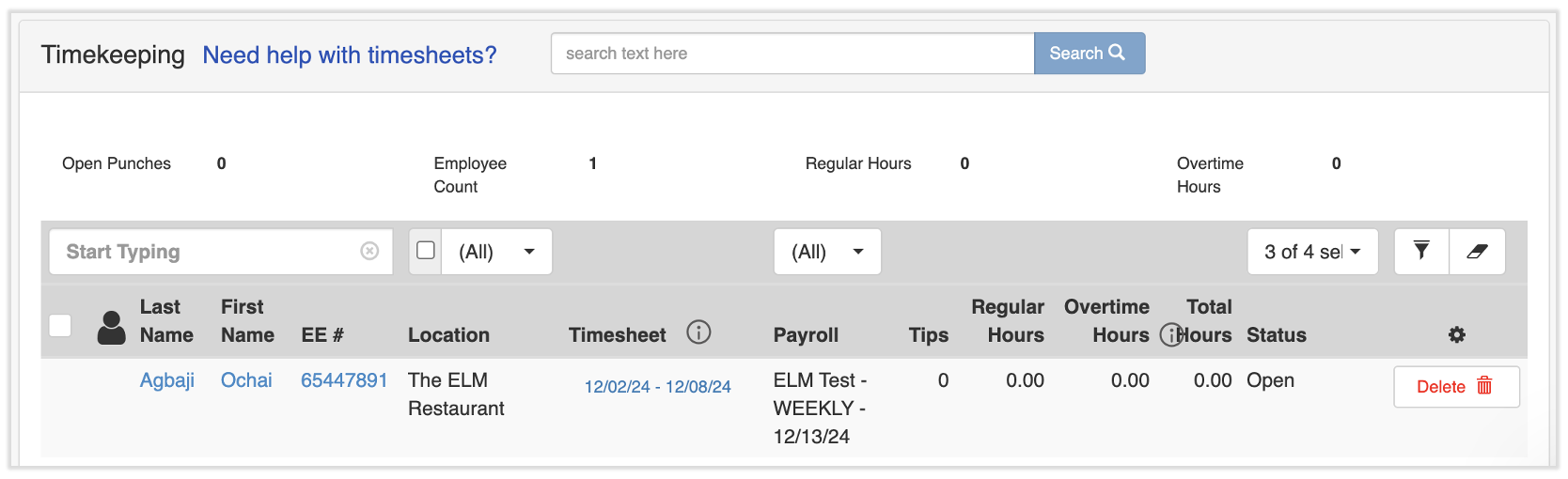
Expected outcome: The timesheet no longer appears on the Time page and the entries are removed.
Fix a Timesheet With Open Punches
A timesheet cannot be approved while it has open punches. Employees flagged with Open Punches have an open shift and need to be clocked out before the timesheet is approved.
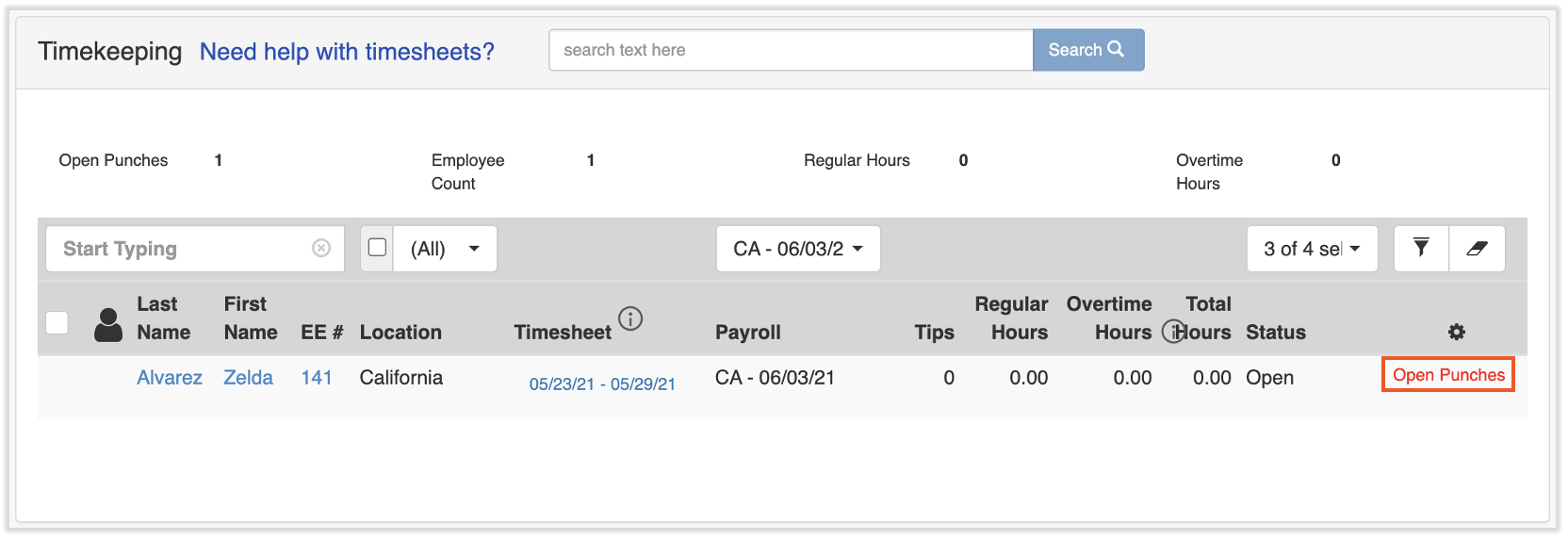
To find which shift is open, select the Timesheet link to open the detail view. Red entries indicate the shift the employee did not clock out of.
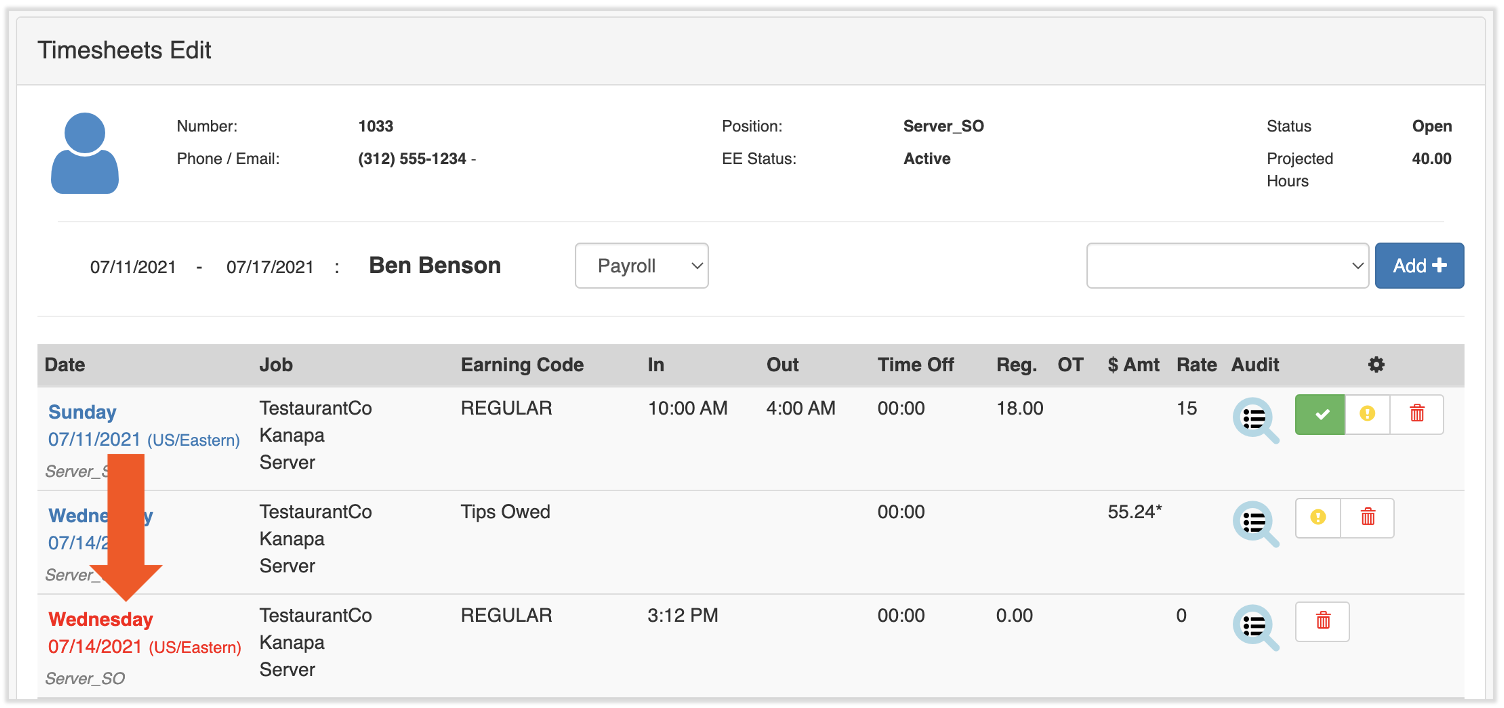
To fix the open punch:
- Open Toast Web and navigate to Reports > Labor > Time entry management.
- Locate the shift with the missing clock out and edit the Time out field, or open shift details and remove the auto clock-out time. See Edit Employee Time Clock Entries for the full procedure, including the Anomalies column for auto-clock-out detection.
- Save the change.
Expected outcome: The open punch is closed in Toast Web, the change syncs to Toast Payroll, and the timesheet is now eligible for approval.
For more on auto-clock-outs, see Locate Auto Clock Out Time Entries.
Salaried Employee Timesheets
Salaried employees are paid out under the SALARY earning code. While viewing Pay History > Timesheets for a salaried employee's profile, you may notice a REGULAR earning code on one or more of their timesheets. This is done to align with Toast Web data and to allow salaried employees to easily be made non-exempt if needed. This is non-problematic — these employees are still paid out using the SALARY earning code.
If a salaried employee clocks in and out and you do not want their hours to flow to payroll, see Frequently Asked Questions below.
Frequently Asked Questions
How do I unapprove a timesheet I approved by mistake?
To unapprove a timesheet, reopen it. In Toast Payroll, open the employee's profile, navigate to Pay History > Timesheets, and select Re-Open on the approved timesheet. See Unapprove or Reopen an Approved Timesheet above for the full flow, including what to do if payroll has been started or if you use Toast Tips Manager.
Also asked as:
-
- "How can I unapprove a timesheet?"
- "Can I un approve a timesheet"
- "I think I approved a timesheet and I should not have how do I fix that?"
- "Reverse the approve timesheet"
- "Reopen a timesheet."
Can I unapprove multiple timesheets at once?
No. There is currently no way to bulk un-approve timesheets in Toast Payroll. While timesheets can be approved en masse, they must be reopened individually. Timesheets cannot be reopened from the Timekeeping Dashboard.
To find which employees have approved timesheets:
- In Toast Payroll, navigate to Time > Employees.
- View the Approved Timesheets column. Any number other than 0 in this column indicates an employee with a recently approved timesheet.
Reopen each timesheet from the employee's profile (employee's profile > Pay History > Timesheets > Re-Open), repeating for every employee whose timesheet you need to reopen.
If timesheet edits affect tips, resend tips back to Toast Tips Manager after reopening — see Tips Manager With Toast Payroll.
How do I delete a timesheet that's not tied to a payroll?
To delete a timesheet that is not tied to a payroll (or any timesheet you want to remove), use the Delete a Timesheet procedure above. Open the timesheet, remove every time and tips entry with the trashcan icon, then return to Time and select Delete.
Also asked as:
-
- "How to delete a timesheet"
- "How do I get rid of an old timesheet not tied to a payroll"
- "What does timesheet not attached to a payroll mean"
- "Deleting timesheet."
Can I change which payroll a timesheet is tied to?
Yes. The timesheet must be open (not approved) to tie it to another payroll or to attach it to none. If the timesheet has already been approved, reopen it first.
- In Toast Payroll, navigate to the employee's profile > Pay History > Timesheets.
- If the timesheet is approved, select Re-Open so you can make changes.
- Select the timesheet, then at the top right of the timesheet, the current payroll is shown. Select the payroll drop-down and choose a different payroll. You can only select payrolls from pay groups the employee has a position in.
If the payroll drop-down is not selectable, the Make Timesheets Read Only setting is on. An HR+ user can navigate to Settings > Timekeeping, select the Settings tab, toggle Make Timesheets Read Only to No, and select Save. Then return to these steps.
If auto-approve timesheets is on, you can skip the reopen step — timesheets are not "approved" until Start payroll is selected on the Preview Payroll step.
Why is an employee's timesheet missing from the Time page or not pulling into payroll?
The most common cause is a duplicate or unmapped employee profile in Toast Web — the employee may be clocking in under the unmapped profile.
- In Toast Web, navigate to Employees > Employee management > Employees and search for the employee's name. If you find more than one profile for this employee, see Duplicate Employee Profiles in Toast Web for the duplicate-profile fix.
- If there's a duplicate profile in Toast Payroll, contact Toast Payroll Customer Care.
- If profiles look fine, check the mapping between Toast Web and Toast Payroll using the Employee Mapping Tool — see Toast Payroll: Manage Employee Mapping.
If the employee has multiple profiles and the timesheet shows under the wrong location, the time entries may be under the wrong profile or the job/position may be tied to the wrong location. In Toast Payroll, select the chat button in the lower-right corner of any page to contact Toast Payroll Customer Care for assistance.
If you know the timesheet exists but you do not see it on the Time page, navigate to employee's profile > Pay History > Timesheets, select the timesheet in question, and choose the appropriate payroll from the drop-down menu. See Toast Payroll: Get Help With Timesheets for additional missing-timesheet causes (incorrect position, missed shift review, sync/cache).
Also asked as:
-
- "I have timesheets of my employees submitted in timesheet management but don't see in payroll"
- "I have a profile that is in both POS and Payroll but the timesheet is not pulled into payroll"
- "Why does an employee show as not having a timesheet but clearly has hours logged in Time entry management"
- "Employee timesheet not visible in payroll and employee did not get paid."
How do I add a timesheet for an employee who didn't clock in?
To add hours that an employee didn't clock in for, add a time entry in Toast Web and it will sync to a timesheet in Toast Payroll. See Add a Time Entry above for the full procedure. The associated payroll must not be started, and any existing timesheet for that employee must not be approved (or auto-approve must be on and payroll not yet started).
Also asked as:
-
- "An employee forgot to clock in and out. Can I add a timesheet for them?"
- "How do I add a timesheet? The employee does not punch in Toast Tab"
- "How can I add a timesheet for a 4/22 date that was missed in last payroll"
- "How do I add a timesheet for an employee if it didn't transfer from Toast Web?"
A salaried employee is clocking in and out — how do I keep their hours off payroll?
To prevent a salaried employee's clocked hours from showing up on payroll, set Is Timesheet Tied to Payroll? to No for that employee's position. With this setting as No, even if the timesheet is approved, the hours won't be pushed to payroll. If it's set to any of the Yes options, approved timesheet hours can flow to payroll and may add earnings on top of the salary.
To find this setting, navigate to the employee profile and select the caret icon in the upper-right corner of the Employment Details tile. After selecting a Reason, look for the Is Timesheet Tied to Payroll field.
Also asked as:
-
- "I have an employee that we have under 1099 but for some reason when he punches in his timesheet isn't tied to payroll"
- "1099 employee's timesheet."
My timesheet edit in Toast Web isn't syncing to Toast Payroll. What do I check?
If a time entry shows up in Toast Web but not in Toast Payroll, it just needs to be resubmitted. In Toast Web, navigate to Reports > Labor > Time entry management, locate the time entry, select it to open the sidebar, and select Save changes. The information will resync with Toast Payroll. You may need to refresh the Toast Payroll page.
If payroll was started before the change synced, the change will not show. Reset the payroll first — see Toast Payroll: Reset a Payroll — then verify the timesheet picks up the edit.
If neither of these resolves the issue, see Toast Payroll: Get Help With Timesheets for missing-hours diagnostics, including position/earning code checks and sync/cache issues.
What if I get the error "Timesheet Cannot Be Automatically Approved Right Now"?
The errors Timesheet Cannot Be Automatically Approved Right Now and Timesheet Cannot Be Set to Manual Approve Right Now can be caused by a system outage, a system bug, or something in your account setup. Refresh the page and try again. If the error persists, contact Customer Care.
Can I edit a timesheet that has already been submitted on a finalized payroll?
No. Adjustments cannot be made to a submitted payroll. Submitted payrolls cannot be undone or edited. Other options may be available — see Toast Payroll: Missed Employee or Missed Pay on Payroll.
Why does my employee's timesheet show as Imported, and why can't I edit it?
If a timesheet is marked as Imported, it means the timesheet was approved and payroll processing has already started. If the timesheet is tied to a past payroll, it was approved and included in the payroll it is associated with.
Related Articles
- Toast Payroll: Get Help With Timesheets
- Toast Payroll: Adjust an Approved Timesheet
- Edit Employee Time Clock Entries
- Toast Payroll: Reset a Payroll
- Toast Payroll: Manage Employee Mapping
This content is for informational purposes and is not intended as legal, tax, HR, or any other professional advice. Please contact an attorney or other professional for advice.