Tips Manager With Toast Payroll
Last updated: Apr 8, 2026, 10:15 AM
First Steps Next Steps
|
- Tips Manager + Toast Payroll Setup
- Send Tips to Payroll From Tips Manager
- Revert Sent Tips
- Pay Cash Tips from Toast Tips Manager Through Toast Payroll
- Troubleshoot Tips Manager With Toast Payroll
Tips Manager + Toast Payroll Setup
The federal government outlines tip pooling regulations in the Fair Labor Standards Act (FLSA). State and local governments may have their own regulations too. Prior to setting up tip pools and/or shares for your restaurant within Toast Web, you should consult an HR professional and consider federal, state, and local laws when defining your restaurant's tip policy and distribution rules. Before Tips Manager can operate alongside Toast Payroll, some steps need to be taken.
Map Your Employees
Employee profiles in Toast Payroll should be matched to the corresponding profiles in Toast Web. Using the Employee Mapping tool in Toast Payroll under Settings > Toast > Employees, double-check employees who are already mapped (for accuracy) and sync any profiles which are not mapped yet. Keep an eye out for duplicate profiles in either system. If an employee is incorrectly mapped, their tips from Toast Web will not sync to their timesheets or their payroll, and you'll receive an error message when sending tips/gratuities to payroll.
Assign Earning Codes
Toast Payroll uses earning codes to classify wages in order for taxes to be calculated properly. When you're first setting up Tips Manager, the Complete Setup wizard will take you through this step, but if you ever need to edit your settings, follow these instructions:
- In Toast Payroll, navigate to Settings > Toast > Tips.
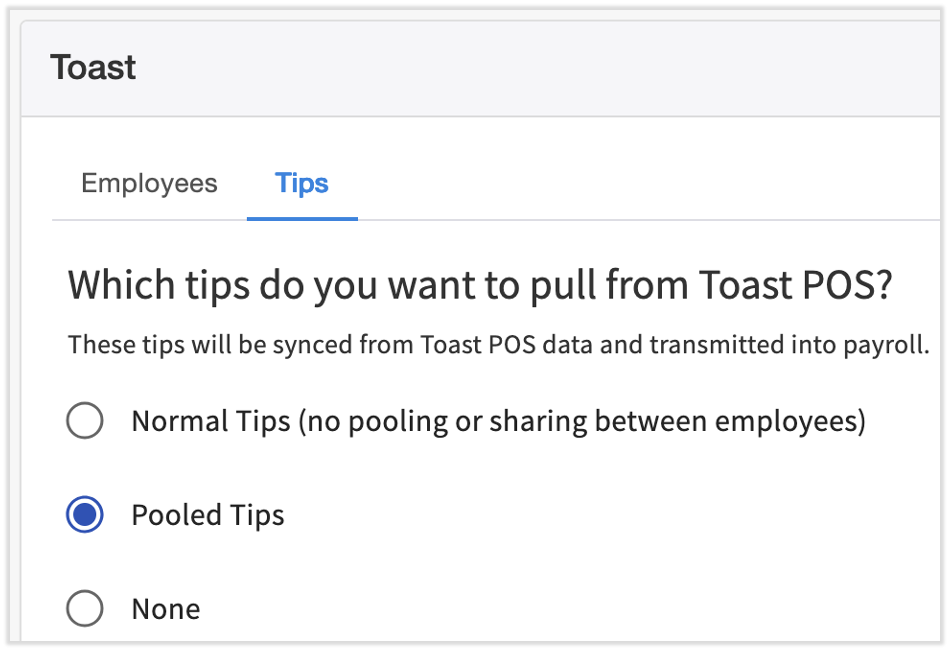
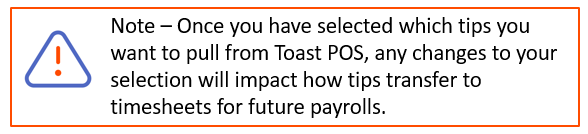
- Select the Pooled Tips option so Toast Payroll will begin pulling tip earnings from Toast Web based on the tip pooling and sharing set up for each employee. Take note of the disclaimer.
- This is an immediate change. If this setting is edited during a pay period, tip entries may be duplicated.
- This is an immediate change. If this setting is edited during a pay period, tip entries may be duplicated.
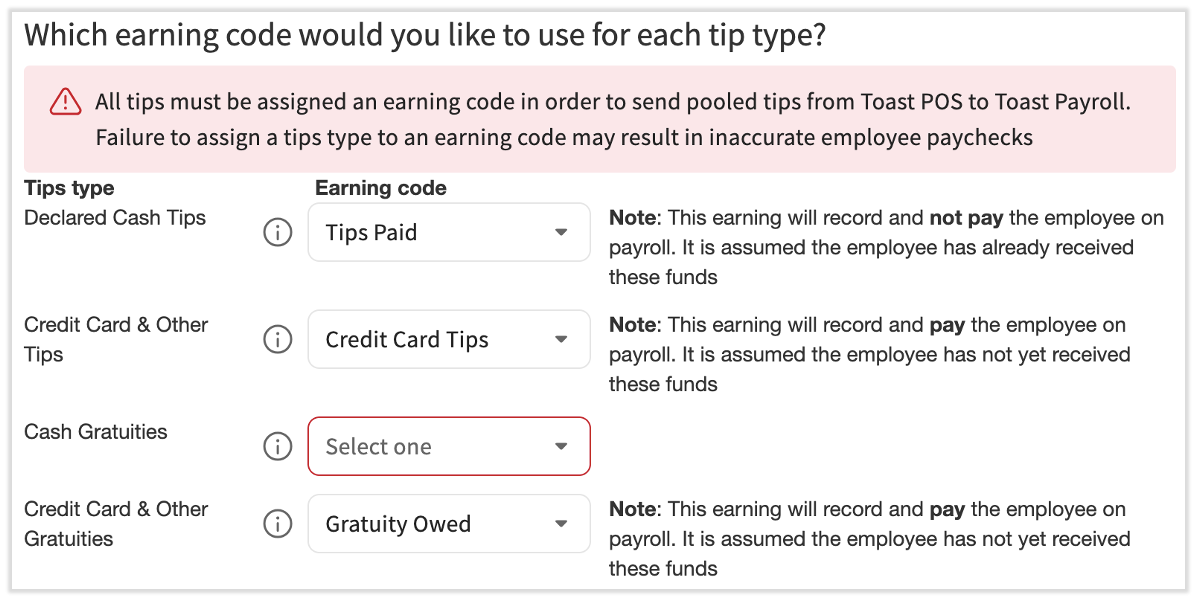
- Next, assign an earning code for each tip type. The tips and gratuities that flow from Toast Web will be logged under the selected earning codes. Once you've assigned an earning code to a category, you cannot select that earning code again. This step may already be complete, but we highly recommend verifying this information regardless of its completion:
- Declared Cash Tips: Cash tips declared by the employee at the end of a shift
- Credit Card & Other Tips: Tips paid for by a credit card or other payment type
- Cash Gratuities: Gratuities paid with cash
- Credit Card & Other Gratuities: Gratuities paid with a credit card or other payment type
- Note: If you need new earning codes created, fill out this form and send it to us via the blue chat button in the lower-right corner of any Toast Payroll page.
Send Tips to Payroll From Tips Manager
Before considering the following, review Toast Tips Manager and Reporting that discuss the Tips Management reports, troubleshooting, and general considerations. Sending tips to Toast Payroll is the last step before processing payroll. Ahead of that:
- Set up distribution rules on your Tip pooling policy page.
- Complete the Tip Management report setup, including the steps listed above. Complete any missing employee mappings and assign applicable earning codes.
- Complete any setup steps your Onboarding Coordinator requests of you, including hiring employees into Toast Payroll.
- Turn on your Toast Payroll and Toast Web integration. This step is conducted by your Onboarding Consultant as the final step ahead of your first payroll. Follow up with them directly for more information.
After taking the above measures, you're finally ready to send tips from Tips Manager to Toast Payroll:
- Review your employees' time entries before proceeding. In Toast Web, navigate to Reports > Labor > Time entry management to verify employee clock-in and clock-out times. Select the date range and location to help narrow down this report.
- Now navigate to Reports > Labor > Tip management to view the Tip Management report.
- At the top, select a date range that includes your pay period.
- You'll need to select each day (not the checkbox) with the Ready status to review and approve the day's tip amounts and calculations. If you use the Service Period interval, verify the data in each shift's tab.
- Select Approve tips when you're ready. You may select Unapprove tips to undo an approval.
- After each appropriate day of tips has been approved and are ready to send to Toast Payroll, you can choose to send all days within the date range or only selected days.
- To select all available days, select the top-most checkbox next to Date. Any days with a status of No Tips, In Progress, and Approved statuses will not be selected; only days with a status of Ready will be selected.
- To send select days, only check the boxes for tips you are ready to send.
- Select Send X day(s) to payroll.
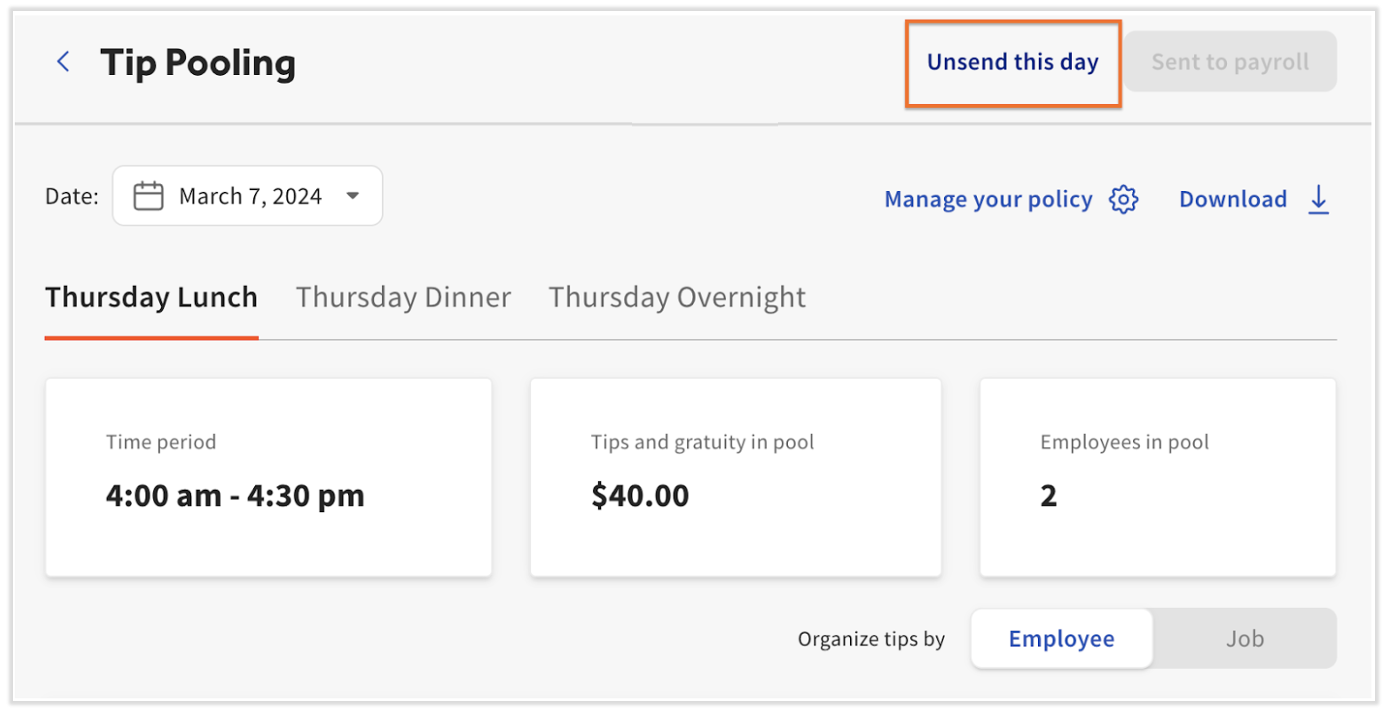
- To unsend tips, select the line (not the checkbox) for each day individually. Select the Unsend this day button at the top. Learn more below.
Revert Sent Tips
In Toast Tips Manager, customers can undo the action of sending tips to Toast Payroll. Navigate to Reports > Labor > Tip management. Select a day (not the checkbox) to open the Tip Management report by day view. If tips have already been sent, select Unsend this day.
This action does a couple of things:
- First, it brings the selected day back to the Ready status. This allows customers to edit employee time entries or edit the tip policy itself prior to resending over to Toast Payroll.
- Second, this action will also remove the tips that were posted to employee timesheets in Toast Payroll.
Note: The same restrictions are in place for reverting tips as they are for sending tips. If payroll has been posted, you cannot revert the tips. If timesheets have been approved or payroll has been started, you will need to reset the payroll, unapprove the timesheets (if applicable), and revert (unapprove) the tip pool. Once the tip pool has been corrected and resent, you can reapprove the timesheet and continue with payroll, if you're ready to.
Pay Cash Tips from Toast Tips Manager Through Toast Payroll
By following these steps, you ensure that cash tips are properly claimed, recorded, and included in payroll while maintaining accurate records for restaurant deposits.
- Do these things before you start paying pooled cash tips through payroll:
- If you do not have one already, create a Cash Tips Owed earning code in Toast Payroll.
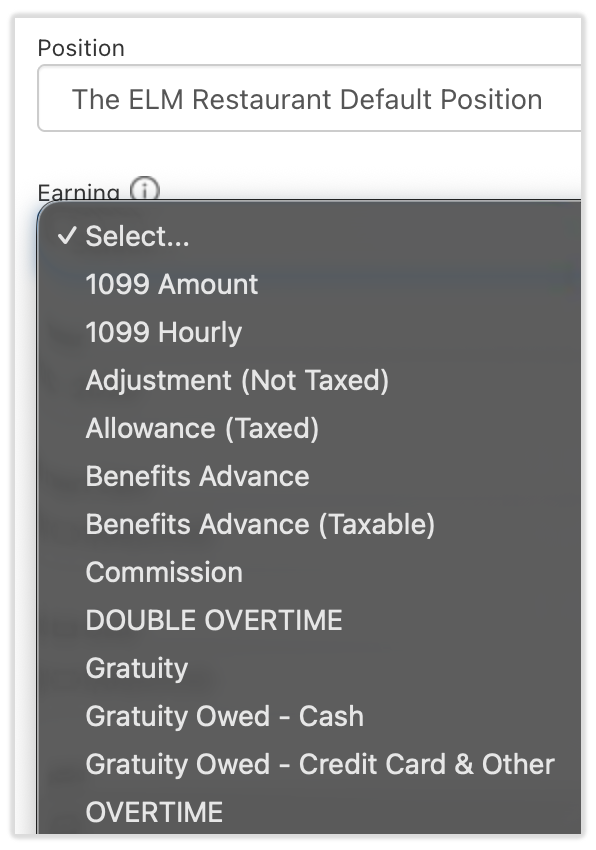
- You can view the existing earning codes in Toast Payroll by navigating to any Toast Payroll employee's profile > Recurring > Add+. Select the Earning drop-down menu to view the list of earning codes in your system. Do not save or add any recurring earnings here.
- If you do not see an earning code you'd like to use here, fill out this New Earning Code Request form and send it to us via the blue chat button in the lower-right corner of any Toast Payroll page. We will let you know once it's set up and ready to use.
- You can view the existing earning codes in Toast Payroll by navigating to any Toast Payroll employee's profile > Recurring > Add+. Select the Earning drop-down menu to view the list of earning codes in your system. Do not save or add any recurring earnings here.
- There are two options to claiming cash tips. Using either option, employees will always turn in their tips to management at the end of their shift.
- Note: The job an employee is clocked into must have a checkmark in Toast Web for Tipped? in Employees > Employee management > Jobs in order to declare cash tips using either option below.
- Option 1: Shift Review
- At the end of each shift, employees will complete their shift review.
- They should record/declare the amount of cash tips received during their shift.
- Option 2: Time Entry Management Report
- Managers/operators will add declared tips to the Time entry management report via Reports > Labor > Time entry management once the employee's shift has been completed.
- Edit the Cash tips decl. field directly on this page.
- Confirm a cash tip rule is present on your Tip pooling policy page in Toast Web.
- Navigate to Employees > Payroll management > Tip pooling policy.
- Make sure one or more tip rules have Cash tips selected as a source for all jobs who should pool their cash tips, including Online Ordering and Salaried personas, if applicable.
- If you do not have one already, create a Cash Tips Owed earning code in Toast Payroll.
- Do these things each night you're distributing pooled cash tips through payroll:
- Add collected cash tips to a cash drawer.
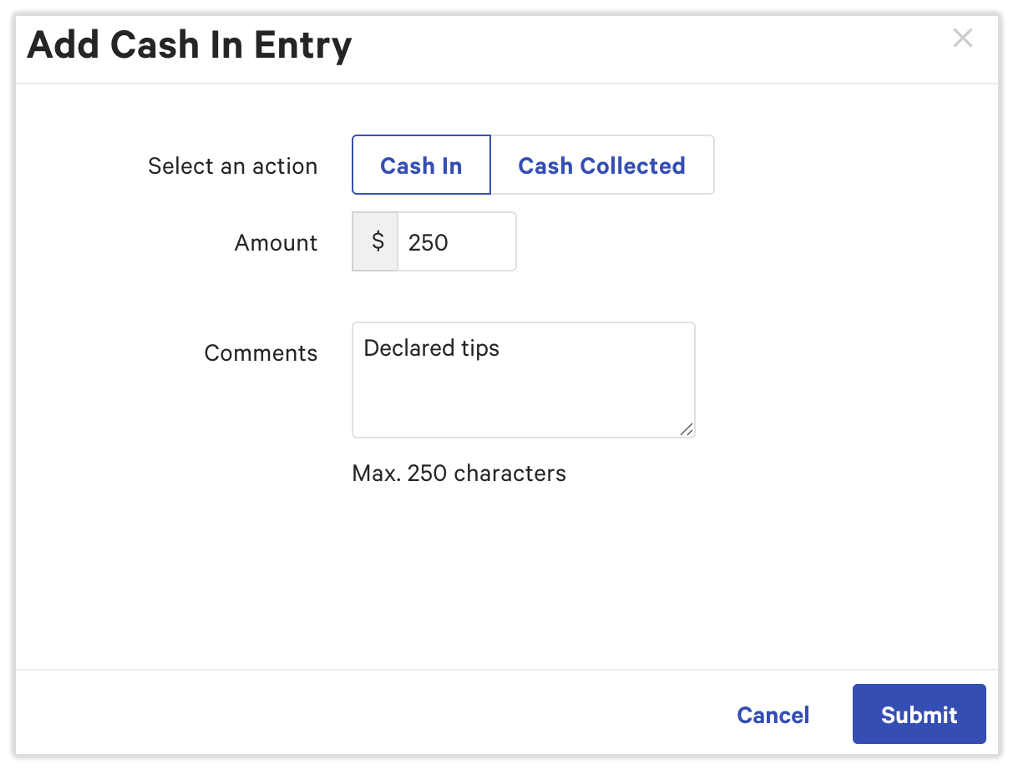
- Implement a procedure for managers/operators to make an Add Cash In Entry to a cash drawer for these cash tips. See the Update Cash Drawer Entries section of Use Cash Drawers.
- Use the Comments field to label this entry as Declared Tips for easy tracking
- You can add a cash in entry for each employee or once for all employees.
- Record cash tips for restaurant deposits.
- At the end of each night, each cash drawer should be reconciled. Ensure the balance of cash taken accurately matches tips recorded.
- The Cash In Entry amounts from above will be included in the restaurant's nightly deposit record, thus enabling these tips to be paid out via payroll.
- Add collected cash tips to a cash drawer.
Troubleshoot Tips Manager With Toast Payroll
Most issues or errors between Tips Manager and Toast Payroll come from mapping issues. Mapping is the process of linking an employee's Toast payroll profile to their Toast Web profile. If you get an error stating your user profile isn't connected to your Toast Payroll profile, you'll need to fix this in Toast Payroll before you can send tips to payroll. On the other hand, only HR+ Toast Payroll users are allowed to send tips to payroll. HR+ is the highest level of security role granted to Toast Payroll customers.
This content is for informational purposes and is not intended as legal, tax, HR or any other professional advice. Please contact an attorney or other professional for advice.