Toast Payroll: Duplicate Profile Detection in Toast
Last updated: Apr 30, 2026, 11:21 AM
This feature helps Toast Payroll users prevent duplicate profiles when you're add a new profile into Toast Web or Toast Payroll.
| This guide only applies to US based companies who use Toast Payroll. Toast Payroll is not available to customers outside of the US. If you do not use Toast Payroll, duplicate profile detection is not available at this time. Toast Payroll users can see duplicate profile badges in both Toast Web and Toast Payroll as described below. |
Duplicate Profile Detection Basics
When you hire an employee in Toast Payroll, there is a risk of creating duplicate profiles for the same employee, both in Toast Web and in Toast Payroll. Duplicate profiles can cause confusion and errors for a number of reasons, including:
- Toast Web
- Where to find time clock and tip data in Toast Web. Toast Web may report this in two places.
- Which POS access code an employee should use. An employee may be clocking into the "wrong" profile.
- Which jobs and permissions an employee is assigned to. Different jobs may be on different profiles with different POS access codes.
- Toast Payroll
- Where to find tips and time clock entries synced from Toast Web. Toast Payroll may not contain all hours and tips an employee has recorded.
- Which profile contains a user's accurate Social Security number (SSN) and Form W-4 settings. Errors may arise during quarterly and year-end tax filing.
- Most importantly, which Toast Payroll profile is synced to the correct Toast Web profile so all this information can sync between the two systems.
This new feature comes with a number of benefits. Duplicate profile detection:
- Helps you prevent duplicate profiles from being created in the first place.
- Lets you know in advance of hiring an employee whether they have an existing profile in either system or not.
- Offers indicators showing whether a potential match is from Toast Web, Toast Payroll, or both.
- Gives you options to select the existing profile (and navigate that employee's profile) or confirm you're creating a new profile.
- Uses automatic mapping when selecting an unpaid Toast Web employee from Toast Payroll.
- Allows employees to clock-in as soon as possible.
What Each Badge Means
When you're hiring an employee in Toast Payroll and you encounter a duplicate profile warning, use this table to quickly reference what each duplicate profile badge indicates and what steps you can take to proceed. Note: No Payroll Details means that this profile exists in Toast Web only and there is no "duplicate" Toast Payroll profile.
| Badge | What It Means | What To Do |
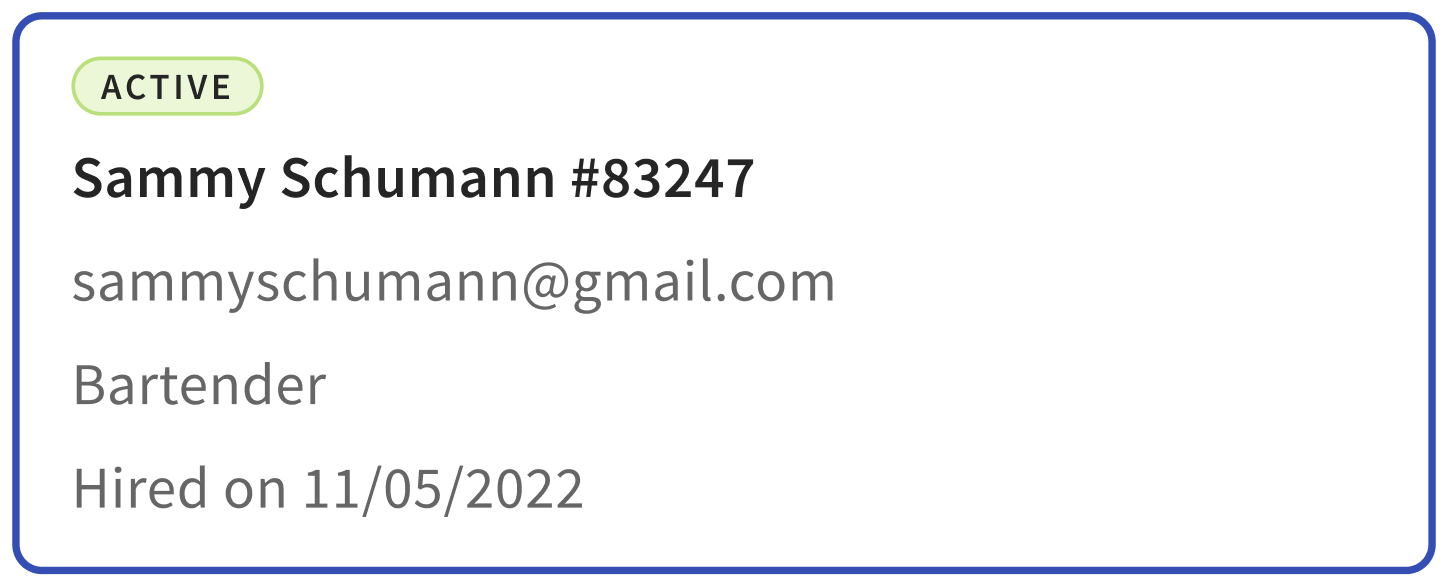 | Active badge: This person already has an active profile in Toast Payroll, but not in Toast Web. | If this is the same individual you're trying to hire, select this tile to be taken to their Toast Payroll profile.
|
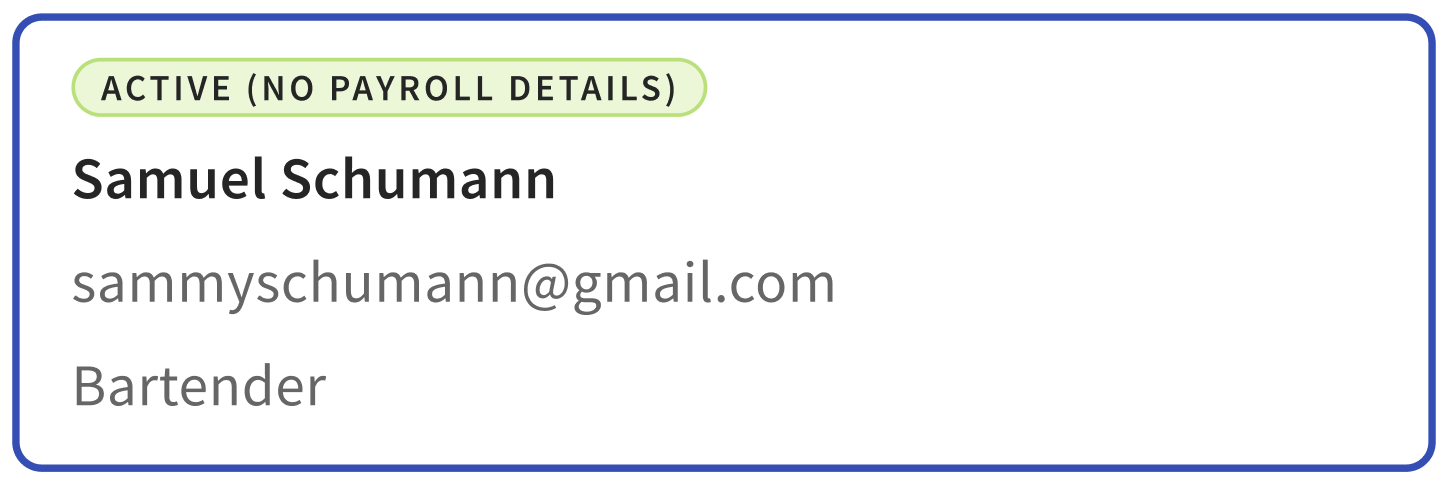 | Active (No Payroll Details) badge: This person already has an active profile in Toast Web, but not in Toast Payroll. | If this is the same individual you're trying to hire, select this tile to be taken to the new hire workflow in Toast Payroll. Note: Employee details selected during the new hire workflow in Toast Payroll, such as job or rate of pay, will overwrite the existing Toast Web profile reflected in the tile shown. |
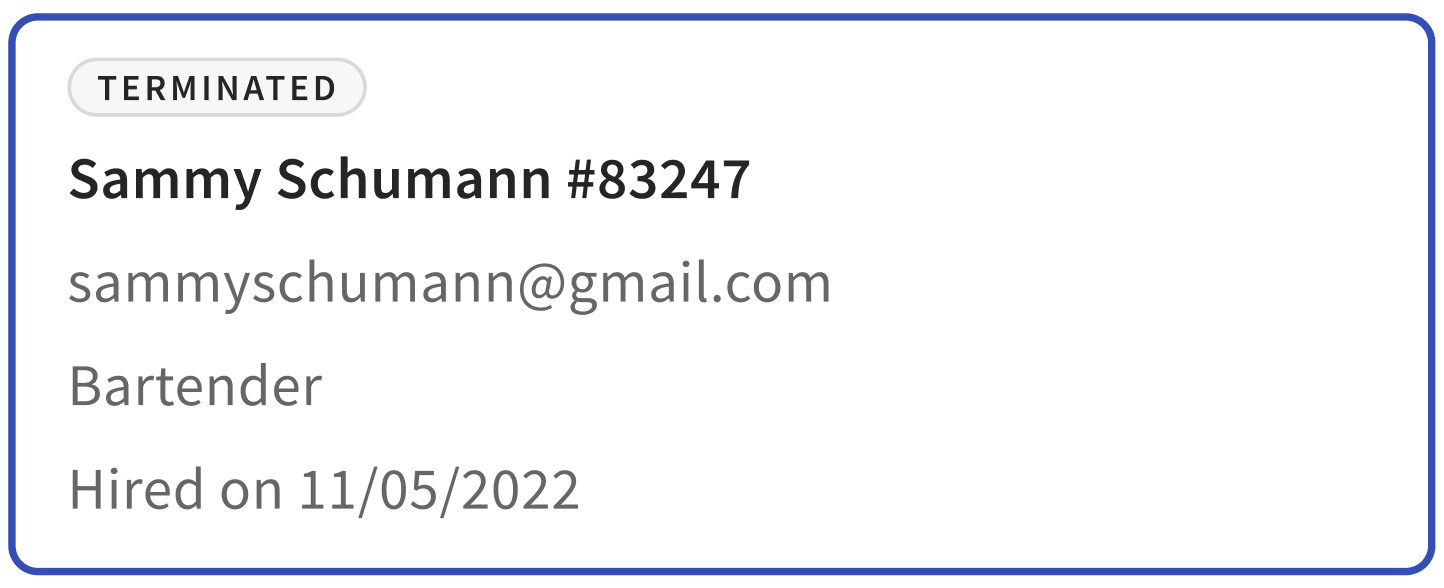 | Terminated badge: This person already has a profile in Toast Payroll, but their profile has a Terminated status. | Rehire this individual in Toast Payroll rather than adding a second profile. |
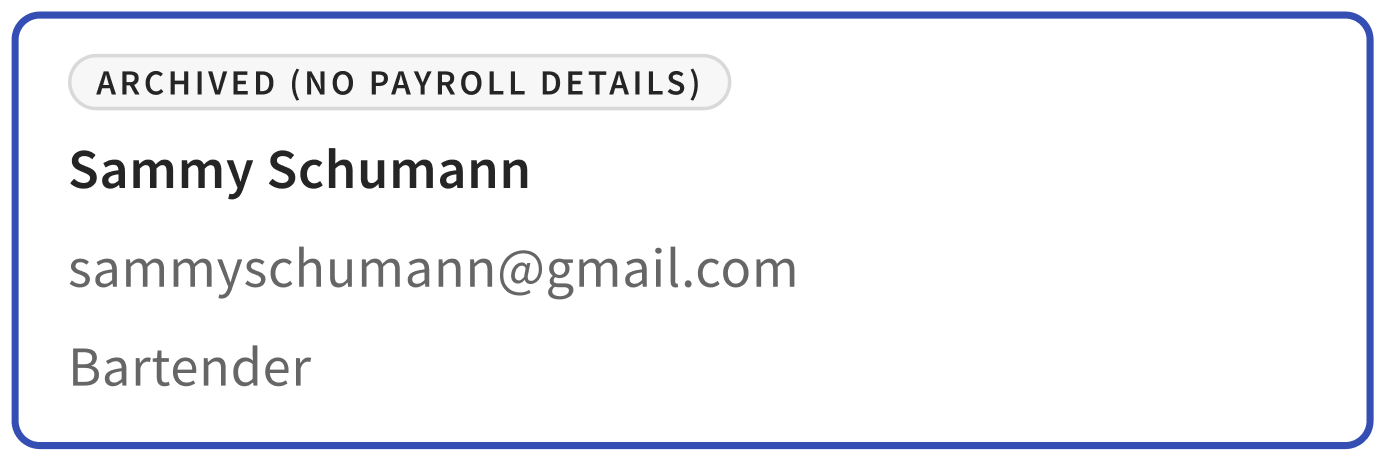 | Archived (No Payroll Details) badge: This person already has a profile in Toast Web, but it's archived. | Hire this individual in Toast Payroll to avoid duplicate profiles. |
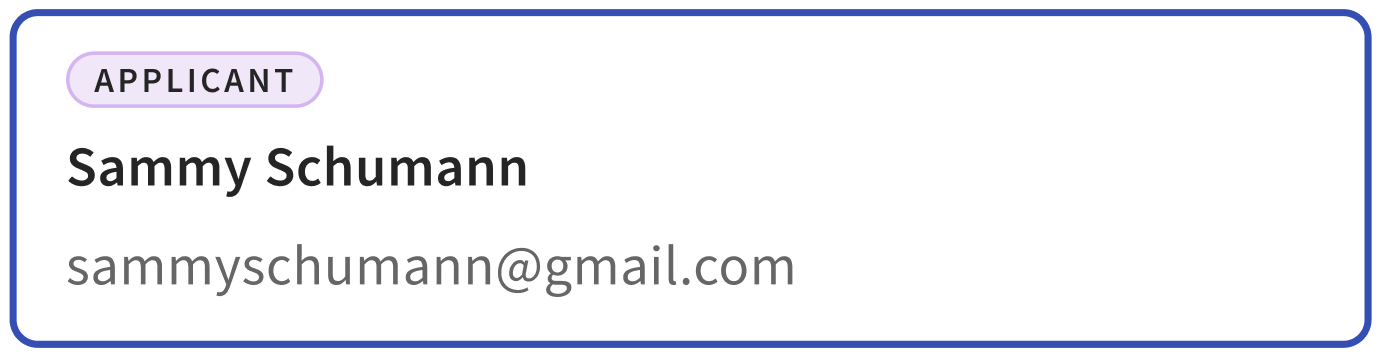 | Applicant badge: This person is an applicant in the Toast Payroll Recruitment module. | Review the Manage the Applicant Lifecycle section of Toast Payroll: Manage Applicants in the Recruitment Module. The applicant can be taken through the Recruitment module and made into an active individual without creating a new profile. |
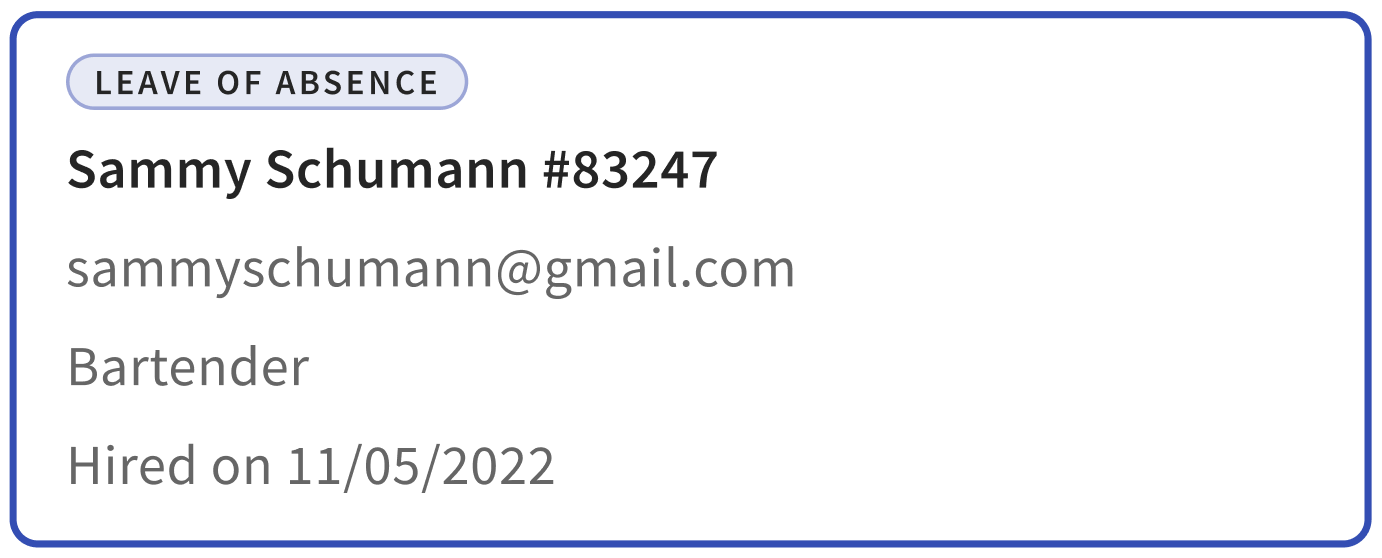 | Leave of Absence badge: This person already has a profile in Toast Payroll, but they're on a leave of absence (LOA). | Update the individual's status in Toast Payroll to Active rather than creating a new profile. |
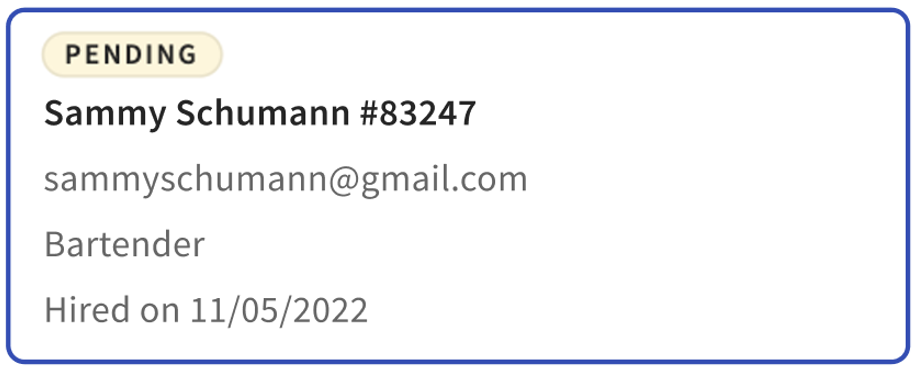 | Pending badge: This person already has a profile in Toast Payroll, but they have not yet hit the Start date set during the new hire workflow. | If the Start date is set to a future date, the employee can still clock into Toast Web, but you may adjust their Position Begin Date to change their status to Active so they are able to be paid. Pending employees will not appear on payrolls. |
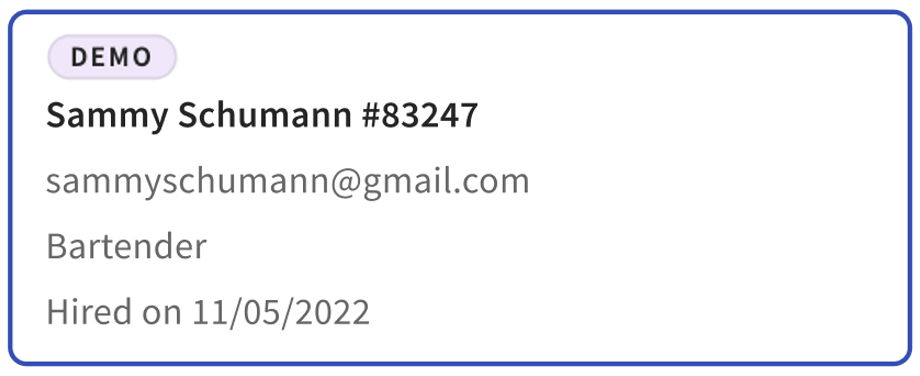 | Demo badge: This person already has a profile in Toast Payroll, but they're in the Demo Employee status. | Individuals who do not get paid through Toast Payroll, but need a profile to access year-end documents, reporting or other information may have the Demo Employee status. You may decide to change their status to Active so they can be paid through Toast Payroll |
Duplicate Profile Detection
If you're hiring a new employee or adding a new profile and you get a duplicate profile warning, review the following scenarios.
Note: To avoid duplicate profiles from being created in the first place, hire employees into Toast Payroll rather than adding them to Toast Web. After the new hire workflow in Toast Payroll has been completed, their Toast Web profile will automatically and instantly be created and mapped to their Toast Payroll profile.
Active Badge While Adding or Hiring an Employee
If Toast finds a "duplicate" Toast Payroll profile with a similar or matching name, email address, or phone number, this profile with an Active badge may indicate an existing profile of the same user you are trying to add or hire. Review the information carefully to ensure this isn't a profile for someone with a similar name, email, or phone number. If you determine this is the same person you're trying to add or hire, select the profile and select Next. You will be brought to that profile in Toast Payroll in case you'd like to make changes.
- If you need to make changes to jobs, pay, or demographic information, use the appropriate article.
- You or the employee can make changes to their Form W-4, SSN, or direct deposit account.
- Only the employee can update their email address.
Note: If you're in Toast Web and you entered a new POS access code in the "add employee" sidebar in Toast Web before you selected the duplicate Active profile, that number will be overwritten in the existing Toast Web profile, so be sure your employee is aware that they way they clock in has changed. However, if you've edited any other information (name, email, or job/pay), this will not be overwritten, despite the fact that you get a green success notification at the bottom of your screen. This user will be allowed to clock in right away.
Active (No Payroll Details) Badge While Adding or Hiring an Employee
If Toast finds a "duplicate" Toast Web profile with a similar or matching name, email address, or phone number, this profile with an Active (No Payroll Details) badge may indicate an existing profile of the same user you are trying to add or hire. Review the information carefully to ensure this isn't a profile for someone with a similar name, email, or phone number. If you determine this is the same person you're trying to add or hire, select the profile and select Next.
Since you have Toast Payroll, you will be brought into that platform's hire workflow allowing you to add that person's information into the system. Finish these steps as outlined in Toast Payroll: New Hire Employees (Employer Guide) to create a Toast Payroll profile for this person. Once the new hire steps have been completed, Toast will automatically sync this information and map to the Toast Web profile with the Active (No Payroll Details) badge. The employee can clock in right away.
Terminated Badge While Adding or Hiring an Employee
If Toast finds a "duplicate" Toast Payroll profile with a similar or matching name, email address, or phone number, this profile with a Terminated badge may indicate an existing profile in Toast Payroll for the user you are trying to add or hire. Review the information on the suggested match tile carefully to ensure this isn't a profile for someone with a similar name, email, or phone number. If you determine this is the same person you're trying to add or hire, select the profile and select Next.
If this is the case, the employee you were trying to hire already has an archived profile in Toast Web and a Terminated profile in Toast Payroll. By selecting the match tile, the system assumes you were trying to rehire this person that has been previously terminated, so you will be brought to Toast Payroll to rehire them. Follow the steps in Toast Payroll: Rehire Guide. Once completed, this will update the Toast Payroll profile to Active status and unarchive the Toast Web profile. The two profiles will remain mapped and the employee will be able to clock in right away.
Archived (No Payroll Details) Badge While Adding or Hiring an Employee
If Toast finds a "duplicate" Toast Web profile with a similar or matching name, email address, or phone number, this profile with an Archived (No Payroll Details) badge may indicate an existing profile of the same user you are trying to add or hire. Review the information on the suggested match tile carefully to ensure this isn't a profile for someone with a similar name, email, or phone number. If you determine this is the same person you're trying to add or hire, select the profile and select Next.
If this match has been selected, you'll be brought to Toast Payroll where you can hire this person. Toast Payroll: New Hire Employees (Employer Guide) is your guide to completing each step. Once you've finished, the employee should take their own set of steps written in Toast Payroll: Employee Onboarding (Employee Guide). All steps outlined in both articles are vital to ensure the employee's Toast Payroll profile has all the required information and can be paid properly.
Applicant Badge While Adding or Hiring an Employee
If Toast finds a "duplicate" Toast Payroll profile with a similar or matching name, email address, or phone number, this profile with an Applicant badge may indicate an existing profile of the same user you are trying to add or hire. Review the information on the suggested match tile carefully to ensure this isn't a profile for someone with a similar name, email, or phone number. If you determine this is the same person you're trying to add or hire, select the profile and select Next.
If this is the case, you will be brought to Toast Payroll since the employee is still part of the Recruitment module in that system. Until they are hired through the Recruitment module, they only have a placeholder Applicant profile in Toast Payroll. They cannot clock in nor be paid at this point.
Select Recruitment in Toast Payroll and review the Manage the Applicant Lifecycle section of Toast Payroll: Manage Applicants in the Recruitment Module so the applicant can progress through the Recruitment module and be made into an Active profile (without creating a new profile).
Leave of Absence Badge While Adding or Hiring an Employee
If Toast finds a "duplicate" Toast Payroll profile with a similar or matching name, email address, or phone number, this profile with a Leave of Absence (LOA) badge may indicate an existing profile of the same user you are trying to add or hire. Review the information on the selected match tile carefully to ensure this isn't a profile for someone with a similar name, email, or phone number. If you determine this is the same person you're trying to add or hire, select the profile and select Next.
If this is the case, the employee has an active profile in Toast Web, but their Toast Payroll profile is "inactive" while they are on leave. The system assumes you were trying to bring this person back from LOA, so you will be brought to Toast Payroll to update their status. Follow the steps in Toast Payroll: Make an Employee Status Change if you wish to do this. Those steps will update the Toast Payroll profile to Active status and the Toast Payroll profile will remain mapped to the Toast Web profile. The employee can clock in immediately after this.
Pending Badge While Adding or Hiring an Employee
If Toast finds a "duplicate" Toast Payroll profile with a similar or matching name, email address, or phone number, this profile with a Pending badge may indicate an existing profile of the same user you are trying to add or hire. Review the information on the suggested match tile carefully to ensure this isn't a profile for someone with a similar name, email, or phone number. If you determine this is the same person you're trying to add or hire, select the profile and select Next.
For background, to put a profile into the Pending status, you can set an employee's Start date into the future on step 1 (Basic info) of the Toast Payroll new hire workflow. Profiles which have not yet hit their start date will be in a Pending status.
In this case, the employee will already have an active profile in Toast Web and any hours they clock in for will be recorded, but cannot be paid out until the profile is Active, so you may wish to update the dates on the Position Detail page. As described in Toast Payroll: Date Glossary, the Position Begin Date and the Original Hire Date control whether an employee is eligible to appear on a payroll run, so in order to pay them on an upcoming payroll, both these dates must be within the pay period of that payroll. Adjusting these two dates to today or a date in the past will change their status to Active and allow them to be paid on a payroll that contains those two dates in its pay period.
Demo Badge While Adding or Hiring an Employee
If Toast finds a "duplicate" Toast Payroll profile with a similar or matching name, email address, or phone number, this profile with a Demo badge may indicate an existing profile of the same user you are trying to add or hire. Review the information on the suggested match tile carefully to ensure this isn't a profile for someone with a similar name, email, or phone number. If you determine this is the same person you're trying to add or hire, select the profile and select Next.
If this is the case, the individual will have an active profile in Toast Web, but their Toast Payroll profile is not eligible to be paid on payroll since their status is Demo (this commonly includes bookkeepers and accounts who were set to Demo to maintain access to the system, but keep them off per month employee costs). The system assumes you want to make this person an Active employee, so you will be brought to their Toast Payroll profile where you can update their status. Follow the steps in Toast Payroll: Make an Employee Status Change if you'd like to do so.
When completed, the Toast Payroll profile will remain mapped to the Toast Web profile and the employee will be eligible for payroll. However, and this is very important, if the steps in Toast Payroll: Give Access to a Non-Employee were followed to originally place this Toast Payroll profile in Demo status, this individual will not have completed any new hire steps in Toast Payroll. If you make the status change and update the Toast Payroll profile to Active status, the individual should follow the applicable steps in Toast Payroll: Employee Onboarding (Employee Guide) to enter their SSN, fill out a Form I-9 and Form W-4, and set up direct deposit, among other steps. These are all crucial steps to make sure the profile contains all required information and the individual is paid accurately.
Duplicate Profile Detection FAQ
What if I select Continue creating a new profile instead of selecting an existing profile?
You are always allowed to skip the duplicate profiles and proceed with creating a new profile in Toast Web or Toast Payroll. This lets you skip over a bad match, such as if an employee has a similar or same name to another employee. However, we do not recommend this when the "duplicate" profile that Toast found is a profile for the user you're trying to hire. Creating duplicate profiles almost always has negative consequences downstream and will require further work to correct, so avoiding these early on can save time and frustration.
How can I confirm the automatic actions done by the system after I select an existing profile?
When you select a duplicate profile while adding an employee in Toast Web or while hiring an employee in Toast Payroll, the system will always map (or confirm mapping) between these two profiles, so that's the best place to start.
-
- In Toast Payroll, navigate to Settings > Toast > Employees.
- Locate the employee you were working on and verify the correct profiles are mapped together. Reference the name and email address for this. If you need to, select the pencil icon and you'll also be able to see when a Toast Web profile last clocked in, giving you another reference point.
- If you believe you chose the incorrect "duplicate" profile and accidentally mapped two unrelated profiles together, contact Customer Care.
- If mapping is accurate, navigate to the employee's profiles in Toast Web and Toast Payroll.
- In Toast Payroll, verify the employee's jobs and pay rates. These will match what's in the Toast Web profile.
- In Toast Web, verify the employee's POS access code and confirm their time entry and tip data in the new Performance tab. This will match what's in the Toast Payroll timesheet data.
What if I select the wrong profile during this process?
If you received a duplicate profile warning and you believe you chose the incorrect profile, it's important to fix this as quickly as possible. Contact the Toast Payroll Customer Care team by selecting the blue chat button in the lower-right corner of any Toast Payroll page for assistance.
This content is for informational purposes and is not intended as legal, tax, HR, or any other professional advice. Please contact an attorney or other professional for advice.