Shift Review Overview
Last updated: Aug 18, 2026, 10:05 AM
- About shift review
- Complete a shift review
- Reopen a shift
- Complete a shift review for a previous day
- Shift review for delivery drivers
- Manager: Review employee shifts
- Frequently asked questions
- Known limitations
- Related articles
About shift review
Shift review — also called end-of-day closeout, shift closeout, or checkout — is an optional end-of-day task that employees complete before clocking out. It gives employees a summary of their sales transactions, tips earned, and any cash to turn in or collect.
Shift review is supported in Table Service, Quick Order, Payment Terminal, and Delivery modes. You can configure shift review as required or optional in Toast Web. When required, hourly employees must close all open checks and declare cash tips before clocking out. When optional, employees can clock out directly.
Looking for training with a Toast Training Expert?
Watch an on-demand Toast Classroom session to help you set-up and get started with Front of House! Select the button below.
Toast Classroom - Front of House
Required employee permissions
At least one of the following permissions must be enabled for an employee to access shift review:
- 1.1 Table Service Mode
- 1.2 Quick Order Mode
- 1.4 Payment Terminal Mode
Delivery drivers require the 2.1 Delivery Mode permission. Managers require the 3.12 Shift Review permission to access the Review employee shifts function.
Shift reviews can only be completed for employees who are clocked in. For instructions, see Clock in and out for shifts and breaks.
To configure whether shift review is required or optional — or to customize the printed shift review report — see Customize shift review settings.
Complete a shift review
To access shift review, go to the main menu of the Toast app and select My Account > Shift Review. Managers can view and complete shifts for employees under Manager Activities > Review Employee Shifts.
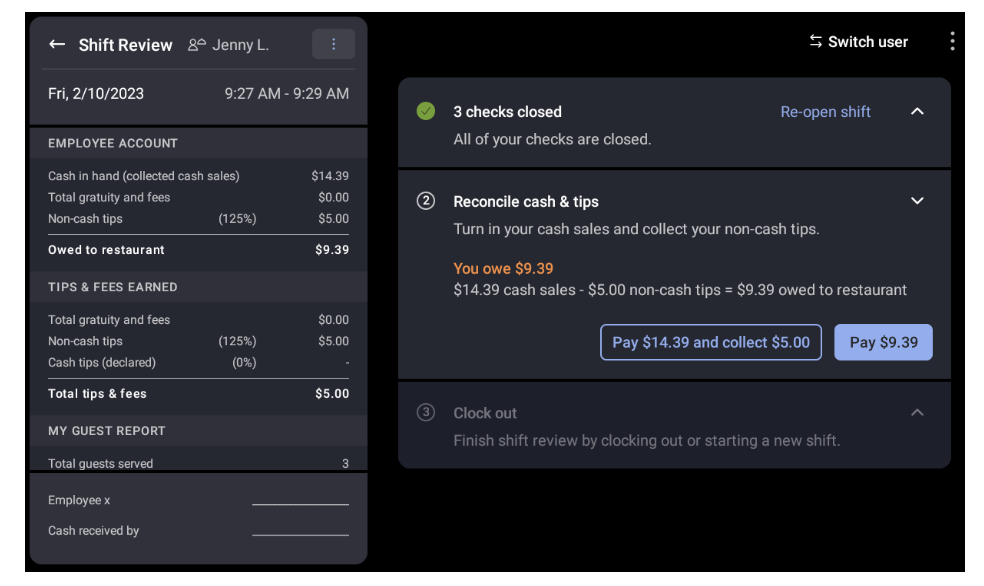
The Shift Review report appears on the left side of the screen. The steps to complete appear on the right. A green checkmark appears next to each completed step.
Note: The steps below appear in chronological order. Declare cash tips and Close cash drawers are optional steps that appear only when enabled in Toast Web. Shift reviews can only be accessed for the current business week.
Close checks
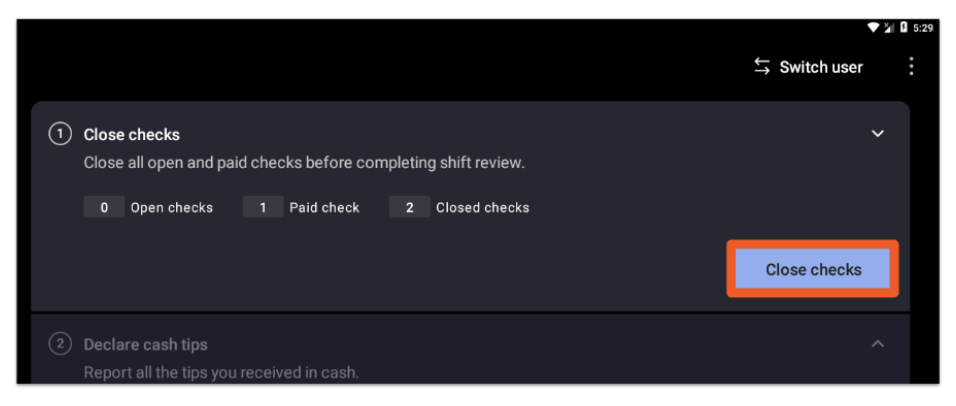
In this step, employees close, adjust, or view all open checks from their shift. The step shows the number of open, paid, and closed checks.
If all checks are already closed, this step is automatically skipped and marked with a green check mark. If there are open or unpaid checks, the employee must close or transfer them before continuing.
- On the main menu of the Toast app, select My Account > Shift Review.
- Check whether the Close checks step has a green checkmark. If so, proceed to the next step.
- If not, select Close checks to open the Payment Terminal and close all open or unpaid checks.
- If a check cannot be closed, either void it (with manager approval) or transfer it: select the overflow menu (⋮) > Change server.
- After all checks are closed, a green checkmark appears on the step. Select Close shift (or Next) to continue.
Note: Any open or paid checks remaining at the closeout hour (default: 4:00 a.m.) are automatically closed with zero tips.
Declare cash tips (optional)
In this step, tipped employees enter the cash tips they collected during their shift. This step appears only if it has been enabled in Toast Web under Employees > Shift review > Shift review setup > Declare cash tips.
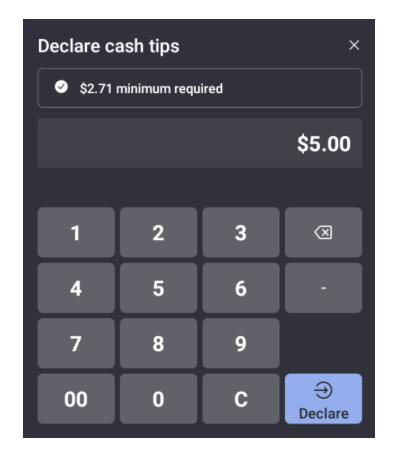
Depending on your restaurant's configuration, employees may be required to declare a minimum percentage of cash sales as tips, or be permitted to declare negative cash tips (useful for tipping out bussers and dishwashers — requires manager approval and the Negative declared tips setting set to Allow).
- Select Declare cash tips to open the numerical keypad.
- The keypad displays total cash payments, total payments, and any required tip percentage.
- Enter the tip amount. If a minimum requirement is set, you must meet that amount to continue.
- Select Declare to save, or No tips to declare $0.
To update a previously declared amount, select Update cash tips. To take more payments before closing, select Reopen shift.
After declaring, select Close shift to indicate you are no longer taking payments and move to the next step.
To adjust a declared cash tip after a shift is closed, see Declare cash tips overview.
Reconcile cash and tips
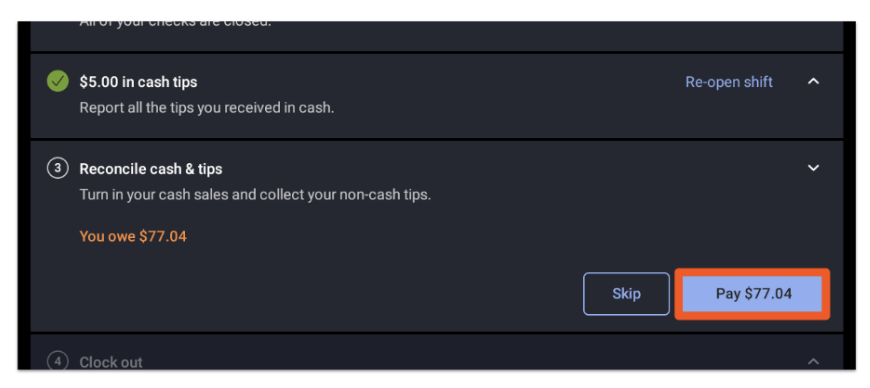
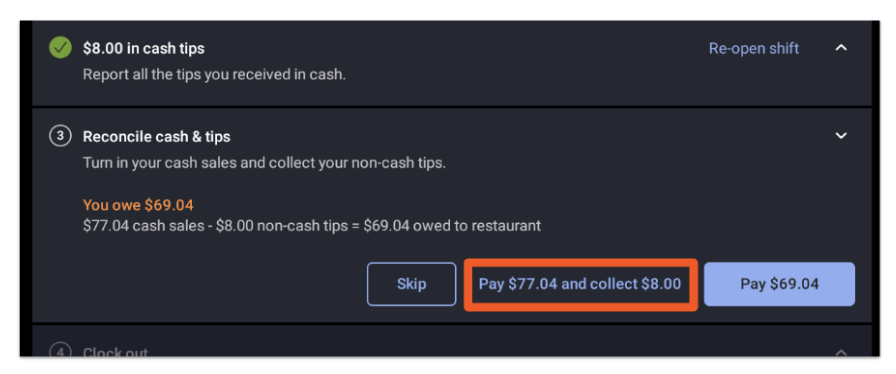
Note: In this step, Toast calculates what you owe the restaurant or what the restaurant owes you, based on your cash sales and non-cash (credit card) tips. If you collected cash payments during your shift, you turn that cash in here. If you earned credit card tips, you collect that cash here. The amount shown reflects your net position for the shift — it is not a penalty or an error.
Depending on your restaurant's configuration, employees may see one of the following options:
- Skip this step: The restaurant does not require employees to turn in cash or collect tips at shift end. This step is hidden.
- Pay or Collect: Employees either turn in cash owed to the restaurant or collect tips owed to them. Use this when cash and tip out are tracked in the same location.
- Pay and Collect: Employees turn in cash owed and then collect tips owed as two separate actions. Use this when cash and tip out are tracked in separate locations — for example, cash goes into a drawer while tips come from a server's own cash bank or a safe.
- Select Pay $, Collect $, or Pay and collect $ based on the amount shown.
- Note: If Pay out through payroll is enabled in Toast Web, only the Pay $ button appears. Non-cash tips will be paid out through payroll instead.
- If prompted, select a cash drawer to deposit or collect funds, or select Don't use cash drawer to deposit directly to the house (such as an office safe).
- To collect credit card tips without a manager passcode, employees must have the 1.13 No Sale permission.
- Once the transaction is complete, a green Paid label appears next to the amounts in the shift review report. Select Next to continue.
Close cash drawers (optional)
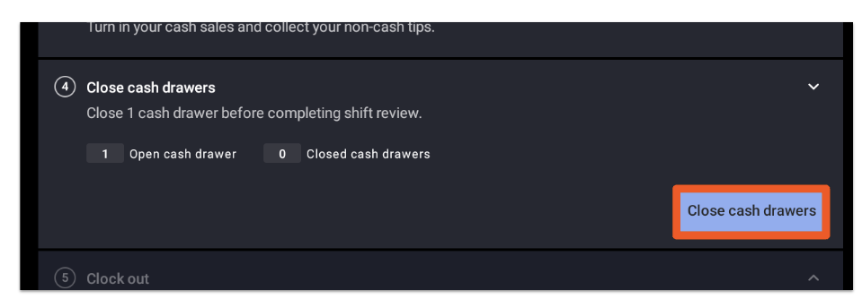
In this optional step, employees locked to a cash drawer are required to close it out. This step appears only if enabled in Toast Web and only for employees currently locked to a drawer.
- Select Close cash drawers to open the cash drawer screen, where you can view a summary of your open and closed drawers.
- Select Close drawer under the End of shift section to open the Close out balance dialog.
- Count all cash in the drawer and enter the total in the Cash actual field.
- Select Count bills to use the built-in calculator.
- Note: If you have the 3.17 Cash drawers (Blind) permission, the Cash expected amount is hidden.
- The system calculates the difference and displays Cash over, Cash short, or No difference.
- If the difference exceeds the threshold configured in Toast Web, a manager must approve the closeout.
- Enter an optional comment (up to 45 characters) to explain any overages or shortages.
- Select Close drawer to complete the process.
Once finished, the Close cash drawers step displays a green checkmark. Select Next to continue.
Clock out
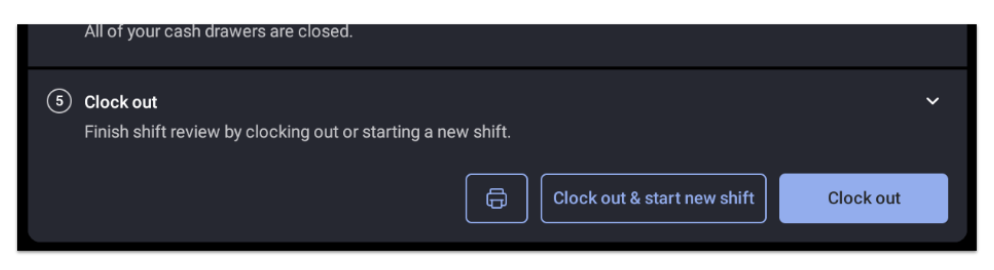
In this final step, the employee clocks out. They can choose to:
- Print the shift review report
- Clock out and start a new shift
- Clock out
To print a previous day's shift review, see Print a shift review.
Reopen a shift
You can reopen previously closed shifts within the current business week, recalculate the data, and re-close the shift. You may need to reopen a shift if:
- You need to extend a shift after clocking out
- You accidentally skipped the reconcile cash and tips step
- Tips were paid out of the wrong drawer
- Cash sales were collected using the wrong drawer
- Tips were adjusted on a check after the shift was closed
- A customer added a tip after the employee clocked out and closed their shift
- A check was closed to the wrong employee (each affected employee's shift must be reopened separately)
| Important: Reopening a shift deletes the previous Tip out and Cash collected entries. You will need to turn in cash and collect tips again after making any changes. |
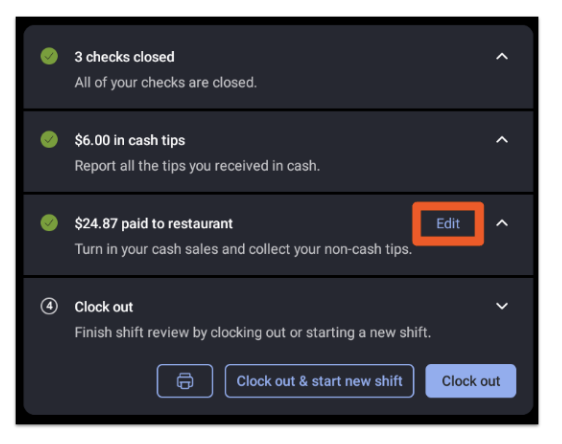
- From the shift review screen on your POS, select Edit.
- In the confirmation pop-up, select Yes, make edits to confirm.
The Cash collected and Tips paid entries can be reallocated to a different cash drawer or the house.
To include changes made to checks — such as added tip amounts — the shift must be fully reopened while the employee is still clocked in. If the employee has already clocked out, temporarily remove their Out time and re-enter it after changes are made.
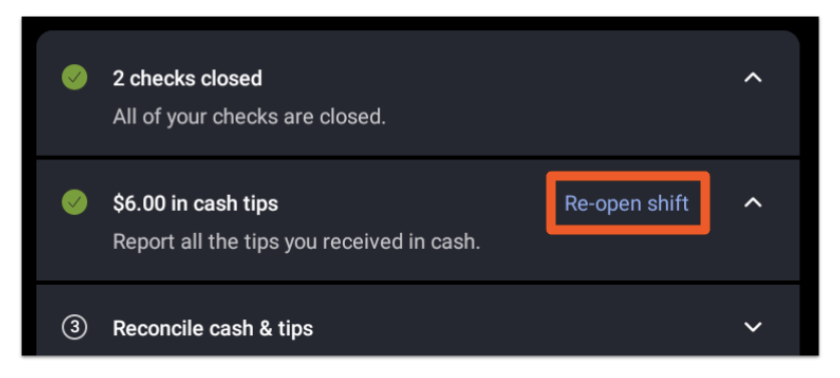
- If the employee is still clocked in, select Re-open shift above the Reconcile cash and tips section.
- In the confirmation pop-up, select Re-open shift to confirm.
- Make the necessary changes, then complete the shift review steps to close the shift again.
Reopen a cash drawer
If a cash drawer was accidentally closed at the beginning of a shift, go to Manager > Cash drawer > Closed > Re-open on your POS.
Complete a shift review for a previous day
The reopen flow above works only for shifts within the current business week. Shift reviews on the POS cannot be accessed for shifts outside the current business week.
If a shift is from a prior business week and can no longer be reopened from the POS:
- See Close an open shift from yesterday for steps to correct it from Toast Web.
- See Reopen an employee's shift from previous days for the full process of reopening a closed shift.
Note: Customer Care can temporarily adjust your business start-of-week to allow access to shift reviews within the past seven days. Contact Customer Care if you need access to shifts beyond the current week.
Shift review for delivery drivers
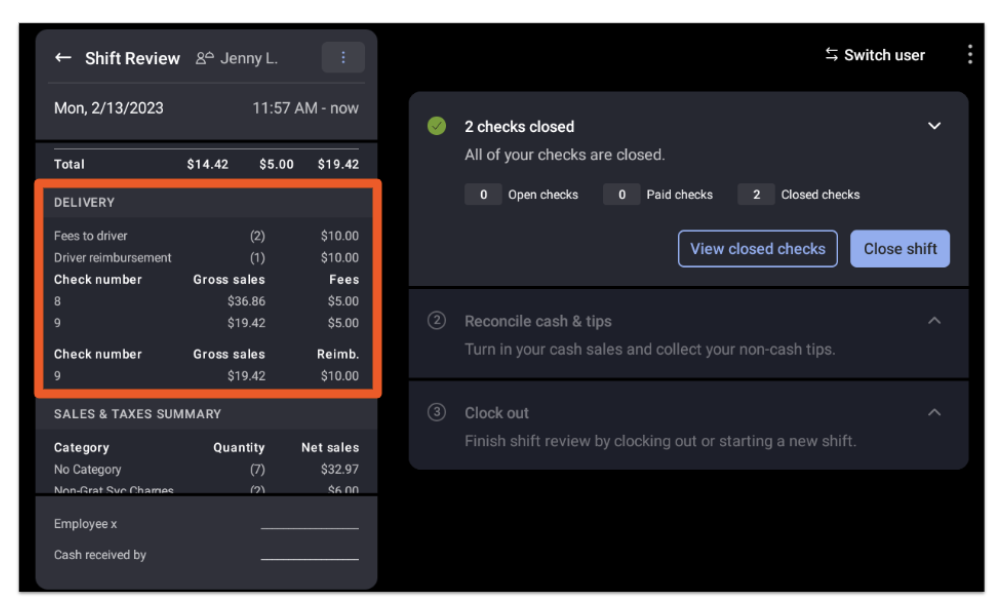
Delivery drivers with the 2.1 Delivery Mode permission must complete a shift review. Drivers follow the same workflow as other employees.
Completing a shift review for drivers calculates delivery fees, reimbursements, gratuities, and other shift information. This information appears in the driver's shift review report.
To configure driver cash management settings, go to Takeout and delivery > Availability > Takeout/delivery in Toast Web and scroll to the Driver cash management section.
Manager: Review employee shifts
The 3.12 Shift Review permission is required to access the Review employee shifts feature on the POS. Shifts created in Toast Web instead of on the POS will not appear in this function.
With Review employee shifts, managers can check shift statuses, monitor real-time progress, and adjust clock-in/out times. Go to the main menu of the Toast app on your POS and select Manager Activities > Review employee shifts.
This screen shows all open and closed shifts. The number of shifts in each category appears to the left of the category name:
- Active shifts: Employees currently taking orders or in the process of completing their shift review.
- Closed shifts: Employees who have completed their shift review and clocked out.
Shift status icons update based on employee actions:
- Active shift: The employee is clocked in and has added at least one order.
- Cash collected: Cash sales have been collected from the employee.
- Paid out: Non-cash tips have been paid out and the employee has clocked out.
- Closed shift: All checks are closed, cash tips are declared (if applicable), and the employee has closed the shift.
- Clocked out: The employee has clocked out.

If an employee has left without finishing their shift review, select their row to complete it for them. Use the following tools to manage your team:
- Search: Find specific employees quickly using the search bar.
- Filter: Organize the list to focus on specific shift types.
- View time cards: Go directly to the time card management screen.
- Switch user: Log in as a different user.
To adjust clock-in/out times, see Edit employee time clock entries.
Frequently asked questions
Do salaried employees need to declare cash tips?
The declare cash tips feature is designed for tipped employees who receive cash tips during their shifts and need to report them during the shift review process for payroll and tax compliance purposes.
Salaried employees, by their compensation structure, would not typically fall into this category.
Can employees declare cash tips and take them home the same day instead of through payroll?
This depends on how your tip payout settings are configured in Toast Web. Under Employees > Shift review > Shift review setup > Payout, you can choose whether non-cash tips are paid out from the cash drawer at shift end or through payroll. For detailed configuration steps, see Customize shift review settings.
Can retail businesses use shift review?
Yes, retail businesses can use shift review. Shift review is part of the standard Toast Web setup for retail, and you can customize which steps and report sections appear so they fit how your business operates. For example, a retail business that does not accept tips can turn off the declare cash tips step and remove the tip-related sections from the shift review report. For setup steps, see Set Up Toast Web and Your POS for Retail.
Known limitations
- Shift reviews are limited to the current business week. Shift reviews on the POS can only be accessed for previous days within your current business week. For shifts from prior weeks, see Close an open shift from yesterday or contact Customer Care to temporarily adjust your business start-of-week.
- "Failed to load shift review" error. If an employee sees this error, select the resync icon on the POS to reload data. For further troubleshooting, see Get help with cash drawer and shift review.
- Shifts created in Toast Web do not appear in Review employee shifts on the POS. Only shifts created on the POS appear in the manager's Review employee shifts function.
Related articles
- Customize shift review settings
- Declare cash tips overview
- Close an open shift from yesterday
- Reopen an employee's shift from previous days
- Print a shift review
- Shift review checklist for employees and managers
- Edit employee time clock entries
- Adjust time entries of shifts when they run over
- Get help with cash drawer and shift review
- Clock in and out for shifts and breaks
- Access permissions reference