Get Help With Your Toast Flex 14
Last updated: Oct 19, 2026, 4:04 PM
- Before You Begin
- Overview Steps
- Quick Fix
- Power and Startup Issues
- Internet Connection Issues
- Screen and Display Issues
- Toast Flex for Guest Issues
- Card Reader and Payment Issues
- Printer and Toast Hub Issues
- Frequently Asked Questions
- Before You Contact Customer Care
- Related Articles
Before You Begin
Applies to: Toast Flex 14 terminal, Toast Flex for Guest (Wedge and Direct Attach), Toast Tap (Direct Attach), Toast Hub, Toast Printer (TP200).
Permissions needed:
- Access to the Toast Flex device for on-device steps
- 7.1 – 7.3 Device Setup permission for Toast app settings changes
What you'll accomplish: Diagnose and resolve common Toast Flex 14 hardware and connection issues, or confirm that a Return Merchandise Authorization (RMA) is required and reach Toast Customer Care with the right reference code.
Overview Steps
Before troubleshooting any specific symptom, complete these three checks. They resolve a large share of Toast Flex 14 issues without further steps.
- Verify your device's internet connection. Make sure the Toast Flex 14 is online and connected to your Toast network before troubleshooting. See Verify Your Internet Connection for steps.
- Power cycle the Toast Flex 14. Turn the device off or unplug it, wait at least 30 seconds, then plug it back in and turn it on.
- If you recently had a power outage, see What To Do After a Power Outage before troubleshooting individual devices.
For an interactive troubleshooting walkthrough, use the Toast Flex 14 Troubleshooting Guide.
Quick Fix
Use this table to match your symptom to the most likely fix. If self-service is "No," follow the linked section to confirm the symptom, then contact Toast Customer Care with the listed reference code.
| Symptom | Most Common Cause | Quick Fix | Self-Service? |
|---|---|---|---|
| Toast Flex 14 won't turn on | Power cable, USB-C cable, or stand issue | Inspect cables, try a known working power cable, and test power directly into the stand. Full steps: see My Toast Flex 14 Won't Turn On below. | Yes (some)—replacement may be needed. |
| Has power but no Ethernet connection | Cable seating, IP settings, or Wi-Fi conflict | Reseat cables, confirm DHCP and the Ethernet toggle are on, and disable Wi-Fi. Full steps: see I Have Power but No Ethernet Connection below. | Yes—replacement may be needed |
| Won't connect on Wi-Fi | Not connected to the secure Toast network | Connect to the _Secured Toast network and verify the Wi-Fi signal. Full steps: see My Toast Flex 14 Won't Connect to the Internet on Wi-Fi below. | Yes |
| Screen has lines, flickering, dark band, dead pixels, or won't illuminate | Firmware out of date, or hardware failure | Update firmware to build 2.0.14 or higher; if there's no improvement, request an RMA. Full steps: see My Toast Flex 14 Screen Has Lines, Flickering, or a Dark Band below. | No—replacement needed |
| Touch isn't working on Toast Flex for Guest | Guest Display not enabled in Toast Web | Enable the Guest Display screen. Full steps: see I Can't Use Touch on My Toast Flex for Guest below. | Yes |
| Toast Flex for Guest screen sleeps when terminal times out | Backlight timer set too short | Set the backlight timer to Never. Full steps: see My Toast Flex for Guest Goes to Sleep When the Terminal Times Out below. | Yes |
| Toast Tap (Direct Attach) won't read chip cards | EMV disabled, or card insert orientation | Enable EMV and confirm the card is inserted with the stripe facing the tablet. Full steps: see My Toast Tap (Direct Attach) Isn't Reading Chip Cards below. | Yes |
| Toast Flex keeps losing connection to Hub or Printer | USB-C cable loose or damaged | Reseat the USB-C cable, tighten the thumbscrew. | Yes |
| "Unable to print. Your device may be on the wrong network." | Device on guest or personal Wi-Fi, not Toast network | Select Join Toast network. Full steps: see I'm Getting an Error That Says "Unable to Print. Your Device May Be on the Wrong Network." below. | Yes |
| Toast Flex 14 won't download an update | Cache or storage issue | Navigate to Settings, select Clear data, then power off and reboot. Full steps: see My Toast Flex 14 or KDS Won't Download an Update below. | Yes |
Power and Startup Issues
My Toast Flex 14 Won't Turn On
If your Toast Flex 14 terminal won't power on, watch the video below or follow the steps to isolate the power supply issue.
- Inspect the power adapter cable. This cable plugs into the Toast Printer or directly into the Toast Flex.
- Confirm a green light is visible on the adapter. If there is no green light, confirm the outlet has power.
- If the outlet has power but no green light is visible, or if the cable end is frayed or the rubber coating is damaged, Contact Toast Customer Care for a replacement Toast Power Supply for Flex 14".
- If you have a known-working power cable, swap it in and try to power on the terminal. If the terminal still does not power on, contact Toast Customer Care for a replacement terminal.
- If the outlet has power and the cable appears intact, and your Toast Flex terminal plugs into a Toast Printer or Toast Smart Hub for power, proceed to step 2. If your terminal plugs directly into a wall outlet, continue to step 3.
- Reroute Power from printer, and plug straight into the Toast Flex.
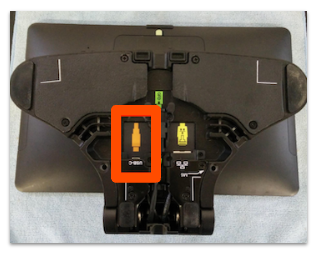
- Unplug the USB-C cable from the terminal stand. Take the power adapter from the Toast Printer or Toast Smart Hub and plug it directly into the bottom of the terminal stand. Try to power on the terminal.
-
- If the terminal powers on, the USB-C cable is the issue and should be replaced. Contact Toast Customer Care. In the meantime, route printing to another printer while you wait for your replacement cable.
- If the terminal still does not power on, continue to step 3.
- Loosen the two thumbscrews on the backplate and remove the backplate.
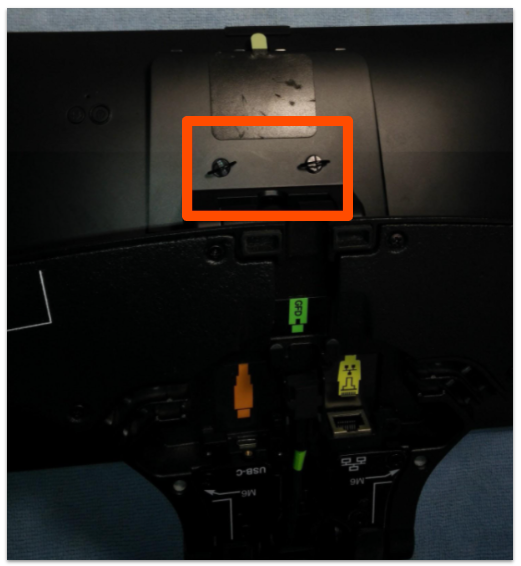
- Place the terminal upside down on a microfiber cloth or other soft surface to avoid scratching the screen.
- Unplug the orange-labeled cable. Plug the cable from the power adapter directly into the power port located under the stand.
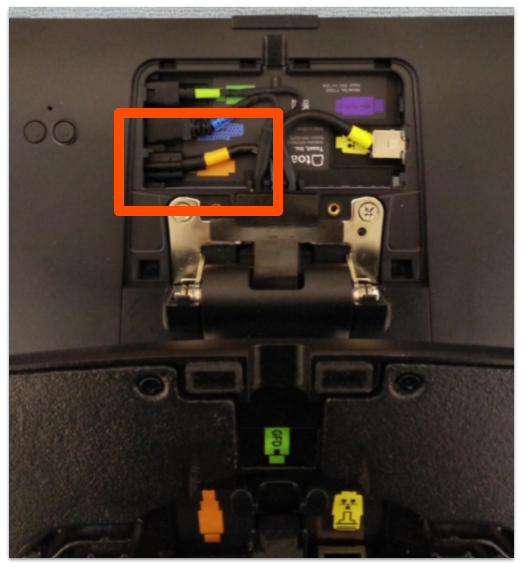
- Try to power on the terminal.
Expected outcome: If the Toast Flex powers on and the Toast logo is visible, the terminal stand is broken and could be used how it is currently plugged in, but if a replacement is wanted, contact Toast Customer Care. If the Toast Flex still won't power on, the terminal needs to be replaced. Contact Toast Customer Care.
Internet Connection Issues
I Have Power but No Ethernet Connection
This is troubleshooting that should be done if only one of your devices is offline. If you are experiencing an ISP outage, go to Outages and Disruptions: Troubleshoot Internet or Network Connection Issues.
Some Toast Flex 14 terminals use a USB-C to USB-C cable that runs from the Toast Smart Hub or Toast Printer to the base of the Toast Flex 14 stand. This cable can carry both power and Ethernet to the tablet. Watch the video below or follow the steps to troubleshoot a failed Ethernet connection. For all Toast Flex 14 setups, including USB-C Ethernet, continue to the steps below.
- Check WiFi Connection
- Exit out of Toast App
- Navigate to WiFi Settings
- Android Settings > Network & Internet > Wi-Fi
- Is WiFi enabled?
- If Yes, toggle WiFi off. Go to Step 2
- If No, go to Step 2
- Evaluate RJ-45 Connectivity
- Navigate to RJ-45 Ethernet Settings
- Android Settings > Network & Internet > Ethernet 0 (RJ-45)
- Toggle on (Blue)
- Does it show an IP?
- If Yes, navigate to Ethernet 1 USB-C
- Android Settings > Network & Internet > Ethernet 1 (USB-C)
- Make sure USB-C is toggled off (Grey)
- Open Toast App, Wait 45 sec, Go to 3-Dots→Device Status. Is everything online?
- If Yes, the Issue is resolved
- If No, is your Toast Flex Powered by a Toast Receipt Printer (TP200) or Toast Smart Hub?
- If Yes, toggle off Ethernet 0 (RJ-45) and go to Step 3
- If No, Go to Step 4
- If No, toggle off Ethernet 0 and go to Step 3
- If Yes, navigate to Ethernet 1 USB-C
- Navigate to RJ-45 Ethernet Settings
- Determine USB-C Connectivity
- Navigate to USB-C Ethernet Settings
- Select Android Settings > Network & Internet > Ethernet 1 (USB-C)
- Toggle on (Blue)
- Does it show an IP?
- If Yes, Open Toast App, Wait 45 sec, Go to 3-Dots→Device Status. Is everything online?
- If Yes, the Issue is resolved
- If No, contact Toast Customer Care.
- If No, follow these steps:
- Toggle USB-C Off (Grey)
- Navigate to RJ-45 Ethernet Settings
- Android Settings > Network & Internet > Ethernet 0 (RJ-45)
- Toggle On (Blue)
- Go to Step 4
- If Yes, Open Toast App, Wait 45 sec, Go to 3-Dots→Device Status. Is everything online?
- Navigate to USB-C Ethernet Settings
- Reseat RJ45 at Terminal
- Is there an RJ45 plugged into this device?
- If Yes, follow these steps:
- Reseat RJ45
- Navigate to RJ-45 Ethernet Settings
- Android Settings > Network & Internet > Ethernet 0 (RJ-45)
- Does it have an IP?
- If Yes, Open Toast App, Wait 45 sec, Go to 3-Dots→Device Status. Is everything online?
- If Yes, the Issue is resolved
- If No, contact Toast Customer Care.
- If No, Go to Step 5
- If Yes, Open Toast App, Wait 45 sec, Go to 3-Dots→Device Status. Is everything online?
- If No, Go to Step 5
- If Yes, follow these steps:
- Is there an RJ45 plugged into this device?
- Plug RJ45 Cable into Terminal
- Is there an RJ45 cable close to the device that might have been unplugged?
- If Yes, follow these steps:
- Plug RJ45 into Terminal
- Navigate to RJ-45 Ethernet Settings
- Android Settings > Network & Internet > Ethernet 0 (RJ-45)
- Does it have an IP?
- If Yes, Open Toast App, Wait 45 sec, Go to 3-Dots→Device Status. Is everything online?
- If Yes, the Issue is resolved
- If No, contact Toast Customer Care.
- If No, contact Toast Customer Care.
- If Yes, Open Toast App, Wait 45 sec, Go to 3-Dots→Device Status. Is everything online?
- If No, Connect terminal to Toast Network using a known working or new RJ45 cable
- (If unable to locate a cable, the customer will need to obtain one and contact Care once this is done)
- Navigate to RJ-45 Ethernet Settings
- Android Settings > Network & Internet > Ethernet 0 (RJ-45)
- Does it have an IP?
- If Yes, Open Toast App, Wait 45 sec, go to 3-Dots→Device Status. Is everything online?
- If Yes, the Issue is resolved
- If No, contact Toast Customer Care.
- If No, contact Toast Customer Care.
- If Yes, Open Toast App, Wait 45 sec, go to 3-Dots→Device Status. Is everything online?
- If Yes, follow these steps:
- Is there an RJ45 cable close to the device that might have been unplugged?
Expected outcome: The Toast Flex 14 is online and the Toast app loads normally. If the connection still fails, contact Toast Customer Care.
My Toast Flex 14 Won't Connect to the Internet on Wi-Fi
This is troubleshooting that should be done if only one of your devices is offline, and is meant to be connected via Wi-Fi. If you are experiencing an ISP outage, go to Outages and Disruptions: Troubleshoot Internet or Network Connection Issues.
Toast Flex 14 terminals should be hardwired to the Toast network via Ethernet or USB-C to Printer or Toast Smart Hub wherever possible. If your terminal must be used with Wi-Fi, confirm it is on the correct network.
- For Toast Managed Networks: Confirm you are connected to the correct network, by first confirming the SSID at Locate Your Toast Wi-Fi Password
- Navigate to WiFi Settings
- Android Settings > Network & Internet > Wi-Fi
- Is WiFi enabled?
- If Yes, Go to Step 4
- If No, Toggle Wifi On. Go to Step 4
- Confirm the device is connected to the correct network.
- If there are any networks that are saved, that are not correct go to Forget a Network on a Toast Device, and forget the incorrect networks.
- Make sure USB-C and RJ-45 connections are turned off
- Android Settings > Network & Internet > Ethernet 0 (RJ-45). Toggle Off (Grey)
- Android Settings > Network & Internet > Ethernet 1 (USB-C). Toggle Off (Grey)
- Verify the device is connected
- Open Toast App, Wait 45 sec, Go to 3-Dots→Device Status. Is everything online?
- If Yes, the Issue is resolved
- If No, if you are using a Toast Managed Network contact Toast Customer Care. If you are using a Self Managed Network contact your local network administrator.
- Open Toast App, Wait 45 sec, Go to 3-Dots→Device Status. Is everything online?
Expected outcome: The Wi-Fi indicator shows the Toast network as "Connected." For full Wi-Fi diagnostics, see Verify Your Internet Connection.
My Toast Flex 14 or KDS Won't Download an Update
If your Toast Flex 14 or KDS device won't download a required update, verify that your device is online and that there is nothing in the device's Credit Card, Model Sync, or Red Check Queues, then Clear Storage. This should only be done if all of these criteria are met, and the Email and Password to log into Toast are known.
- Open Toast App, Wait 45 sec, Go to 3-Dots→Device Status. Is everything online?
- If Yes, Continue to Step 2
- If No, Is this the only device experiencing network issues?
- If No, Go to Outages and Disruptions: Troubleshoot Internet or Network Connection Issues
- If Yes, Go to I Have Power but No Ethernet Connection
- Check Queues
- Go to 3-Dots→Device Status→Queues
- Are all Credit Card, Model Sync, or Red Check Queues are all 0 or Blank?
- If No, contact Customer Care
- If Yes, Continue to Step 3
- Clear Storage
- Android Settings > Apps > Toast POS > Storage & Cache > Clear Storage
- Power off the terminal.
- Power the terminal back on.
- Open Toast POS App
- Log Into Toast with Email and Password
Expected outcome: The device retries the update on next sync. If the update still fails, contact Toast Customer Care.
Screen and Display Issues
My Toast Flex 14 Screen Has Lines, Flickering, or a Dark Band
If the touchscreen is not responding, the screen is flickering, or there are lines, a dark band, dead pixels, decolorized areas, or a non-illuminated backlight, watch the video below or follow the steps.
- Navigate to Settings.
- Scroll down and select About device.
- Check the Build number. Confirm the Toast Flex firmware build is 2.0.14 or higher.
Note: If your restaurant uses self-managed devices, the firmware build will differ. Do not update the firmware on self-managed devices.
Expected outcome: If the firmware is current and the screen still shows dead pixels, lines, decolorized areas, or a non-illuminated backlight, contact Toast Customer Care for a replacement.
How Do I Make My Toast Flex Work in Portrait Mode?
To change the orientation of your Toast Flex display, follow these steps:
- Navigate to Settings, then select Display under the Device section.
- Select Display direction.
- Confirm the Auto toggle in the top right corner is toggled off. When this is disabled, other display direction options appear.
- Select your desired display orientation, including portrait mode.
Expected outcome: The Toast Flex display rotates to your selected orientation immediately.
Toast Flex for Guest Issues
My Toast Flex for Guest is Mirroring the Toast Flex 14
For Toast Flex for Guest touch to work, it must be enabled for your restaurant in Toast Web.
- In Toast Web, navigate to Finance > Related > Settings > Guest display.
- For the Turn on Guest Display Screen setting, select Enable Guest Display screen.
- Select Save, then Publish your changes.
- Power off Toast Flex
- Power on Toast Flex
Expected outcome: Toast Flex for Guest works as intended after the change publishes.
My Toast Flex for Guest Goes to Sleep When the Terminal Times Out
On the back of your Toast Flex for Guest, there is a power button you can press to turn the screen back on. To stop the screen from sleeping when the terminal times out:
- Navigate to Settings on the Toast Flex terminal, then select Display under the Device section.
- Select Backlight.
- Set the timer to Never.
Expected outcome: The Toast Flex for Guest screen stays on while the terminal is idle.
Card Reader and Payment Issues
My Toast Tap (Direct Attach) Isn't Reading Chip Cards
If your Toast Tap (Direct Attach) is not reading chip cards, confirm EMV is enabled first.
- On the main menu of the Toast app on your Toast Flex terminal, navigate to Setup > Device Setup.
- Scroll down and select EMV Enabled.
- Select Yes and save your changes. This may prompt you to run a card reader update. If prompted, install the update.
If EMV is enabled and the Toast Tap (Direct Attach) still won't read chip cards, confirm guests are inserting their credit cards correctly. Chip cards (dip cards) should be inserted with the stripe facing the tablet and the chip facing away.
Expected outcome: Chip card transactions complete successfully. For deeper card reader troubleshooting—including resyncing, LED indicator checks, swapping USB ports, and running a test payment with the Card Reader Support app—see Get Help With Your Card Reader.
Printer and Toast Hub Issues
How Do I Connect My Toast Printer or Toast Hub?
The Toast hardware system can use one power supply and one Ethernet cable to power the Toast Printer, Toast Flex, and Toast Tap.
- The power supply plugs into the Toast Printer or the Toast Hub.
- A USB-C to USB-C cable connects from the Toast Printer or Toast Hub to the base of the Toast Flex terminal.
- No additional power cable is needed for the Toast Flex, when configured this way.
Expected outcome: With one power supply and one USB-C to USB-C cable connected to the Toast Printer or Toast Hub, the Toast Flex powers on and receives Ethernet through the same cable.
How Do I Set Up My Toast Printer?
To learn how to set up your Toast Printer for your Toast Flex 14, see Printer Setup Overview.
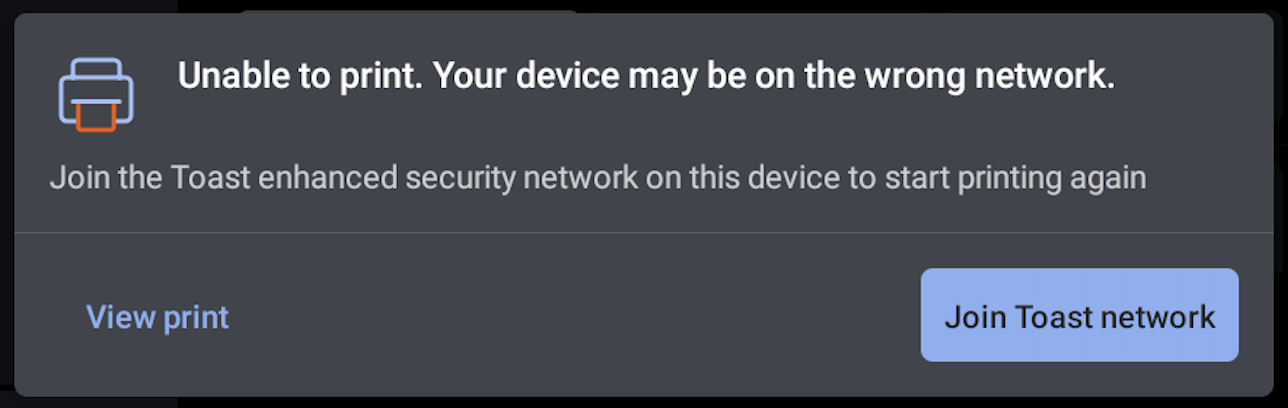
I'm Getting an Error That Says "Unable to Print. Your Device May Be on the Wrong Network."
If the network is Toast Managed, and you are connected via Wifi, this error could mean the Toast terminal is not on the _Toast network.
- On the error message, select Join Toast network.
Expected outcome: The Toast Flex automatically connects to the _Toast network and printing resumes.
Frequently Asked Questions
Where Is the Serial Number Located on My Toast Flex 14?
Go to Find the Serial Number on Your Toast Device.
Before You Contact Customer Care
Most Toast Flex 14 hardware failures—broken screens, dead card readers, damaged cables, broken stands—require a Return Merchandise Authorization (RMA) and cannot be self-resolved. Before you start a live chat with Toast Customer Care, gather the following so the agent can issue the RMA in one pass:
- The Toast Flex 14 serial number
- The exact symptom (for example, "screen has horizontal lines," "card reader has no LED lights," "USB-C locking pin broken inside the unit")
- Which troubleshooting steps you have already completed
For the full RMA process, see Replace Faulty Hardware (RMA).
Related Articles
- Toast Flex 14 Installation Guide
- Verify Your Internet Connection
- What To Do After a Power Outage
- Disable Wi-Fi on Hardwired Devices
- Replace Faulty Hardware (RMA)
- Install Your Replacement Toast Flex Terminal
- Get Help With Your Card Reader
- Printer Setup Overview
USB Type-C® and USB-C® are registered trademarks of USB Implementers Forum.