Toast Payroll: Use the Toast Pay Card - Employer Guide
Last updated: Oct 9, 2026, 2:08 PM
| | For Employers |
| For Employees Get Started With the MyToast App (start here) |
- Toast Pay Card Overview
- Configure Settings in Toast Payroll and Toast Web
- Onboard Employees to the Program
- Your First Payroll With Toast Pay Card and Pay Out
Toast Pay Card Overview
Terminology
The MyToast app is the app that allows employees of restaurants that use Toast Pay Card and PayOut to order their Pay Card, manage their account, and accept Toast PayOut offers, if applicable.1
The Toast Pay Card is a physical debit card that employees can use anywhere Mastercard® is accepted.
Toast PayOuts (if you offer them) are the name of earnings an employee can accept on their Toast Pay Card prior to payday.
Ready to Move On?
To confirm your contracting is complete, a notice will be sent via email with the subject line: "You've been approved to offer Toast Pay Card and PayOut!" If you did not receive the email:
- It can take up to 5 business days after the contract has been completed for the email to be sent.
- It's possible someone else within your organization received the email and has begun the onboarding process. Contact the individual (owner or control person) who completed the contract to confirm its potential receipt.
- You may have additional contracts to complete. Refer to the Setup Checklist in Toast Web under each location to ensure that you have completed a contract for every entity that also funds a payroll.
Next, it's time for you and your employees to get started setting up Toast Pay Card and PayOut. Here is how you can complete your setup:
Configure Settings in Toast Payroll and Toast Web
Adjust Your Toast PayOut Settings Within Toast Payroll
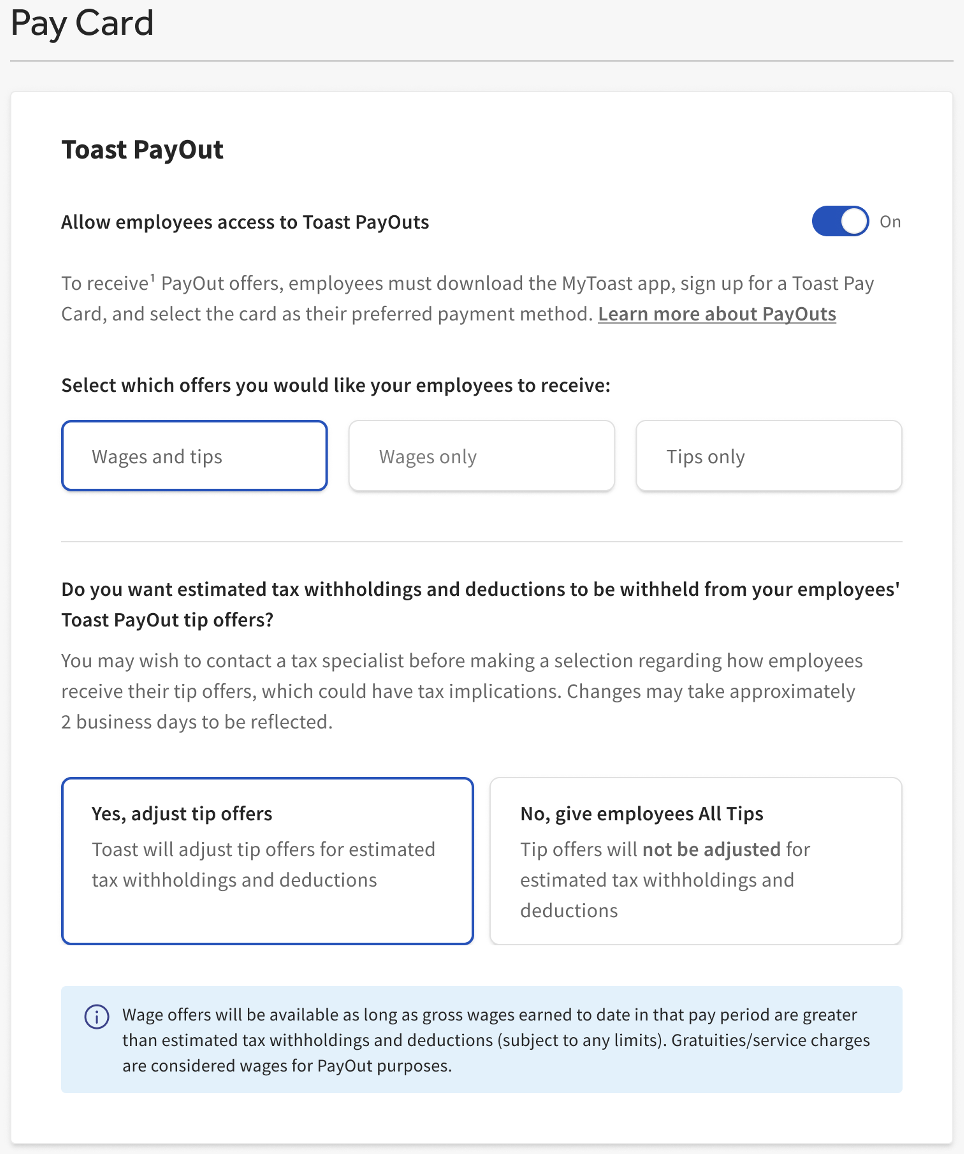
Employers have the option to customize settings for Toast PayOut.2 The default setting is to offer Toast PayOuts that are limited to a portion of wages and tips to help account for estimated taxes, withholdings, and deductions. Employers can limit access to Toast PayOuts for tips and/or wages or offer Toast PayOuts for tips that are not adjusted for estimated taxes, withholdings, and deductions. To update your settings, log into Toast Payroll, navigate to Settings > Pay Card and follow the instructions on the page. (If you do not see Settings on the left side of the screen, select Payroll from the Toast Web navigation rail on the left to make the Toast Payroll navigation rail appear.)
Review Your Tip Settings in Toast Payroll
If you sync tips directly from POS, log into payroll.toasttab.com and navigate to Settings > Toast > Tips to confirm that your tip settings are reflective of how you to plan to use Toast Pay Card and PayOut, so that payroll is accurate. (If you do not see Settings on the left side of the screen, select Payroll from the Toast Web navigation rail on the left to make the Toast Payroll navigation rail appear.)
For example, if you previously paid employees nightly with cash and have recorded those amounts in Toast Payroll - those earnings are likely under a "tips paid" earning code. If you plan to pay tips onto the Toast Pay Card, tips will need to be recorded as a "tips owed" earning code. This ensures Toast Payroll will not only record the earning, but distributes the balance.
If You Tip Pool, Set Up Tips Manager in Toast Web
In order for your employees to access pooled tips via Toast PayOuts, you will also have to purchase and set up Toast Tips Manager. This article will guide you through the setup instructions. It is best practice to set up Toast Tips Manager before or in tandem with Toast Pay Card and PayOut.
Confirm Employee Email Addresses Within Toast Web
The MyToast app requires employees to have a valid email address in Toast Web. If you or your employees are unsure of what email address to use for logging in, these instructions will tell you how to download that information:
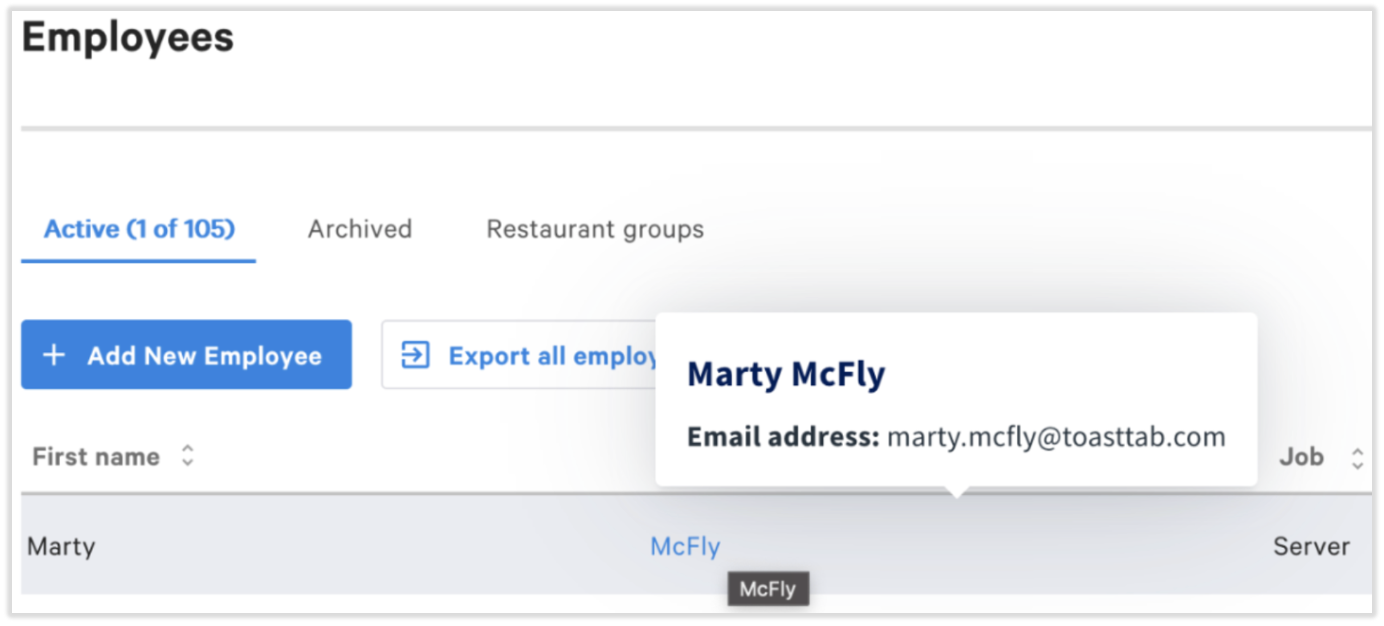
- Log into Toast Web. From the left navigation rail, navigate to Team > Employees.
- Select the Export all employees button. This will generate a spreadsheet of all employee email addresses (among other information) used to log into the MyToast app.
- If you need just one employee's email address, hover over their name on this page.
- If you need just one employee's email address, hover over their name on this page.
- Toast recommends quickly reading through this list of emails for any obvious errors, such as "gmai.com" or "hotmail.co". if the employee has not yet accepted their invite to create an account, these may be corrected from the employee's profile in Toast Web by following these steps.
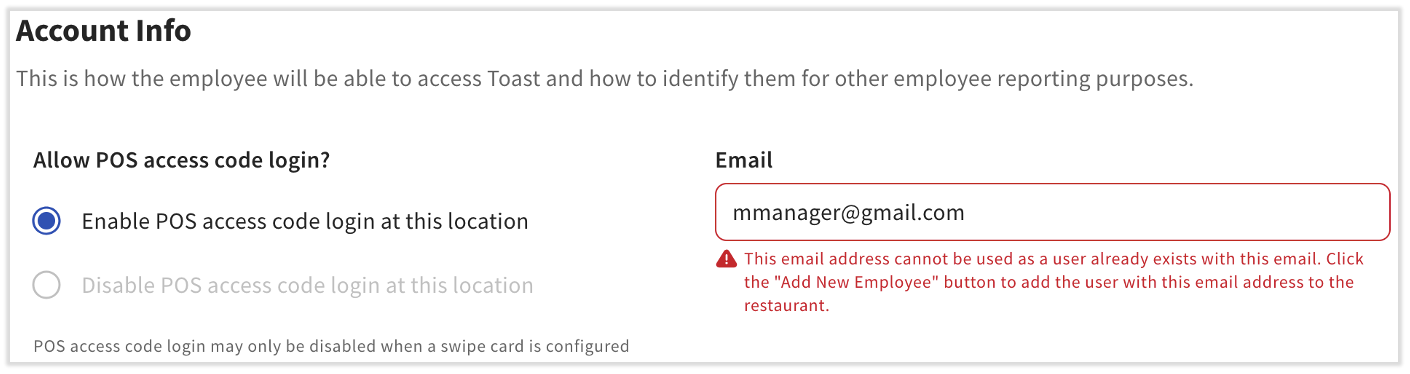
- If you're changing an employee's email address and you receive a "user already exists" error message, double check for another employee or profile using this email address. If you don't see one, contact Customer Care. This also occurs when an employee's email address has been used at another Toast restaurant before.
Onboard Employees to the Program
Send Employees Information
The most important information lives in The MyToast App: Pay where we detail the steps for employees to order a Toast Pay Card and begin accepting Toast PayOuts, if you choose to offer them.
Utilize Get Started With the MyToast App for assistance with downloading or logging into the MyToast app. Once employees receive a Toast Pay Card or have questions about the program, send over the employee user guide.
Employees Download the MyToast App
The MyToast app is required for your employees to order their Toast Pay Card and, if applicable, access Toast PayOuts.
Note: Unless the employee has enabled the unified login experience, employees must use the email address associated with their Toast POS account, not their Toast Payroll account. Find additional login troubleshooting details here.
Employees Order Their Toast Pay Card
Once logged into the MyToast app, employees will be prompted to sign up and request their Toast Pay Cards. Toast Pay Cards arrive in approximately 8-10 business days at the address selected by your employees during this sign up process, within the MyToast app. You will not be sent cards to distribute to employees.
Employees Activate and Connect/Update Their Payment Method
When employees receive their card, they'll call the number on the back to activate.
Once activated, employees can update their payment method and connect their Toast Pay Card to Toast Payroll in the MyToast app. Utilize the resources in the Send employees information step just above.
Your First Payroll With Toast Pay Card and PayOut
- If you're new to Toast Payroll, your Onboarding Consultant will ensure that your employees are added to Toast Payroll and synced across both Toast POS and Toast Payroll. This syncs their clock in and clock out times and sets up their account for the MyToast app.
- If you're already processing payroll with Toast, employers should set a date for when employees may start using their Toast Pay Cards as their payment preference that accounts for the delivery time of the physical Pay Cards.
- Changing to Toast Pay Card and (if you offer them) PayOuts mid pay period can potentially require additional manual entries and payroll auditing steps. Try to time your switch on the first day of a new pay period for a smooth transition. For example, if your pay period is weekly beginning on a Monday, make all your settings adjustments on that Monday, so you are able to use Toast Pay Card and PayOuts for the forthcoming pay period and check date.
- For a Toast PayOut offer to be generated, Toast Payroll needs a timesheet entry, which requires a clock in and clock out along with approved tips sent to payroll. If an employee forgets to clock out, there is no timesheet entry and they will not receive a Toast PayOut offer (unless auto clock out is set). Any amount not accessed early via Toast PayOuts will be paid on the payday associated with that pay cycle. Confirm the timesheets on Toast Payroll are accurate daily to ensure Toast PayOur offers are correctly calculated.
1 Toast PayOuts may be limited to a portion of pay to help account for estimated taxes, withholdings, and deductions. Tip PayOuts are not available at restaurants that tip pool without using Toast Tips Manager. Employees must receive wages via the Toast Pay Card in order to access Toast PayOuts. Tips will be paid to employees on their Toast Pay Card as though they were receiving them in cash. Wages will be advanced to employers during the pay period and deducted from their total wages paid to them on payday.
2 PayOut customization options may not be available to all employers. See your credit agreement for details.
This content is for informational purposes and is not intended as legal, tax, HR, or any other professional advice. Please contact an attorney or other professional for advice.