Obtener ayuda con tu Toast Flex 14
Última actualización: 19 oct 2026, 4:04 p.m.
- Antes de comenzar
- Pasos generales
- Corrección rápida
- Problemas de energía y arranque
- Problemas de conexión a internet
- Problemas de pantalla y visualización
- Problemas con Toast Flex for Guest
- Lector de tarjetas y problemas de pago
- Impresora y Centro de Toast Problemas
- Preguntas frecuentes
- Antes de contactar al servicio de atención al cliente
- Artículos relacionados
Antes de comenzar
Se aplica a: Terminal Toast Flex 14, Toast Flex for Guest (conexión directa y en cuña), Toast Tap (conexión directa), Toast Hub, Impresora Toast (TP200).
Permisos necesarios:
- Acceso al dispositivo Toast Flex para pasos en el dispositivo
- 7.1 a 7.3 Permiso de configuración del dispositivo para cambios en la configuración de la aplicación Toast
Lo que lograrás: Diagnosticar y resolver problemas comunes de hardware y conexión Toast Flex 14, o confirmar que se requiere una autorización de devolución de mercancía (RMA) y ponerse en contacto con el servicio de atención al cliente de Toast con el código de referencia correcto.
Pasos de resumen
Antes de solucionar cualquier síntoma específico, completa estas tres comprobaciones. Resuelven una gran parte de los problemas de Toast Flex 14 sin más pasos.
- Verifica la conexión a internet del dispositivo. Asegúrate de que Toast Flex 14 esté en línea y conectado a tu red Toast antes de solucionar problemas. Consulta Verificar tu conexión a Internet para conocer los pasos.
- Ciclo de energía del Toast Flex 14. Apaga o desenchufa el dispositivo, espera al menos 30 segundos, luego vuelve a enchufarlo y enciéndelo.
- Si recientemente tuviste una interrupción del suministro eléctrico, consulta Qué hacer después de una interrupción antes de solucionar problemas de dispositivos individuales.
Para ver un recorrido interactivo sobre solución de problemas, usa la Guía de solución de problemas Toast Flex 14.
Solución rápida
Usa esta tabla para que los síntomas coincidan con la corrección más probable. Si el autoservicio es “No”, sigue la sección vinculada para confirmar el síntoma y, luego, ponte en contacto con el servicio de atención al cliente de Toast con el código de referencia que aparece en la lista.
| Síntoma | Causa más común | Corrección rápida | ¿Autoservicio? |
|---|---|---|---|
| Toast Flex 14 no se enciende | Problemas relacionados con el cable de alimentación, el cable USB-C o el soporte | Inspecciona los cables, prueba con un cable de alimentación que funcione bien y prueba la alimentación directamente en el soporte. Pasos completos: consulta Mi Toast Flex 14 no se activa a continuación. | Sí (algunas). Puede ser necesario reemplazarlo (código #504) |
| Tiene energía, pero no conexión Ethernet | Asiento de cables, configuración de IP o conflicto de Wi-Fi | Vuelve a colocar los cables, confirma que el DHCP y el botón Ethernet estén activados y desactiva la conexión Wi-Fi. Pasos completos: consulta Tengo alimentación, pero no conexión Ethernet a continuación. | Sí. Puede ser necesario reemplazarlo (código #502) |
| No se conecta en Wi-Fi | No conectado a la red segura de Toast | Conéctate a la red _Secured Toast y verifica la señal de Wi-Fi. Pasos completos: consulta Mi Toast Flex 14 no se conecta a Internet en Wi-Fi a continuación. | Sí |
| La pantalla tiene líneas, parpadeo, banda oscura, píxeles muertos o no se ilumina | Firmware desactualizado o falla del hardware | Actualiza el firmware para la compilación 2.0.14 o superior; si no hay mejoras, solicita una RMA. Pasos completos: consulta Mi Toast Flex 14 Pantalla tiene líneas, parpadeo o una banda oscura a continuación. | No se necesita reemplazo (código #503) |
| Touch no funciona en Toast Flex for Guest | Pantalla del cliente no activada en Toast Web | Activa la pantalla “Pantalla del cliente”. Pasos completos: consulta I Can't Use Touch on My Toast Flex for Guest a continuación. | Sí |
| Pantalla Toast Flex for Guest duerme cuando la terminal está agotada | El temporizador de retroiluminación es demasiado corto | Configura el temporizador de retroiluminación en Nunca. Pasos completos: consulta My Toast Flex for Guest Goes to Sleep When the Terminal Time Out a continuación. | Sí |
| Toast Tap (conexión directa) no lee tarjetas con chip | EMV desactivado u orientación del inserto de la tarjeta | Activa EMV y confirma que la tarjeta esté insertada con la banda orientada hacia la tableta. Pasos completos: consulta Mi Toast Tap (conexión directa) no está leyendo tarjetas con chip a continuación. | Sí |
| Toast Flex sigue perdiendo la conexión con el Centro o Impresora | Cable USB-C suelto o dañado | Vuelve a colocar el cable USB-C y ajusta el tornillo. | Sí |
| "No se puede Imprimir. Es posible que el dispositivo esté conectado a una red incorrecta”. | Dispositivo en Wi-Fi personal o de clientes, no en la red de Toast | Selecciona Únete a Toast network. Pasos completos: consulta Estoy recibiendo un error que dice "No se puede Imprimir. Tu dispositivo puede estar en una red incorrecta”. | Sí |
| Toast Flex 14 no descargará una actualización | Problema de caché o almacenamiento | Ve a Configuración, selecciona Borrar datos y, luego, apágala y reinicia. Pasos completos: consulta Mi Toast Flex 14 o KDS no descargarán una actualización a continuación. | Sí |
Problemas de energía y arranque
Mi Toast Flex 14 no se enciende
Si la terminal Toast Flex 14 no se enciende, mira el video a continuación o sigue los pasos para aislar el problema de la fuente de alimentación.
- Inspeccione el cable del adaptador de corriente. Este cable se conecta a la Impresora Toast o directamente a la Toast Flex.
- Confirma que haya una luz verde visible en el adaptador. Si no hay luz verde, confirma que el tomacorriente tenga energía.
- Si el tomacorriente tiene energía, pero no se ve ninguna luz verde, o si el extremo del cable está desgastado o el recubrimiento de goma está dañado, ponte en contacto con el servicio de atención al cliente de Toast para obtener una fuente de alimentación Toast de reemplazo para Flex 14".
- Si tienes un cable de alimentación que funciona bien, cámbialo e intenta encender la terminal. Si la terminal aún no se enciende, ponte en contacto con el servicio de atención al cliente de Toast para obtener una terminal de reemplazo.
- Si el tomacorriente tiene energía y el cable aparece intacto, y la terminal Toast Flex se enchufa a una Impresora Toast o al Centro Inteligente Toast para obtener energía, continúa con el paso 2. Si la terminal se conecta directamente a un tomacorriente de pared, continúa con el paso 3.
- Redirecciona la alimentación de Impresora y conéctala directamente al Toast Flex.
- Desenchufa el cable USB-C del soporte de la terminal. Toma el adaptador de corriente de la Impresora Toast o del Centro inteligente Toast y conéctalo directamente a la parte inferior del soporte de la terminal. Intenta encender la terminal.
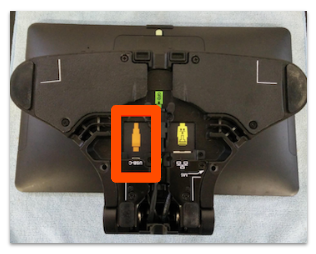
-
- Si la terminal se enciende, el problema es que el cable USB-C debe reemplazarse. Ponte en contacto con el servicio de atención al cliente de Toast. Mientras tanto, dirige la impresión a otra Impresora mientras esperas el cable de reemplazo.
- Si la terminal aún no se enciende, continúa con el paso 3.
- Afloja los dos tornillos mariposa en la placa trasera y quita la placa trasera.
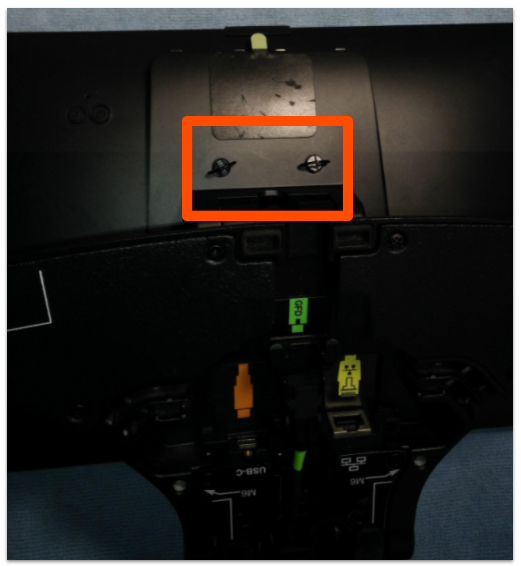
- Coloca la terminal boca abajo sobre un paño de microfibra u otra superficie suave para evitar arañazos en la pantalla.
- Desenchufa el cable con etiqueta naranja. Enchufa el cable del adaptador de corriente directamente en el puerto de alimentación ubicado debajo del soporte.
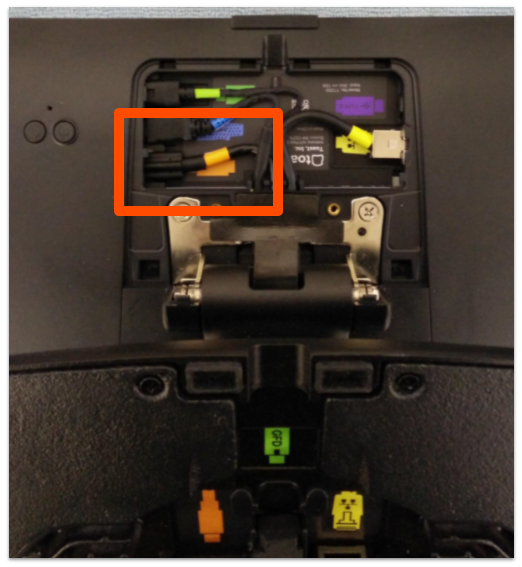
- Intenta encender la terminal.
Resultado previsto: Si Toast Flex se enciende y el logotipo de Toast es visible, el soporte de la terminal está roto y se podría usar como está conectado actualmente, pero si se desea un reemplazo, comunícate con el servicio de atención al cliente de Toast y menciona el código 504. Si el Toast Flex sigue sin encenderse, es necesario reemplazar la terminal. Ponte en contacto con el servicio de atención al cliente de Toast y menciona el código 504.
Problemas de conexión a internet
Tengo energía, pero no hay conexión Ethernet
Se trata de una solución de problemas que debes hacer si solo uno de tus dispositivos está sin conexión. Si estás experimentando una interrupción del servicio de internet, ve a Interrupciones y suspensiones: Solucionar problemas de conexión a Internet o a la red.
Algunas terminales Toast Flex 14 utilizan un cable USB-C a USB-C que va desde el Centro Inteligente de Toast o la Impresora Toast hasta la base del soporte Toast Flex 14. Este cable puede transportar alimentación y Ethernet a la tableta. Mira el siguiente video o sigue los pasos para solucionar un problema de conexión Ethernet. Para todas las configuraciones Toast Flex 14, incluida la Ethernet USB-C, sigue estos pasos:
- Verificar conexión Wi-Fi
- Salir de la aplicación Toast
- Navegar a la configuración de Wi-Fi
- Configuración de Android > Red e Internet > Wi-Fi
- ¿La red Wi-Fi está activada?
- Si es así, desactiva el Wi-Fi. Ir al paso 2
- Si no, ve al paso 2
- Evaluar conectividad RJ-45
- Navegar a la configuración de Ethernet RJ-45
- Configuración de Android > Red e Internet > Ethernet 0 (RJ-45)
- Activar (azul)
- ¿Muestra una IP?
- Si es así, navega a Ethernet 1 USB-C
- Configuración de Android > Red e Internet > Ethernet 1 (USB-C)
- Asegúrate de que USB-C esté desactivado (gris)
- Abre la aplicación Toast, espera 45 segundos, ve a 3-puntos →Estado del dispositivo. ¿Todo está en línea?
- Si es así, el problema se resuelve
- Si no, ¿el dispositivo Toast Flex funciona con una Impresora Toast (TP200) o un Toast Smart Hub?
- Si es así, desactiva Ethernet 0 (RJ-45) e ve al paso 3
- Si no, ve al paso 4
- Si no, desactiva Ethernet 0 y ve al paso 3
- Si es así, navega a Ethernet 1 USB-C
- Navegar a la configuración de Ethernet RJ-45
- Determinar conectividad USB-C
- Navegar a configuración de Ethernet USB-C
- Selecciona Configuración de Android > Red e Internet > Ethernet 1 (USB-C)
- Activar (azul)
- ¿Muestra una IP?
- Si es así, abre la aplicación Toast, espera 45 segundos, ve a 3-puntos →Estado del dispositivo. ¿Todo está en línea?
- Si es así, el problema se resuelve
- Si no, ponte en contacto con el servicio de atención al cliente de Toast y menciona el código 502.
- Si no, sigue estos pasos:
- Activar/desactivar USB-C (gris)
- Navegar a la configuración de Ethernet RJ-45
- Configuración de Android > Red e Internet > Ethernet 0 (RJ-45)
- Activar (azul)
- Ir al paso 4
- Si es así, abre la aplicación Toast, espera 45 segundos, ve a 3-puntos →Estado del dispositivo. ¿Todo está en línea?
- Navegar a configuración de Ethernet USB-C
- Vuelve a ubicar el RJ45 en la terminal
- ¿Hay un RJ45 conectado a este dispositivo?
- Si es así, sigue estos pasos:
- Reseat RJ45
- Navegar a la configuración de Ethernet RJ-45
- Configuración de Android > Red e Internet > Ethernet 0 (RJ-45)
- ¿Tiene una IP?
- Si es así, abre la aplicación Toast, espera 45 segundos, ve a 3-puntos →Estado del dispositivo. ¿Todo está en línea?
- Si es así, el problema se resuelve
- Si no, ponte en contacto con el servicio de atención al cliente de Toast y menciona el código 502.
- Si no, ve al paso 5
- Si es así, abre la aplicación Toast, espera 45 segundos, ve a 3-puntos →Estado del dispositivo. ¿Todo está en línea?
- Si no, ve al paso 5
- Si es así, sigue estos pasos:
- ¿Hay un RJ45 conectado a este dispositivo?
- Enchufa el cable RJ45 en la terminal
- ¿Hay un cable RJ45 cerca del dispositivo que podría haber estado desenchufado?
- Si es así, sigue estos pasos:
- Enchufa el RJ45 a la terminal
- Navegar a la configuración de Ethernet RJ-45
- Configuración de Android > Red e Internet > Ethernet 0 (RJ-45)
- ¿Tiene una IP?
- Si es así, abre la aplicación Toast, espera 45 segundos, ve a 3-puntos →Estado del dispositivo. ¿Todo está en línea?
- Si es así, el problema se resuelve
- Si no, ponte en contacto con el servicio de atención al cliente de Toast y menciona el código 502.
- Si no, ponte en contacto con el servicio de atención al cliente de Toast y menciona el código 502.
- Si es así, abre la aplicación Toast, espera 45 segundos, ve a 3-puntos →Estado del dispositivo. ¿Todo está en línea?
- Si no, conecta la terminal a la red de Toast con un cable RJ45 nuevo o en funcionamiento
- (Si no puedes localizar un cable, el cliente deberá obtener uno y ponerse en contacto con el servicio de atención al cliente una vez hecho esto).
- Navegar a la configuración de Ethernet RJ-45
- Configuración de Android > Red e Internet > Ethernet 0 (RJ-45)
- ¿Tiene una IP?
- Si es así, abre la aplicación Toast, espera 45 segundos, ve a 3-puntos →Estado del dispositivo. ¿Todo está en línea?
- Si es así, el problema se resuelve
- Si no, ponte en contacto con el servicio de atención al cliente de Toast y menciona el código 502.
- Si no, ponte en contacto con el servicio de atención al cliente de Toast y menciona el código 502.
- Si es así, abre la aplicación Toast, espera 45 segundos, ve a 3-puntos →Estado del dispositivo. ¿Todo está en línea?
- Si es así, sigue estos pasos:
- ¿Hay un cable RJ45 cerca del dispositivo que podría haber estado desenchufado?
Resultado previsto: Toast Flex 14 está en línea y la aplicación Toast se carga normalmente. Si la conexión sigue fallando, ponte en contacto con el servicio de atención al cliente de Toast y menciona el código 502.
Mi Toast Flex 14 no se conecta a Internet por Wi-Fi
Se trata de una solución de problemas que debes hacer si solo uno de tus dispositivos está sin conexión y está destinado a conectarse mediante Wi-Fi. Si estás experimentando una interrupción del servicio de internet, ve a Interrupciones y suspensiones: Solucionar problemas de conexión a Internet o a la red.
Siempre que sea posible, las terminales Toast Flex 14 deben estar conectadas por cable a la red de Toast a través de Ethernet o USB-C a Impresora o Toast Smart Hub. Si tu terminal debe usarse con Wi-Fi, confirma que esté en la red correcta.
- Para redes gestionadas por Toast: Confirma que estás conectado a la red correcta: primero, confirma el SSID en Localizar tu contraseña de Wi-Fi de Toast
- Navegar a la configuración de Wi-Fi
- Configuración de Android > Red e Internet > Wi-Fi
- ¿La red Wi-Fi está activada?
- Si es así, ve al paso 4
- Si no, activa el Wi-Fi. Ir al paso 4
- Confirma que el dispositivo esté conectado a la red correcta.
- Si hay alguna red que esté guardada, que no sea correcta ve a Olvidar una red en un dispositivo Toast, y olvida las redes incorrectas.
- Asegúrate de que las conexiones USB-C y RJ-45 estén apagadas
- Configuración de Android > Red e Internet > Ethernet 0 (RJ-45). Activar/desactivar (gris)
- Configuración de Android > Red e Internet > Ethernet 1 (USB-C). Activar/desactivar (gris)
- Verifica que el dispositivo esté conectado
- Abre la aplicación Toast, espera 45 segundos, ve a 3-puntos →Estado del dispositivo. ¿Todo está en línea?
- Si es así, el problema se resuelve
- Si no, si estás utilizando una red gestionada por Toast, ponte en contacto con el servicio de atención al cliente de Toast. Si estás utilizando una red autogestionada, ponte en contacto con el administrador de red local.
- Abre la aplicación Toast, espera 45 segundos, ve a 3-puntos →Estado del dispositivo. ¿Todo está en línea?
Resultado previsto: El indicador de Wi-Fi muestra la red de Toast como "Conectada". Para diagnósticos de Wi-Fi completos, consulta Verificar tu conexión.
Mi Toast Flex 14 o KDS no descargarán una actualización
Si tu dispositivo Toast Flex 14 o KDS no descarga una actualización obligatoria, verifica que esté en línea y que no haya nada en las colas de tarjetas de crédito, modelos de sincronización o cuentas rojas, y borra el almacenamiento. Esto solo debe hacerse si se cumplen todos estos criterios y se conocen el correo electrónico y la contraseña para iniciar sesión en Toast.
- Abre la aplicación Toast, espera 45 segundos, ve a 3-puntos →Estado del dispositivo. ¿Todo está en línea?
- Si es así, continúa con el paso 2
- Si no, ¿es el único dispositivo que tiene problemas de red?
- Si no, ve a Interrupciones y suspensiones: Solucionar problemas de conexión a Internet o a la red
- Si es así, ve a Tengo alimentación, pero no conexión Ethernet
- Comprobar colas
- Ir a 3-puntos→Estado del dispositivo→Colas
- ¿Todas las colas de tarjetas de crédito, sincronización de modelos o cuentas rojas están en blanco o en cero?
- Si no, ponte en contacto con el servicio de atención al cliente
- Si es así, continúa con el paso 3
- Borrar almacenamiento
- Configuración de Android > Aplicaciones > POS de Toast > Almacenamiento y caché > Borrar almacenamiento
- Apaga la terminal.
- Enciende la terminal nuevamente.
- Abrir aplicación del POS de Toast
- Iniciar sesión en Toast con correo electrónico y contraseña
Resultado previsto: El dispositivo vuelve a intentar la actualización en la próxima sincronización. Si la actualización aún falla, ponte en contacto con el servicio de atención al cliente de Toast.
Problemas de pantalla
Mi pantalla Toast Flex 14 tiene líneas, parpadeo o una banda oscura
Si la pantalla táctil no responde, la pantalla parpadea o hay líneas, una banda oscura, píxeles muertos, áreas decoloradas o una luz de fondo no iluminada, mira el video a continuación o sigue los pasos.
- Ve a Configuración.
- Desplázate hacia abajo y selecciona Acerca del dispositivo.
- Revisa el número de compilación. Confirma que la compilación del firmware Toast Flex sea 2.0.14 o superior.
Nota: Si tu restaurante utiliza dispositivos autogestionados, la compilación del firmware será diferente. No actualices el firmware en dispositivos autogestionados.
Resultado previsto: Si el firmware está actualizado y la pantalla aún muestra píxeles muertos, líneas, áreas decoloradas o una luz de fondo no iluminada, ponte en contacto con el servicio de atención al cliente de Toast y menciona el código #503 para obtener un reemplazo.
¿Cómo hago que mi Toast Flex funcione en modo vertical?
Para cambiar la orientación de la pantalla Toast Flex, sigue estos pasos:
- Ve a Configuración y, luego, selecciona Mostrar en la sección Dispositivo.
- Selecciona Mostrar dirección.
- Confirma que el botón Automático en la esquina superior derecha esté desactivado. Cuando esta opción está desactivada, aparecen otras opciones de dirección de visualización.
- Selecciona la orientación de visualización deseada, incluido el modo vertical.
Resultado previsto: La pantalla Toast Flex gira inmediatamente según la orientación seleccionada.
Problemas con Toast Flex for Guest
Mi Toast Flex for Guest refleja el Toast Flex 14
Para que Toast Flex for Guest touch funcione, debe estar habilitado para tu restaurante en Toast Web.
- En Toast Web, ve a Finanzas > Relacionados > Configuración > Pantalla del cliente.
- Para la configuración de Activar pantalla del cliente, selecciona Activar pantalla.
- Selecciona Guardar y, luego, Publica los cambios.
- Apagar Toast Flex
- Encender Toast Flex
Resultado previsto: Toast Flex for Guest funciona según lo previsto después de que se publica el cambio.
My Toast Flex for Guest Goes to Sleep When the Terminal Time Out
En la parte posterior de tu Toast Flex for Guest, hay un botón de encendido que puedes presionar para volver a encender la pantalla. Para evitar que la pantalla se quede dormida cuando la terminal caduque:
- Ve a Configuración en la terminal Toast Flex y, luego, selecciona Pantalla en la sección Dispositivo.
- Selecciona Retroiluminación.
- Configura el temporizador en Nunca.
Resultado previsto: La pantalla Toast Flex for Guest permanece encendida mientras la terminal está inactiva.
Lector de tarjetas y problemas de pago
Mi Toast Tap (conexión directa) no está leyendo tarjetas con chip
Si en Toast Tap (conexión directa) no se leen tarjetas con chip, primero confirma que EMV esté habilitado.
- En el menú principal de la aplicación Toast en tu terminal Toast Flex, ve a Configuración > Configuración del dispositivo.
- Desplázate hacia abajo y selecciona EMV habilitado.
- Selecciona Sí y guarda los cambios. Es posible que se te solicite ejecutar una actualización del lector de tarjetas. Si se te solicita, instala la actualización.
Si EMV está habilitado y Toast Tap (conexión directa) aún no lee tarjetas con chip, confirma que los clientes estén insertando sus tarjetas de crédito correctamente. Las tarjetas con chip (tarjetas de inmersión) deben insertarse con la banda orientada hacia la tableta y el chip orientado hacia afuera.
Resultado previsto: Las transacciones con tarjetas con chip se completan correctamente. Para solucionar problemas más profundos con el lector de tarjetas, incluida la resincronización, las comprobaciones de indicadores LED, el cambio de puertos USB y la ejecución de un pago de prueba con la aplicación de asistencia del lector de tarjetas, consulta Obtener ayuda con tu lector de tarjetas.
Impresora y Centro de Toast
¿Cómo conecto mi Impresora Toast o Centro Toast?
El sistema de hardware de Toast puede usar una fuente de alimentación y un cable Ethernet para alimentar la Impresora Toast, Toast Flex y Toast Tap.
- La fuente de alimentación se conecta a la Impresora Toast o al Centro de Toast.
- Un cable USB-C a USB-C se conecta desde la Impresora Toast o el Centro de Toast a la base de la terminal Toast Flex.
- No se necesita cable de alimentación adicional para Toast Flex, cuando se configura de esta manera.
Resultado previsto: Con una fuente de alimentación y un cable USB-C a USB-C conectados a la Impresora Toast o al Centro Toast, Toast Flex enciende y recibe Ethernet a través del mismo cable.
¿Cómo configuro mi Impresora Toast?
Para obtener información sobre cómo configurar la Impresora Toast para Toast Flex 14, consulta Descripción general.
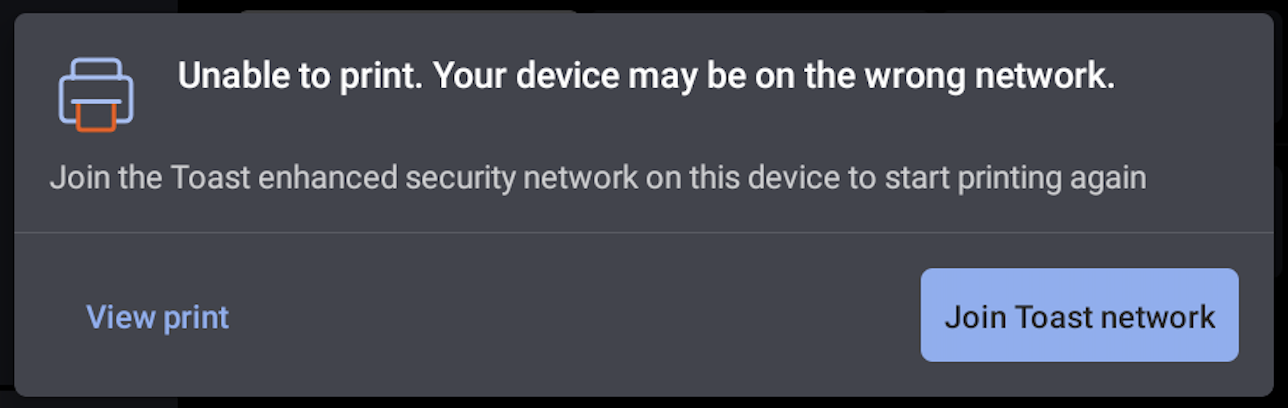
Estoy recibiendo un error que dice "No se puede Imprimir. Tu dispositivo puede estar en una red incorrecta”.
Si la red es administrada por Toast y estás conectado a través de Wi-Fi, este error podría significar que la terminal Toast no está en la red _Toast.
- En el mensaje de error, selecciona Únete a Toast.
Resultado previsto: Toast Flex se conecta automáticamente a la red de _Toast e imprime currículums.
Preguntas frecuentes
¿Dónde está el número de serie en mi Toast Flex 14?
Ve a Buscar el número de serie en tu dispositivo Toast.
Antes de contactar al servicio de atención al cliente
La mayoría de las fallas del hardware Toast Flex 14 —pantallas rotas, lectores de tarjetas muertos, cables dañados, soportes rotos— requieren una Autorización de Devolución de Mercancía (RMA) y no pueden resolverse por sí mismas. Antes de iniciar un chat en vivo con el servicio de atención al cliente de Toast, reúne lo siguiente para que el agente pueda emitir la RMA en una sola pasada:
- El número de serie del Toast Flex 14
- El síntoma exacto (por ejemplo, “la pantalla tiene líneas horizontales”, “el lector de tarjetas no tiene luces LED”, “el pasador de bloqueo USB-C roto dentro de la unidad”)
- Qué pasos de solución de problemas ya completaste
Usa el código de referencia si corresponde:
- #502 - Problema de conexión Ethernet que persiste después del cambio de cable
- #503 - problema de pantalla (líneas, píxeles muertos, banda oscura) que persiste después de la comprobación del firmware
- #504 - Terminal Toast Flex que no se enciende después del cable y resiste la prueba
- #515 - Problema del POS después de una interrupción del suministro eléctrico
Para el proceso completo de RMA, consulta Reemplazar hardware defectuoso (RMA).
Artículos relacionados
- Guía de instalación Toast Flex 14
- Verifica tu conexión a Internet
- Qué hacer después de una interrupción del suministro eléctrico
- Desactivar Wi-Fi en dispositivos con cable
- Reemplazar hardware defectuoso (RMA)
- Instala tu Toast Flex Terminal de reemplazo
- Obtener ayuda con tu lector de tarjetas
- Resumen de la configuración Impresora
USB Type-C® y USB-C® son marcas comerciales registradas de USB Implementers Forum.