Mesas Toast: Establecer fechas especiales y bloquear reservas
Última actualización: 18 sept 2026, 10:21 a.m.
Configurar fechas especiales
Con Toast Tables™, tienes la capacidad de configurar fechas o horarios especiales para tu restaurante. Los ejemplos incluyen:
- Horas cerradas o especiales para días festivos o renovaciones
- Un evento privado en el que deseas bloquear la creación de reservas solo en una parte específica del restaurante
- Un evento especial donde deseas cambiar la disponibilidad de reservas o los tiempos de espera y configurar una descripción para los invitados/anfitriones (ej: Estamos organizando una cena del Día de San Valentín).
Para configurar fechas o horarios especiales, consulta Toast Tables™: Horarios. Para más información sobre cómo configurar experiencias especiales en fechas específicas junto con tus reservas regulares, consulta Toast Tables™: Experiencias
Nota: Google no actualiza automáticamente Toast Tables™ para reconocer fechas especiales. Necesitas actualizar manualmente las horas en tu Perfil de Google para asegurarte de que los cambios se reflejen con precisión en Google. Es importante mantener actualizadas las horas de tu negocio, incluyendo cualquier hora especial, en Google Mi Negocio para evitar conflictos de programación o insatisfacción del cliente.
Para actualizar fechas especiales en Google:
- Inicia sesión en tu cuenta de Google Mi Negocio. Aquí es donde puedes gestionar la información de tu negocio tal como aparece en Google Maps y Búsqueda.
- Navega a Horas Especiales.
- En tu panel, navega a Información > Horas especiales. Esta sección te permite especificar fechas y horas que se desvían de tu horario regular, incluyendo días festivos o eventos especiales.
- Selecciona Añadir nueva fecha para especificar tus horas de operación especiales para cada fecha que se desvíe de tu horario normal de operación. Puedes agregar múltiples fechas a la vez. Asegúrate de que estas horas sean precisas, ya que informarán las opciones de reserva disponibles para los clientes a través de Google.
- Selecciona Guardar. Puede tardar un tiempo en que estas actualizaciones se reflejen en todos los servicios de Google.
- Una vez que tus cambios estén activos, verifica la interfaz de "Reservar con Google" para asegurarte de que el selector de fechas y el selector de horas permitan reservas fuera del horario normal de negocio según tus nuevos ajustes.
Bloquear o Detener Reservas
Puedes pausar fácilmente las reservas en el lugar, las reservas en línea y la lista de espera en línea bloqueando o deteniendo reservas en Toast Web. Los bloques de mesas se establecen por franjas horarias, y puedes bloquear mesas individuales o agrupar múltiples mesas en un solo bloque. Esto puede incluir un nombre y una descripción junto con un rango de tiempo establecido. Ejemplos de cuándo podrías necesitar bloquear o detener reservas incluyen:
- Su restaurante está sobre reservado para el sábado, y desea detener todas las futuras reservas, tanto en el lugar como en línea.
- Su restaurante quiere desactivar las reservas en línea y la lista de espera en línea para el resto del día dado, de modo que no se puedan hacer más reservas.
¿Está interesado en bloquear, pausar o detener las reservas para su restaurante durante un período de tiempo determinado? Aquí está ahora:
- En Toast Web, navegue a Lista de espera y Reservas para llevarlo a la configuración de Toast Tables™.
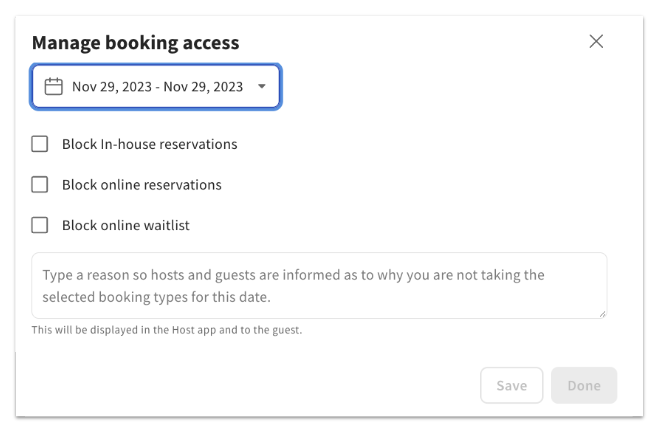
- En la pestaña Resumen en la parte superior, verá el Acceso a reservas para el día. Seleccione Gestionar acceso a reservas.
- Seleccione el rango de fechas deseado y luego elija si desea bloquear reservas en el lugar, reservas en línea o la lista de espera en línea (o una combinación de los tres) para esa fecha marcando la casilla junto a cada uno. Luego, agregue una explicación sobre por qué no está aceptando los tipos de reservas seleccionados para la fecha en el cuadro de diálogo. Esto es para informar a sus anfitriones e invitados.
- Seleccione Guardar y Listo para confirmar sus cambios.
Una vez completado, puede ver el estado actual de su configuración bloqueada en la pestaña Resumen. En el ejemplo a continuación, las reservas en línea están listadas como Bloqueadas, pero las reservas en el lugar y la lista de espera en línea están Normales.

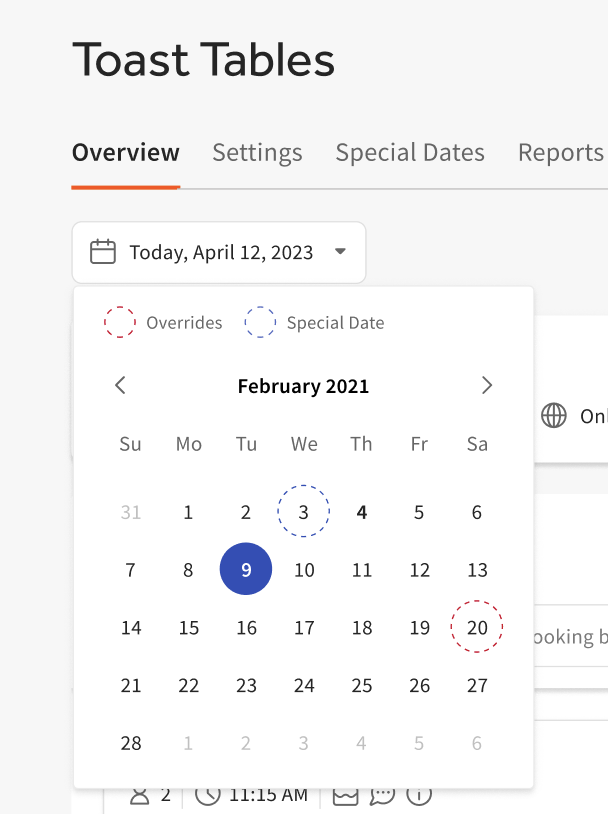
Nota: También puede ver si una fecha tiene un bloqueo o una fecha especial en la vista de calendario bajo la pestaña Resumen.
- Rojo = Fecha Especial
- Azul = Uno o más tipos de reservas están bloqueados
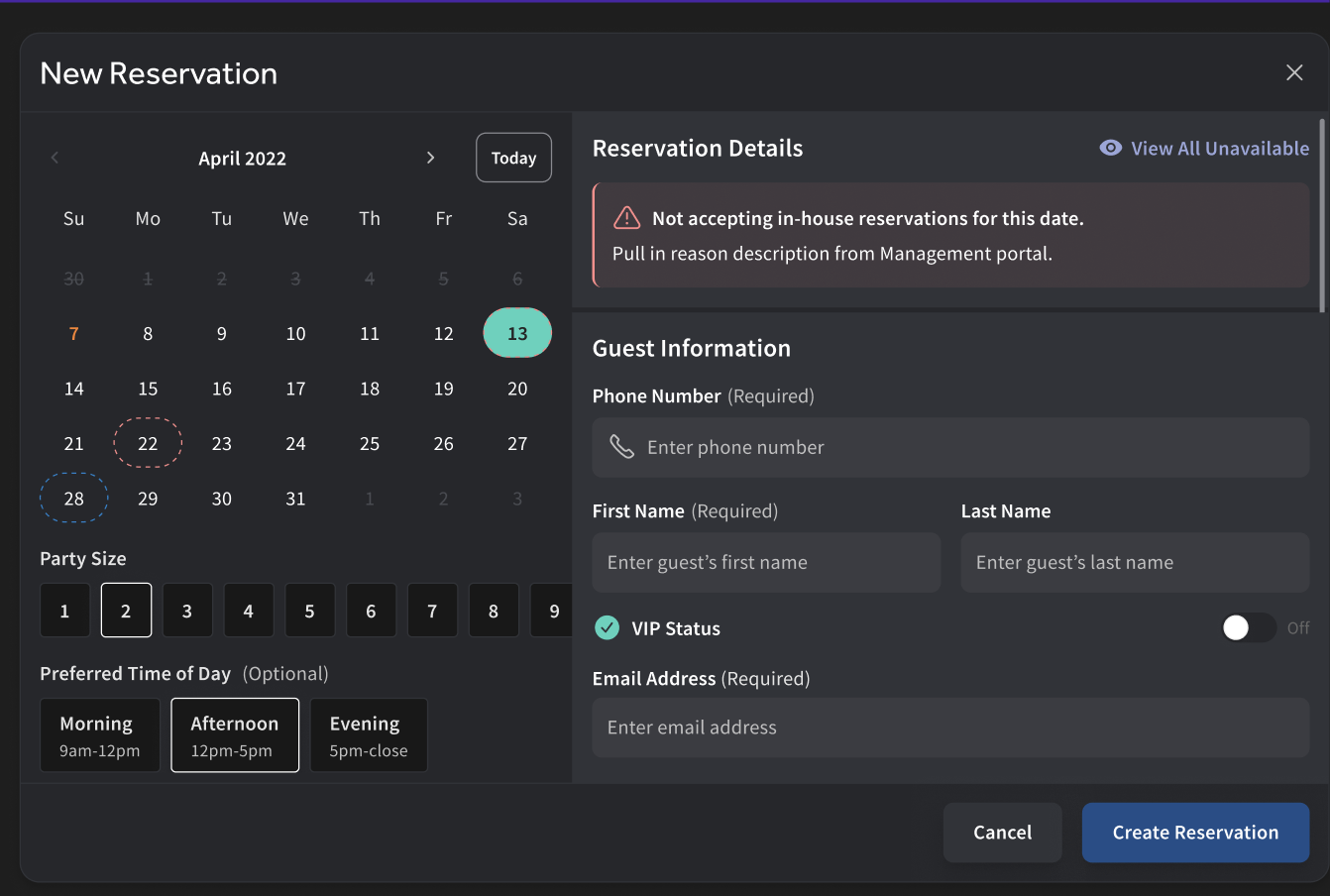
La fecha bloqueada también se mostrará en la aplicación Toast Tables™ para informar a los anfitriones que su restaurante no está aceptando reservas en el lugar para esa fecha, como se muestra en el ejemplo a continuación.
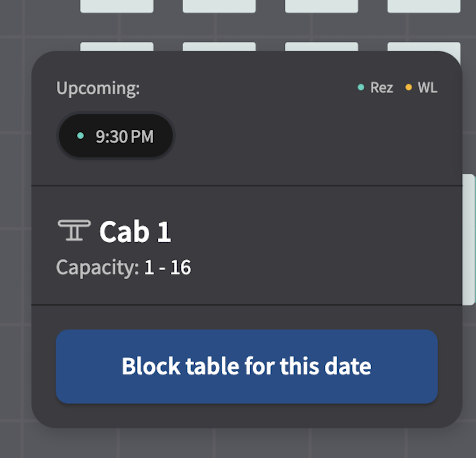
Si desea bloquear mesas para fechas futuras dentro de la aplicación Toast Tables™, puede hacerlo navegando a una fecha futura, tocando la mesa individual para bloquearla o seleccionando múltiples mesas tocando la opción Seleccionar mesas en la esquina inferior derecha, luego seleccionando las mesas que desea bloquear y eligiendo Bloquear mesas para esta fecha. Esto las bloqueará para toda esa fecha. También puede bloquear mesas durante el turno dentro de la aplicación, y esto se puede gestionar en la pestaña Más seleccionando Bloqueos.
Recursos Adicionales
- Comenzar con Toast Tables™
- Usar Toast Tables™
- Resolver Problemas de Toast Tables™
- Toast Tables™ : La Experiencia del Huésped