Toast Payroll: Get Help With Social Security Numbers

上次更新时间:2026年4月8日 09:59

Learn the importance of accurate SSNs for proper tax filing and how to check for and edit missing/inaccurate social security numbers.
Toast Payroll will exclude employees and their wages from certain filings if they are missing a social security number (SSN). Read more about how this works and why Toast Payroll made this change in Toast Payroll: Social Security Number (SSN) Information Policy.


In this Article:


Social Security Number (SSN) Information

If an employee receives a message on a Toast POS device while trying to clock-in, don't ignore this message! Toast Payroll requires their social security number in order to accurately and correctly file their taxes. Managers can view the Tax Center in Toast Payroll to quickly add any missing SSNs for each of your employees.


Accurate employee social security numbers (SSNs) are essential for tax filing at an employer and employee level. Inaccurate or missing SSNs may result in inaccurate tax filings, tax filings not accepted by agencies, and/or financial penalties.


Toast recognizes these SSNs as invalid:


  • An SSN that starts with "9", "000", or "666"
  • An SSN with the middle two digits of "00"
  • An SSN where the last four digits are "0000"
  • An SSN with a numerical sequence such as 123-45-6789 or 987-65-4321


The Toast Payroll system gathers employee's social security numbers during the employee onboarding process. Employee wages recorded on payroll are reported to the Social Security Administration (SSA) and other tax agencies using the SSN that is entered in Toast Payroll. The SSN is listed on employer quarterly tax filings and on year-end documents that an employee might receive, such as a Form W-2.


Some state tax agencies will not accept tax filings with missing SSNs. Additionally, some will not accept filings with clearly fake SSNs such as 123-45-6789. These types of inaccuracies could result in the inability to file for that quarter, penalties per each missing SSN, or filing late or inaccurately. Fees can be assessed to the employer on missing, late, or inaccurate tax filings. 


At an employee level, wages are reported to the SSA using the SSN which appears on the Form W-2 and is used to file annual taxes. An inaccurate SSN can make it difficult to file these taxes. The SSA also uses your employee’s SSN to provide an earning credit for future Social Security benefits. Furthermore, wages are reported to state unemployment agencies using the employee’s SSN. Without the correct SSN, these wages cannot be reported correctly and this could cause a problem should the employee ever need to file for unemployment.


Back to top 


Verify or Update SSN

If you'd like to verify your staff's social security numbers, the Social Security Administration has assembled two methods that can assist you. Begin by registering and requesting an activation code before using either method. Toast Payroll recommends verifying your employees SSNs to assist with accurate wage reporting, tax filing, and Form W-2 generation. 


Employees can update their own SSN by following the directions in Toast Payroll: Verify or Update My Social Security Number (SSN).


You will be notified when an employee's social security number is missing before each quarter's tax filing. Reference Toast Payroll: Manage Payroll Taxes to learn more.


An employee's direct manager(s) and all HR+ users can update an employee's SSN by following these steps:


  1. Navigate to the employee's profile using the Team tab or the Search employees search bar.
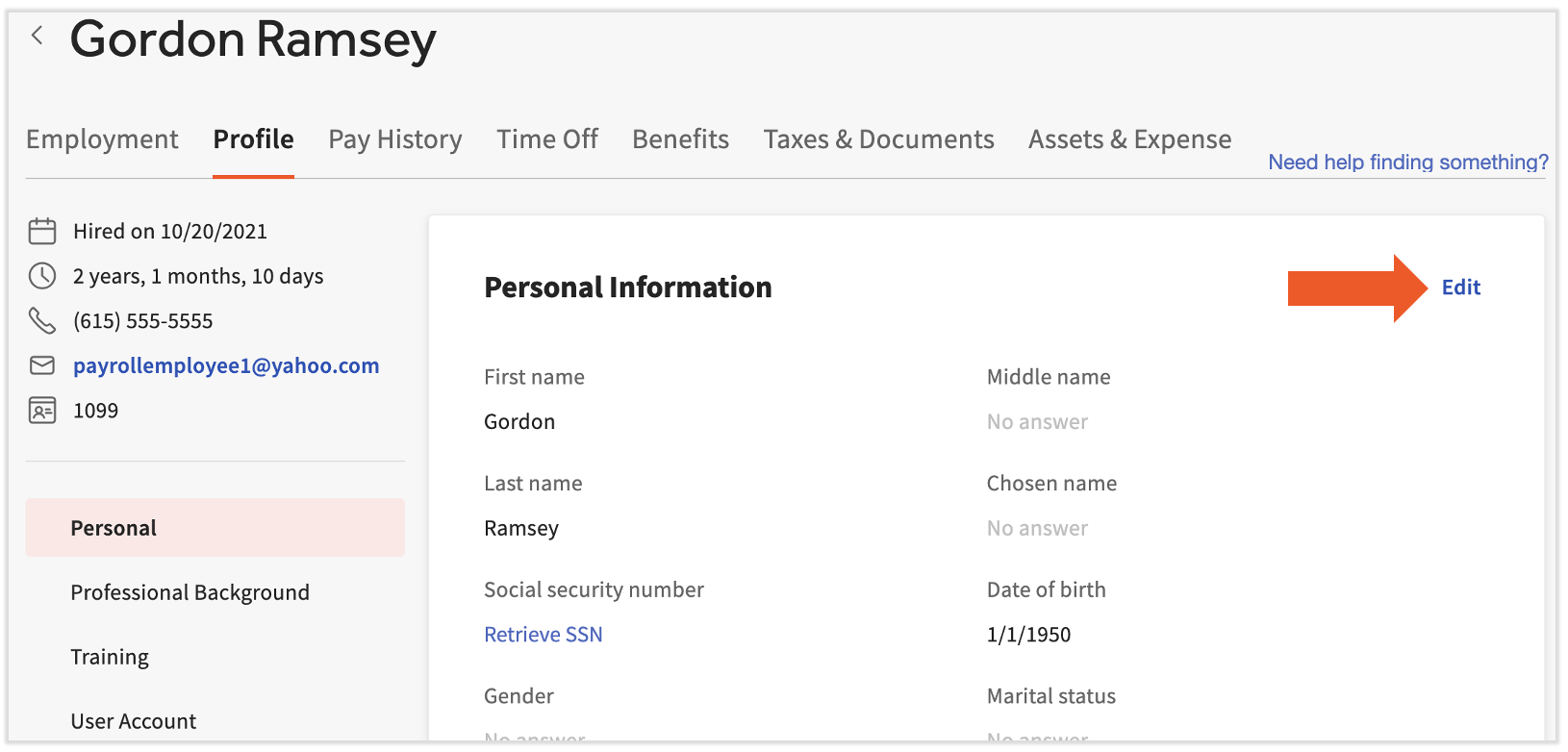
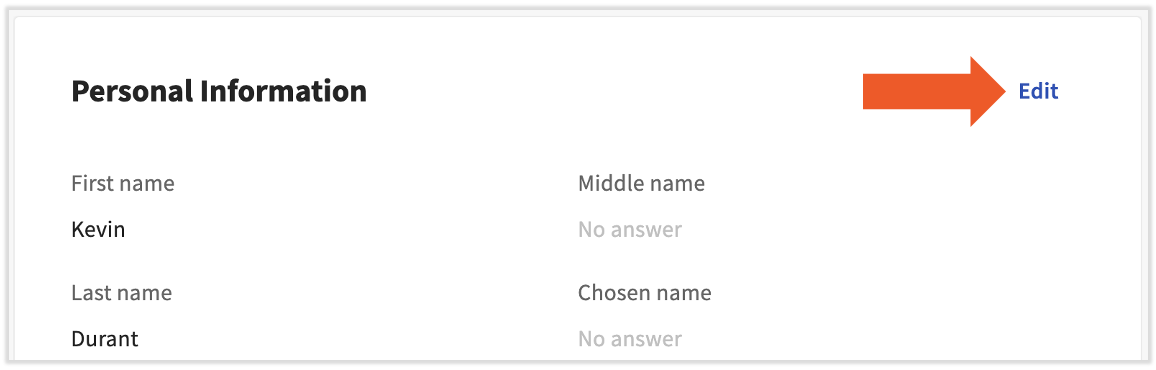
  2. Select the Profile tab and then select the Edit button at the top of the Personal Information tile.

    Personal profile with the Edit button highlighted

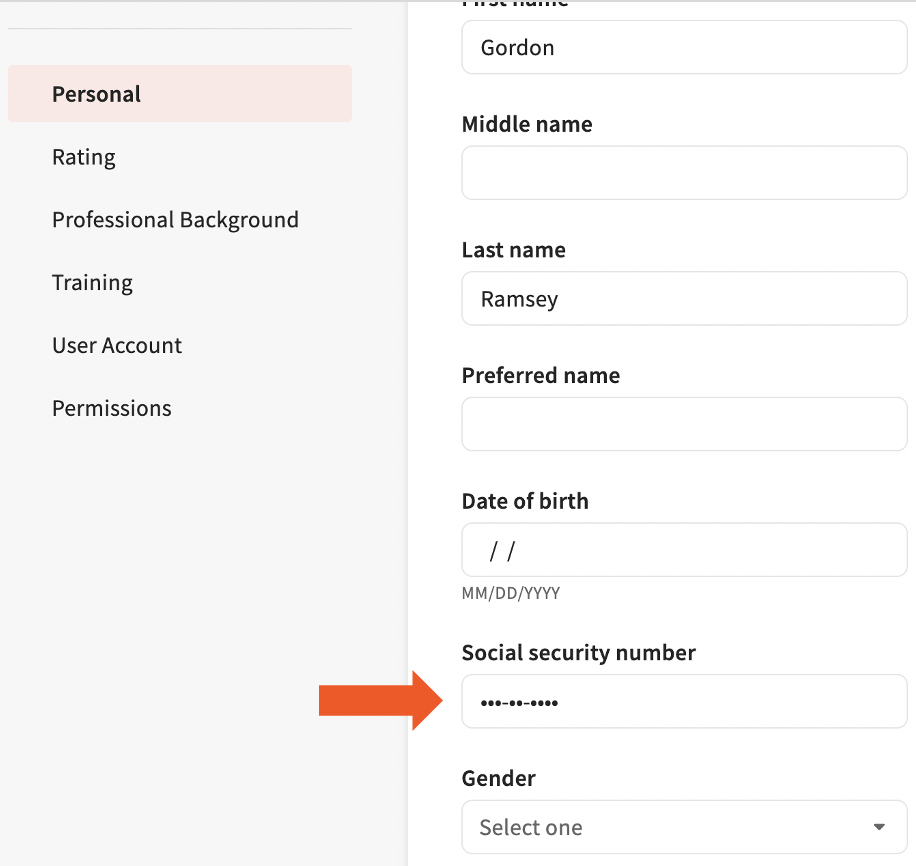
  3. Locate the Social security number field on the page and adjust it accordingly. Select Save Changes at the bottom of the page to update.
    1. In the rare event that you change an SSN and select Save changes, but it reverts back to the original SSN, try logging out and logging back in again. You should see your change applied.
    2. If you see Please enter a valid Social Security number or Couldn't save Social Security number, check out Get Help With Toast Payroll Error: Please Enter a Valid Social Security Number for more details.


Editing a social security number field
 

Back to top
 

Review All/Missing SSNs

To check SSNs across all employees, run a custom report:


  1. Navigate to Reports > Custom.
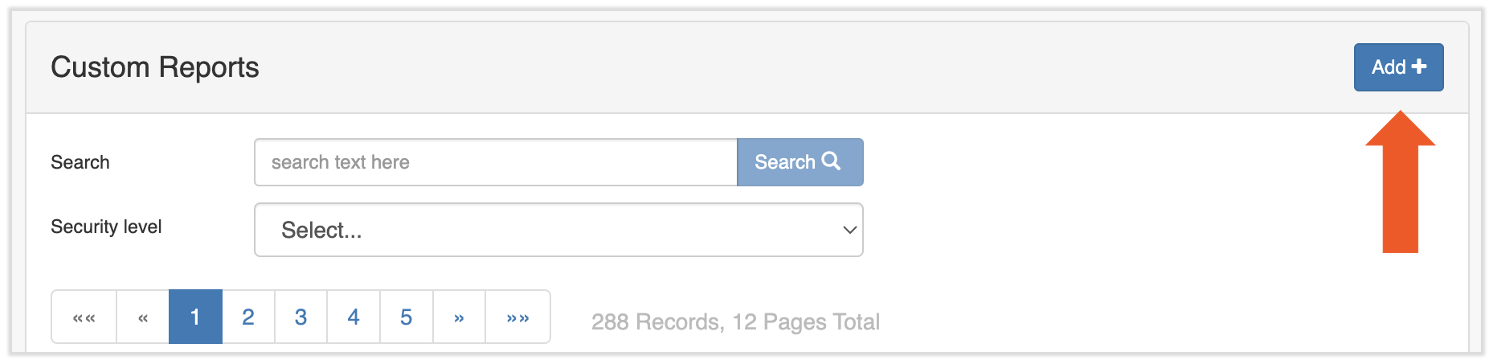
  2. Select Add+ to add a new custom report.


    Adding a custom report
     
  3. Title this report however you like and choose the Employee Attributes template drop-down. Press Save to begin.
  4. Build your report by adding First Name, Last Name, and SSN. Select the + icon for each field you'd like to add to the report.
  5. Click the blue Queue button to run the report in Excel.


Otherwise, you may look for missing SSNs only by using the Missing Data page (or the Tax Center, not shown):


  1. HR+ users can navigate to Settings > Payroll.
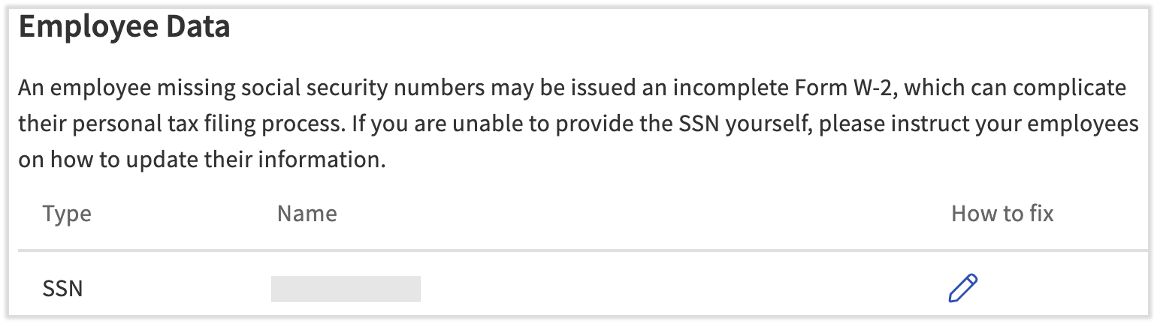
  2. Scroll to the Employee Data section and look for any SSN entries. 

    Employee Data section of the Missing Data page

  3. Select the pencil icon on the right of the employee to navigate directly to their personal profile.
  4. From the employee's profile, select Edit in the Personal Information section.

    Personal profile with the Edit button highlighted

  5. Fill in the Social security number field and select Save changes at the bottom.


Back to top
 

Additional Resources


Back to top


This content is for informational purposes and is not intended as legal, tax, HR, or any other professional advice. Please contact an attorney or other professional for advice.