Configure Digital Receipts
Last updated: Jul 20, 2026, 3:35 PM
Digital receipts let guests choose how to receive their receipt (email, text, or no receipt) and add tips and signatures on the payment device or guest-facing display instead of on a printed slip. This article covers how to enable digital receipts in Toast Web, turn them on for each POS device, configure tips and the tip/signature flow, and enroll guests in Toast Loyalty at checkout.
For customers outside of the U.S., the tipping options selected display on the payment device rather than the Guest-Facing Display.
- Quick Answers
- Enable Digital Receipts for Cash Payments
- Enable Digital Receipts on Your POS Device
- Turn Off Digital Receipts on a POS Device
- Enable or Disable Tips on Digital Receipts
- Customize the Tip Screen on Toast Terminals and Handhelds
- Combine the Tip and Signature Screen
- Enable Toast Loyalty Signup on Digital Receipts
- Troubleshooting
- Related Articles
Quick Answers
How do I turn on tipping on the terminal or handheld?
Enable Tips Enabled in Finance > Settings > Payment options under Digital Receipt Options, then make sure the device has digital receipts turned on in Device Setup. See Enable or Disable Tips on Digital Receipts.
How do I turn off tipping?
Set Tips Enabled to No in Finance > Settings > Payment options. To disable tipping across every channel — POS, online ordering, kiosk — see Disable Tips at Your Restaurant.
How do I change the suggested tip percentages?
Navigate to Front of house > Order screen setup > UI options, scroll to Tipping, and edit the Customize Tip Percentages values. See Customize the Tip Screen.
Why isn't tip and signature appearing on the guest-facing display?
The tip/signature prompt routes based on device configuration. Confirm digital receipts are turned on for that device in Device Setup, then check the Tip & Signature Flow setting in Finance > Settings > Payment options. See Troubleshooting.
How do I turn off the rewards signup prompt on receipts?
In Finance > Settings > Payment options, set Rewards Signup to No under both the Cash and Credit sections.
Enable Digital Receipts for Cash Payments
To prompt the guest to choose a receipt option after a cash payment, configure the cash receipt dialog in Toast Web.
- In Toast Web, navigate to Finance > Settings > Payment options.
- In the Cash section, for the Digital Receipt Dialog setting, select Yes, show the receipt dialog after each cash payment (Digital Receipts only).
- For the Cash Receipt Options setting, select Prompt for Receipt Options or Always Print Receipt so a digital receipt is offered to the guest.
- Save and publish your changes.
Enable Digital Receipts on Your POS Device
After turning on digital receipts in Toast Web, enable them on each POS device. Digital receipts must be turned on per device — the Toast Web setting alone does not push the change out.
For guests paying with a debit or credit card, the payment line item is labeled "Card" on both physical and digital receipts. If surcharging is enabled, Toast's Credit Card Surcharging product automatically prints or displays the required disclosures. For more information, see Get Started With Credit Card Surcharging and Surcharging Overview.
- On the main menu of the Toast app on your POS, select Device Setup from the Setup section.
- Select Digital Receipts, then select Yes, use digital receipts.
- Select Save.
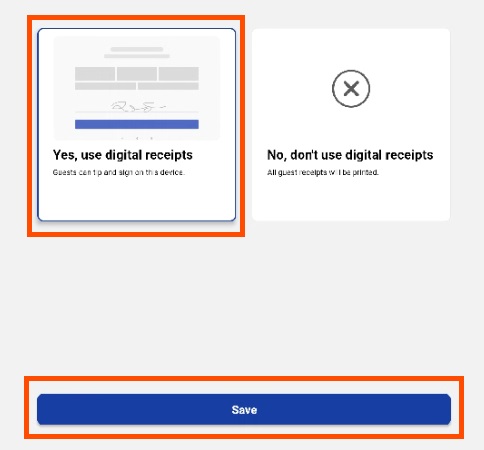
Once digital receipts are turned on, an additional setting appears in Device Setup: Always Print Receipt. When enabled, a closed-check receipt prints after every transaction, regardless of the guest's digital-receipt choice.
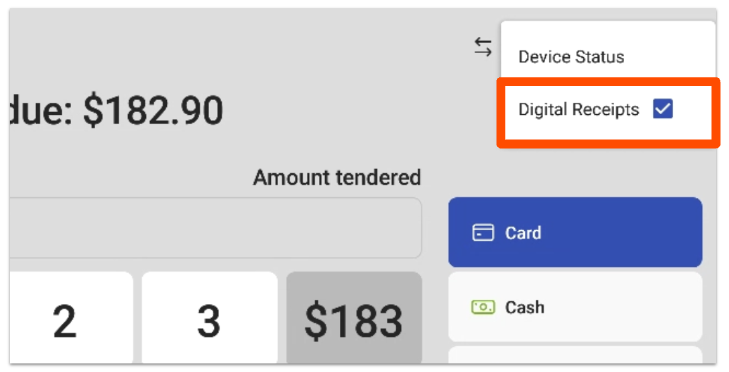
You can also override the device-level digital receipt setting for a single transaction. On the Payment Selection screen on the POS, use the overflow menu (the three-dot icon) to toggle digital receipts on or off for that transaction only.
Turn Off Digital Receipts on a POS Device
To switch a single device back to printed-only receipts, turn off digital receipts in Device Setup on that device.
- From the main menu of the Toast POS app, select Device Setup from the Setup section.
- Select Digital Receipts.
- Select No, don't use digital receipts.
- Select Save.
When digital receipts are turned off on a device, every guest receipt prints. You can change this setting on the terminal at any time.
Enable or Disable Tips on Digital Receipts
The tip prompt on digital receipts is controlled by the Tips Enabled setting on the Payment Options page in Toast Web.
- In Toast Web, navigate to Finance > Settings > Payment options.
- Under the Digital Receipt Options header, for the Tips Enabled setting, select either Yes, show the tip dialog or No to disable tips.
- Save and publish your changes.
Tipping can also be turned off on a single device without affecting your account-wide setting. On the device, go to Device Setup and enable Disable tipping on this device. Orders taken on that device will not display the tip prompt.
To disable tipping across every channel — POS, online ordering, kiosk, and Mobile Order & Pay — see Disable Tips at Your Restaurant.
Customize the Tip Screen on Toast Terminals and Handhelds
To change tip screen settings — tip percentages or dollar amounts, the default selection, and manager approval rules for tip changes — configure the Tipping section in UI options.
- In Toast Web, navigate to Front of house > Order screen setup > UI options.
- Scroll to the Tipping section. Follow the prompts to select a tipping option, or enter your custom tip percentages and amounts.
- Save and publish your changes.
The tip settings you choose apply everywhere tipping is enabled, including digital receipts, physical receipts, and Toast Online Ordering.
| Setting | What it controls |
|---|---|
| Tip / Tax | Whether the tip is calculated before or after tax. |
| Choose Tip Options | Whether tip options appear as percentages, dollar amounts, or both. Percentages only shows three pre-set percentages. Dollar only shows three dollar values. Percentage/dollar mix lets you set a threshold above which the suggestion switches from dollars to percentages. Fixed dollar amounts only display on digital receipts. |
| Default Tip Selection | Pre-selects a tip amount for the guest. Options: One tip amount (dollar, percentage, or both), No tip (defaults to no tip, guest can sign immediately), or None (guest must choose a tip button before submitting their signature). |
| Significant Adjustments to Tips Require Approval | Whether a manager has to approve large changes to tip amounts. If enabled, define the threshold that counts as significant. |
Note: At this time, tip percentage suggestions cannot be removed from the signature screen without fully disabling tipping. Only the percentage values can be modified.
For full tip-percentage setup details, including the troubleshooting flow when four suggested tip amounts appear in online ordering while only three are editable, see Set Up Tip Options.
To add a tip line to printed credit card receipts (in addition to or instead of digital), see Display Suggested Tip Amounts on Receipts.
Combine the Tip and Signature Screen
Combining the tip and signature screen on the digital receipt dialog is useful for quick-service restaurants where guests tend to sign first and miss the chance to tip.
- In Toast Web, navigate to Finance > Settings > Payment options.
- In the Default Receipt Options section, for the Tip & Signature Flow setting, select Use the combined Tip & Signature Screen. If the legacy tip screen is selected, the default tip will not appear on the guest checkout screen.
- Save and publish your changes.
For details on the combined vs. legacy screen, default tip selection, and credit card signature threshold, see Manage the Guest Checkout Process.
To require a guest signature only above a certain order total — typically used by counter-service restaurants with small ticket sizes — set a Signature Threshold under the Credit section on the Payment Options page. See Adjust Credit Card Signature Threshold for the exact values and the related Print Receipt Threshold.
Enable Toast Loyalty Signup on Digital Receipts
Note: Toast Loyalty is currently only available for restaurants located in the United States.
Guests can sign up for Toast Loyalty through digital receipts. To turn this on:
- In Toast Web, navigate to Finance > Settings > Payment options.
- In the Cash section, under Receipt Options, set Rewards Signup to Yes.
- In the Credit section, set Rewards Signup to Yes as well.
- Save and publish your changes.
When guests are presented with a digital receipt, they will see the option to sign up for Toast Loyalty.
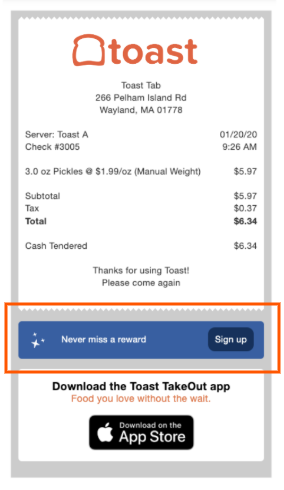
Guests can also enroll by providing an email address or phone number at the point of purchase. After paying, they are prompted to join the program. Whether the prompt asks for email or phone depends on the loyalty program's signup method.
To turn off the rewards signup prompt: In Finance > Settings > Payment options, set Rewards Signup to No in both the Cash and Credit sections, then save and publish.
For full loyalty program setup — reward types, point values, signup method, ordering channels — see Get Started With Toast Loyalty.
Troubleshooting
The tip or signature prompt appears on the POS screen instead of the guest-facing display.
Confirm that the guest-facing display is paired and active in Device Setup on the POS, and that digital receipts are turned on for that device. The tip and signature flow routes through whichever screen is configured for guest-facing payment.
The suggested tip percentages on my devices don't match what I configured.
After changing tip percentages in Front of house > Order screen setup > UI options, you must save and publish, and then the device must sync the new configuration. If a device still shows the old percentages after several minutes, restart the device. If the mismatch persists, see Suggested Tip Amount Does Not Match and Suggested Tips Sync Issue After Edit.
Tipping is turned off in account-wide settings but the table QR codes (Mobile Order & Pay) still show tipping.
Toast Mobile Order & Pay® has its own tip configuration. Contact Toast Customer Care to disable tipping on Mobile Order & Pay; see Disable Tips at Your Restaurant for the section on Mobile Dining Solutions.
A new handheld isn't allowing tipping after setup.
If a new device isn't showing tip options, the device may have been mirrored from another device that had tipping disabled. On the original device, navigate to Setup > Device Setup and toggle Force mirroring on device on the second screen to off. For per-device tip configuration in Canada, Ireland, and the UK, see Set Up Tip Options.
I want to view the captured digital signature for a past credit card transaction.
Viewing captured signatures is not configured from this article — it's an inquiry against the closed check.
Related Articles
- Set Up Tip Options — full tip percentage configuration, per-device tip rules for Canada/Ireland/UK, and online ordering tip-count troubleshooting.
- Manage the Guest Checkout Process — combined vs. legacy tip and signature screens, default tip selection, signature threshold setup.
- Display Suggested Tip Amounts on Receipts — tip line and tip suggestions on printed receipts; behavior with mandatory gratuity and discounts.
- Disable Tips at Your Restaurant — disable tipping across POS, online ordering, kiosk, and Mobile Dining Solutions.
- Adjust Credit Card Signature Threshold — set minimum order amounts that prompt a signature.
- Customize Receipts: Advanced Configuration — receipt header, footer, promotional area, tip line text ("Tip" vs. "Additional Tip"), itemization, and more.
- Get Started With Toast Loyalty — full loyalty program setup including signup method, ordering channels, reward types, and bonuses.