Create Menus, Groups, Subgroups, and Items in the Menu Builder
Last updated: Mar 25, 2026, 1:49 PM
- Toast Menu Hierarchy Overview
- Create a Menu in the Menu Builder
- Create a Menu Group in the Menu Builder
- Create a Menu Subgroup in the Menu Builder
- Create a Menu Item in the Menu Builder
Toast Menu Hierarchy Overview
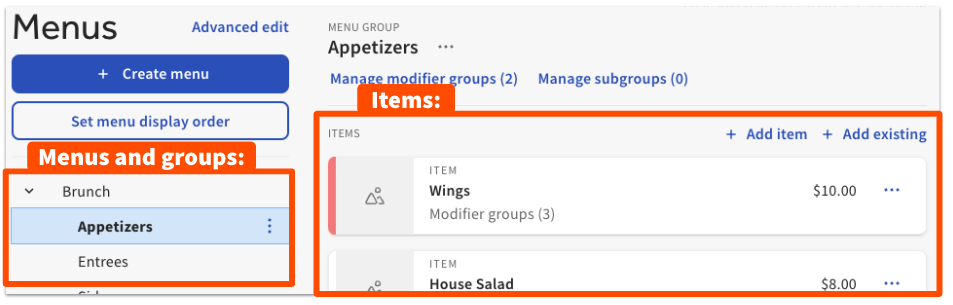
Toast uses a hierarchical structure to organize your menu into four different sections:
- Menus
- Groups
- Items
- Modifiers
- Items
- Groups
Watch the video for an overview of the menu hierarchy, and then read the Menu Hierarchy Overview section of this Support Center article, Create and Manage Menus, Menu Groups, and Subgroups to understand how these sections fit together and how you can use menus, groups, items, and subgroups to organize your menu offerings.
This article will show you how to create menus, groups, subgroups, and items in the menu builder tool. If the menu builder isn't available for your restaurant, use these Support Center articles below to learn how to create menu entities using the menu manager:
Overview of the Toast menu hierarchy.
Note: Currently, the menu builder tool supports editing of menus and menu items for multi-location restaurants. However, if you need to create menus or menu items, you will need to create them first via the Advanced properties page in Toast Web (Menus > Bulk Management > Advanced properties) before you can edit them using the menu builder. Additionally, the menu builder does not yet support creating or editing menu groups, modifier groups, and/ or modifiers for multi-location restaurants.
Create a Menu in the Menu Builder
To create a menu in the menu builder, follow these steps:
- In , navigate to the menu builder by selecting Menus > Menu management > Menu builder, or by selecting Menu builder from the Quick actions section of your Toast Web homepage.
- Select + Create menu.
- A new menu page will appear. Take the following steps to customize and set up your new Menu:
- Menu name: Name your new menu. For example: Food or Drinks.
- POS nickname: Customize the button employees will see on the POS with a nickname for the menu.
- POS button color: Set a button color so staff members can easily distinguish between the menus on the POS.
- Tax rates: Set the tax rates for the menu. Learn more: .
- Prep stations: Assign prep stations to this menu so items from this menu will get routed to the correct station(s). Learn more: .
- Sales category: Select a sales category for this menu. Learn more: .
- Availability: Set the availability for this menu if needed. For example: Breakfast will only appear Monday - Friday, 6 a.m. - 11 a.m. Learn more: .
- Visibility: Select what ordering channels this menu will appear in. Learn more: .
- Once you're done creating your new menu, save your changes and publish all changes when you're completely finished.
To make changes to your menu in the future, select the menu name on the left side of the menu builder page. Then select the three dot (⋮) overflow menu icon to the right of the menu's name and select Edit or Remove. Advanced edit is also available from the overflow menu if you want to access the full settings page.
You also have the option to change the order that your menus are displayed on the page. To do so, select the Set menu display order button right below + Create menu, then drag and drop your menus to the order you'd like. Select Save when you're finished.
You can use the View POS layout button at the top of the menu builder to preview how your menus will look on your POS. To learn more, see .
Create a Menu Group in the Menu Builder
To create a menu group in the menu builder, follow these steps:
- Navigate to the menu builder (Menus > Menu management > Menu builder, or by selecting Menu builder from the Quick actions section of your Toast Web homepage).
- Select the name of the menu you'd like to add a group to, then select + Add group.
- A new group page will appear. Take the following steps to customize and set up your new group:
- Group name: Name your new group. For example: Appetizers or Lunch.
- POS nickname: Customize the button employees will see on the POS with a nickname for the group.
- POS button color: Set a button color so staff members can easily distinguish between the group on the POS.
- Tax rates: Set the tax rates for the group if different than what is set as default. Learn more: .
- Subgroups: Create subgroups for the menu group. Learn more the of this article.
- Modifier groups: Create modifiers at the group level. Learn more: .
- Prep stations: Assign prep stations to this group so items from this group will get routed to the correct station(s). Learn more: .
- Sales category: Select a sales category for this group. Learn more: .
- Visibility: Select what ordering channels this group will appear in. Learn more in .
- Select save. You've officially created a new menu group. Continue to the next sections to create subgroups or start adding menu items, or publish all changes if you're finished.
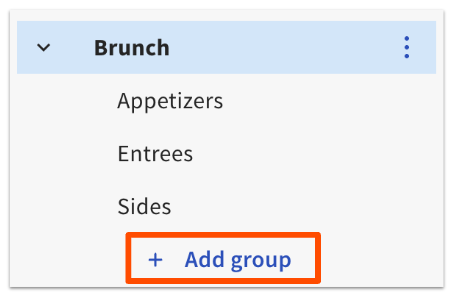
To make changes to your group in the future, select the group name on the left side of the menu builder page. Then, select the three dot (⋮) overflow menu icon to the right of the group's name and select Edit, Remove, or Advanced edit.
Create a Menu Subgroup in the Menu Builder
Menu subgroups are created from within the menu group details page in the menu builder.
- Navigate to the menu builder (Menus > Menu management > Menu builder, or by selecting Menu builder from the Quick actions section of your Toast Web homepage).
- Next to the name of the menu group you'd like to create a subgroup for, select the three dot (⋮) overflow menu icon to the right of the group's name and then select Edit.
- Scroll down to the Subgroups section.
- Select + Add new.
- Enter the subgroup details, just as described in the .
- Save your changes when finished, and don't forget to publish.
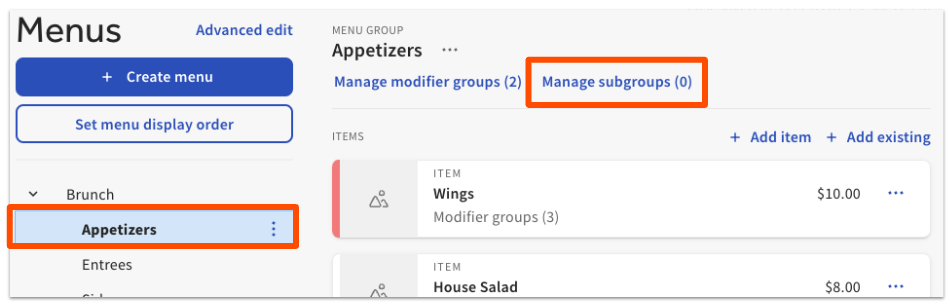
When you select a menu group name, you'll also see a Manage subgroups button above the list of menu items where you can easily manage your existing subgroups for that menu group.
Create a Menu Item in the Menu Builder
To create menu items in the menu builder, follow these steps:- Navigate to the menu builder (Menus > Menu management > Menu builder, or by selecting Menu builder from the Quick actions section of your Toast Web homepage).
- Select the name of the you'd like to add a menu item to. The menu group's items are displayed on the right side of the screen.
To make changes to your item in the future, select the group name on the left side of the menu builder page. Once the items appear to the right, select the three dot (⋮) overflow menu icon and select from the options displayed:
- Edit: This button will take you to the item's page in the menu builder where you can make changes.
- Update Stock: Quickly update the stock count for items.
- Move: Easily move an item into another group.
- Remove: Delete the item. Note that the item will remove in the database and can be re-added if needed through the menu manager page.
- Advanced edit: This button will take you to advanced settings page for this item.
You can also view and manage items from menu group and subgroup detail pages in the menu builder:
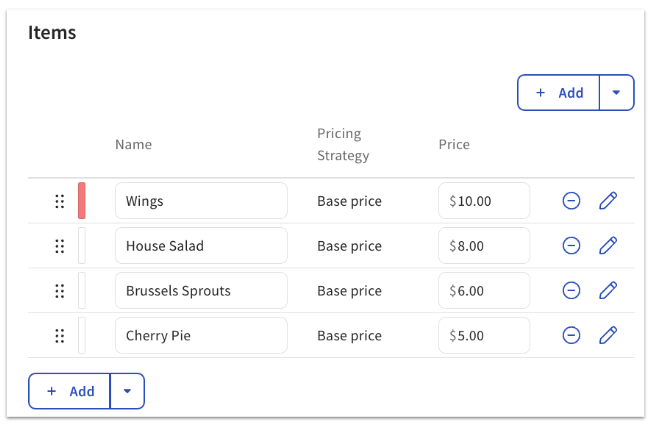
From here, you can:
- View all menu items contained in a menu group/subgroup
- Add new and existing items to a menu group/subgroup
- Remove items from a menu group/subgroup
- Reorder items in a menu group/subgroup
- Update the price of items in a menu group/subgroup (only applicable to items that use a base price pricing strategy)
- Navigate directly to a menu item detail page
| This feature is currently not available to customers who use Toast Retail, Toast Multilocation Management (MLM) or xtraCHEF. |
The Cost field allows you to record what it costs to produce a menu item. Usually this will be the total value of the ingredients used to make the item, but it could also include labor or packaging costs.
To set the cost of a menu item in the menu builder, follow these steps:
- Navigate to the menu builder (Menus > Menu management > Menu builder).
- Select the item from the menu you'd like to add a cost to.
- Scroll down to the Reporting section.
- Enter the item Cost. Note: The cost must be calculated manually and entered into this field.
- Save your changes when finished, and don't forget to publish.
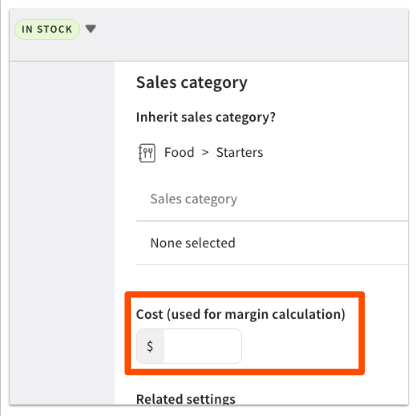
Cost value will be used to calculate cost of good sold (COGS), gross profit, and gross margin on the Product Mix (PMIX) report.