Get Started With the Delphi Order Confirmation Screen
Última actualización: 24 mar 2026, 11:18 a.m.
Allow your guests to see all items being entered into the Toast POS, directly on the drive-thru order confirmation screen!
In this Article:
- Delphi Order Confirmation Screen (OCS) Overview
- Delphi Order Confirmation Screen (OCS)
- Order Confirmation Screen Setup and Configuration
- Configure Guest Display Screen Settings in Toast Web
- Enable Drive-Thru Mode on a Toast POS Device
- Configure the OCS in the Insight Engage Platform
- Guest OCS Drive-Thru Experience
- Best Practices and FAQ
- Best Practices
- What information is shown on the OCS to a drive-thru customer?
- Can I see orders on the OCS from multiple Toast POS devices?
- I configured a promotion (in-progress) image on the Guest Display page in Toast Web. Why is the image not showing up on the OCS?
- Does the OCS scroll to show additional order items?
- How do I install the Delphi OCS hardware?
- Why is the OCS showing a black screen?
Delphi Order Confirmation Screen (OCS) Overview
Delphi (by Toast) provides various hardware and software solutions for enterprise and SMB customers. Delphi's product offerings include an Order Confirmation Screen (OCS), which can be used to help increase order accuracy in your drive-thru. Leveraging Delphi's guest-facing display settings, the OCS allows guests to see all items being entered in the Toast POS directly on the drive-thru order confirmation screen.
To use the OCS, the following are required:
- A fully paid sales agreement by the Delphi customer
- Delphi Order Confirmation Screen package
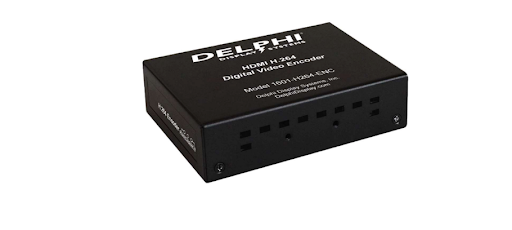
- Digital video encoder
- +15 VDC power supply
- Micro HDMI to standard HMDI cable
- A Toast POS device. A single Toast POS device can power a single OCS. Each OCS must be connected to a Toast POS device
- Delphi digital menu board or a Delphi Endura 15X outdoor display
Note: A Toast Insight Engage Platform license and account is required if using the OCS with a Delphi digital menu board. For more information, see . If using the Delphi Endura 15X outdoor display, a Toast Insight Engage Platform license is not required.
If you have any questions or comments, contact your Toast account manager.
Delphi Order Confirmation Screen (OCS)
Delphi's OCS utilizes the video image generated from the guest-facing display (GFD) output on a Toast POS device to transmit the OCS display via Delphi's IP-NET video streaming technology. A video encoder converts the HDMI digital video from the Toast POS device to the OCS on a Delphi digital menu board or an Endura 15X outdoor display. If using the Delphi Endura 15X outdoor display, you only need to connect the video encoder and configure your guest display settings to start using the OCS.
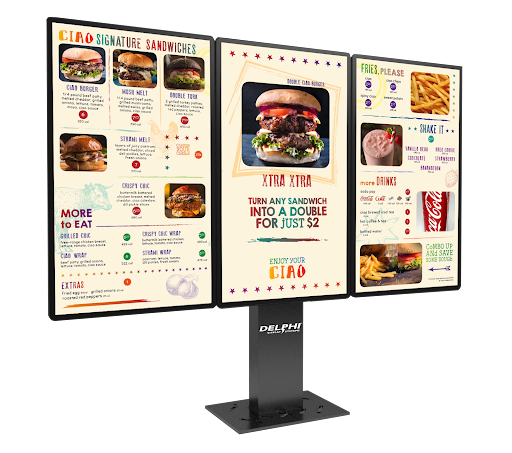 | 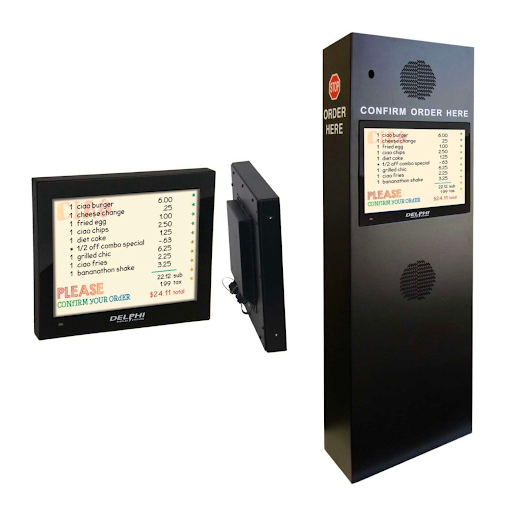 |
| Delphi digital menu board | Delphi Endura 15X outdoor display |
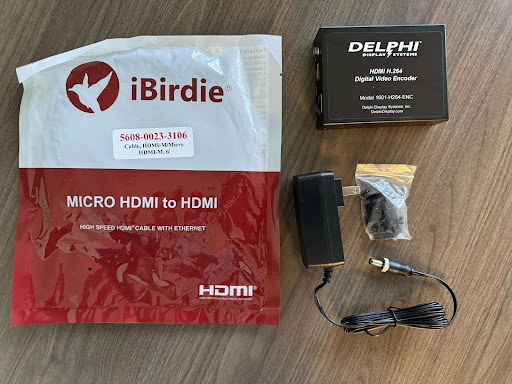
The Delphi OCS package is comprised of the following components:
- Digital video encoder
- +15 power supply
- Micro HDMI to standard HDMI cable
Order Confirmation Screen Setup and Configuration
Note: All Toast equipment must be on-site and installed prior to your Delphi OCS installation.
There are two parts to building the Delphi OCS package (video encoder) and connecting it to a Delphi digital menu board or the Endura 15X outdoor display. Follow the instructions below to connect the video encoder to the Toast POS device and the board/display.
Connect the Video Encoder to the Toast POS Device
- Open your OCS package. Set all the components to the side.
- Locate your Toast POS device.
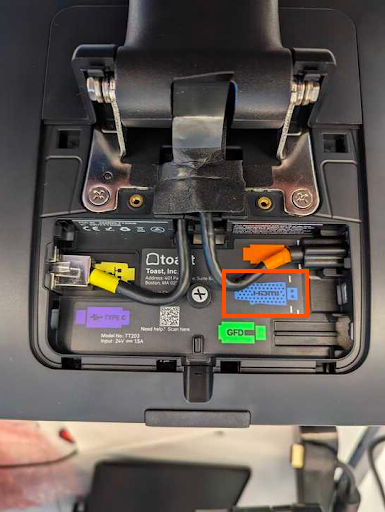
- Remove the Flex USB-C port on the Toast POS device. The port is located behind a plastic cover on the back, secured with two screws.
- Unscrew the screws and take off the plastic cover. You should be able to see the inside of the Toast POS device.
- Connect the micro HDMI cable from the Toast POS device to the HDMI input on the video encoder.
- Connect the power supply to the DC power input on the back of the video encoder. Lock the power supply to the input with a locking ring.
- Connect a CAT 5 or 6 cable to the LAN connector on the video encoder.
- Connect the CAT 5 or 6 cable to a LAN switch or to the RJ45 LAN connector on the back of the OCS.
Note: The sections below document two different workflows depending on if you are connecting the video encoder to a Delphi digital menu board or an Endura 15X outdoor display.
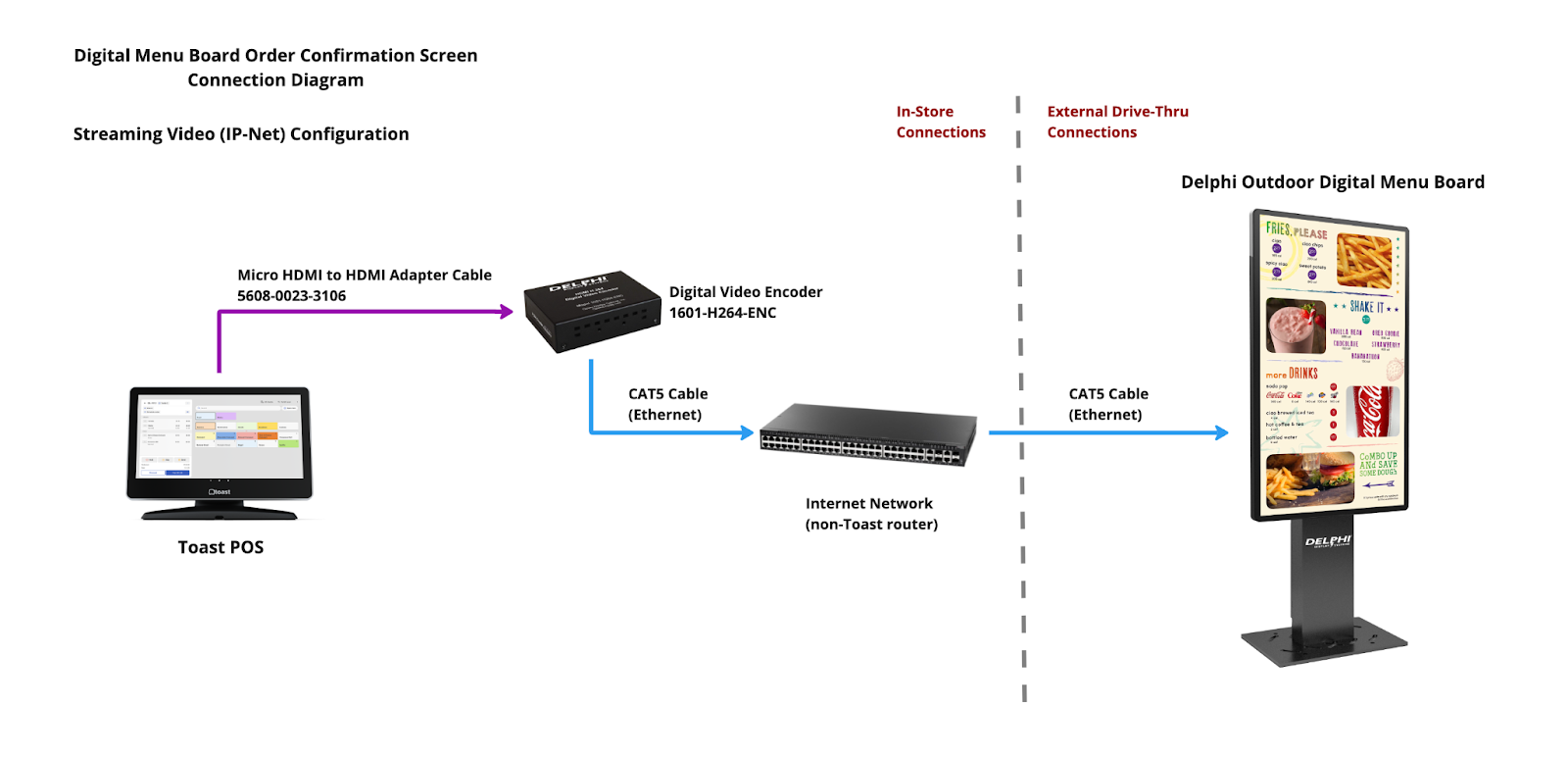
Connect the Video Encoder to a Delphi Digital Menu Board
Note: Do not plug the Delphi digital menu board media player or video encoder into the Toast Meraki router.
- Connect the power supply to the power input on the back of the Delphi digital menu board. Lock the power supply to the input with a locking ring.
- Connect the CAT 5 or 6 cable from the video encoder to a router.
- Connect a CAT 5 or 6 cable from the router to the digital menu board. Use the provided outdoor sealed connector kit to protect the connection from moisture or dust.
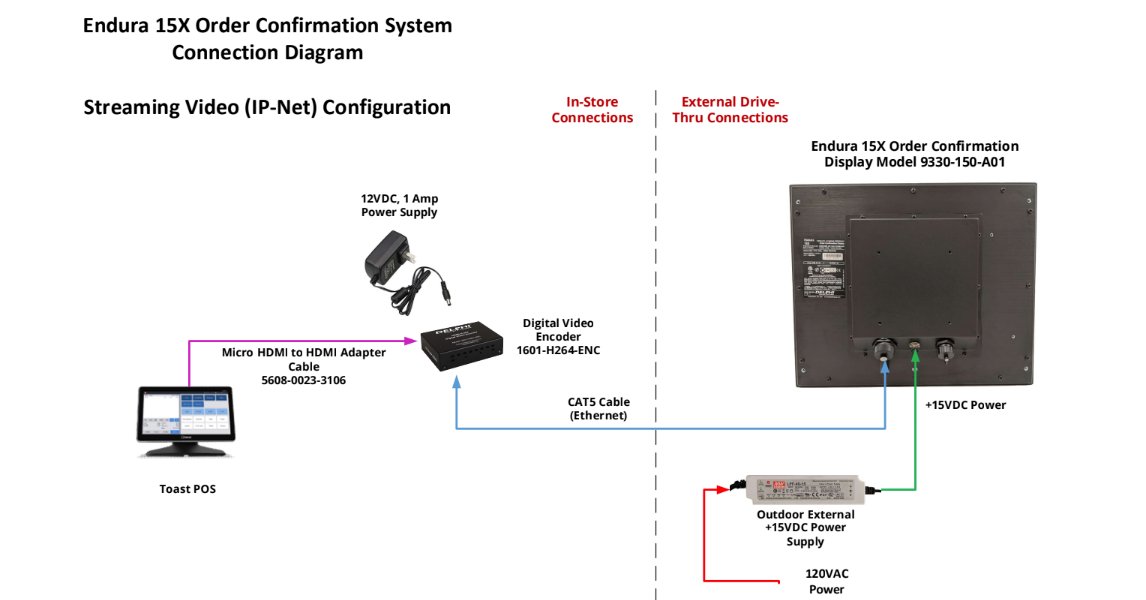
 Connect the Video Encoder to a Delphi Endura 15X Outdoor Display
- Connect the power supply to the power input on the back of the Delphi Endura 15X outdoor display. Lock the power supply to the input with a locking ring.
- Connect the CAT 5 or 6 cable from the video encoder to the RJ45 LAN connector on the video encoder.
Configure Guest Display Screen Settings in Toast Web
For information on how to customize your OCS settings in Toast Web, see .
Note: To access the Guest Display Screen settings in Toast Web, you must have 6.6 Restaurant Operations Setup permission.
The OCS leverages the Guest Display Screen settings in Toast Web to display your guest's order information. To use the OCS, you must enable and set certain Guest Display Screen settings in Toast Web. Select Payments > Checks & Receipts setup > Guest display to open the Guest Display page in Toast Web. On the Guest Display page, you can configure the following options:
- Select Screens Enabled within the Guest Facing Display Screens setting.
- Choose a Guest Display Screen Color Mode.
- Add a Standby Screen Image.
- Toggle on Show Modifier Charges if you'd like these to be added to your item prices on the guest-display screen
For more information about the Guest-Facing Display screen settings, see
Enable Drive-Thru Mode on a Toast POS Device
After your have configured your Guest Display Screen settings in Toast Web, you need to enable display mode on your Toast POS device to use with drive-thrus.
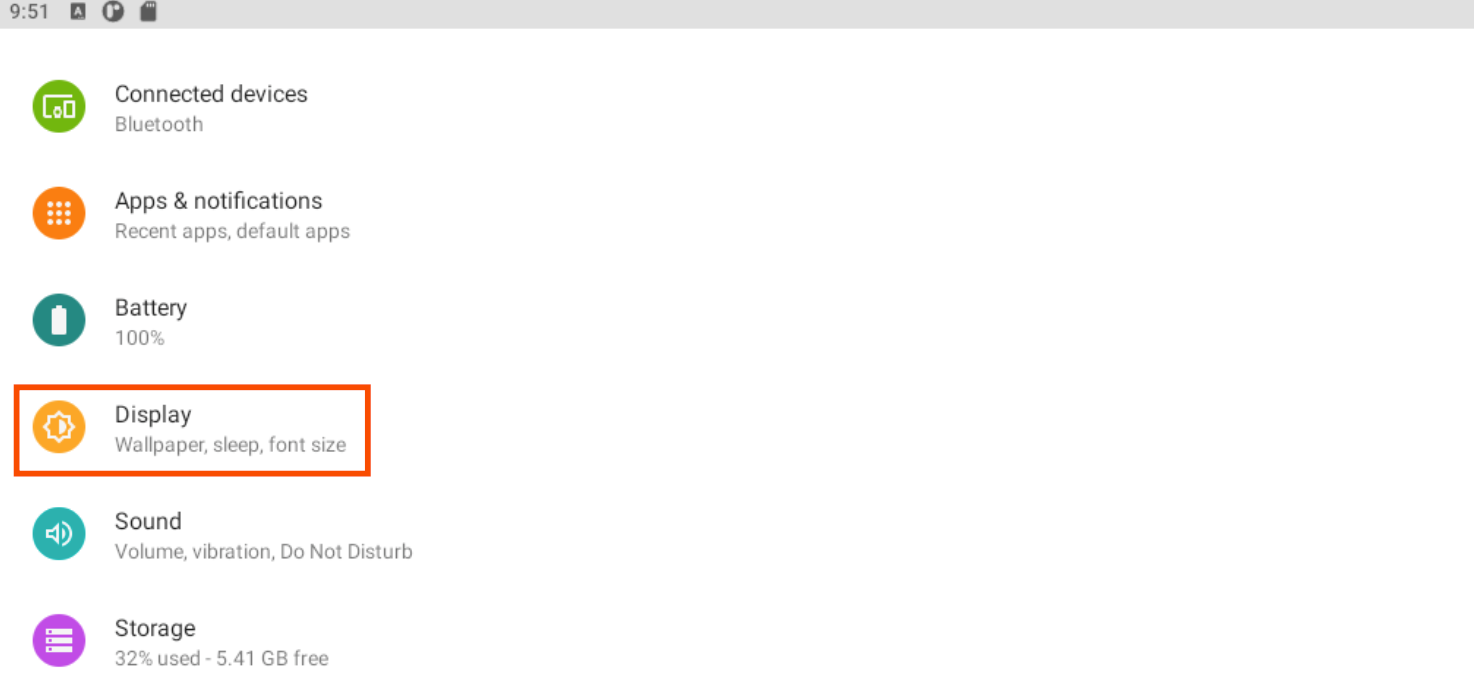
- On the Toast POS device, navigate to the Settings menu.
- Select Display to open the Display screen.
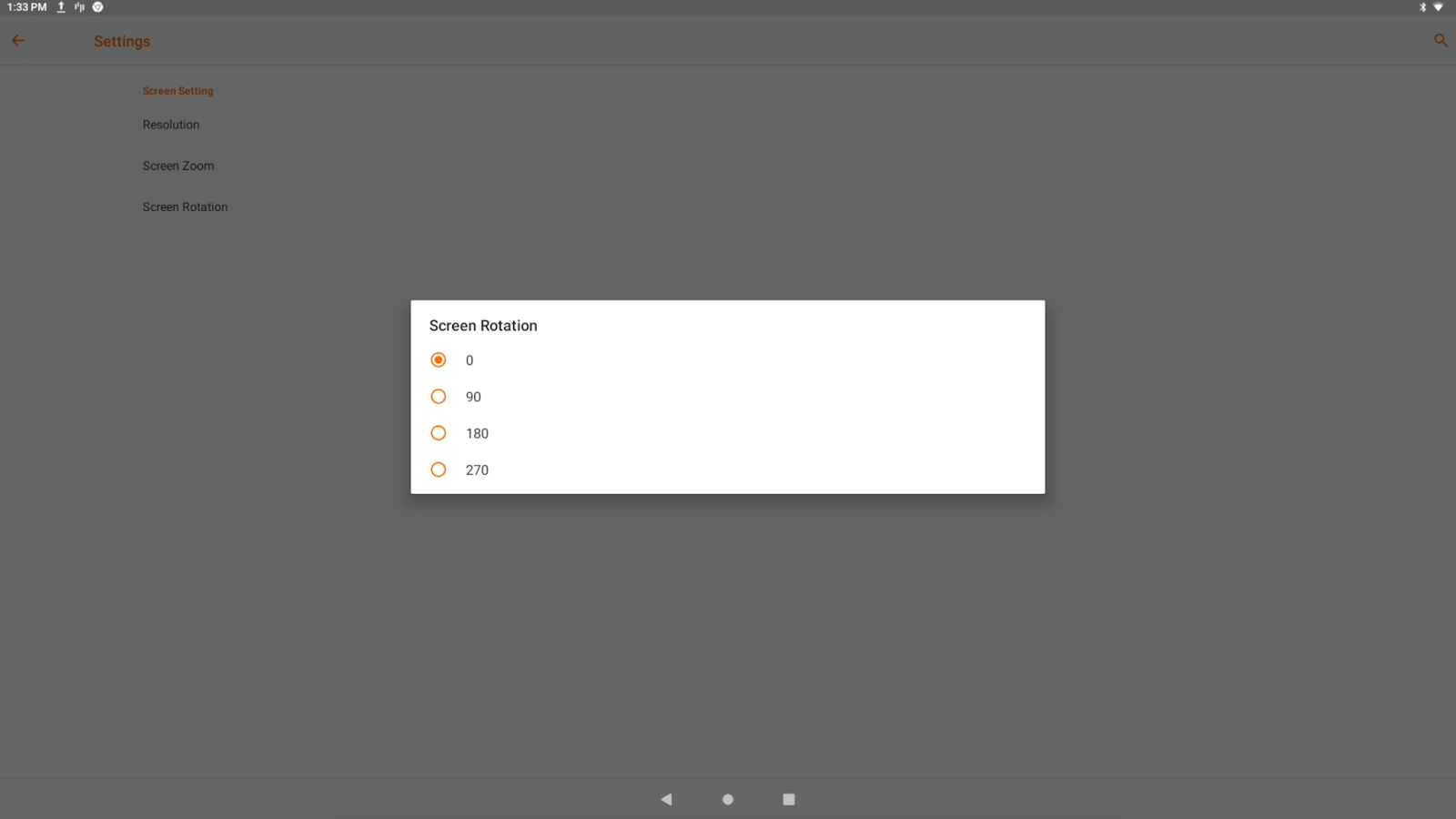
- Select HDMI and then select the Screen Rotation setting and set the rotation to 0. If you choose a standby image in Toast Web, the image is displayed on the OCS.
- Navigate to the Toast POS app home screen.
- In the Setup section, select Device Setup.
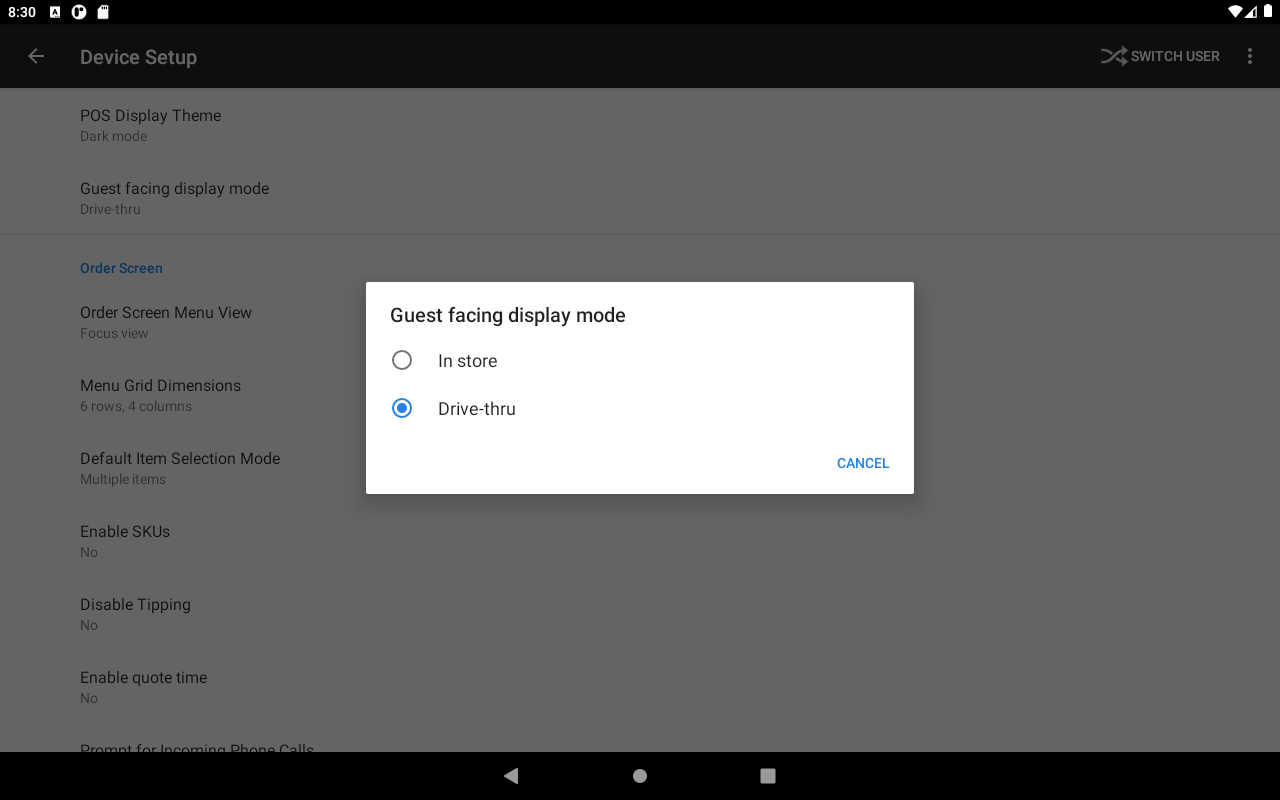
- Navigate to the Guest facing display mode setting. Select the setting to open the Guest facing display mode dialog box.
- The In Store option is enabled as the default. Select the Drive-thru option. The guest display will act as an order confirmation screen on the Delphi digital menu board or the Endura 15X outdoor display.
After configuring your settings, Delphi Support recommends placing test orders to verify orders are appearing on the OCS and that the settings set in Toast Web are being shown.
Disable Digital Receipts
At the time of publication, Delphi Support recommends that you disable digital receipts on your Toast POS device. Digital receipts allow guests to receive a text or email receipt. For more information, see .
Configure the OCS in the Insight Engage Platform
Note: To use the OCS with a digital menu board, you must have a Toast Insight Engage Platform license and account.
The Insight Engage Platform is a cloud-based content management system (CMS) that allows you to configure and display your digital menu board and OCS content. You use the Insight Engage Platform to manage your OCS content. For more information, see .
Note: Delphi Support recommends that you create a drive-thru template that is 2160 x 1920. This is the optimal dimensions for two digital menu boards placed side by side. Typically, two outdoor digital menu boards are powered by one media player.
Add the OCS to Your Insight Engage Platform Template
The Template Designer feature in the Insight Engage Platform is where you can create custom digital menus and assets that you can add to playlists. For more information, see .
There are two parts to adding the OCS to an Insight Engage Platform template.
- Create an OCS output asset and then create a template.
- Insert the OCS output asset into the template to display the OCS on a digital menu board.
To create an OCS output asset:
- In the Insight Engage Platform, navigate to the Content Window.
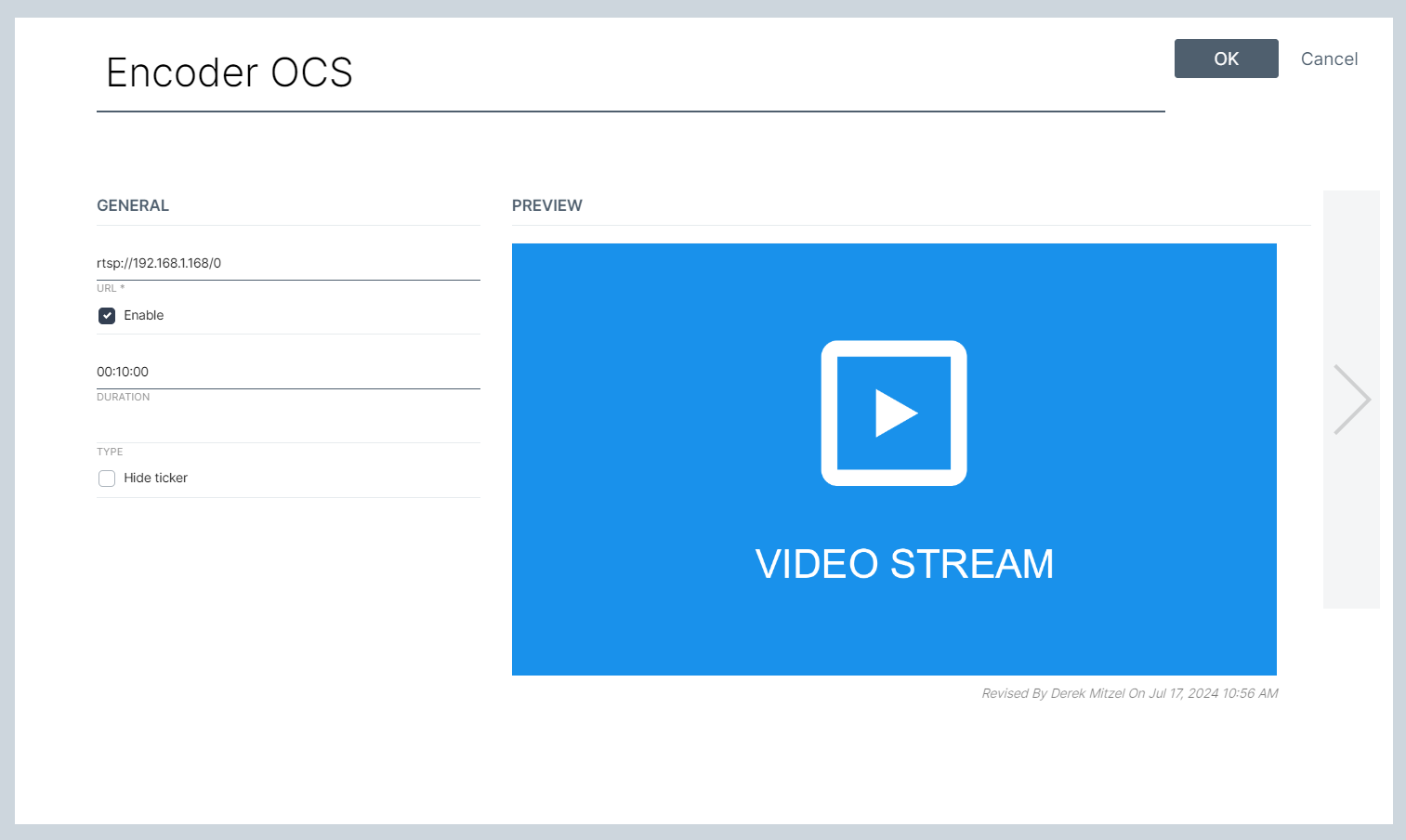
- Select the +MEDIA button and select the MEDIA STREAM option. This opens the content details screen. On the content details screen, complete the following actions:
- Add a name for the asset.
- Enter rtsp://192.168.1.168/0 for the URL. This is the default URL link for the video encoder. Note: If your drive-thrus has two different order points, such as a Y-lane, or dual lanes, the media stream for the second lane is rtsp://192.168.1.169/0.
- Set the duration to 00:10:00.
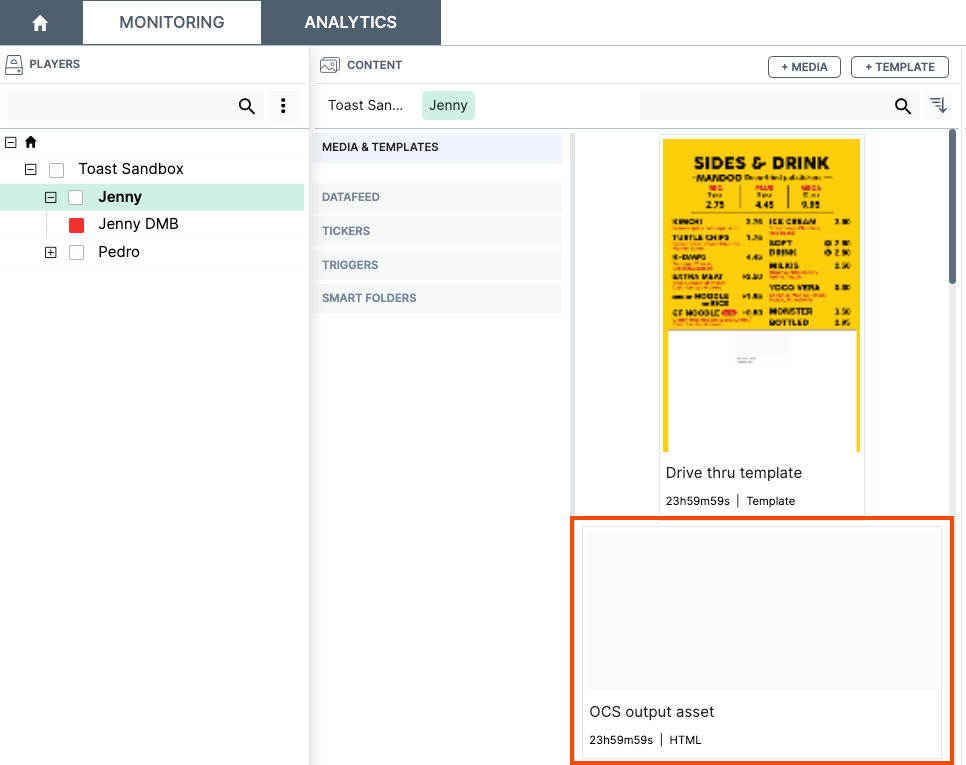
- Select the Save button to save your changes. The asset appears in the Content Window.
To add the OCS output asset to a template:
Note: Delphi Support recommends that you create a vertical template for your OCS configuration.
- In the Insight Engage Platform, navigate to the Content Window.
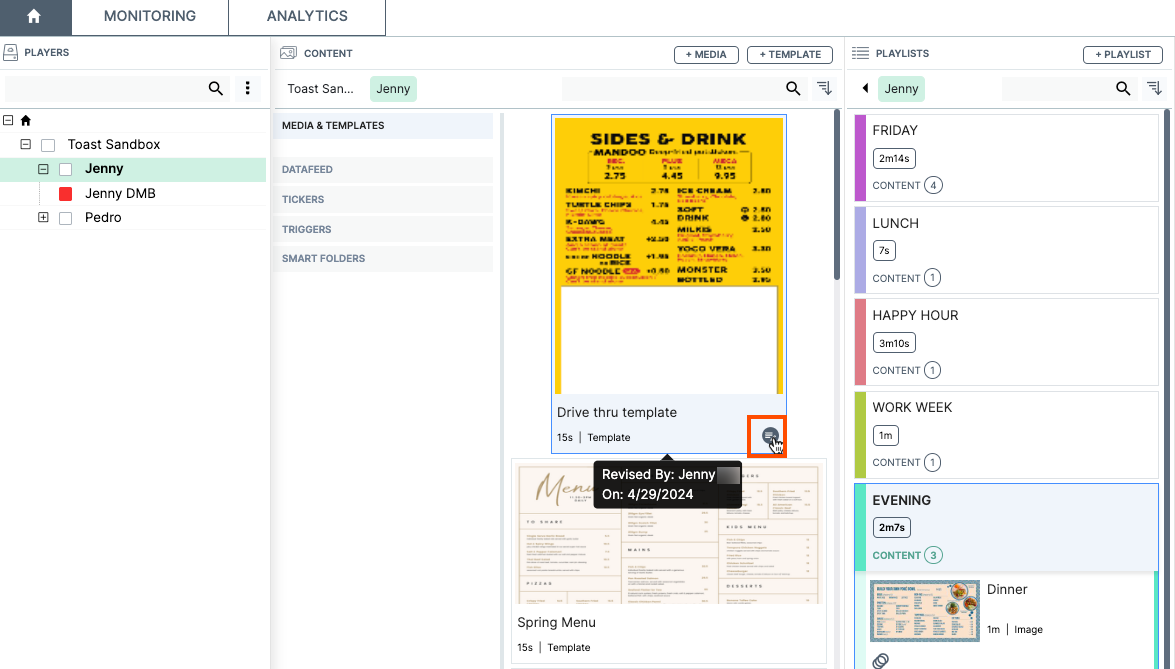
- Select the +TEMPLATE button. This opens the Template Designer. For instructions on how to create a template, see . If you have an existing template, select the Edit button to the right of the asset to open the Template Designer.
- Note: The instructions below describe the process of adding an OCS output asset to an existing template.
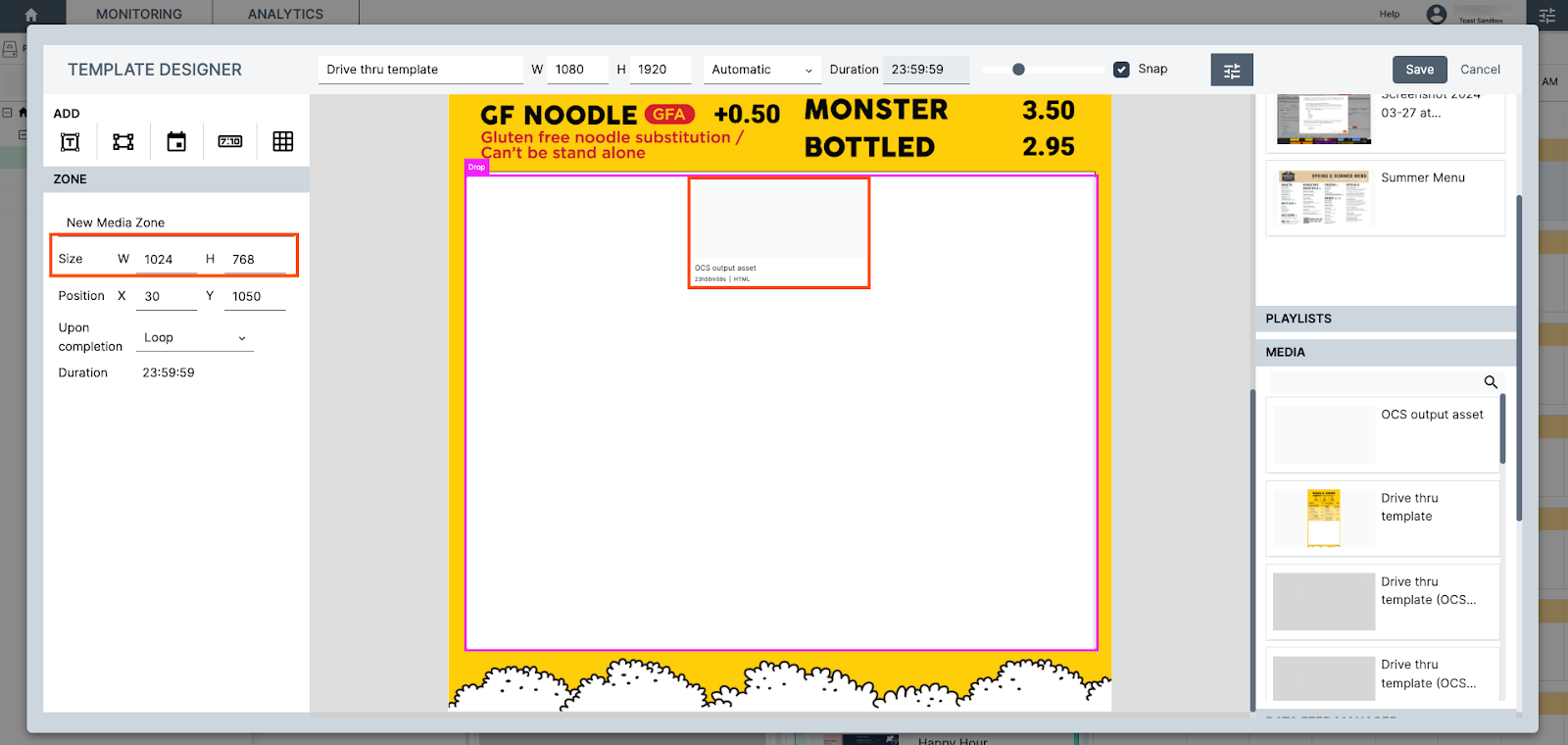
- Navigate to the right pane and select the Media heading. The Media heading lists all available media and assets that can be used for the template.
- Select the OCS output asset and drag and drop it into the template. Delphi Support recommends that you set the dimensions for the OCS output asset to 1024 x 768. To set the asset's dimensions, navigate to the left pane and under the Zone heading, set the New Media Zone size to 1024 x 768. The asset's dimensions will resize accordingly.
- Note: Delphi Support recommends that you drag and drop the asset into the bottom half of screen two or three (if you have more than two screens).
- Note: Delphi Support recommends that you drag and drop the asset into the bottom half of screen two or three (if you have more than two screens).
- Select the Save button to save your changes.
- Add your asset to a playlist and then schedule and publish the playlist. For more information on adding your asset to a playlist, see . For information on scheduling and publishing content, see .
Guest OCS Drive-thru Experience
Note: The experience described below assumes you have configured a standby image in Toast Web. Delphi Support recommends you configure a standby image for the OCS. For more information, see .
After you have configured and enabled drive-thru mode for your OCS, your guests will be able to use the OCS to view and confirm their order. Your guest drive-thru experience is as follows:
- Your guest pulls up to your drive-thru. The standby image is visible on the Delphi digital menu board or Delphi Endura 15X outdoor display. The image below is an example of a standby image that would be displayed on a digital menu board or outdoor display.
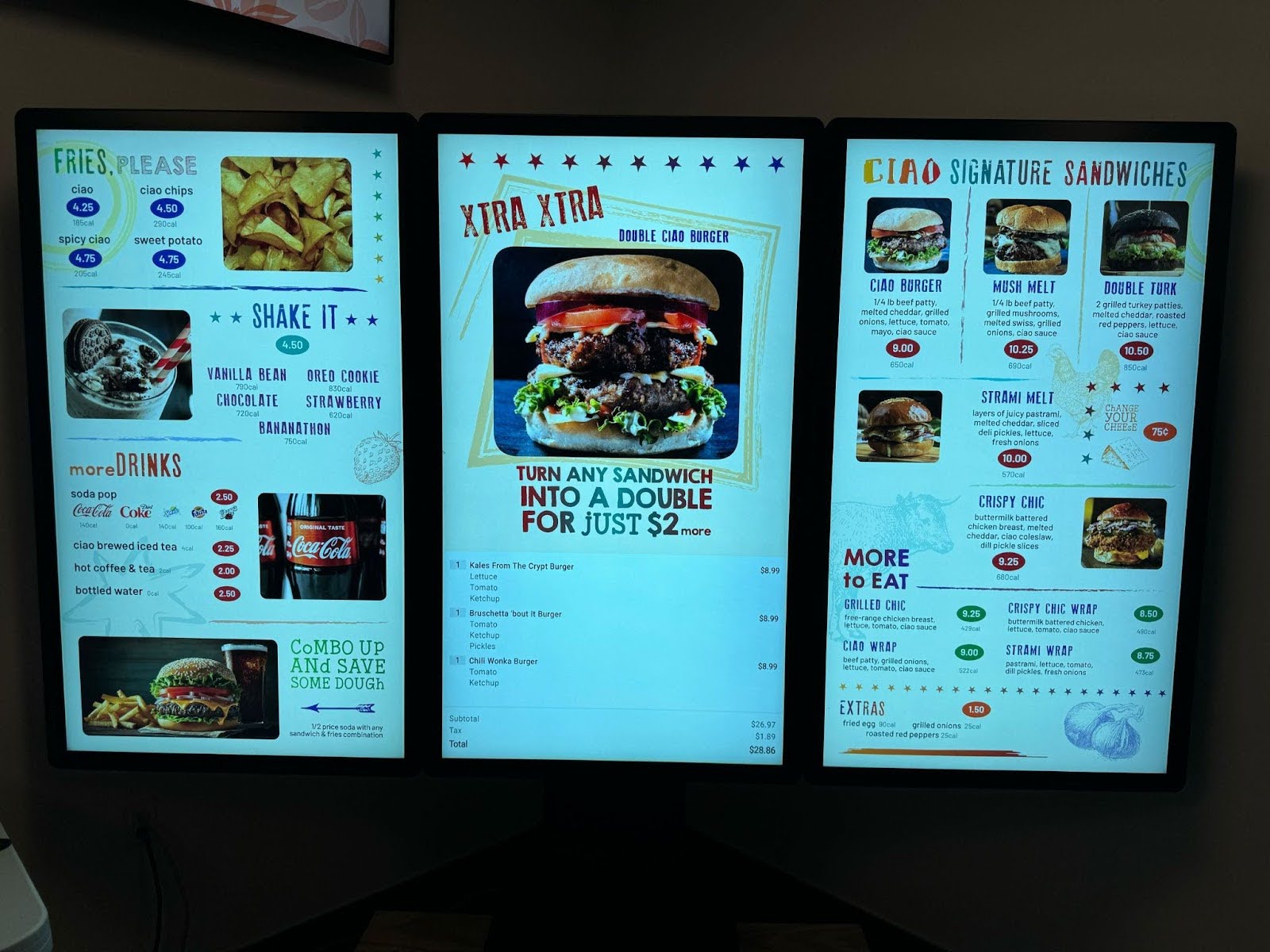
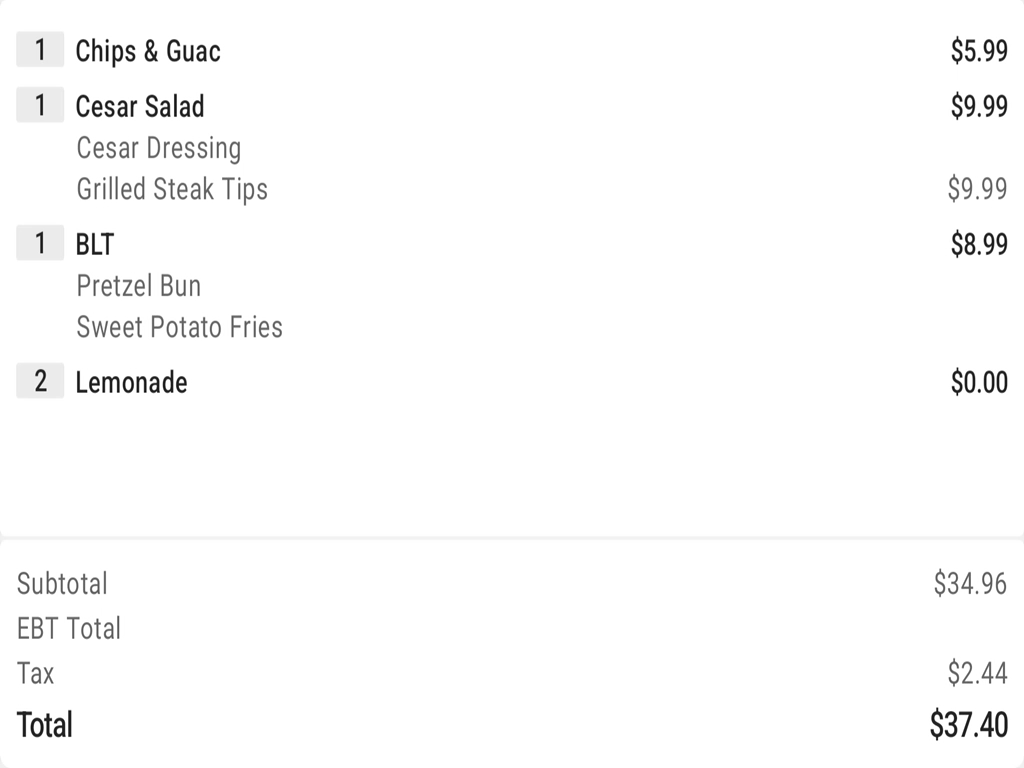
- Your guest places their order. As their order is being entered on the Quick Order screen on the Toast POS, the standby image is replaced with the OCS. The OCS displays your guest's order items as they are entered into the POS in real-time. The image below is an example of a guest order displayed on the OCS.
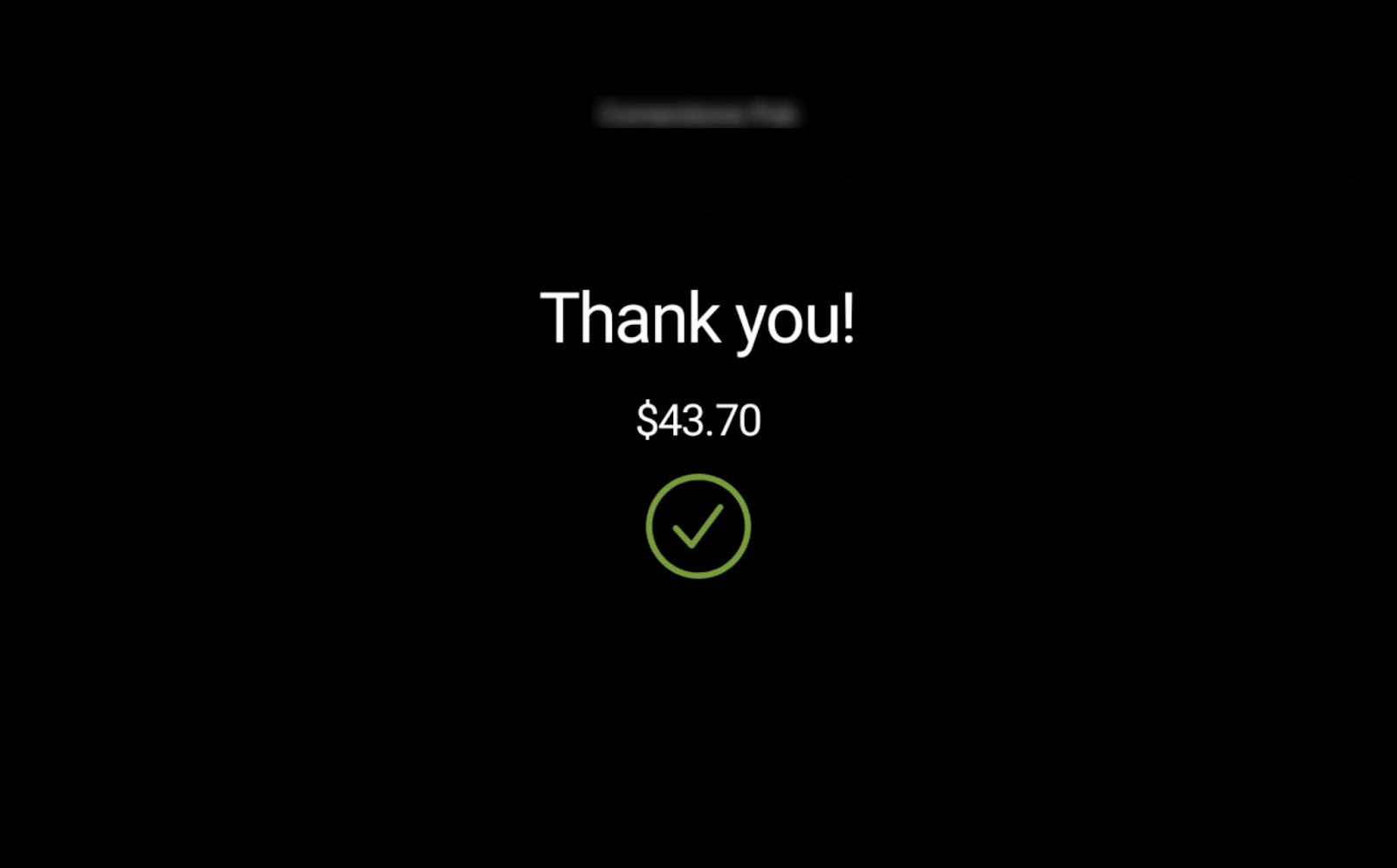
- Once your guest has confirmed their order, the restaurant operator sends the order through the POS to the kitchen. Your guest can now proceed to the drive-thru's payment window. The OCS displays a thank you message for five seconds before the standby image appears. The standby image appears ready for the next guest in your drive-thru. The image below is an example of the thank you message displayed on the OCS.

Best Practices and FAQ
Best Practices
Delphi Support recommends that you have at least two Toast POS devices in your drive-thru. One device to use to place the guest's order to the Toast platform and another device to accept the guest's payment.
What information is shown on the OCS to a drive-thru customer?
The following information is shown on the OCS to a drive-thru customer:
- Item modifiers
- Total order price
- Applicable discounts
- Applicable surcharges
Can I see orders on the OCS from multiple Toast POS devices?
At the time of publication, the OCS can only connect to one POS device at a time. The POS device that is connected must be the same POS that the order was placed on.
I configured a promotion (in-progress) image on the Guest Display page in Toast Web. Why is the image not showing up on the OCS?
At the time of publication, configured promotional in-progress images will not be displayed on the OCS.
Does the OCS scroll to show additional order items?
Yes, the OCS scrolls up and down to show additional order items. Scrolling may cut off earlier items at the top of the order.
How do I install the Delphi OCS hardware?
The workflow to install the Delphi OCS hardware is as follows:
- Onboarding coordination and scheduling: Once you have provided the relevant information to your Delphi account manager, a member of the Delphi team will be in contact to organize the onboarding, scheduling, and set up.
- Hardware installation: The Delphi team will be responsible for the physical Delphi installation and running of all additional cables needed for Delphi to connect to Toast.
- Customer and technical support: Toast customers should reach out directly to Delphi Display for any issues with their Delphi hardware and cabling.
- Delphi technical support in the US: 1-800-456-0060 (option 1)
- Delphi support email: techsupport@delphidisplay.com
Why is the OCS showing a black screen?
If there has been no interaction with the Toast POS for 30 minutes, the OCS moves into an idle state and displays a black screen. Toast support recommends you do not quit the Toast POS app or navigate out of the app, as the OCS will mirror your POS's display instead of the OCS.