Toast Payroll: Create a New Position
Last updated: Apr 8, 2026, 12:05 PM
Learn how to add a new position and update exiting positions.
New Position Overview
In Toast Payroll, a position contains pieces of information about employees that drive certain functionality in the payroll system. For instance, you might categorize some employees into Staff Hourly or Management Salary.
Before beginning, have you added all necessary jobs into Toast Web? Consider brushing up on these position topics as well since you will be setting them up:
- Job
- Federal Employer Identification Number (FEIN)
- Work-Tax Location (WTL)
- Pay Group
- Hourly vs Salary
- Exempt vs Non-exempt
- Benefit Tier
- TAFW Tier
Add Positions in Toast Payroll
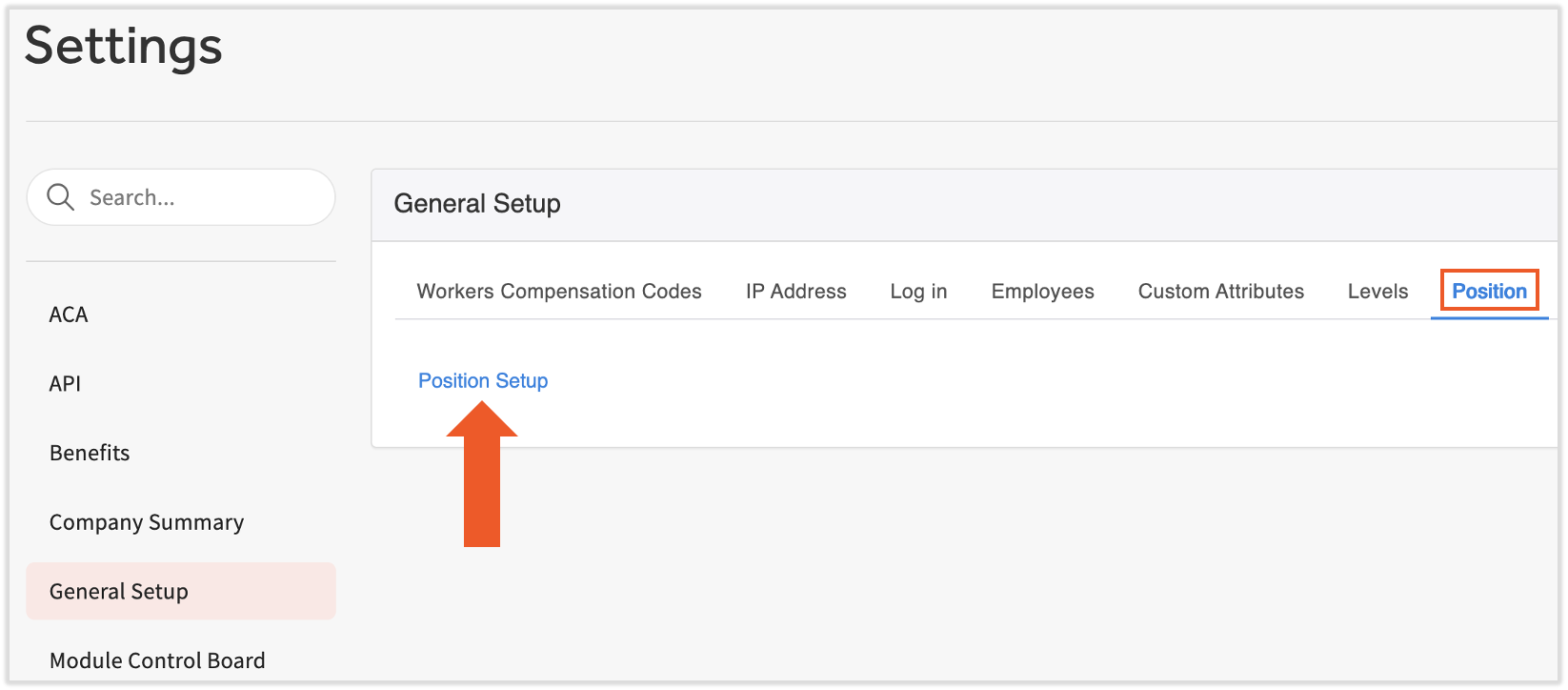
- Navigate to Settings > General Setup > Position > Position Setup.
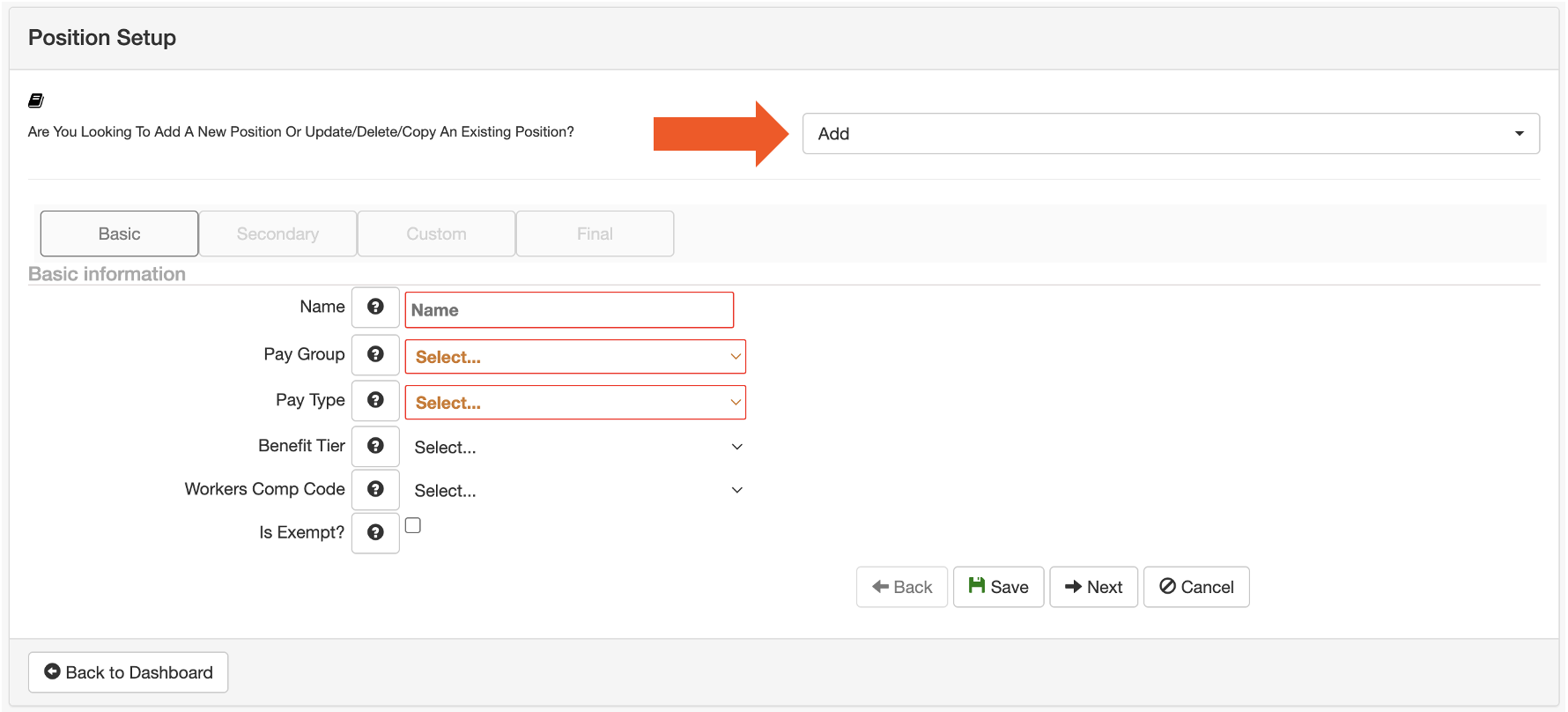
- From the Select dropdown, select Add to build a new position from scratch or Copy to build a new position using information from an existing position.
- Name this position and use the drop-down menus to select the correct information for the Basic, Secondary, Custom, and Final tabs. All fields in red are required. Use the Next and Back buttons to move between tabs. When you assign this position to a newly hired employee, the information you enter on these tabs will pre-populate on the Position Detail page of the employee's profile.
- The Company, Location, and Job fields all correspond to your organizational levels. Keep in mind, the selection you make here will determine how the position is tied to the location(s) and job(s) in Toast Web.
- The Company, Location, and Job fields all correspond to your organizational levels. Keep in mind, the selection you make here will determine how the position is tied to the location(s) and job(s) in Toast Web.
- Once all fields are complete, select Save.
Update a Position
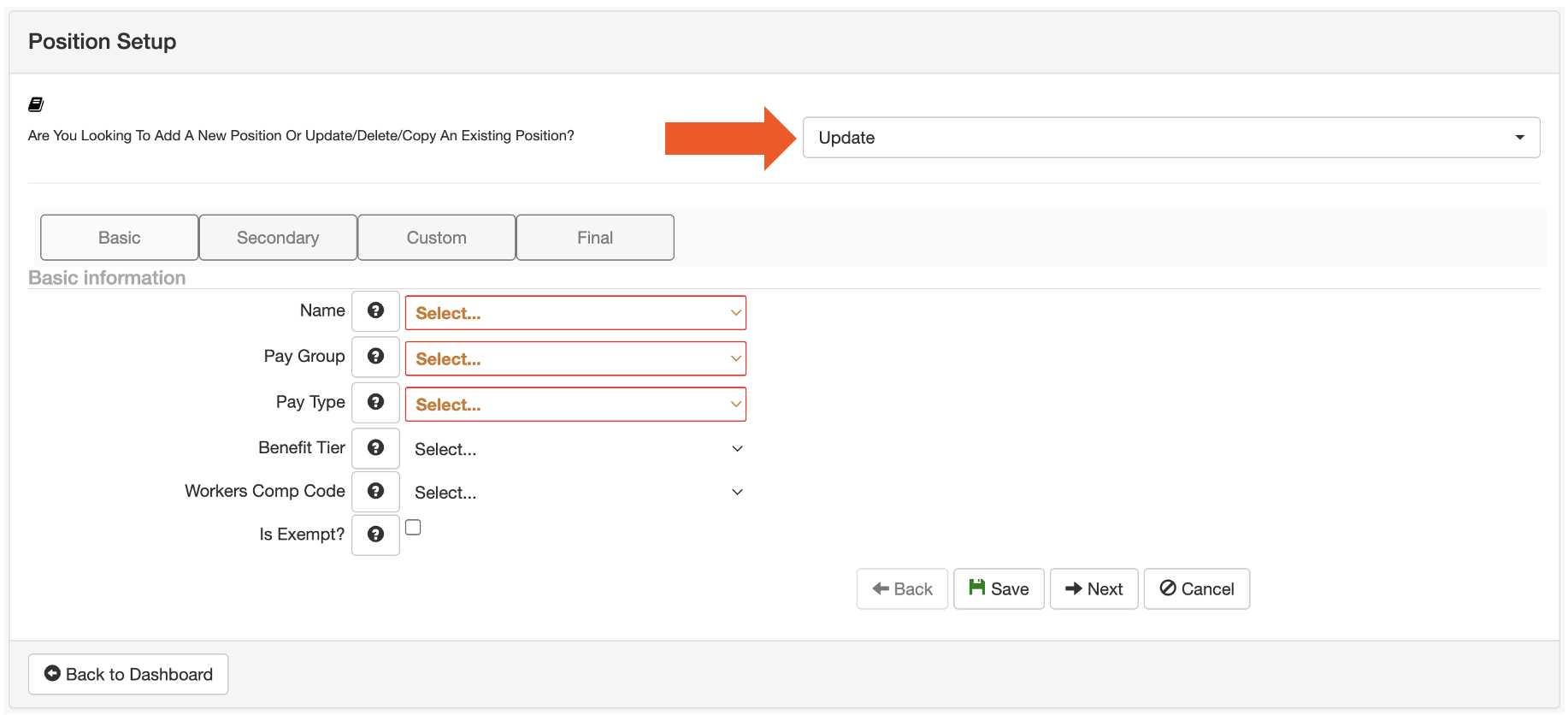
- After navigating to Settings > General Setup > Position > Position Setup, choose Update from the initial drop-down menu. Then select the Name of the position you would like to update. Required fields are in red.
- Use the Next and Back buttons to move through the Basic, Secondary, Custom, and Final steps to confirm or change the populated information. Remember, these are the static attributes that will pre-populate on the Position page any time the position is assigned to an employee during new hire.
- Once all information is entered, select Save.
Deactivate a Position
Positions should only be deactivated if they have never been used and are not assigned to any active employees.
- Navigate to Settings > General Setup > Position > Position Setup.
- From the Select dropdown, select Delete.
- From the Name drop-down menu, select the position you would like to deactivate.
- Select the Delete button. This will deactivate the position, not remove it entirely from the database.
- If you need to, we can re-activate the position for you. Contact us via the blue chat dot in the lower-right corner of any Toast Payroll page.
This content is for informational purposes and is not intended as legal, tax, HR, or any other professional advice. Please contact an attorney or other professional for advice.