Configure Menus for Bakeries or Coffee Shops
Last updated: Sep 17, 2026, 5:37 PM
Configuring your menu for bakeries and coffee shops can seem daunting at first given that your guests can modify their lattes in a variety of ways, or might want to order a baker's dozen of your most popular bagels or doughnuts. With the setup recommendations below, we hope that you'll be able to easily set up and manage your menus, and provide your guests with multiple options.
- Coffee Sizes Setup
- Coffee Modifiers & Guest Selections
- Baker's Dozen and Bakery Boxes
- Pre-Orders for Baked Goods
- Tips & Tricks: Manage Your Menu and Make Changes
Coffee Sizes Setup
Option 1 - Individual Items for Coffee Sizes (preferred method)
Creating individual items for each coffee drink size is an easy way to configure your menu while ensuring that your staff knows exactly what drink to make.
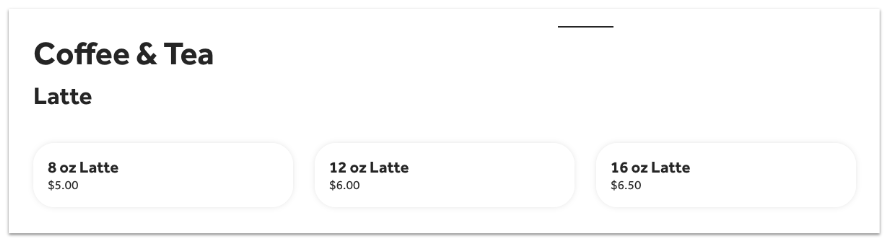
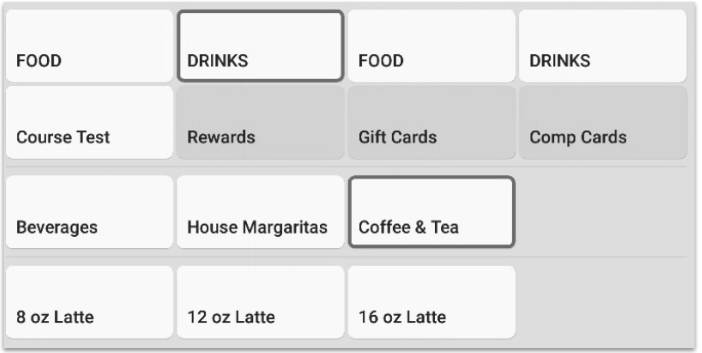
Let's say your coffee shop offers a Latte in multiple sizes (e.g. 8 oz, 12 oz, 16 oz). Create a separate item for each individual size and make sure to add the size on the item name.
To help organize your menu, create a group or subgroup called Latte and have the latte items live within it. If you offer a Latte as either hot or cold, you can have individual items for each Latte style/temperature for each individual size (8 oz Hot, 8 oz Iced, 12 oz Hot, etc.), or you can use modifiers (learn more below). While you might have more items in your database with this option, there will be a very clear (and clean) breakdown of item and size sales in reporting.
As a result, your Toast Online Ordering page and POS will show the Latte items like this:
Option 2 - Size Pricing for Coffee Items
Size pricing allows you to identify multiple size categories and create a price accordingly. Size pricing can be set at either the menu group or menu item level.
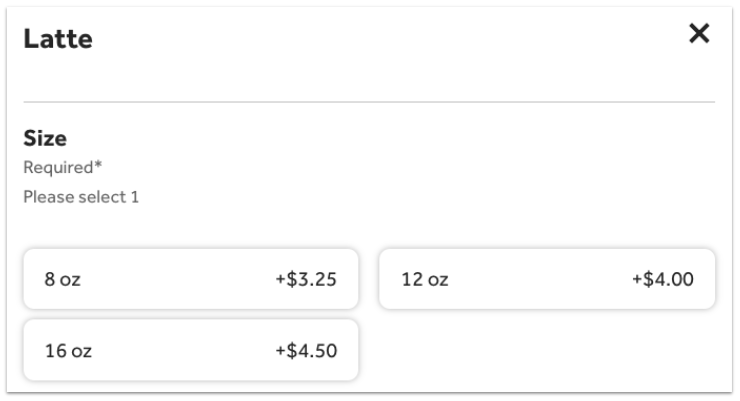
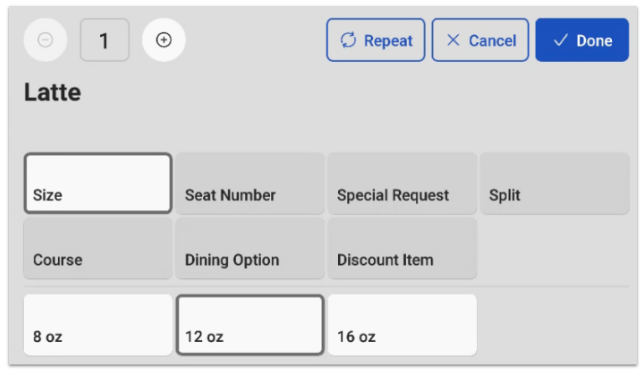
Let's say your coffee shop offers a Latte in multiple sizes (e.g. 8 oz, 12 oz, 16 oz). By using size pricing, you can set pricing for each specific Latte size.
To set this up:
- In Toast Web, navigate to the menu group or item for which you'd like to add size pricing.
- For the Pricing Strategy setting, select Size Price.
- A new table will appear below where you'll be able to set and name each size and the respective pricing. You can also easily add additional rows by selecting the +Add button. To delete a size, select Edit.
- Save and publish your changes.
Size pricing is limited in that it will not appear in reporting. This example would report the number of Lattes sold, but would not break down how many of each size were sold. If you want to track the sizes, then option 1 (described above) is the best alternative.
As a result, your Toast Online Ordering page and POS will show the Latte item like this:
Coffee Modifiers & Guest Options
Option 1 - Modifier Groups for Shared Coffee Modifiers
Regardless of the choice made above for items and sizing, coffee shops can easily build modifier groups that are applicable to a menu group or subgroup (and all the items within them) or create a modifier group that is applicable to individual items. Generally, many Toast restaurants and coffee shops build modifier groups for all coffee drinks. If that's the case, you can separate modifier "types" into separate modifier groups if needed, or just have them all live within one modifier group. See both examples below:
Example 1:
- Modifier Group - "Coffee Options". Modifiers include: Iced, Hot, Add a Shot ($0.50), Whole Milk, 2% Milk, Skim Milk, Extra Hot, Caramel, Vanilla)
Example 2:
- Modifier Group - "Temperature" (required). Modifiers include: Iced, Hot, Extra Hot
- Modifier Group - "Milk Options" (optional - force show). Modifiers include: Whole Milk, 2% Milk, Skim Milk
- Modifier Group - "Syrup Options" (optional - force show). Modifiers include: Caramel, Vanilla
- Modifier Group - "Additional Coffee Options (optional - force show). Modifiers include: Add a Shot
Regardless of how you set it up, remember that you can set the pricing for each individual modifier or you can set it for the modifier group as a whole. To learn more, see this Support Center article: Create and Manage Modifier Groups and Modifier Options.
Back to top
Option 2 - Size Pricing for Coffee Modifiers
Size pricing on modifiers can be used by coffee shops when the cost of a modifier changes based on the menu item it is applied to, such as syrups. Size pricing can be used at the modifier group level or the individual modifier option level.
- Modifier group level: All modifier options in this group use the same size-based prices. For example, all syrups in the Syrup Options modifier group cost $0.25 for an 8 oz Latte, $0.35 for a 12 oz Latte, and $0.50 for a 16 oz Latte.
- Individual modifier level: Modifier options in a group can set their own size-based prices. For example, pumpkin syrup will cost $0.35 for an 8 oz Latte and $0.55 for a 16 oz Latte, while caramel syrup costs $0.25 for an 8 oz Latte and $0.35 for a 12 oz Latte. Note: If your restaurant sets up and uses individual modifier level size pricing, your guests through Toast Online Ordering will be able to add a small modifier option, such as syrup, to a 16 oz/large Latte, for example.
To learn how to set up size pricing for modifiers, check out the Configure Size Pricing section of this Support Center article, Configure Special Modifier Pricing: Size and Sequence Pricing. Additionally, check out the Configure Size/Sequence Pricing section for an additional option for size pricing that incorporates the order in which the modifier is applied to the item.
| This feature MUST be used with the item size pricing. Toast recommends setting up item size pricing prior to modifier size pricing. Refer to the instructions in this section of the article to set up item size pricing. |
Modifier Features to Incorporate in Your Coffee Menu
Regardless of the option selected above, use the features below and start offering your guest the option to multi-select, select two extra shots, and force a selection, for example.
- Using existing modifier groups: Some items or groups may be able to re-use modifiers you have already built out in your menu. This is especially true if the same coffee modifiers should be used in each menu group or for each item. Learn more: Create and Manage Modifier Groups and Modifier Options.
- Required & optional modifiers: If a guest needs to make a selection for a modifier or rather it's optional, learn how to set it up in this Support Center article: Configure Modifier Behavior.
- Duplicate modifiers: By enabling duplicate modifiers, your guests will be able to select the same modifier multiple times. Learn more: Set Up and Use Same Modifier Selections.
- Multi-select: With the option to multi-select, your guests will be able to select multiple modifiers, such as sauces. Learn more: Set Up and Use Modifier Multi-Select.
Back to top
Baker's Dozen and Bakery Boxes
With the multi-select and duplicate modifiers features, you can easily configure modifiers for items such as a bagel baker's dozen or bakery boxes where your guests can select multiple pastries for a set price.
- In Toast Web, create your modifier group and select the checkbox for Multi-select? (for more instructions, see Set Up and Use Modifier Multi-Select).
- Select Save to create your new modifier group, then select the modifier group you just created to open the modifier details page.
- In the Properties section, for the Required? setting, select Servers must make a selection for this group.
- Use the drop-downs to select a Min # selections and Max # selections. You can make the min # and the max # the same (13, in this case) to force servers and guests to choose exactly the correct number of selections.
- If you'd like to allow guests to choose the same modifier multiple times, such as a plain bagel, make sure to select By default, the same modifier can be added more than once in this group for the Duplicate Modifiers option. Learn more about duplicate modifiers in this Support Center article, Set Up and Use Duplicate Modifier Selections.
- In the Modifier Pricing Method section, for the Select where pricing is set setting, select No additional charge. If certain bagel flavors have an additional charge, select Additional charge - price is set on individual modifiers instead. In this case, you'd keep all bagels at $0 except for the flavor that has an additional cost.
- Scroll down to the Modifiers table and create your modifiers. If you already have these bagels on your menu as individual items, select the down arrow next to the + Add button and select New Modifier from Existing Item. This will ensure any changes to price or inventory are kept consistent throughout your menu.
Any modifier that was already attached to the item will carry over as nested modifiers. If you'd like to edit those, select the Edit Item button. So if there's a cream cheese selection modifier group attached to the bagel item, it will also carry over as a nested modifier to this bagel group. To learn about creating a modifier from an existing item, check out this Support Center article, Create Modifiers From Items.
- Save and publish your changes.
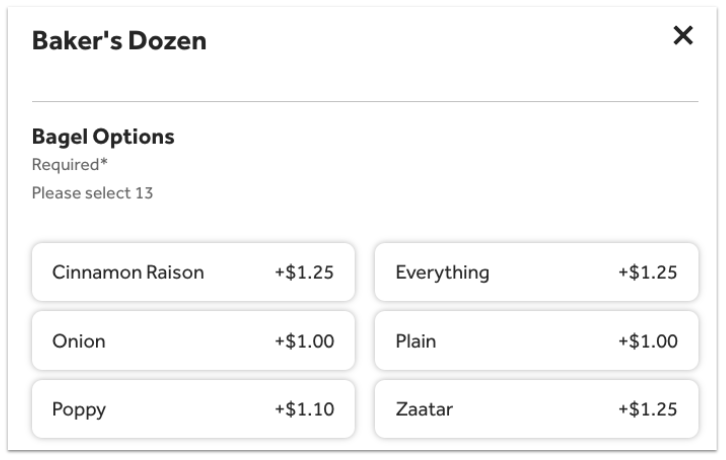
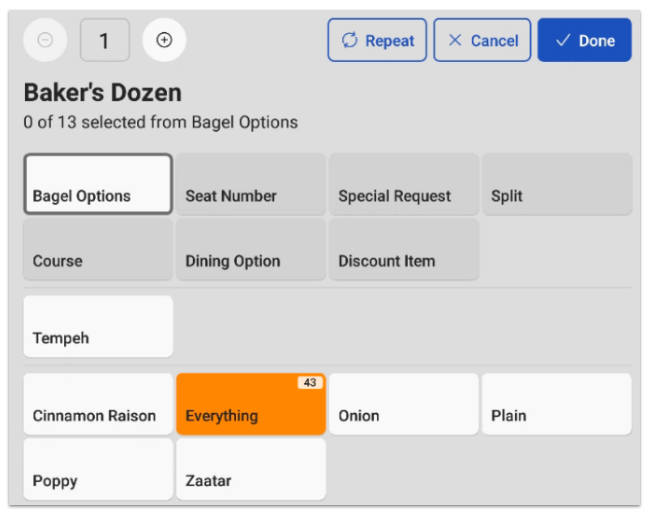
Your POS and Toast Online Ordering page might look something like this:
Pre-Orders for Baked Goods
Your bakery might allow your guests to pre-order items, such as pies or gift boxes, for pick up or delivery at a later time or date.
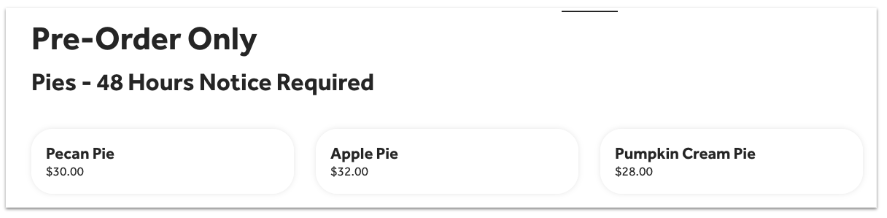
Currently, the best way to set this up is via your Toast Online Ordering page. Toast recommends creating a separate menu or group for pre-order or catering only. Then, make sure that the name of this group includes a disclaimer for the amount of notice required, such as the example below.
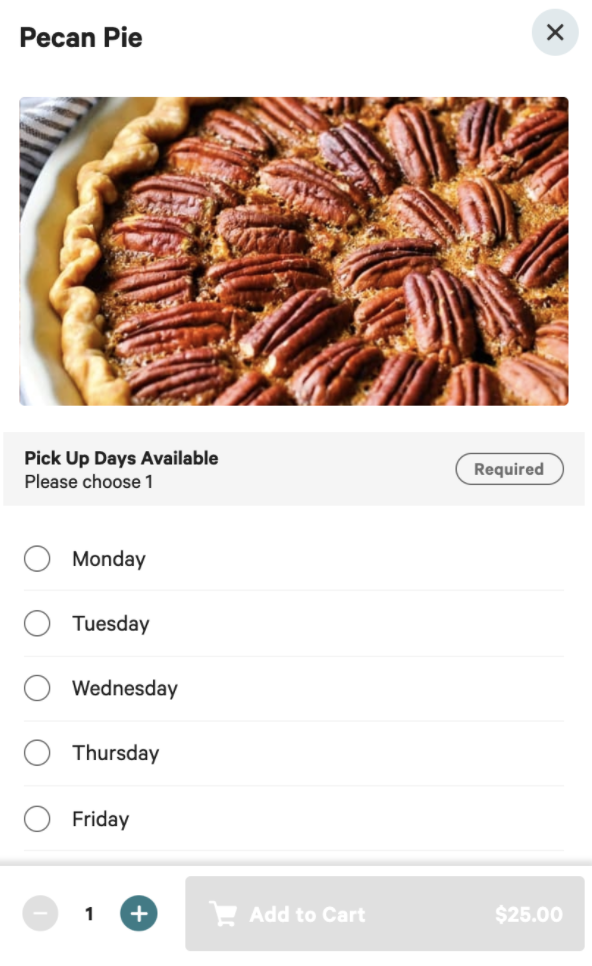
You can add modifiers to a modifier group for available days for pick up or delivery.
If your guest placed an order with both a pre-orderable item and an item that they can pick up in 20 minutes, both will print on the same ticket.
Tips & Tricks: Manage Your Coffee or Bakery Menu and Make Changes
Accurate stock/inventory: Bakers who make a limited amount of each item will especially benefit in setting their stock or inventory for each individual item every day. This can easily be done on the Advanced properties page in Toast Web (select Inventory on the Show/Hide drop-down) or by using Quick Edit mode on the POS. Learn more in this Support Center article, 86 an Item on the POS or Toast Web.
Price editor: This tool gives you the ability to apply price changes directly to items or menus without having to update components individually. This is a great tool to make changes especially if your menu changes seasonally or frequently. To learn more about the price editor, check out this Support Center article: Use the Price Editor Tool.
Menu visibility: If your coffee shop or bakery has multiple menus for each ordering channel, Toast has made it easy for you to set up where your menus display. Easily make your menu(s) and their contents visible and available to be ordered from the different devices and systems across Toast via the Advanced properties page in Toast Web. Learn more about it in this Support Center article, Manage Your Menu Visibility Settings.