Preview and Test Your Menu
Last updated: Apr 3, 2026, 3:41 PM
Looking for a live training experience with a Toast Training Expert? Sign up for a live Toast Classroom session to help you set-up and get started with Menu Basics! Select the button below to sign up.
| Menu preview and testing guidelines below are recommended for pre-live customers only. If your restaurant is already live and taking orders from guests, search Support Center to find more information about updating your menus or start with our Menu 101 training videos. |
- Menu Preview and Testing Overview
- Step 1: Connect One of Your Devices for Menu Preview
- Step 2: Menu Testing Checklist
- Important Reminders
- Additional Resources
Menu Preview and Testing Overview
Once you get your hardware, we strongly recommend that you plug in and turn on a Toast Flex terminal, Toast Go® or S1 Handheld so you can begin previewing and testing your menu with your team. Playing around with your menu as it’s being built (and before your full system installation) is the best way to ensure that your menu is set up properly before you start serving your guests.
After previewing your menu, follow the instructions in the Menu Testing Checklist section of this article to double-check that you’re ready to serve guests.
If you have not received your hardware prior to your Menu/Retail Review, please still attend your review.
Step 1: Connect One of Your Devices for Menu Preview
- Before plugging in a terminal or Toast Go® or S1 Handheld for menu preview, make sure you’re able to successfully log into your Toast Web account (www.toasttab.com/login).
- Remove your device from the packaging, and use the included power cable to plug your device into a power source.
If you have a Toast Flex:
- Use an Ethernet cable or connect your device to Wi-Fi for an internet source, such as a router or modem.
- Use the power button to turn on the device.
If you have a Toast Go® or S1 Handheld:
- Use the power button to turn on the device.
- Connect to a local home or office Wi-Fi network.
When using a device for your menu preview, you may connect to a non-Toast network. This is okay! However, be advised that you won’t be able to process payments if this device remains connected to a non-Toast network after your full system installation.
If you connected your device to a non-Toast Wi-Fi network, you’ll need to “forget” the non-Toast network connection and connect to your Toast network before you can accept payments and go live with Toast. Alternatively, you could factory reset the device and start from scratch. See the Important Reminders at the end of this article for instructions. Note: S1 Handhelds cannot be factory reset. - Open the Toast POS app on your Toast Flex, Toast Go® or S1 Handheld.
- Log in using the email and password associated with your Toast Web account. Your device may need to run required updates after you log in. If needed, log back into the Toast app after the updates.
After successfully logging in, you’ll be walked through some initial setup steps.
For the purposes of previewing your menu, your responses to these setup questions don’t matter right now – you’ll be able to easily change these settings from Device Setup when you complete your full installation (learn more: POS Device Setup Overview, or for S1 Handheld Devices, find set up instructions here), so click through until you get to the end of the setup questions.
Upon completing the setup steps, select the back arrow in the top-left corner of the order screen to access the main menu of the Toast app. Then, select Quick Order from the Mode section. This is where you'll be able to preview your menu.
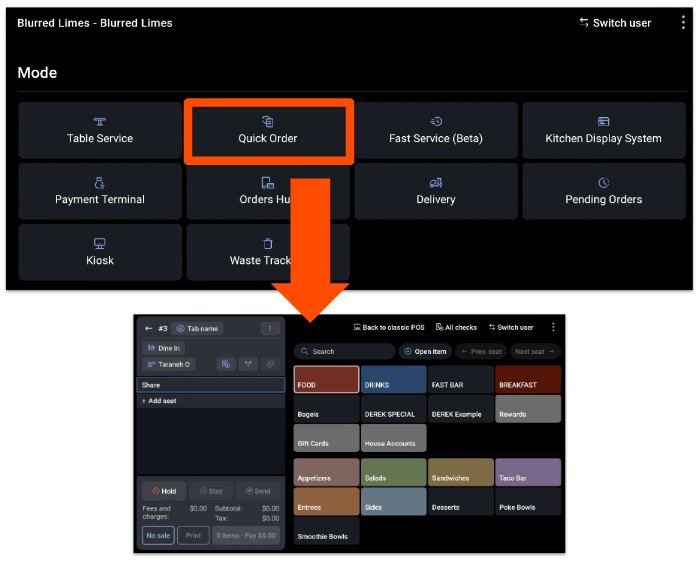
As your menu is being built, you‘ll see real-time updates on your Quick Order screen every time a change is published in Toast Web. If you have an upcoming menu review with a Toast Menu Specialist, please prepare notes of any requested edits.
Back to top
Step 2: Menu Testing Checklist
Now that one of your devices is set up to preview your menu, we encourage you to try a few things to ensure your menu is ready to serve your guests:
- Preview your menu in Quick Order mode.
- (If applicable) Preview your Toast Online Ordering menu.
- Practice adding a menu item.
- Practice adding a modifier.
- Try out Quick Edit mode.
- Ring in 5-10 sample checks.
Instructions for each step are detailed below.
Back to top
Preview Your Menu in Quick Order Mode
Look through the available buttons on the Quick Order screen to preview your POS menu and double-check that your menus and items appear correctly.
Back to top
Preview Your Toast Online Ordering Menu (if applicable)
If you’ll be using Toast Online Ordering: Your online ordering menu will match your in-store POS menu. To preview your online ordering menu, follow these steps:
- In Toast Web, navigate to Takeout & delivery > Toast order sources > Restaurant info.
- Select your Online Ordering link in the Share Your Public Links section and review how your menu appears on your online ordering site. Published updates to your menu may take a few minutes to appear on your online ordering page.
Note that this preview mode will only apply for Toast Online Ordering (not third-party online ordering).
If you’d like certain items to not appear on your online ordering menu (or if there are additional items you’d like to add to online ordering), you can update visibility settings for entire menus, groups, items, or modifiers. To learn more, visit Manage Your Menu Visibility Settings.
Back to top
Practice Adding a Menu Item
In Toast Web (on your computer), add a new item to your menu. Don’t worry if this isn’t a real menu item that you offer – this can be archived later.
Publish your changes, then return to your terminal to see how the new item appears on your POS.
To learn more, see Create and Manage Menu Items.
Back to top
Practice Adding a Modifier
In Toast Web, navigate to an item on your menu and add a new modifier group. Then, create a modifier within that group.
Publish your changes, then return to your terminal to see how the new modifier appears on your POS.
For more details, check out Create and Manage Modifier Groups and Modifier Options.
Back to top
Try Out Quick Edit Mode
Next, try out Quick Edit mode on your POS device. Before entering Quick Edit mode, ensure that you’ve saved and published any pending menu changes in Toast Web (on your computer).
You can enter Quick Edit mode by holding down any menu button and then selecting Enter Quick Edit. Practice changing the color of a menu button, changing the price of an item, adjusting the inventory amount, or editing the POS Name to better fit on your screen.
For more details, see Use Quick Edit Mode on the POS. Select Save to exit Quick Edit mode.
Back to top
Ring in 5-10 Sample Checks
On your Toast device, practice using the system by ringing in 5-10 sample checks. Make sure to include a variety of items from different parts of your menu (like Appetizers, Entrees, Sides, etc.), as well as any items that have modifiers (like Salad Dressings or Wing Flavors).
Bonus: If you’re currently open for business, have your staff test your menu by ringing in orders from real guests.
As you get closer to your go-live date, you can continually update your menu as you see fit. Check out the Additional Resources section for links to more information about menu management on Toast Classroom and Support Center.
Back to top
Important Reminders for Menu Preview
When you’re ready to fully install your Toast system, you’ll need to connect your device to the designated Toast network at your location.
- If you used a Toast Go® or S1 Handheld to preview your menu, you’ll need to “forget” any Wi-Fi networks that are not part of your designated Toast network, and then connect to the designated Toast network. For instructions, read Forget a Network on a Toast Device.
- If you used a Toast Flex to preview your menu, you’ll need to ensure that your Toast Flex is connected (with an Ethernet cable or Wi-Fi) to your designated Toast network.
- Alternatively, you can factory reset your device and start from scratch. Check out these Support Center articles for instructions:
Note: S1 Handheld Devices cannot be factory reset.
After fully installing your Toast system, you’ll need to update some basic settings on the device you used for your menu preview:
- Navigate to Device Setup on your POS device. For more information, see POS Device Setup Overview.
- Confirm that the following settings are set up properly:
- Device Name
- Primary Mode
- Receipt Printer (if applicable)
- Digital Receipts
- Order Auto-Firing
- Revenue Center
- POS Display Theme (light/dark mode)
Additional Resources for Menus
If you have additional questions before you go live, please reach out to your POS Onboarding Consultant.
If you’d like to learn more about menu setup, advanced configurations, or anything else Toast-related, we encourage you to check out Toast Classroom and Support Center.
- Get Started with Toast Menus - A live webinar with a Toast Trainer to help you learn how build, manage, and edit Menus
- Toast Office Hours - Get expert guidance and advice for menu related questions
- Support Center - Search articles, videos, and technical documentation
- Toast Classroom - Expert-led, live and on-demand training
- Toast Community - An active and collaborative space to learn from industry peers