Toast Payroll: Team Page
Last updated: Jun 24, 2026, 4:17 AM
The Team page allows users to view their staff at a glance, hire employees, make bulk pay changes, and resend welcome emails to employees who haven't logged in yet.
- About the Team Page
- Who Can Access the Team Page
- What You Can Do From the Team Page
- Add and Hire Employees
- Resolve Unpaid Employees
- Send and Resend Invite Emails
- View Employee Onboarding Status
- Make a Bulk Pay Change
- Frequently Asked Questions
- Related Articles
About the Team Page
In Toast Payroll, the Team page lets you view your staff at a glance. Open it by selecting Team from the left-hand navigation rail on any Toast Payroll page.
Customers also refer to this page as the Onboarding section or onboarding list when it is filtered to show new hires.
Who Can Access the Team Page
The Team page is typically used by users with the HR+ or Manager security role.
What You Can Do From the Team Page
From the Team page you can:
- Add employees to Toast Payroll
- Check an employee's new hire status
- Adjust the pay rate for multiple employees
- Resend a new hire welcome email (also called an "invite" email) to many employees at once
Recent column changes on the Team page:
- Phone numbers are now in the Name column.
- The default view shows the employee's Job instead of position and length of employment.
- Toggle Display position on or off to see an employee's position.
- If an employee has more than one job or position, you'll see a +1, +2, etc. next to their primary job or position.
Add and Hire Employees
To hire an employee in Toast Payroll, select the +Add employee button. This kicks off two sets of steps:
- One set for the employer or hiring manager — see Toast Payroll: New Hire Employees (Employer Guide).
- A follow-up set of steps for the employee — see Toast Payroll: Employee Onboarding (Employee Guide).
Both sets of steps must be fully completed so the employee can:
- Finish onboarding.
- Be configured with the correct Social Security number (SSN), email address, and Form W-4 information, if applicable.
- Set up their direct deposit account.
Expected outcome: The new employee appears on the Team page with their onboarding status visible in the Onboarding section.
Resolve Unpaid Employees
If you see Toast Web profiles marked as Unpaid Employee on the Team page, this is usually the result of employee mapping complications or hiring an individual in Toast Web instead of Toast Payroll.
To open the full mapping walkthrough, select Learn more in the red banner on the Team page, or see Toast Payroll: Manage Employee Mapping.
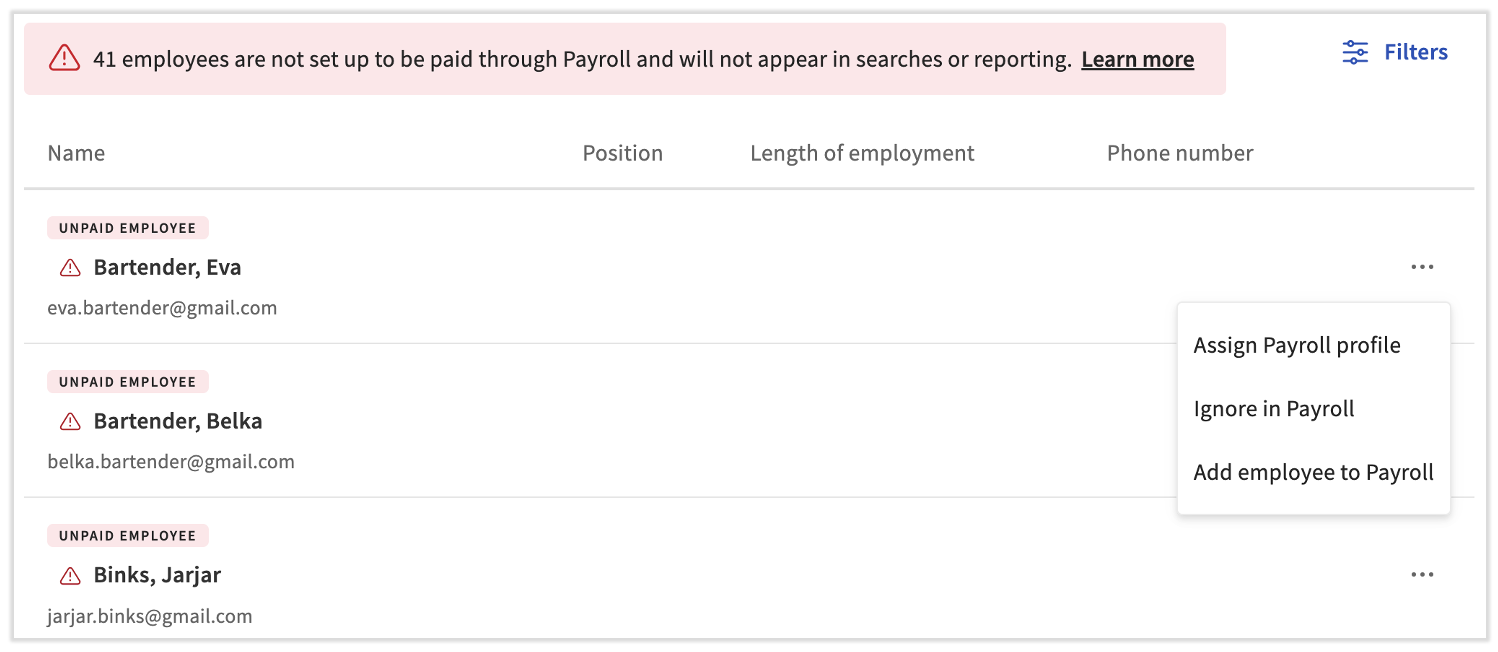
When an employee's name has the Unpaid Employee tag, select the three dots to the right of their name and choose one of these options:
- Assign Payroll profile — pay someone who already has a Toast Payroll account but isn't mapped. You'll be taken to the Employee Mapping page to sync this Toast Web profile with an existing Toast Payroll profile.
- Ignore in Payroll — remove a Toast Web-only profile from this page. The Toast Web profile will be treated as a non-employee. It will not be mapped and a Toast Payroll profile will not be created. This individual cannot be paid through Toast Payroll, will not appear on Toast Payroll reports, and will not be a part of any Toast Payroll billing or invoicing.
- Add employee to Payroll — pay someone who has been added to Toast Web but hasn't been hired in Toast Payroll. This option helps you create a Toast Payroll profile to map to the Toast Web profile. Use this option when an employee was hired in Toast Web rather than Toast Payroll.
Note: If you can't find an employee you're looking for on the Team page, see Toast Payroll: Employees Missing From Team Page.
Send and Resend Invite Emails
From the Team page, you can send an invite email to employees. This is different from the welcome email, which is automatically sent once an employer completes the steps under the +Add employee button on the Team page.
The invite email prompts employees to either:
- Create a set of unified Toast Web and Toast Payroll login credentials, or
- Log in using these credentials if they already have them.
Employees use this account to log in to payroll.toasttab.com and complete their payroll onboarding steps.
For the canonical resend-invite walkthrough, see Toast Payroll: Resend New Hire Onboarding Email.
When to Send an Invite Email
Send an invite email when:
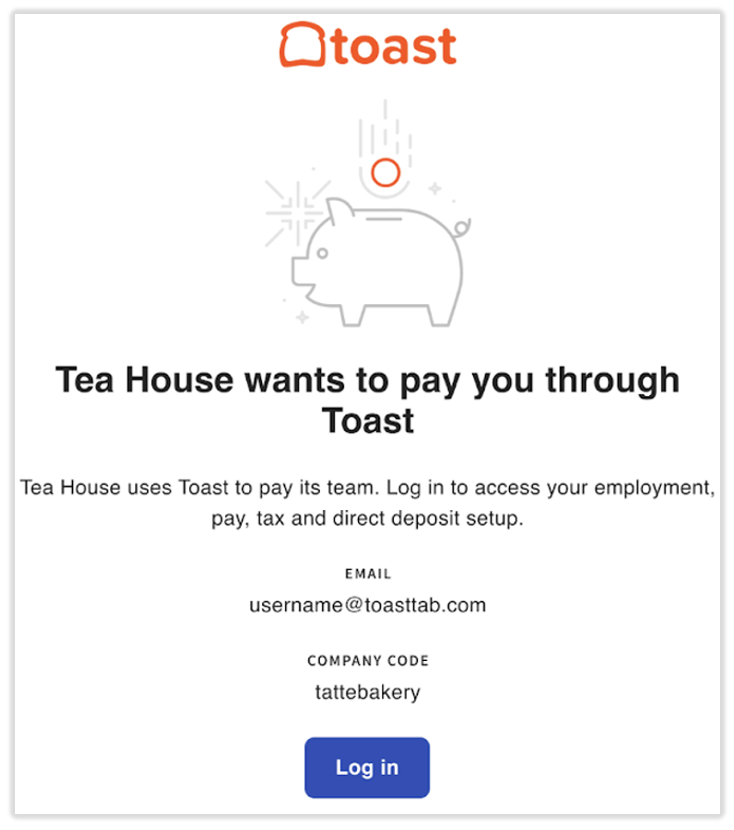
- An employee misplaced the welcome email. The welcome email is automatically sent to employees once an employer finishes their onboarding steps. Sending the invite email will prompt the employee to create a unified Toast account (email and password). After creating the account, they should log in to Toast Payroll and complete the employee onboarding steps. Those steps guide them to fill out their Form W-4 and add their Social Security number—both vital for employee onboarding—and are where they enter direct deposit account information. Do not skip these steps for any individual receiving pay through Toast Payroll.
- You switched from a different payroll provider and your employees were added in bulk. When employees are uploaded or imported into Toast Payroll, they are not automatically notified to complete their portion of the onboarding process. Use the bulk invite feature by selecting the Name column header checkbox after you've set the appropriate filters (see How to Send an Invite Email below).
- An employee doesn't remember their Toast password or company code/email address. Once an account is unified, employers cannot resend the welcome email directly from the Profile > User Account page on the employee's profile. Sending the invite email lets the employee get back into the system or reset their password.
- An employee is looking for their Form W-2, paystub, or other payroll information. Managers can send the invite email to give the employee the correct web address for Toast Payroll, the correct email address, and the company code (if necessary).
How to Send an Invite Email
- Navigate to Team in Toast Payroll.
- If the employee you're sending an invite to has an Unpaid Employee alert next to their name, your employee is unmapped and you will not be able to send an invite. Resolve their mapping by following Resolve Unpaid Employees before proceeding. If Ignore in Payroll was selected for them, this individual will not be able to receive this email.
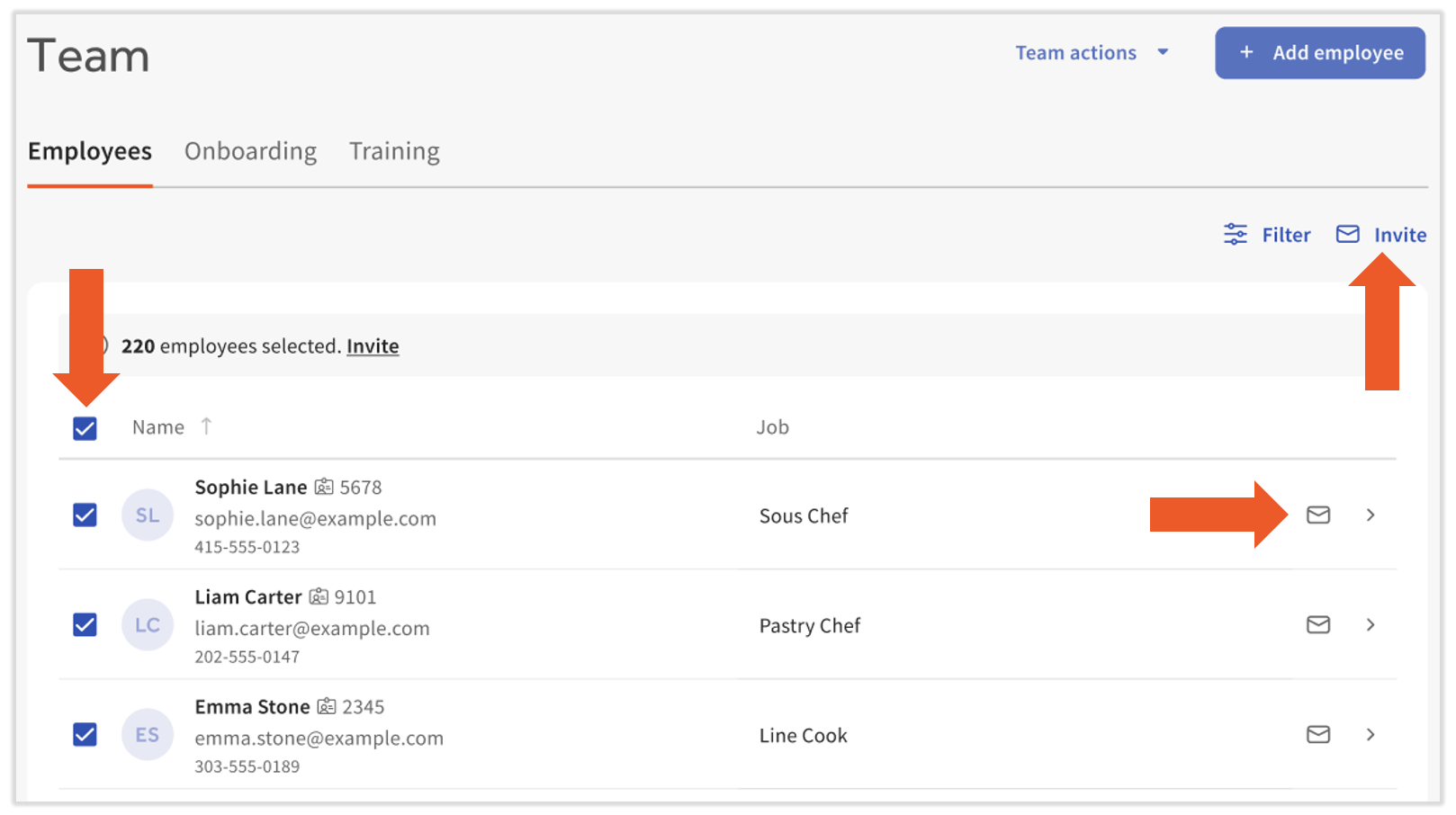
- To send one employee an invite email: find their name on the page and select the envelope icon next to their name.
- To send multiple employees an invite email:
- Use the checkboxes on the left to select multiple employees at once, then select either the Invite button in the upper-right corner or the link within the banner at the top of the page.
- To send this email to all employees, select the checkbox to the left of the Name header. This selects all eligible employees on this page only. You can navigate to the next page and select the same checkbox again to accumulate invites across pages. Once you select Invite, you'll get a pop-up confirming the number; select Send # invites to proceed. Any employees without an email address will be excluded.
- To show more employees on a single page, select Filters and increase the Employees per page value to a number that captures all or more employees, depending on your company's size.
- You can combine the checkbox to the left of the Name header with any filters you've set. For example, if you select Filters and choose only Active employees with a start date in the last week, then select the checkbox, only those employees will be included once you select Invite.
Expected outcome: A confirmation pop-up appears, then selected employees receive the invite email with a Log in button.
View Employee Onboarding Status
Once you've completed the employer onboarding steps for a new hire, you can view the progress of their onboarding steps by navigating to Team > Onboarding. Any employee who hasn't completely finished each step will appear on this dashboard.
The Current step column shows exactly where each employee is in their new hire steps.
Non-employees, bookkeepers, and accountants can be manually moved off this dashboard by following an abbreviated set of steps that gives them access to the system without being paid by the company. See Toast Payroll: Give Access to a Non-Employee.
Remove an Employee From the Onboarding Section
Employees appear on the Onboarding dashboard while they still have one or more new hire steps left to finish. To remove an employee from the Onboarding dashboard, complete their missing steps (most commonly Form W-4 and Form I-9) or mark their onboarding as complete. Note: There are limited use cases for taking this action. If your employee has not yet completed their employee onboarding steps, they may not have yet filled out their SSN, Form W-4, direct deposit information, or more, which could create future risk for the employee or your business.
- Navigate to Team > Onboarding.
- Locate the employee in the list.
- Select the edit pencil next to the employee.
- Select Mark this new hire as complete.
Expected outcome: The employee no longer appears on the Onboarding dashboard.
Make a Bulk Pay Change
Bulk pay changes are most commonly used for minimum wage changes. Select Team Actions > Bulk pay change and follow each of the steps in the Update Multiple Employees section of Toast Payroll: Make a Pay Change.
Expected outcome: The selected employees' pay rates are updated, and the change is reflected in their profiles.
Frequently Asked Questions
How Do I Invite an Employee to Toast Payroll?
To invite an employee to Toast Payroll, navigate to the Team page and select the envelope icon next to the employee's name. To invite many employees at once, select the checkboxes next to the employees you want to invite, then select Invite. For the canonical resend-invite walkthrough, see Toast Payroll: Resend New Hire Onboarding Email.
Also asked as:
-
- how to invite an employee to toast payroll
- How do I invite an employee to the payroll
- how do i send an existing employee an invite to set up their direct deposit
Why Are My Employees Showing Up as Unpaid Employees on the Team Page?
Employees show up with the Unpaid Employee tag on the Team page when their Toast Web profile is not mapped to a Toast Payroll profile. This usually happens when they were hired in Toast Web instead of Toast Payroll, or when there's a duplicate profile. To resolve, see Resolve Unpaid Employees above.
Also asked as:
-
- a lot of my employees in payroll are showing up as unpaid employees
How Do I Remove Employees From the Onboarding Section?
To remove employees from the Onboarding section, complete the new hire steps that are still missing (most commonly Form W-4 and Form I-9) or mark their onboarding as complete. For the steps, see Remove an Employee From the Onboarding Section above.
Also asked as:
-
- I see a bunch of my employees are still in the onboarding section. But I can't seem to figure out how to remove them
Related Articles
- Toast Payroll: Employees Missing From Team Page
- Toast Payroll: Manage Employee Mapping
- Toast Payroll: Resend New Hire Onboarding Email
- Toast Payroll: New Hire Employees (Employer Guide)
- Toast Payroll: Make a Pay Change
This content is for informational purposes and is not intended as legal, tax, HR, or any other professional advice. Please contact an attorney or other professional for advice.