Toast Payroll:团队页面
上次更新时间:2026年10月13日 17:38
“团队”页面允许用户一目了然地查看员工、聘用员工、进行批量薪资变更,并向尚未登录的员工重新发送欢迎电子邮件。
关于团队页面
在 Toast Payroll 中,团队页面让您可以一目了然地查看员工信息。通过从 Toast Payroll 导航子菜单中选择 团队 来打开它。在 Toast Payroll 中选择 Team 时,您应该会看到一个以 payroll.toasttab.com 开头的 URL。访问 Navigate Toast Payroll Within Toast Web 以了解新的 Toast Payroll 导航如何工作。
当此页面被筛选为显示新员工时,客户也将其称为入职部分或入职列表。
谁可以访问 Team 页面
Team 页面通常由具有 HR+ 或经理安全角色的用户使用。
您可以在 Team 页面执行的操作
在 Team 页面,您可以:
- 将员工添加到 Toast Payroll
- 查看员工的新入职状态
- 调整多名员工的薪资费率
- 一次性向多名员工重新发送新入职欢迎电子邮件(也称为“邀请”电子邮件)
Team 页面最近的列更改:
- 电话号码现在位于 Name 列中。
- 默认视图显示员工的 Job,而不是职位和受雇时长。
- 开启或关闭 Display position 以查看员工的职位。
- 如果员工拥有不止一份工作或职位,您会在其主要工作或职位旁边看到 +1、+2 等标记。
添加并雇用员工
要雇用员工,请从 Toast PayrollTeam 页面选择 +Add employee 按钮。在 Toast Payroll 中选择 Team 时,您应该会看到一个以 payroll.toasttab.com 开头的 URL。请访问 Navigate Toast Payroll Within Toast Web 以了解新的 Toast Payroll 导航功能如何运作。
这会启动两组步骤:
- 一组针对雇主或招聘经理 — 请参阅 Toast Payroll:新聘员工(雇主指南)。
- 另一组针对员工的后续步骤 — 请参阅 Toast Payroll:员工入职(员工指南)。
必须完全完成这两组步骤,以便员工能够:
- 完成入职。
- 配置正确的社会安全号码 (SSN)、电子邮件地址和 W-4 表格信息(如适用)。
- 设置他们的直接存款账户。
预期结果:新员工将出现在“团队”页面上,其入职状态可在“入职”部分查看。
解决未付款员工问题
如果您在“团队”页面上看到标记为“未付款员工”的 Toast Web 个人资料,这通常是由于员工映射复杂化,或是在 Toast Web 而非 Toast Payroll 中聘用个人所致。
要打开完整的映射演练,请选择“团队”页面红色横幅中的 了解更多,或参阅 Toast Payroll:管理员工映射。
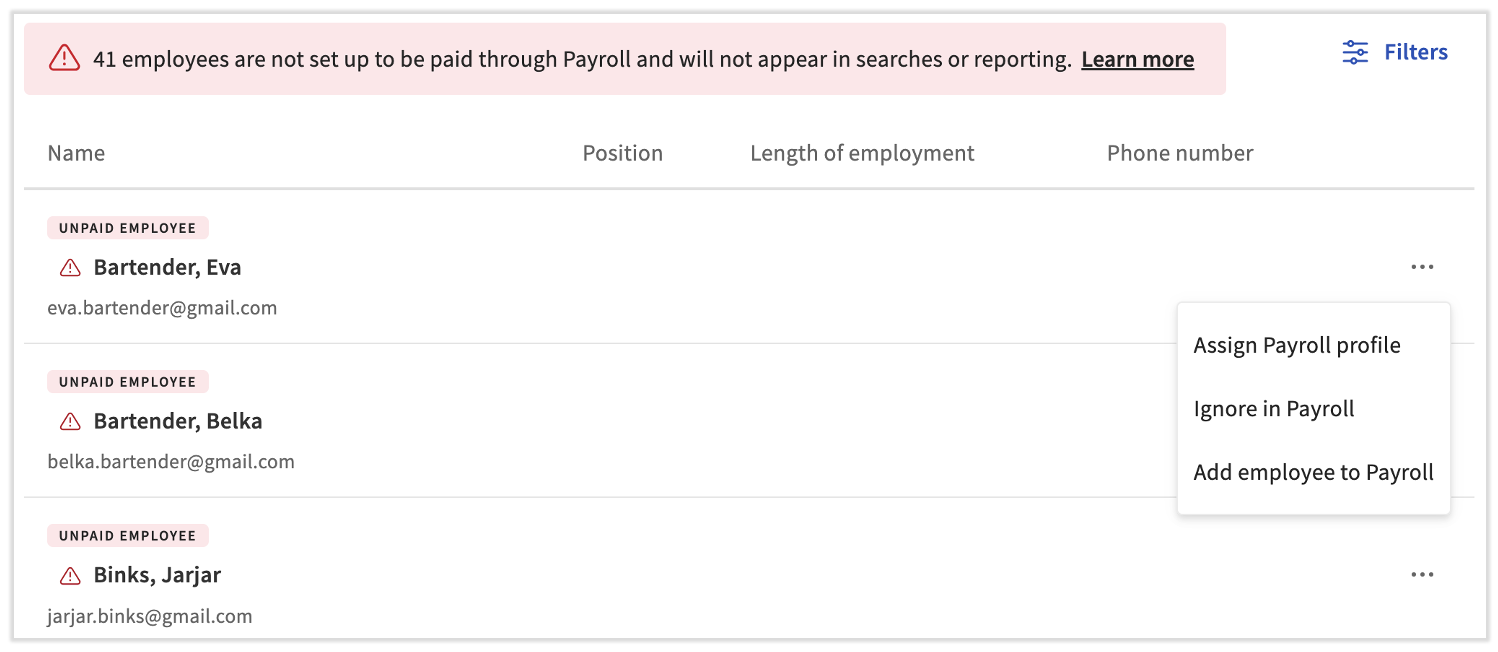
当员工姓名带有“未付款员工”标签时,请选择其姓名右侧的三个点,然后选择以下选项之一:
- 分配薪资档案 — 为已经拥有 Toast Payroll 账户但未进行映射的人员发放薪资。您将被带到 员工映射页面,以将此 Toast Web 个人资料与现有的 Toast Payroll 个人资料同步。
- 在薪资中忽略 — 从此页面移除仅限 Toast Web 的个人资料。该 Toast Web 个人资料将被视为非员工。它将不会被映射,也不会创建 Toast Payroll 个人资料。此人无法通过 Toast Payroll 获得报酬,不会出现在 Toast Payroll 报告中,也不会参与任何 Toast Payroll 的计费或开票。
- 将员工添加到薪资 — 为已添加到 Toast Web 但尚未在 Toast Payroll 中入职的人员发放工资。此选项可帮助您 创建 Toast Payroll 个人资料 以映射到 Toast Web 个人资料。当员工是在 Toast Web 而非 Toast Payroll 中入职时,请使用此选项。
注意:如果您在团队页面上找不到您要查找的员工,请参阅 Toast Payroll:团队页面中缺失的员工。
发送和重新发送邀请电子邮件
在 Toast Payroll 的 团队 页面中,您可以向员工发送邀请电子邮件。这与欢迎电子邮件不同,欢迎电子邮件是在雇主完成团队页面上 +添加员工 按钮下的步骤后自动发送的。(当您在 Toast Payroll 中选择 团队 时,您应该会看到一个以 payroll.toasttab.com 开头的 URL。访问 在 Toast Web 中导航 Toast Payroll 以了解新的 Toast Payroll 导航的工作方式。)
邀请电子邮件会提示员工执行以下任一操作:
- 创建一组 统一的 Toast Web 和 Toast Payroll 登录凭据,或者
- 如果他们已经拥有这些凭据,则使用它们登录。
员工使用此帐户登录 payroll.toasttab.com 并完成他们的薪资入职步骤。
有关重新发送邀请的标准演练,请参阅 Toast Payroll:重新发送新员工入职电子邮件。
何时发送邀请电子邮件
在以下情况下发送邀请电子邮件:
- 员工弄丢了欢迎电子邮件。一旦雇主完成入职步骤,欢迎电子邮件会自动发送给员工。发送邀请电子邮件将提示员工创建统一的 Toast 账户(电子邮件和密码)。创建账户后,他们应登录 Toast Payroll 并完成员工入职步骤。这些步骤指导他们填写 W-4 表格并添加社会保障号码(这两者对于员工入职至关重要),同时也是他们输入直接存款账户信息的地方。对于任何通过 Toast Payroll 领取工资的个人,请勿跳过这些步骤。
- 您从其他薪资服务提供商切换过来,且您的员工是批量添加的。当员工被上传或导入到 Toast Payroll 时,系统不会自动通知他们完成其入职流程部分。在设置好相应的筛选条件后,通过勾选姓名列标题复选框来使用批量邀请功能(请参阅下方的如何发送邀请电子邮件)。
- 员工不记得其 Toast 密码或公司代码/电子邮件地址。账户统一后,雇主无法直接从员工个人资料中的个人资料 > 用户账户页面重新发送欢迎电子邮件。发送邀请电子邮件可以让员工重新进入系统或重置其密码。
- 员工正在查找其 W-2 表格、工资单或其他薪资信息。经理可以发送邀请电子邮件,为员工提供正确的 Toast Payroll 网址、正确的电子邮件地址以及公司代码(如有必要)。
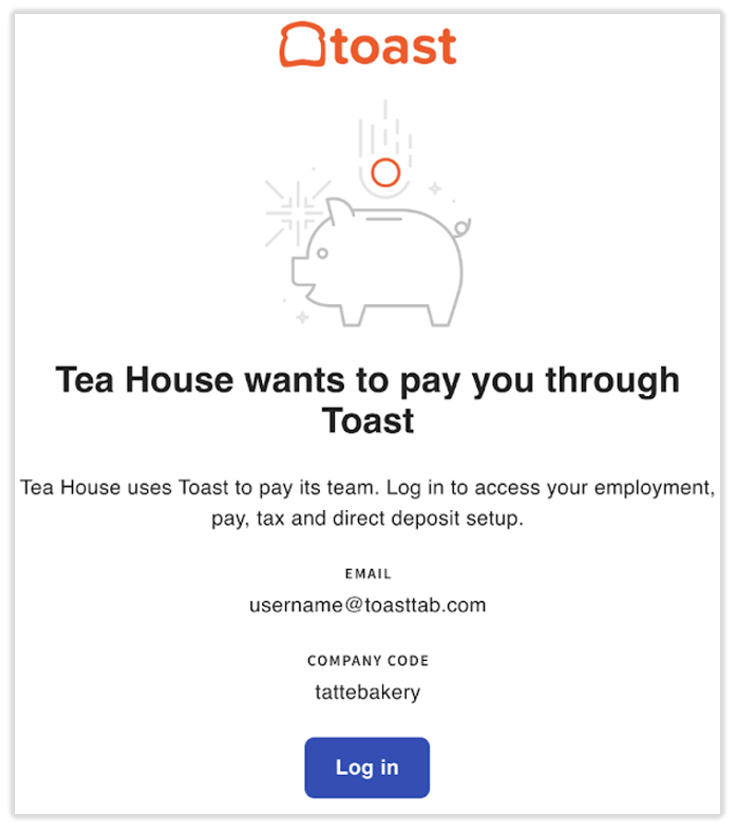
如何发送邀请电子邮件
- 导航至 Toast Payroll 中的团队。
- 在 Toast Payroll 中选择 Team 时,您应该会看到一个以 payroll.toasttab.com 开头的 URL。访问 Navigate Toast Payroll Within Toast Web 以了解新的 Toast Payroll 导航如何工作。
- 如果您要发送邀请的员工姓名旁边有“未付员工”(Unpaid Employee) 提醒,则说明该员工未映射,您将无法发送邀请。在继续操作之前,请按照 Resolve Unpaid Employees 解决他们的映射问题。如果为他们选择了 Ignore in Payroll,则此人将无法收到此电子邮件。
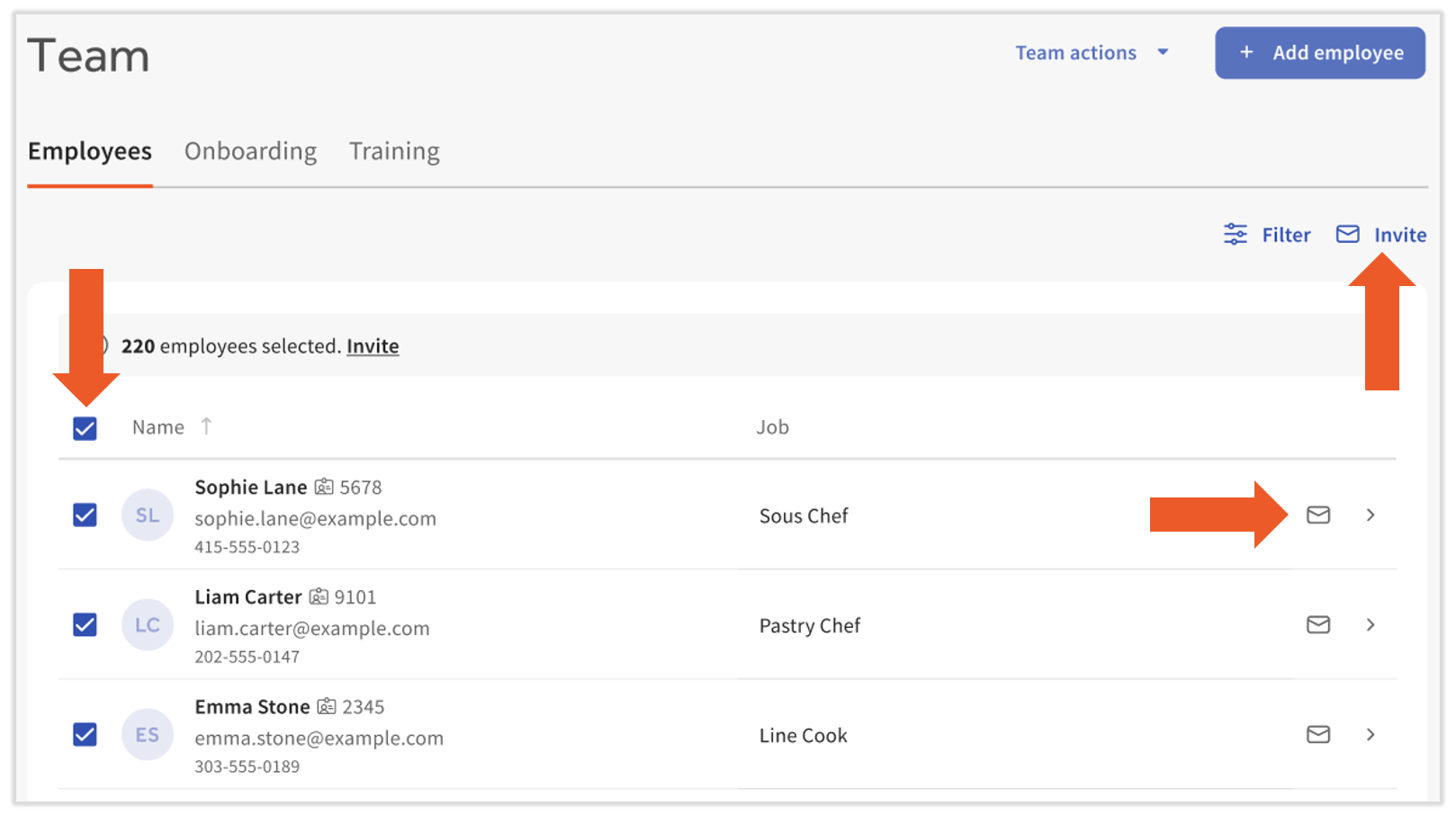
- 要向一名员工发送邀请电子邮件:在页面上找到他们的姓名,然后选择其姓名旁边的信封图标。
- 要向多名员工发送邀请电子邮件:
- 使用左侧的复选框一次选择多名员工,然后选择右上角的 Invite 按钮或页面顶部横幅中的链接。
- 要向所有员工发送此电子邮件,请选中 Name 标题左侧的复选框。这仅会选中当前页面上的所有符合条件的员工。您可以导航至下一页并再次选中相同的复选框,以跨页面累积邀请。选择 Invite 后,您将看到一个确认人数的弹出窗口;选择 Send # invites 以继续。任何没有电子邮件地址的员工都将被排除在外。
- 若要在单个页面上显示更多员工,请选择 Filters 并将 Employees per page 的值增加到可以涵盖所有或更多员工的数字,具体取决于您公司的规模。
- 您可以将 Name 标题左侧的复选框与您设置的任何筛选器结合使用。例如,如果您选择 Filters 并仅选择开始日期在上周内的 Active 员工,然后选中该复选框,那么在您选择 Invite 后,仅会包含这些员工。
预期结果:确认弹出窗口会出现,随后选定的员工将收到带有 Log in 按钮的邀请电子邮件。
View Employee Onboarding Status
完成新员工的 employer onboarding steps 后,您可以通过登录 payroll.toasttab.com 并导航至 Team > Onboarding 来查看其入职步骤的进度。任何尚未完全完成每个步骤的员工都将出现在此仪表板上。(当您在 Toast Payroll 中选择 Team 时,您应该会看到一个以 payroll.toasttab.com 开头的 URL。)访问 Navigate Toast Payroll Within Toast Web 以了解新的 Toast Payroll 导航如何工作。)
Current step 列准确显示了每位员工在其新员工入职步骤中所处的位置。
非员工、簿记员和会计师可以通过遵循一套简化的步骤手动移出此仪表板,这些步骤使他们能够访问系统而无需由公司支付薪酬。请参阅 Toast Payroll:授予非员工访问权限。
Remove an Employee From the Onboarding Section
员工在仍有一项或多项新员工入职步骤未完成时会出现在“入职”仪表板上。要将员工从“入职”仪表板中移除,请完成他们缺失的步骤(最常见的是 W-4 表格和 I-9 表格)或将他们的入职标记为完成。注意:采取此操作的用例有限。如果您的员工尚未完成其员工入职步骤,他们可能尚未填写其社会安全号码 (SSN)、W-4 表格、直接存款信息等,这可能会给员工或您的企业带来未来的风险。
- 在Toast Payroll中,导航至Team>Onboarding。
- 在 Toast Payroll 中选择 Team 时,您应该会看到一个以 payroll.toasttab.com 开头的 URL。访问 Navigate Toast Payroll Within Toast Web 以了解新的 Toast Payroll 导航如何工作。
- 在列表中找到该员工。
- 选择员工旁边的编辑铅笔图标。
- 选择 Mark this new hire as complete。
预期结果:该员工将不再出现在“入职”仪表板上。
Make a Bulk Pay Change
批量薪酬变更最常用于最低工资变更。
- 登录 payroll.toasttab.com 并导航至 Team。
- 在 Toast Payroll 中选择 Team 时,您应该会看到一个以 payroll.toasttab.com 开头的 URL。访问 Navigate Toast Payroll Within Toast Web 以了解新的 Toast Payroll 导航如何工作。
- 选择 团队操作 > 批量薪资变更,并按照 Toast Payroll“更新多名员工”部分中的每个步骤操作:进行薪资变更。
预期结果:所选员工的薪资费率已更新,且该变更会反映在他们的个人资料中。
常见问题解答
我该如何邀请员工加入 Toast Payroll?
要邀请员工加入 Toast Payroll,请导航至 团队 并选择员工姓名旁边的信封图标。当您在 Toast Payroll 中选择 团队 时,您应该会看到一个以 payroll.toasttab.com 开头的 URL。访问 在 Toast Web 中导航 Toast Payroll 以了解新的 Toast Payroll 导航的工作方式。
要同时邀请多名员工,请勾选您想要邀请的员工旁边的复选框,然后选择 邀请。有关重新发送邀请的标准演练,请参阅 Toast Payroll:重新发送新员工入职电子邮件。
也问:
-
- 如何邀请员工加入 Toast Payroll
- 我该如何邀请员工加入薪资系统
- 我该如何向现有员工发送邀请以设置其直接存款
为什么我的员工在“团队”页面上显示为“未付款员工”?
当员工的 Toast Web 个人资料未映射到 Toast Payroll 个人资料时,员工会在“团队”页面上显示“未付款员工”标签。这种情况通常发生在他们在 Toast Web 而非 Toast Payroll 中入职,或者存在重复个人资料时。要解决此问题,请参阅上方的 解决未付款员工问题。
也问:
-
- 我在薪资系统中的许多员工显示为未付款员工
如何将员工从入职部分中移除?
要将员工从入职部分中移除,请完成仍缺失的新员工入职步骤(最常见的是 W-4 表格和 I-9 表格),或将他们的入职状态标记为已完成。有关具体步骤,请参阅上方的 将员工从入职部分中移除。
也问:
-
- 我看到我的一大批员工仍处于入职部分。但我似乎无法弄清楚如何将他们移除
相关文章
此内容仅供参考,不作为法律、税务、人力资源或其他专业建议。请联系律师或其他专业人士以获取建议。