Toast Payroll: New Hire Employees (Employer Guide)
Last updated: May 18, 2026, 3:34 PM
Add a new hire to Toast Payroll using the employer new hire workflow. Triggers the employee's onboarding email and creates their profile.
- Before You Begin
- Configure SSN and EEO-1 Settings
- New Hire Workflow Steps
- What Happens After You Add the Employee
- Invite an Employee to Create a Toast Web Account
- Frequently Asked Questions
- Related Articles
Before You Begin
Applies to: Toast Payroll
Permissions needed: Manager and HR+ security roles
What you'll accomplish: Add a new hire to Toast Payroll and trigger the employee's onboarding email so they can complete their portion of the process.
Review these points before you start:
- You can complete the new hire workflow on a mobile device.
- You must complete all steps of the employer new hire workflow in a single session. The workflow cannot be paused; this prevents incomplete and duplicate profiles.
- You can add multiple jobs to an employee's profile during onboarding.
- The SSN and email address fields can be bypassed during onboarding, but this should only be done when absolutely necessary. Skipping these fields severely limits what the employee can do in Toast Payroll:
- Employees added without an email address cannot log in, complete their own new hire steps, add a direct deposit account, fill out Form I-9 or Form W-4, view paystubs, or access year-end documents such as Form W-2 or Form 1095-C.
- Employees added without an SSN may result in incomplete or inaccurate tax filings, new hire reporting errors, and tax notices with penalties, interest, or fees.
Configure SSN and EEO-1 Settings
Toast Payroll lets you customize two features of the employee new hire experience: requiring a social security number (SSN) and requiring an EEO-1 classification. These settings are company-wide and apply to all employees hired after the settings are saved.
To configure these settings:
- In Toast Payroll, navigate to Settings > New Hire > Settings.
- Select your preferred options for Require SSN for Employee Onboarding and EEO-1 Reporting.
- Select Save at the bottom of the page.
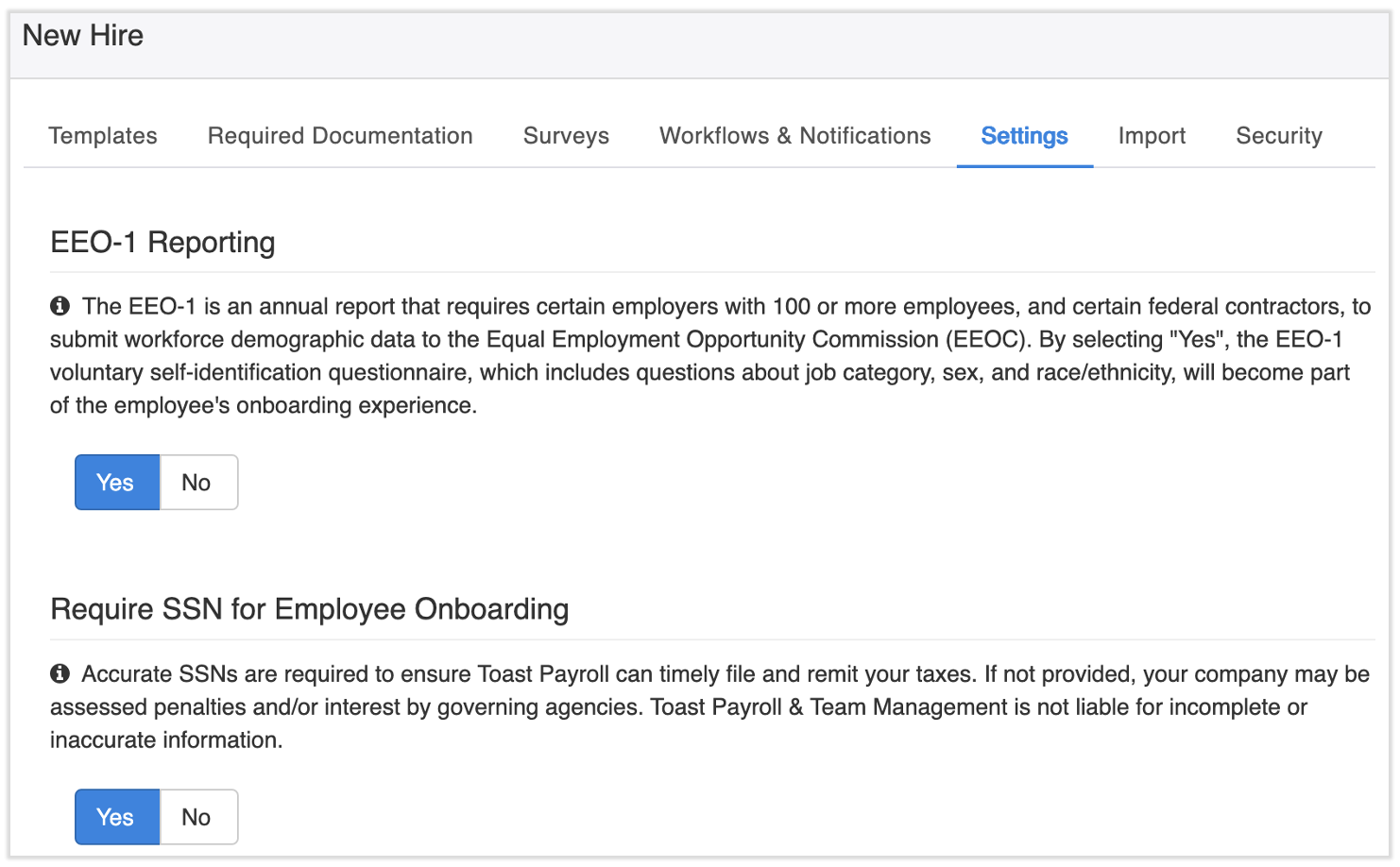
Important notes:
- EEO-1 classification is primarily required for California employers and others subject to EEO-1 reporting requirements. For details on how this information is used in Toast Payroll, see Toast Payroll: EEO-1 Reporting Guide.
- Toast strongly recommends keeping Require SSN for Employee Onboarding set to Yes. Missing or inaccurate SSNs may result in inaccurate tax filings, rejections by tax agencies, or financial penalties. For details, see Toast Payroll: Social Security Number (SSN) Information Policy.
New Hire Workflow Steps
Employers will learn how to hire a new employee in Toast Payroll.
Step 1: Log In and Start the New Hire Workflow
- Go to payroll.toasttab.com and log in. Need help logging in? See Toast Payroll: Log In.
- Select Team from the navigation menu.
- Select + Add team member in the top-right corner.
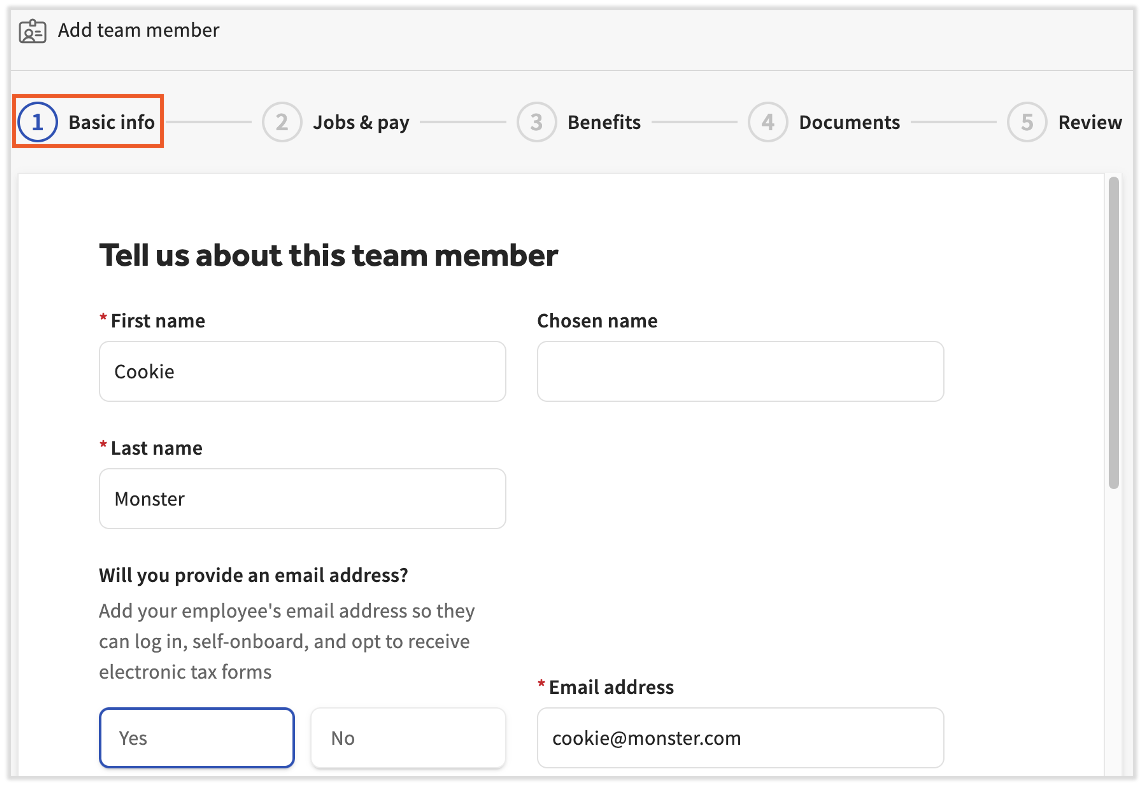
Step 2: Enter Basic Info
The first step of the workflow asks for basic info and employment details.
- Enter the employee's Email address. This field is not required, but employees onboarded without an email address cannot log in, complete Form I-9 or Form W-4, view paystubs, or access year-end tax documents. If the employee has no email address, see Toast Payroll: Employees Without Email Addresses for steps to complete their portion of onboarding on their behalf.
- Enter an Employee ID number. This must be a 4–8 digit number. You can change it after onboarding by navigating to Employment > Position.
- Enter the employee's Social security number (SSN). Whether this field is required depends on the Require SSN for Employee Onboarding setting in Settings > New Hire > Settings.
- Employees hired without an SSN may result in incomplete or inaccurate tax filings, new hire reporting errors, and tax notices with penalties, interest, or fees.
- New hires assigned the Contractor (1099) classification will not see the SSN field.
- If the message This SSN is already in use by another employee appears, select X in the upper-right corner, then select Discard & exit to close the workflow. Follow Toast Payroll: Resolve Duplicate Social Security Numbers (SSNs) to locate the duplicate and resolve the error before restarting the new hire workflow.
Step 3: Review Duplicate Profile Detection
After entering basic info, Toast Payroll may display a screen indicating that this person may already have a profile.
- If this screen appears, review the suggested profiles.
- If a suggested profile matches the person you are hiring, select that profile to consolidate records and avoid creating a duplicate.
- If no suggested profile matches — the alert may be triggered by a similar name, email address, or phone number — select Continue creating a new profile.
For details on what each badge type means (Active, Terminated, Archived, and others), see Toast Payroll: Duplicate Profile Detection in Toast.
!["[Employee] may already have a profile" warning during the new hire workflow](https://dwvhey99m5tyy.cloudfront.net/images/ka2PV000000M8BpYAK/0EMPV00000gvXjp)
Step 4: Enter Jobs and Pay
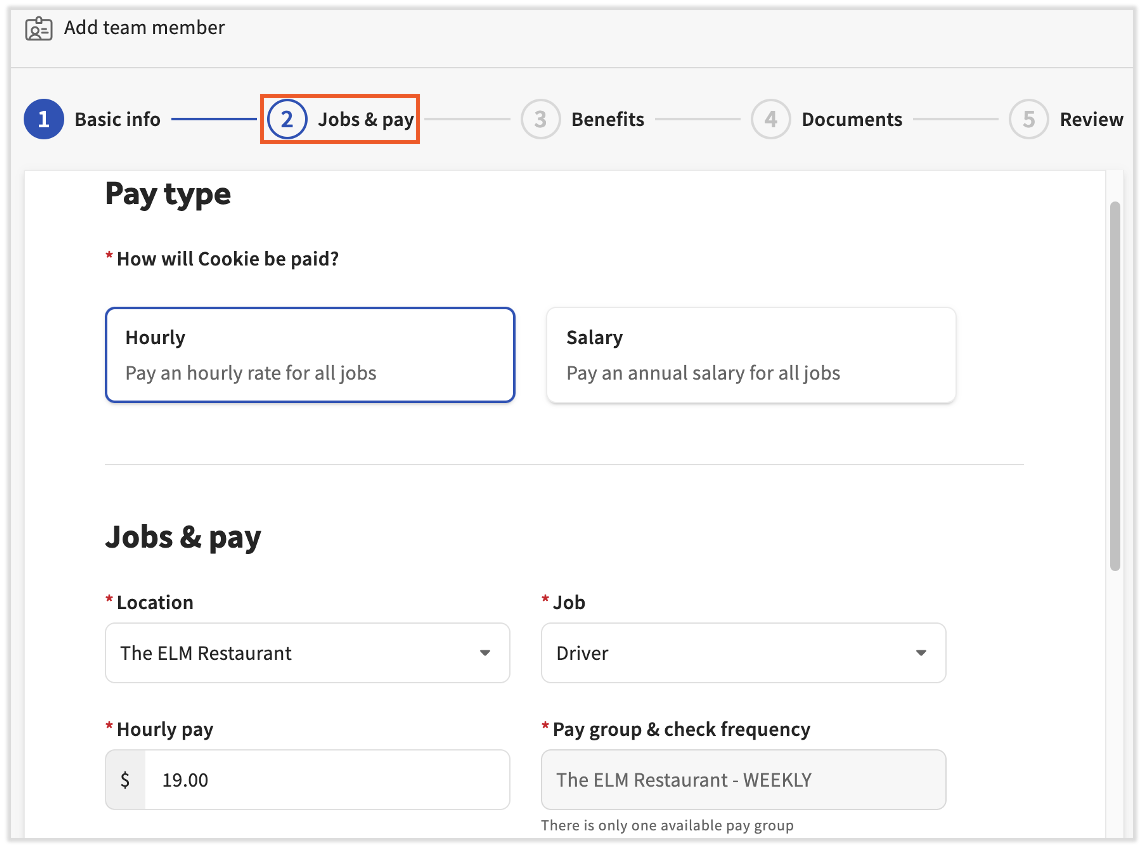
This step captures the employee's job roles and wage rates.
- Select Hourly or Salary based on how this employee is compensated. The fields displayed will change based on this selection.
- To assign multiple jobs for this employee to clock into, select + Add job.
- Review the POS Access Code. This defaults to the Employee ID entered in Step 3 and can be changed to any number not already assigned. If the POS Access Code is removed, the employee will not be able to access a Toast POS device.
- If EEO-1 Reporting is set to Yes in Settings > New Hire > Settings, select the employee's EEO-1 classification. For details, see Toast Payroll: EEO-1 Reporting Guide.
- Assign the employee's security role in Toast Payroll. New hires also inherit POS permissions from their assigned job. For details, see Toast Payroll: Security Roles and Access Permissions Reference.
Step 5: Set Up Benefits
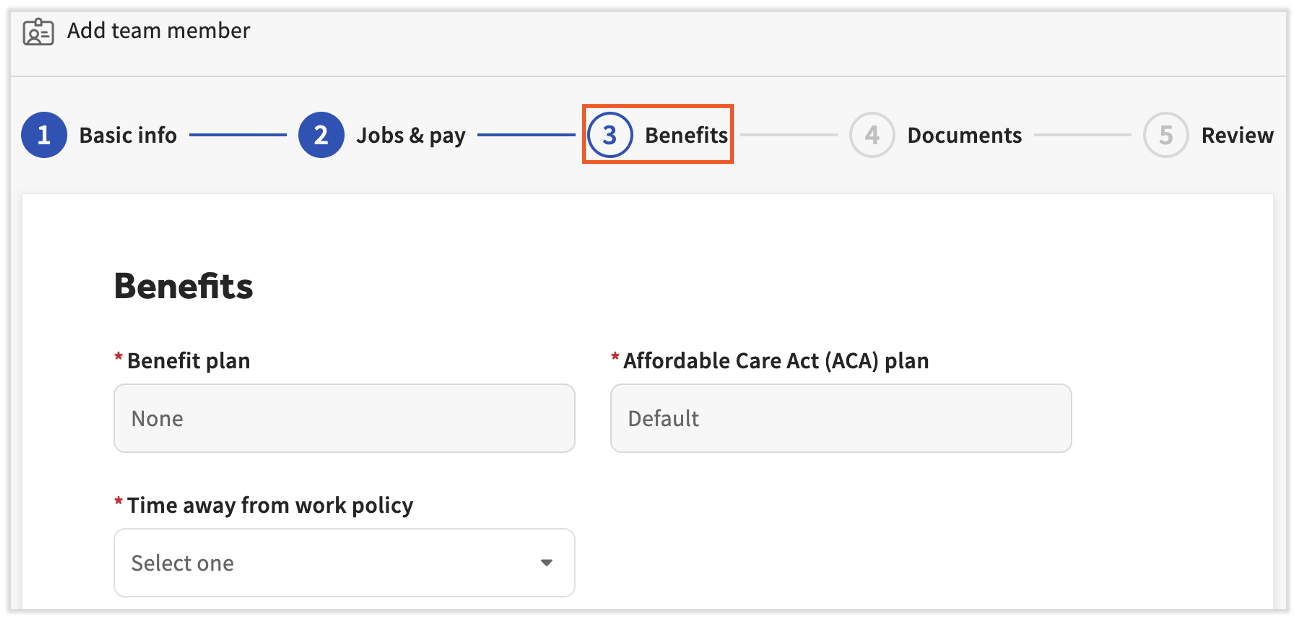
This step captures benefit and time-away-from-work (TAFW) policy information.
- Toast Payroll Pro customers: Employee benefit coverage is managed through SimplyInsured. The employee will complete their own enrollment separately. In this step, enter TAFW policy data only. For details on the SimplyInsured enrollment flow, see Toast Payroll: Manage Benefits With SimplyInsured.
- All other customers: Enter the applicable benefit information in the fields provided.
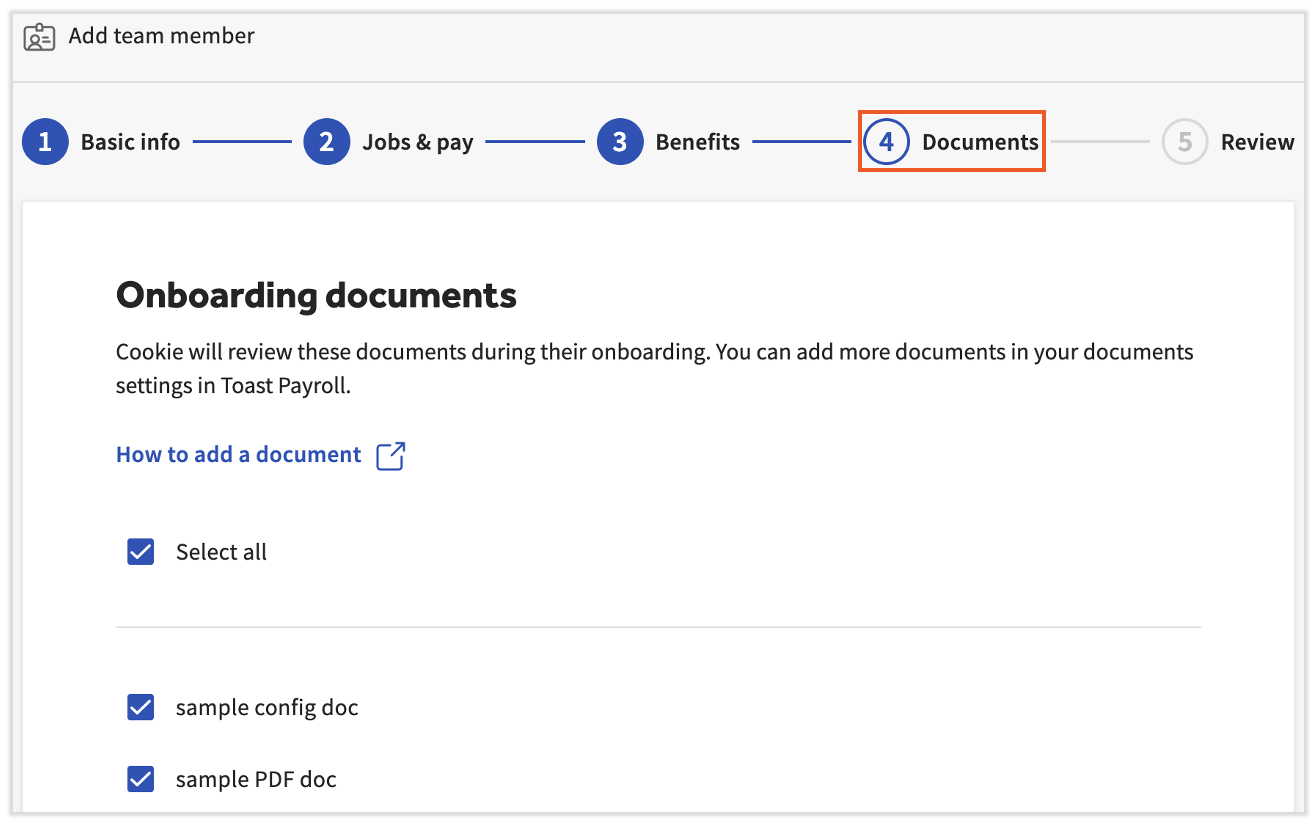
Step 6: Select Onboarding Documents
This step determines which documents the employee will see and be asked to complete during their portion of onboarding.
- Select the documents this employee will review.
Note: Employees hired without an email address will not be able to view these documents or complete their own onboarding steps.
- To attach documents specific to this employee, select + Upload files or drag and drop PDF files into the upload box.
Step 7: Review and Add to Team
This is the final step of the employer new hire workflow.
- Review all information entered for accuracy. Select the edit pencil icon next to any section to make corrections.
- At the bottom of the page, preview the onboarding steps the employee will be asked to complete.
- Select Add to team to complete your portion of the new hire process.
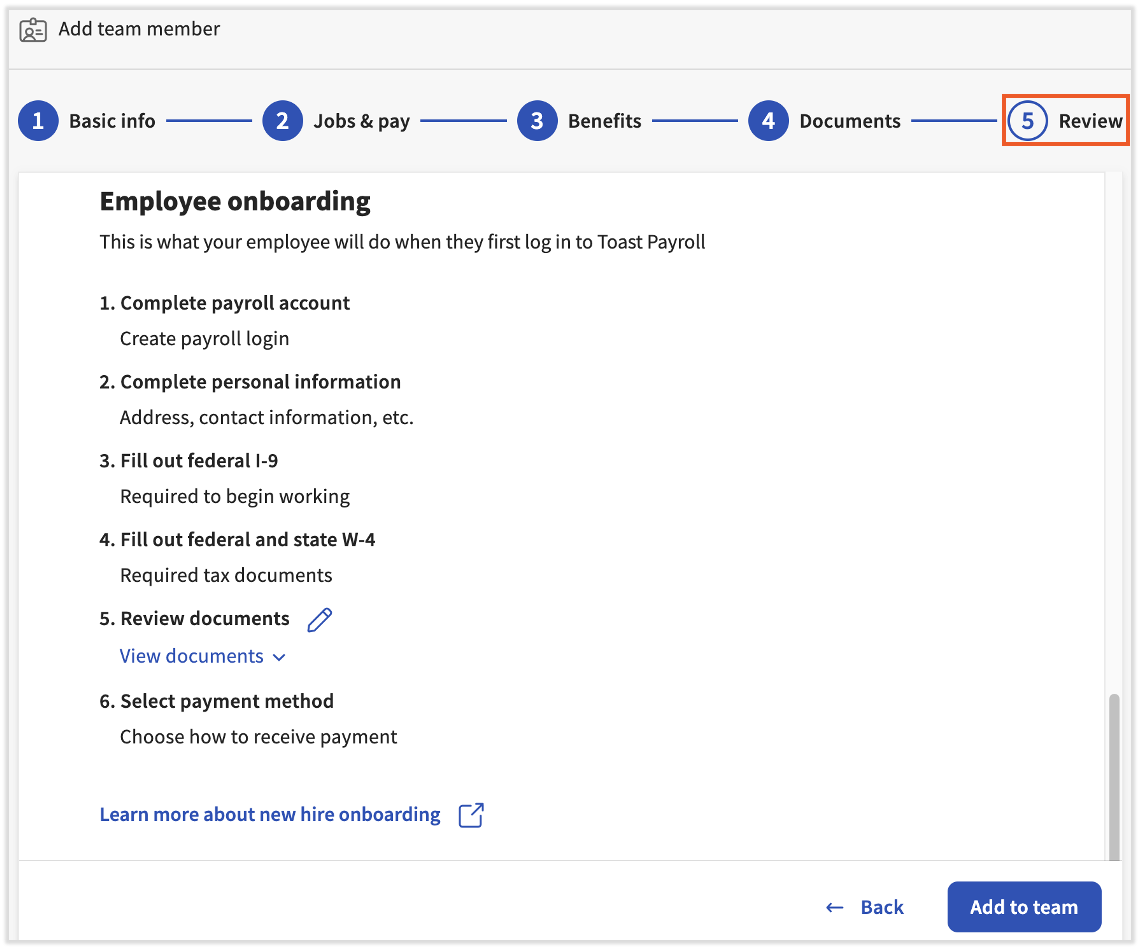
Expected outcome: The employee's profile is created in Toast Payroll. If an email address was entered, Toast automatically sends the employee a "welcome" email with instructions to set a password and complete their portion of onboarding. If no email address was entered, a pop-up will appear indicating that the employee must be invited separately before they can create a password and complete their steps.
Step 8: Assign a Standard Occupational Code (Selected States)
As of March 2024, employees with a work tax location (WTL) in Alaska, Indiana, Louisiana, South Carolina, Washington, or West Virginia require a Standard Occupational Code (SOC) assignment for occupational data collection and workers' compensation reporting. This option does not appear during the new hire workflow and must be completed separately after adding the employee to your team.
- After completing Step 8, follow the instructions in Toast Payroll: Use Standard Occupational Classification (SOC) Codes to assign a SOC code to the employee.
What if I don't assign a SOC code? Employees with a WTL in one of these six states who are not assigned a code will default to 35-9000 Other Food Preparation and Serving Related Workers.
See the state agency resources below for occupational code lookup:
- Alaska SOC Codes
- Indiana SOC Codes
- Louisiana SOC Codes
- South Carolina SOC Codes
- Washington SOC Codes
- West Virginia SOC Codes
What Happens After You Add the Employee
After you select Add to team, the following occurs automatically:
- The employee receives a "welcome" email at the address entered in Step 3. They use this email to set a password, create a Toast account, and complete their portion of onboarding using Toast Payroll: Employee Onboarding (Employee Guide).
- Payroll can be processed immediately. Toast Payroll allows payroll to be processed for a new hire even if their onboarding is incomplete. The employee can finish their steps later without affecting payroll.
- The employee's credentials work across Toast products. Their email and password provide access to Toast Payroll (based on their security role), the MyToast app, and other Toast products. For employees who also need Toast Web access, see Invite an Employee to Create a Toast Web Account below.
If the wrong email address was entered: Navigate to the employee's profile in Toast Payroll and select Profile > User Account > Update to change the email address. This can only be done before the employee acts on their "welcome" email. Once the employee has used the welcome email, you will need to send an invite email instead. See Toast Payroll: Resend New Hire Onboarding Email for details.
Once the employee completes their onboarding steps, direct them to Toast Payroll: Employee Resources for answers to questions about paystubs, Form W-2s, and using Toast Payroll.
Invite an Employee to Create a Toast Web Account
After the employer and employee have completed the new hire process, the employee will have:
- A Toast Payroll profile and account — access to Toast Payroll based on their security role.
- A Toast Web profile with a POS access code — access to Toast POS devices based on their job's permissions.
The employee will not automatically have a Toast Web account. A Toast Web account is needed to access Toast Web for tasks such as menu and price updates, reporting, and loyalty and gift card management. Inviting an employee to create a Toast Web account is optional — most restaurants only do this for employees who need access to manage Toast Web settings.
Important: When you invite an employee to Toast Web, they will be unable to use their POS access code until they have accepted the email invite and set their password. This typically takes about one minute to complete.
To invite an employee to create a Toast Web account, see the Create a Toast Web Account section of Log in to Toast: Create an Account.
Profile vs. account: A profile is where an individual's information is stored. An account is the email and password combination that gives access to a Toast platform. An employee can have a profile without a Toast Web account.
Frequently Asked Questions
The employee didn't receive their onboarding email. What do I do?
After you select Add to team, Toast automatically sends a "welcome" email to the address entered in Step 3. If the employee cannot find it:
- Ask them to check their spam or junk folder.
- If the email address was entered incorrectly and the employee has not yet acted on the original welcome email, navigate to their profile, select Profile > User Account > Update, and correct the address.
- If the employee already used the welcome email or the email needs to be resent, see Toast Payroll: Resend New Hire Onboarding Email.
Note: The "welcome" email sent at onboarding cannot be resent. A separate "invite" email can be sent from the Team page. See Toast Payroll: Resend New Hire Onboarding Email for full details.
Can I skip the SSN during onboarding?
Yes, you can bypass the SSN field if Require SSN for Employee Onboarding is not set to Yes in Settings > New Hire > Settings. However, Toast strongly recommends collecting SSNs for all employees. Employees hired without an SSN may result in incomplete or inaccurate tax filings, unreported new hire data, and tax notices with penalties, interest, or fees. For details, see Toast Payroll: Social Security Number (SSN) Information Policy.
What does the "may already have a profile" screen mean?
This screen appears when Toast Payroll detects an existing profile with a similar name, email address, or phone number. Review the suggested profiles: if one matches the person you are hiring, select it to consolidate records and avoid a duplicate. If none match, select Continue creating a new profile. For details on badge types and what each one means, see Toast Payroll: Duplicate Profile Detection in Toast.
The employee doesn't have an email address. Can I still add them?
Yes. See Toast Payroll: Employees Without Email Addresses for instructions on how to complete the employee's onboarding steps on their behalf, including submitting a paper Form I-9 and filling out their Form W-4.
The SSN field shows "This SSN is already in use." What do I do?
Select X in the upper-right corner, then select Discard & exit to close the workflow without saving. Follow Toast Payroll: Resolve Duplicate Social Security Numbers (SSNs) to identify the duplicate profile and take action before restarting the new hire workflow.
Related Articles
- Toast Payroll: Employee Onboarding (Employee Guide)
- Toast Payroll: Resend New Hire Onboarding Email
- Toast Payroll: Get Help With New Hires
- Toast Payroll: Employees Without Email Addresses
- Toast Payroll: Duplicate Profile Detection in Toast
- Toast Payroll: Employee Resources
- Toast Payroll: Give Access to a Non-Employee
- USCIS Handbook for Employers: Verifying Form I-9
- IRS Employee and Employer Form W-4 FAQs
This content is for informational purposes and is not intended as legal, tax, HR, or any other professional advice. Please contact an attorney or other professional for specific advice.