Toast Payroll: Review and Submit Step
Last updated: Apr 8, 2026, 10:12 AM
- Review and Submit Step Overview
- Accounting Summary Tile
- Employees Tile
- Reports Tile
- Highlights and Exceptions Tile
- Additional Resources
Review and Submit Step Overview
After selecting Preview on the Pay Cycle Dashboard and entering in and/or confirming all your payroll data, the Review and Submit step is the third step of payroll. You will have already progressed through the Preview Payroll and Employee Earnings steps. Toast offers you a final look at your payroll before you submit. We highly recommend taking a look at the different items presented here since you can gain plenty of data and information and still make changes before submitting this payroll. The final action to run a payroll is to select Submit payroll in the upper-right corner.
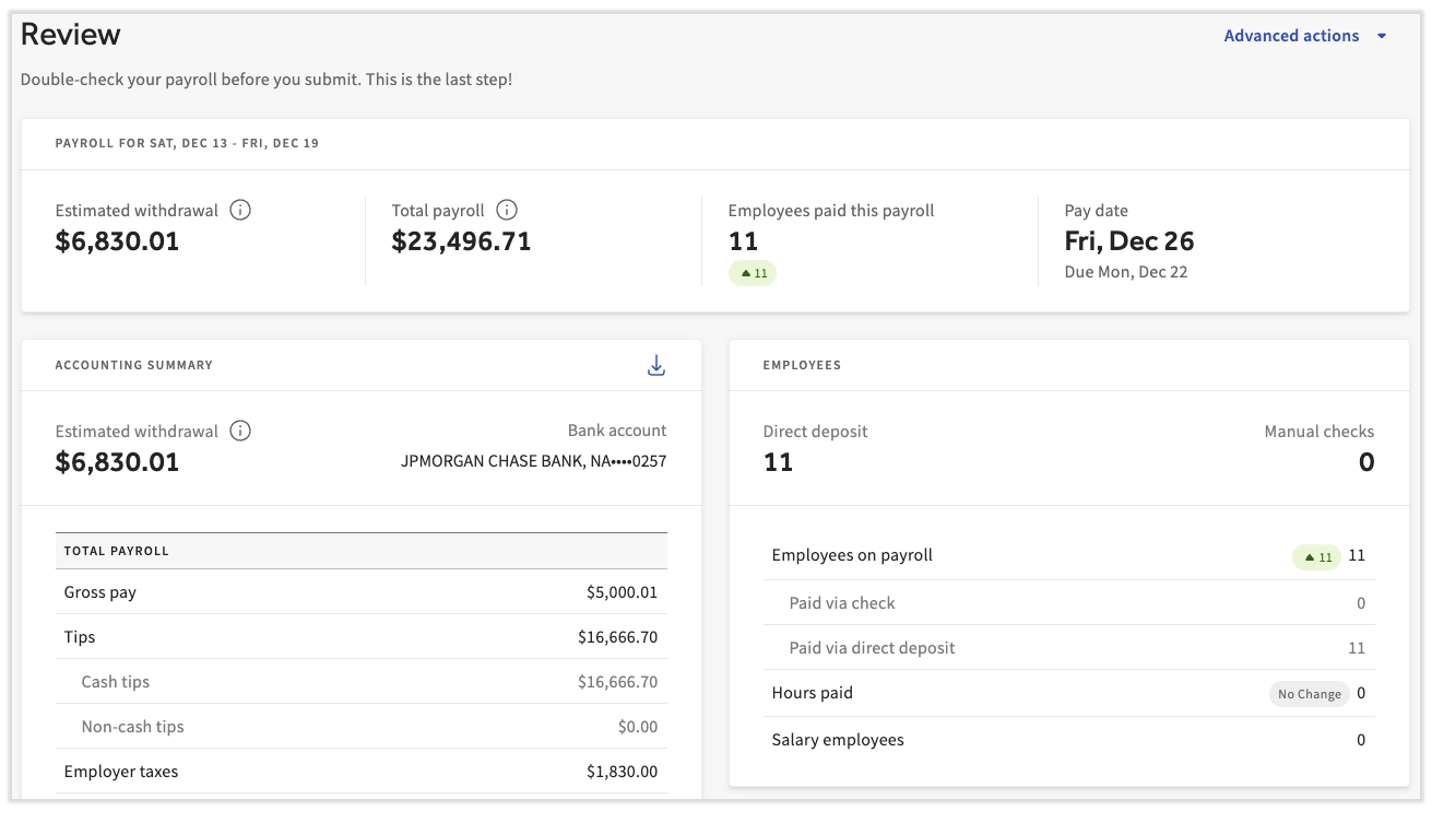
The page after selecting Submit payroll is known as the Confirmation page. It will look very similar to this page, but payroll information can no longer be edited. On the Confirmation page, you may see a new button labeled Connect to QuickBooks. If you use QuickBooks Online and Toast Payroll, customers can now directly sync their payroll data to QuickBooks Online (more accounting software connections will be available in the future). Visit Get Started With Payroll Accounting Sync to learn how you can integrate the two systems.
Accounting Summary Tile
Rather than waiting until you've submitted your payroll to learn what amount you're responsible for and what you'll be debited for, you can view this amount on the Review and Submit step. Note: A small amount of users may see a simplified Accounting Summary tile. This is a result of certain deduction configurations or timings of withdrawals where the line items aren't available.
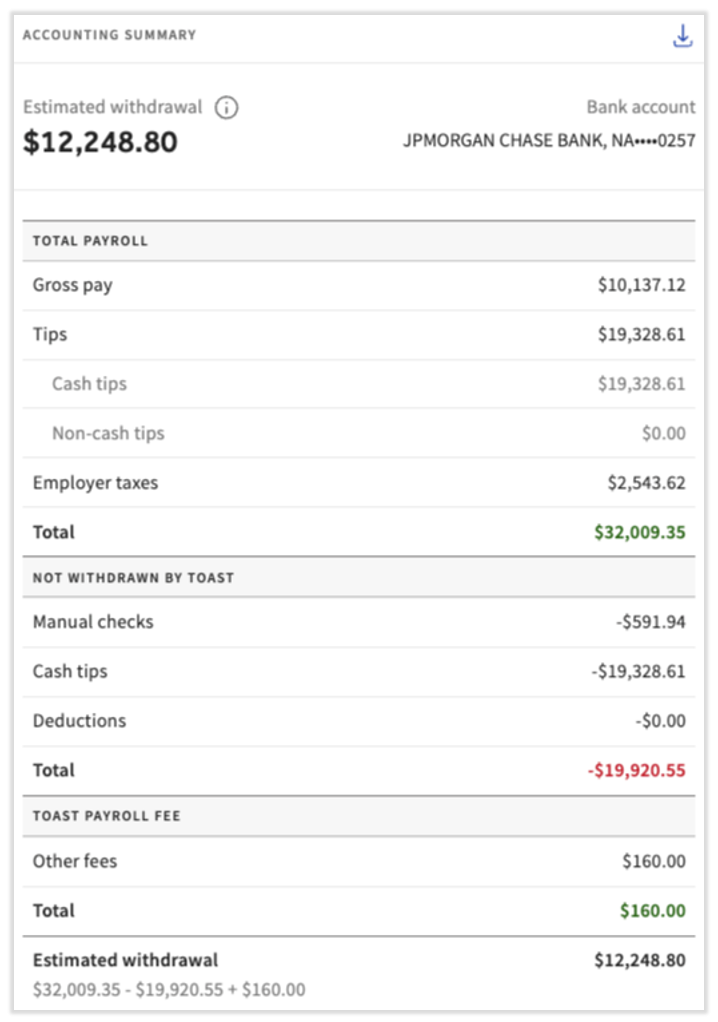
The last four digits of your withdrawal account, plus the name of your financial institution, are seen at the very top next to your Estimated withdrawal amount. Review the amounts in this tile more closely by selecting the download arrow to pull up the Payroll Summary report.
The Total Payroll section refers to the total earnings (Gross pay plus Tips) for all employees on your payroll, plus the payroll taxes employers are responsible for on this payroll. This is summed up by the number in green.
Next, the Not Withdrawn by Toast section indicates a few different types of amounts that you will not be debited by Toast for. At the end of this section, you're left with a total in red.
- Manual (live) checks refer to employees who are being paid by check (rather than direct deposit or Toast Pay Card). These amounts are debited from your account when an employee cashes or deposits their check, so Toast does not withdrawal this amount.
- Cash tips, as it's being referred to here, is the amount of tips employees have already been paid out for, usually in the form of daily/nightly tips. These amounts must be recorded on payroll for taxation purposes, but since you have already paid them to employees, they are not debited from your account.
- Deductions are amounts that reduce income for an employee. Since these subtract from an employee's total earnings, Toast does not debit them from your account.
You may also see the Toast Payroll Fee section. On the first payroll of each month, this section will contain your SaaS (Software as a Service) fee. It may also indicate any other fees that could be applied to this payroll. This amount will be debited by Toast.
Toast uses the amount(s) in green (Total Payroll and Toast Payroll Fee, if applicable) and subtracts the amount in red (Not Withdrawn By Toast) to come up with your Estimated withdrawal figure. Keep in mind that this is an estimate and may not reflect the total amount withdrawn from your account.
Instant Deposit
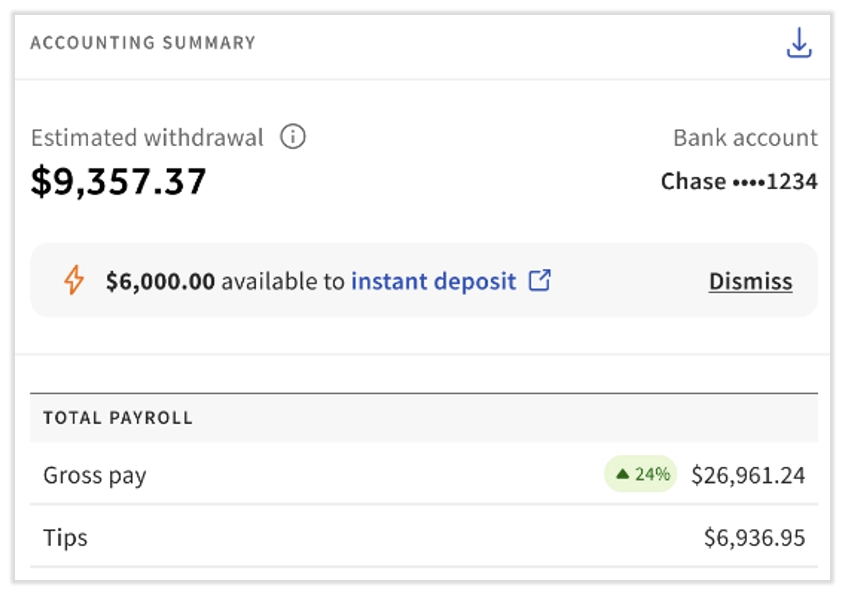
Select users may see Instant Deposit as an option on this step. This will allow you to see the funds you have available for instant deposit, should you need to top off your payroll funding. See Instant Deposit Overview to learn more about this feature.
Employee Tile
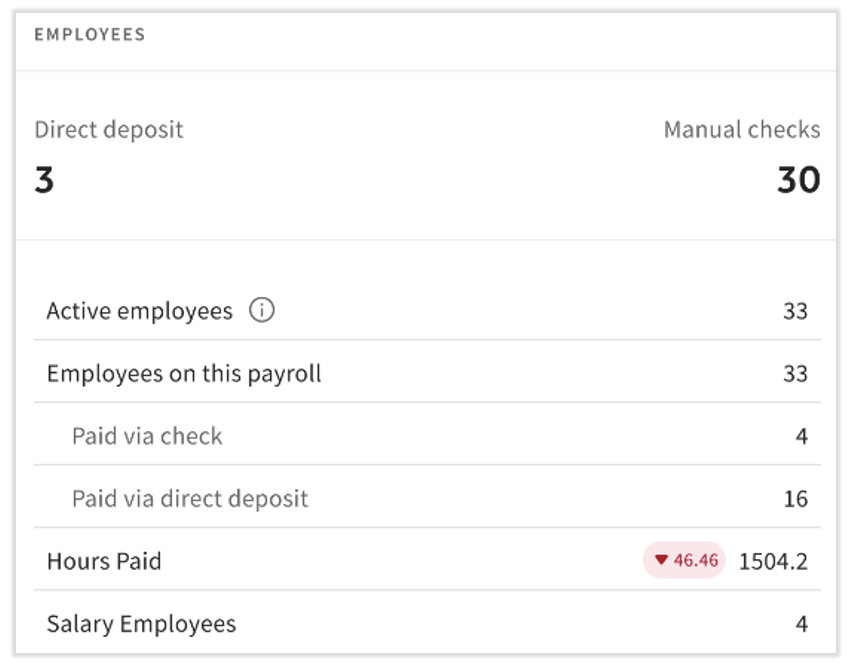
This tile lists the number of employees paid on this payroll and their chosen payment method. Along with the Highlights and Exceptions tile, Toast offers a peek into how you'll be invoiced if you use the per employee per month (PEPM) billing structure, but you'll see the exact numbers after selecting Submit Payroll.
Reports Tile
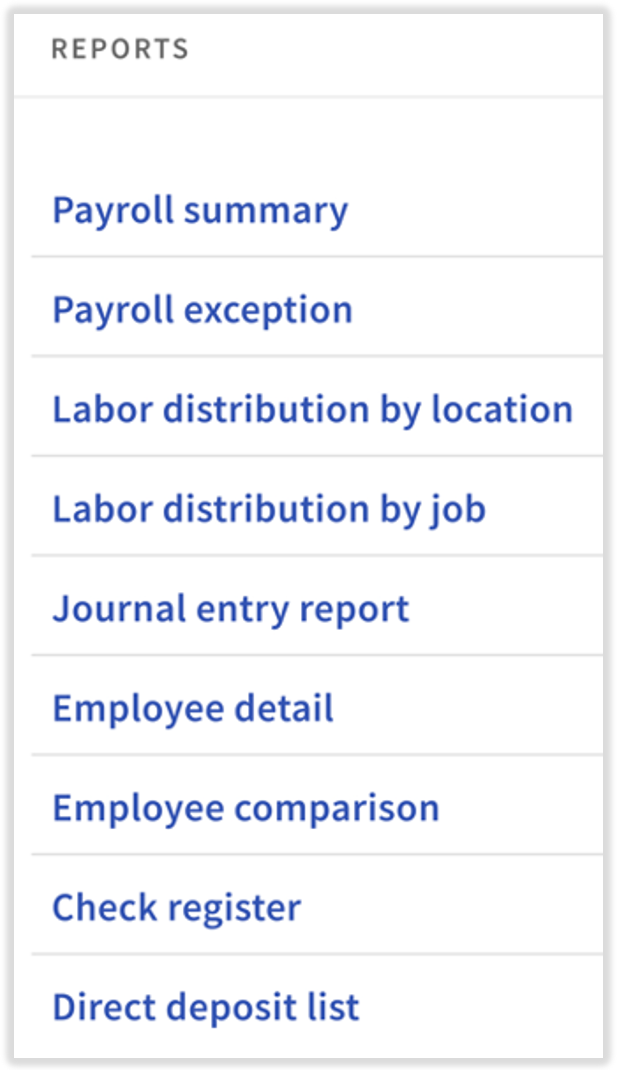
These reports are available for you to view before and after submitting payroll. Each payroll report contains important information, but the most popular ones are the Payroll Summary, Employee Detail, and Payroll Exception reports. Explanations of each report and its use cases are detailed in Toast Payroll: Payroll Reports.
In addition to these reports, you can use Toast IQ to display your payroll data (or the Payroll summary report specifically) in different ways. You might try asking for a set of payroll data from a specific location or timeframe; we encourage you to try different ideas. To learn more about Toast IQ, see Toast IQ AI Assistant Overview.
Highlights and Exceptions Tile
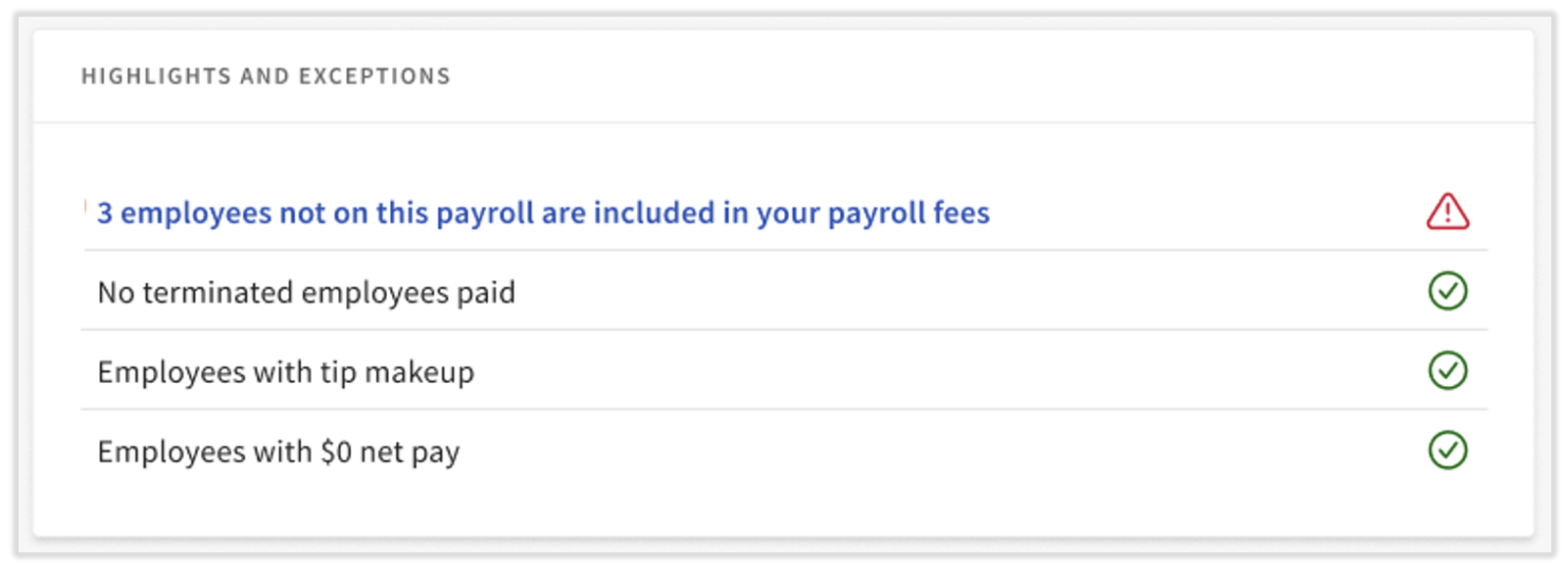
This tile offers a smart look into some notable information about this payroll run. If you see a red exclamation icon next to any of the four topics listed here, it is best practice to address these before submitting a payroll.
- On the payroll run that contains the first check date of each month, the first line in this tile will list the number of employees who don't appear on this payroll run, but who are included in your payroll fees. This can be used to determine if an employee requires a status change in order to manage your payroll invoicing appropriately.
- Select the text of any red exclamation notification to see which employees are affected.
- Select Previous in the upper-right corner of the page to make adjustments to the Employee Earnings step of this payroll. This can reduce the highlights and exceptions you see. If you decide to make changes here, Toast Payroll: Adding or Editing Earnings & Deductions can assist you.
- In some cases, a highlight and exception may be expected; if you wish, you are allowed to submit a payroll without addressing these notifications.
- Tip Makeup is the amount of earnings that need to be added in order to "make up to minimum wage." This earning is automatically added to the appropriate individuals by Toast Payroll to ensure they meet the minimum wage rate in their jurisdiction. Tip makeup cannot be disabled for an individual payroll. Toast Payroll: Tip Credit and Tip Makeup can fill in more details.
Additional Resources
- Toast Payroll: Preview Payroll Step
- Toast Payroll: Employee Earnings Step
- Toast Payroll: How to Run Payroll
This content is for informational purposes and is not intended as legal, tax, HR, or any other professional advice. Please contact an attorney or other professional for advice.