Toast Payroll: Auto Payroll
Last updated: Jul 7, 2026, 4:00 PM
Auto payroll lets you get some time back while Toast approves timesheets and tips and submits payroll on your behalf.
| Today, auto payroll only processes regular pay cycles, where timesheets (hours, tips, TAFW) are paid. Irregular cycles, such as off-cycles for bonuses, corrections, or voids, still require manual processing because currently auto payroll logic cannot determine when those pay cycle calendars are complete and processable.
Toast Payroll is available to customers in the US only. |
- What Is Auto Payroll?
- Eligibility Criteria
- How Auto Payroll Works
- Paycheck Delivery Responsibilities
What Is Auto Payroll?
Auto payroll is a setting which will submit your payroll automatically in Toast Payroll. It is available to pay groups and businesses who meet the eligibility requirements.
In short, at the end of a pay period, customers with auto payroll enabled will receive an email with any action items that must be resolved before the payroll's due date. If a pay group has outstanding action items, auto payroll will cancel itself and payroll will need to be submitted manually. See When Auto Payroll Is Enabled to learn more.
On the morning of the payroll due date (three days before your check date), assuming all action items were resolved, auto payroll will occur at 5:00 p.m. CST. The person listed as your contact in your payroll settings will receive a payroll submission confirmation email around this time. You can see your payroll settings contact by navigating to Payroll > Pay group settings. They are listed under the Contacts section.
Eligibility Criteria for Auto Payroll
There are eligibility requirements for each business and each pay group. You must meet both sets of requirements per pay group in order to enable auto payroll.
Business:
- Your business has processed payroll with Toast Payroll for at least 3 months
- All tasks in the Tax Center are complete
- Automatically approve timesheets is set to On
- Your business has not failed to fund a payroll, tax, or fee withdrawal in the last 6 months
Pay Group:
- A pay group has processed payroll with Toast Payroll for at least 3 months
- A pay group has less than 500 employees
- Tips cannot be added manually to the payroll (mass-imported or added individually)
- Previously, customers who were using third-party tools were not eligible for auto payroll, but as of April 2026, anyone using the Tips Manager or direct sync tip integration methods can now use auto payroll.
- A check date cannot be less than 5 business days after your pay period ends
How Auto Payroll Works
Set Up Auto Payroll
There are two ways to turn on auto payroll:
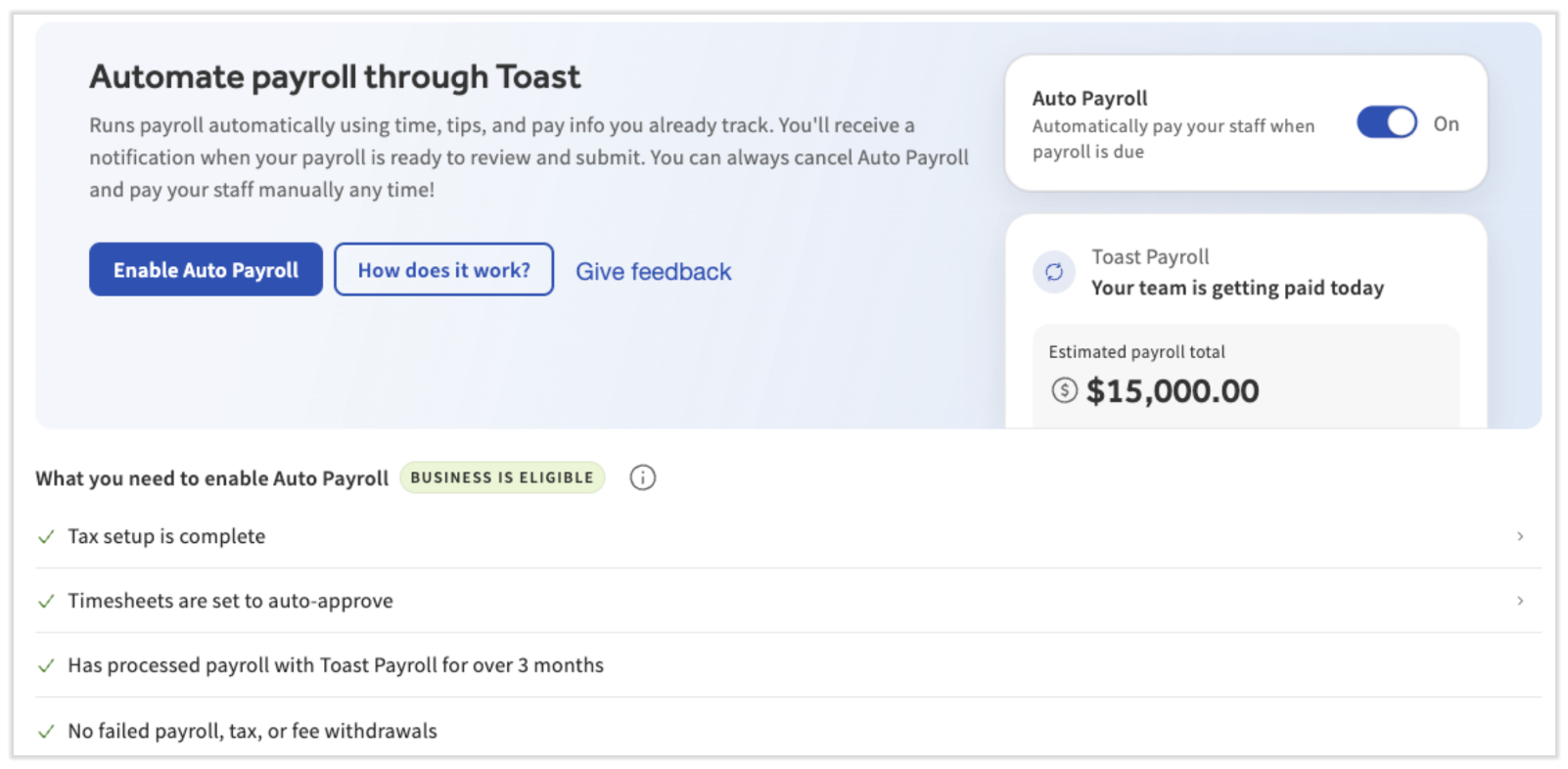
- When a Toast Payroll customer logs in, they will see a blue banner at the top of the dashboard. If you are eligible, you can select Enable Auto Payroll. If you are not eligible, you will see the item that disqualifies your pay group or business from auto payroll.
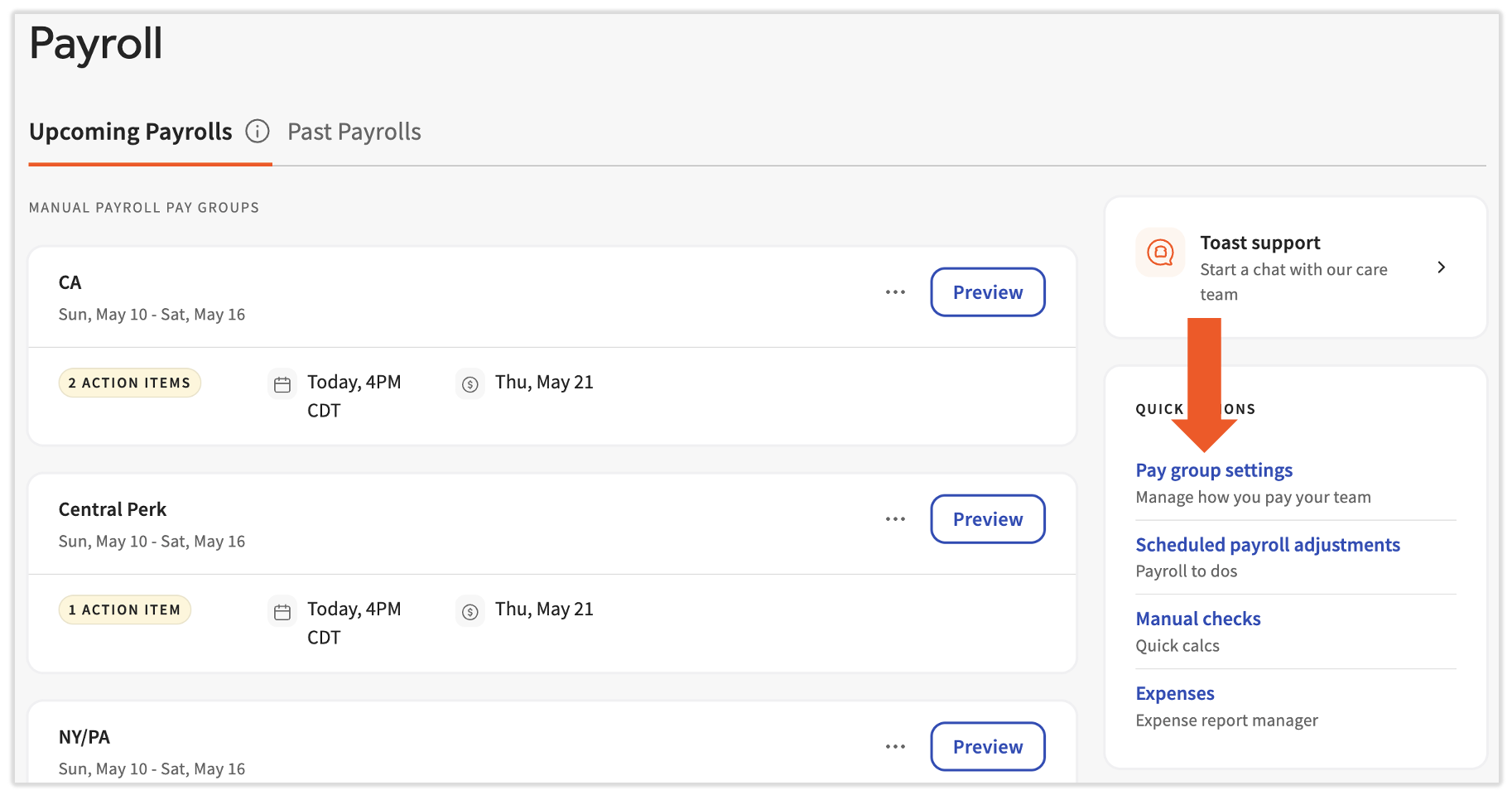
- You may also navigate to Payroll > Pay group settings (in the Quick Actions menu).
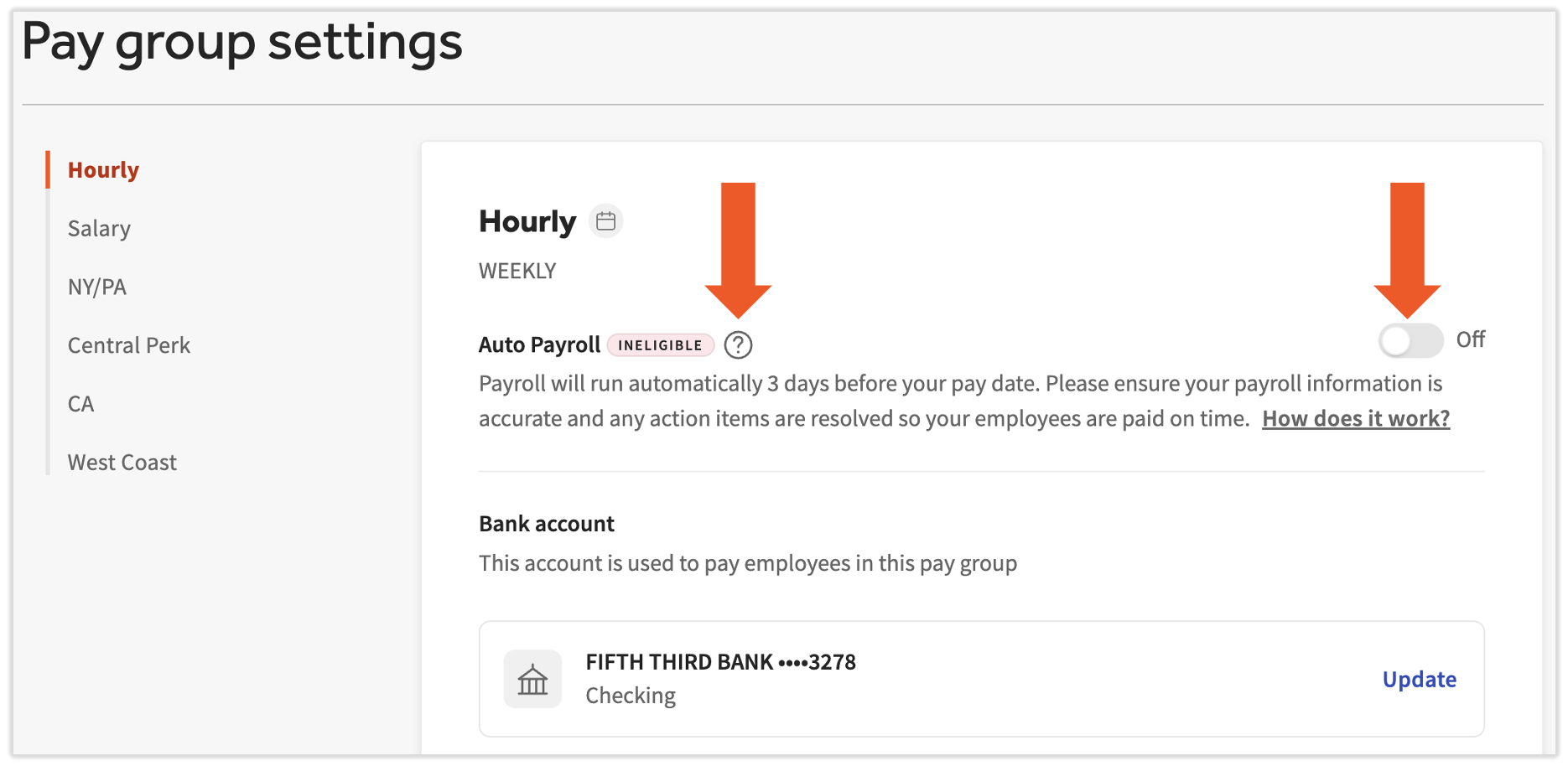
Both of the methods above will open the Pay group settings page.
- Here, you can select between your different pay groups on the left side of the page.
- If eligible, you'll be able to toggle a pay group to On to enable auto payroll for that pay group.
- If you have multiple pay groups, be sure to select each one on the left side of this page to enable auto payroll where eligible.
- If a pay group is ineligible, select the ? icon to the right of the Ineligible tag to learn more.
- You can also view the details of each pay group, namely the bank account used to fund the payroll and the individuals who will receive email notifications for this pay group.
Note: If you turn on auto payroll for an eligible pay group while the payroll is open (the button on the Pay Cycle Dashboard will read Continue rather than Preview) or while the payroll has a Past due alert, auto payroll will begin with the next eligible payroll and will not be enabled for the current payroll.
When Auto Payroll Is Enabled
During the pay period, it's business as usual. You should onboard new employees, keep pay changes and job updates up-to-date, and ensure staff is paid correctly via the company-wide paycheck delivery setting and the per-employee payment method settings, all as you normally would.
At the end of the pay period, anyone listed on the Pay group settings page will receive an email summarizing this payroll and detailing any action items you must address before auto payroll begins. These are the same actions you would take for a normal payroll, including things like auto clock outs, missed time entries, approving and sending tips to Toast Payroll (if you use Toast Tips Manager), approving TAFW requests, and payroll to dos.
On the morning of the due date, you'll receive a follow-up email showing the estimated payroll withdrawal amount and any remaining action items. If you have to add any quick calcs or off-cycle payrolls, you will have to facilitate those separate from your auto payroll pay groups; see Request Off-Cycles and Add Quick Calcs With Auto Payroll below. If all the action items in the email are not complete by 3:00 a.m. CST on the due date of a pay group's payroll, auto payroll will be cancelled and you will need to submit it manually by 4:00 p.m. CST on the business day before your check date. It is your responsibility to make sure all payrolls are submitted timely and accurately.
At 5:00 p.m. of the payroll's due date, auto payroll will run as long as all action items are completed. Once it's finished, Toast Payroll will send a final confirmation email with a breakdown of your costs (e.g. direct deposits, taxes, vendor payments, fees, etc.) along with a record of the transactions being made (Toast Payroll withdraws taxes and direct deposits in separate transactions).
After auto payroll has been submitted, you can find this payroll and its reports by navigating to Payroll > Past Payrolls > View. You are responsible for reviewing any submitted payrolls and submitting any missed payrolls. Additionally, if you pay some employees by paper (live) check, use the Paycheck Delivery Responsibilities section below for instructions on paying these employees.
Disable Auto Payroll
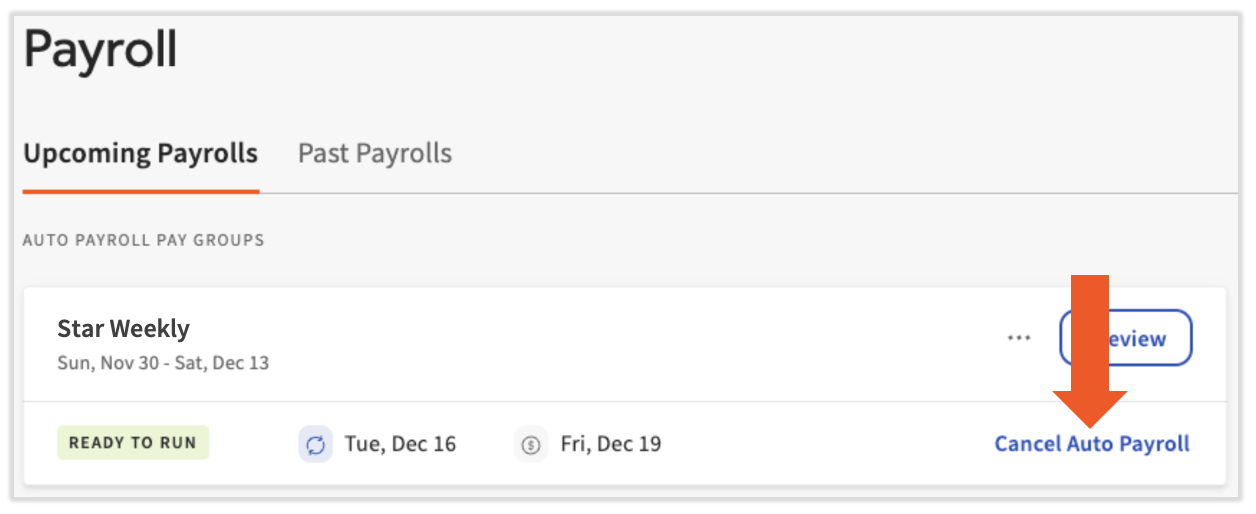
If you'd like to temporarily turn off auto payroll from an individual payroll, navigate to Payroll and select Cancel Auto Payroll for the applicable pay group. You can do this anytime before auto payroll has run. Note: Archiving a payroll will cancel auto payroll as well. If you unarchive a payroll, it is no longer eligible for auto payroll and it will need to be processed manually.
If you'd like to permanently turn off auto payroll for all your payrolls, navigate to Payroll > Pay group settings. Toggle to Off for all the pay groups listed on the left side of the page.
Request Off-Cycles and Add Quick Calcs With Auto Payroll
When using auto payroll, off-cycle payrolls will need to be manually processed; they are not eligible for auto payroll. The request process to create an off-cycle remains the same: submit the Off-Cycle Request form to us via the blue chat dot in the lower-right corner of any Toast Payroll page. Once the off-cycle is created in Toast Payroll, you can manually review and submit it. Note: Toast Payroll is currently unavailable in Quebec. A French version of this form will be made available when the product launches in your region.
With auto payroll, as long as you finish a quick calc and attach it to a pay cycle before the end of a pay period for an auto payroll pay group, it will process as a part of that auto payroll. If you submit the quick calc after the pay period or attach it to an off cycle, you will have to make sure that payroll is submitted manually.
For context, today Auto Payroll only processes regular pay cycles. Irregular cycles, such as off-cycles for bonuses, corrections, or voids, still require manual processing because auto payroll currently relies on your standard pay calendar’s timing (i.e. if you’re biweekly with Friday pay checks).
Paycheck Delivery Responsibilities
If you have employees who elected to receive paper (live) checks as their payment method, they will be paid via one of these three methods. It is your responsibility to facilitate self-written or self-printed checks that are necessary after the auto payroll processes.
| Paycheck Delivery Method | Your Responsibility |
| Self-Written | Navigate to Payroll > Past Payrolls. Select View for the relevant payroll and open the Employee Details report. Each employee's net pay is on the right side of this report and can be used for your chosen method of payment. |
| Self-Printed | Navigate to Payroll > Past Payrolls and select View for the relevant payroll. Now select the Download paper check button to open a PDF file of each employee's check template. Print these PDFs on your check stock and distribute them to employees. |
| Toast-Printed | No action needed. Toast will automatically print and ship checks to the central location defined in Settings > Payroll > Paycheck Delivery. You can find tracking numbers for your packages by navigating to Payroll > Past Payrolls > View. |
This content is for informational purposes and is not intended as legal, tax, HR, or any other professional advice. Please contact an attorney or other professional for advice.