xtraCHEF: Primeros pasos con la biblioteca de artículos
Última actualización: 1 sept 2026, 11:53 a.m.
La biblioteca de artículos te permite identificar con precisión los valores de cálculo de costos de recetas e inventario.
- Resumen de la biblioteca de artículos
- Definiciones de biblioteca de artículos
- Ejemplos de biblioteca de artículos
- Editar detalles del artículo de la factura
- Ver tus productos
- Recursos adicionales
Resumen de biblioteca de artículos
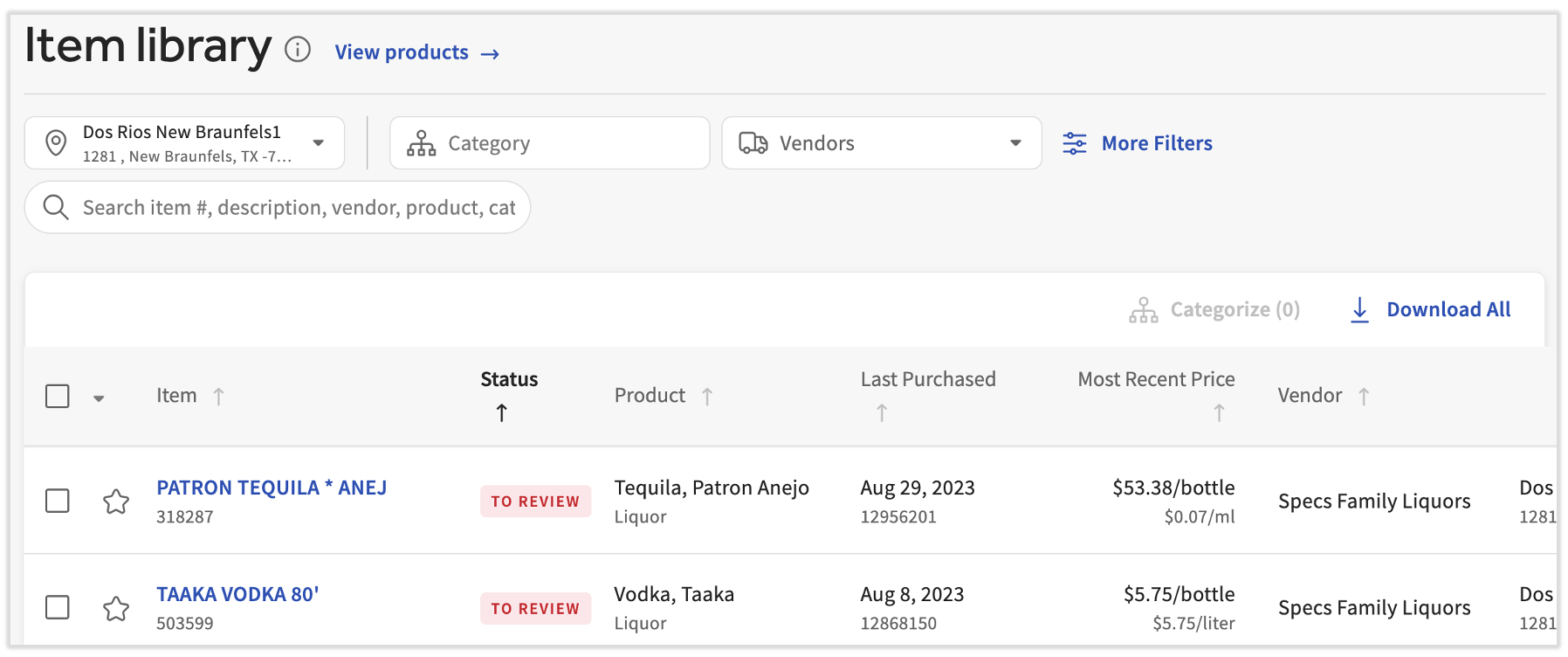
La biblioteca de artículos aloja toda la información de tus artículos de factura y productos. A medida que sigas cargando facturas, la biblioteca de artículos crecerá y permitirá obtener gran parte de los informes de costos de alimentos, recetas e inventario de xtraCHEF. La biblioteca de artículos también te permite personalizar tus ingredientes y artículos de inventario, crear productos y asignar artículos de factura a ellos, ver la última fecha de compra y el precio reciente de tu artículo, y obtener información adicional sobre ciertos productos a través de la función de favoritos. Agregar productos se hace mediante un enlace a una nueva página.
Puntos clave de la biblioteca de artículos
- Las columnas Última compra y Precio más reciente (ver arriba) son las más nuevas que se agregaron al informe.
- Usa los filtros Ubicación, Categoría, Producto y Proveedores en la parte superior para reducir los resultados a un producto o artículo específico. Selecciona Más filtros para ver los artículos por estado o última fecha.
- Si utilizas la barra de búsqueda para buscar un producto, xtraCHEF mostrará todos los artículos de facturas asociados con ese producto en todas las ubicaciones (a menos que tengas un filtro activado).
- Selecciona Descargar todo para crear un archivo de hoja de cálculo con esta información. Recibirás una notificación cuando este archivo esté listo para verlo.
- También puedes seleccionar la casilla de verificación para cualquier cantidad de artículos y el botón Categorizar estará disponible. Esto te permite actualizar en bloque la categoría de los artículos seleccionados.
Cuando termines, selecciona el enlace Ver productos en la parte superior de la biblioteca de artículos. Esto te permite ver y editar productos directamente en esta página.
Revisión de artículos a través de la biblioteca de artículos
- Para comenzar, ve a Biblioteca de artículos utilizando la barra de navegación de xtraCHEF.
- Todos los artículos sin revisar aparecen en la parte superior de este informe con el estado Para revisar. Puedes seleccionar el botón Más filtros y seleccionar Revisar > Aplicar filtros para ver solo los artículos que necesitan aprobación.
- Selecciona el nombre con hipervínculo para abrir la vista detallada del artículo de la factura.
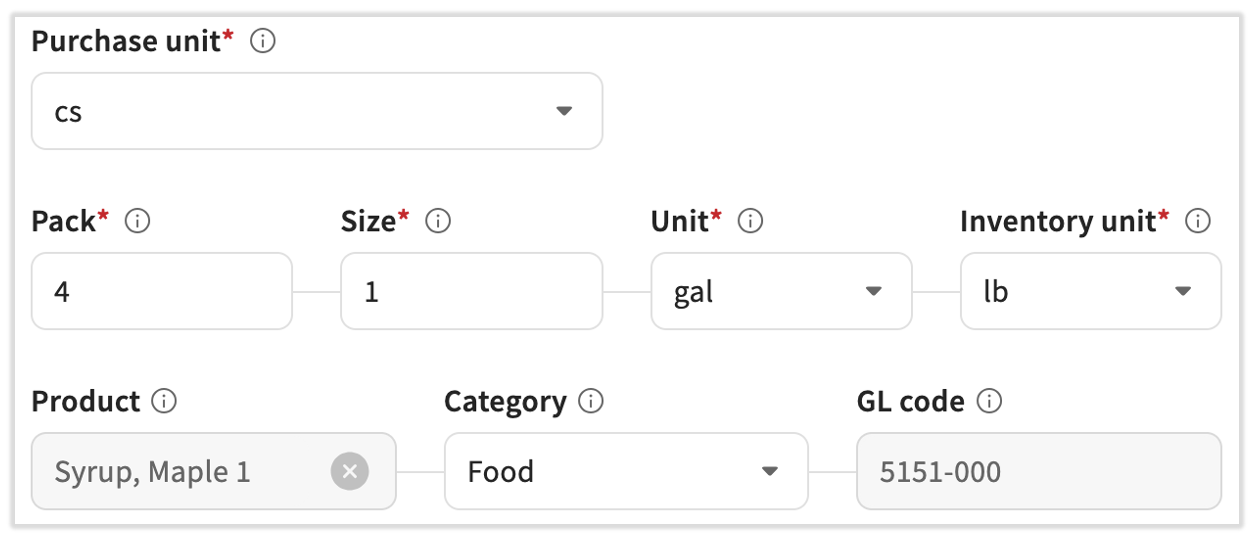
- Selecciona el resalte amarillo (artículo visto en: Fila X) para localizar rápidamente un artículo en la factura asociada. Verifica las diferentes medidas de la unidad de este producto (unidad de compra, paquete, tamaño, unidad y unidad de inventario). Si lo necesitas, explica las ddefinitionsefiniciones de estos términos y lee los ejemplos hacia el final de este artículo.
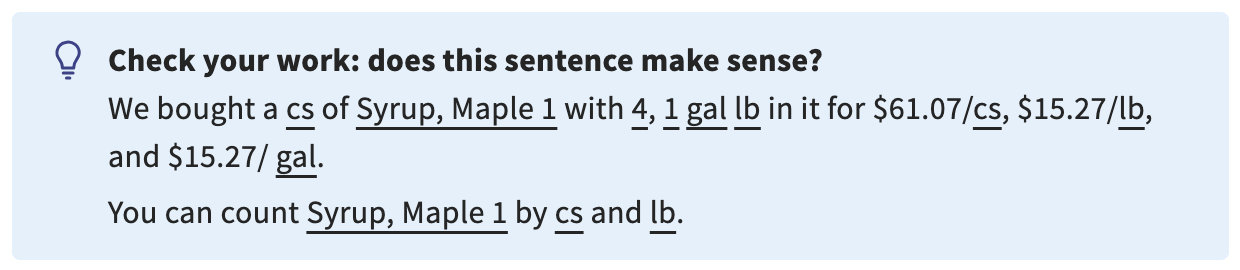
- Usa el cuadro azul de la parte inferior para verificar tus entradas. Si las frases no tienen sentido, considera ajustar los campos Unidad de compra, Paquete,Tamaño,Unidad y/oUnidad de inventario.
- Usa el cuadro azul de la parte inferior para verificar tus entradas. Si las frases no tienen sentido, considera ajustar los campos Unidad de compra, Paquete,Tamaño,Unidad y/oUnidad de inventario.
- También puedes asignar un producto, una categoría y, a modo de categoría, un código de LM a este artículo.
- Cuando termines, selecciona Aprobar.
Definiciones de biblioteca de artículos
| Campo | Descripción |
| Unidad de compra (UOM) | Esta es la unidad de compra u UOM que se muestra en la factura. |
| Pack | Si hay más de una unidad medible dentro de un caso, aquí es donde ingresarás la cantidad. Por ejemplo, si hay 6 botellas en un estuche, el valor aquí será “6”. Si no se define, el valor predeterminado es 1. |
| Tamaño | Aquí es donde ingresarás el valor numérico de las unidades dentro de cada “pack”. Por ejemplo, si hay seis botellas de 750 ml en una caja, el “tamaño” es “750”. Si no se define, el sistema definirá por defecto un valor de |
| Unidad | Esta es la unidad de compra de cada pack. En el ejemplo anterior, sería “ml”. |
| Unidad de inventario (artículo UOM) | Esto solo es obligatorio cuando el valor del pack es mayor que 1. Aquí es donde nombrarás los paquetes en el caso. Continuando con el ejemplo de arriba, sería “botella”. Si la unidad de inventario no está definida y un paquete es mayor que 1, el sistema establecerá por defecto un valor para “cada uno”. |
| Categoría | Esto te permite seleccionar un código de libro mayor y/o una categoría personalizada correspondientes para los extractos contables o los fines de los informes. Si sincronizaste tu plan de cuentas o creaste códigos de libro mayor y categorías, esas opciones existirán para que puedas elegirlas en el menú desplegable Categoría. |
| Producto | Este campo es esencial para las funciones de recetas e inventario. Deben considerarse ingredientes a todos los efectos y permitirte agrupar varios artículos de facturas. Si quieres obtener más información sobre los productos, visita nuestro artículo titulado xtraCHEF: ¿Qué son los productos? |
Ejemplos de biblioteca de artículos
Proteína
Este video de 4 minutos y medio de duración te mostrará ejemplos de proteínas comunes que puedes encontrar al revisar artículos en xtraCHEF. Algunos ejemplos incluyen:
- Proteína por libra (para usar en peso)
- Proteínas por caja/paquete (para usar en peso)
- Proteínas según el estuche o paquete (para uso de cada uno)
Consejo: Usa los capítulos ubicados en la barra de progreso del video para omitir entre los ejemplos.
Licores
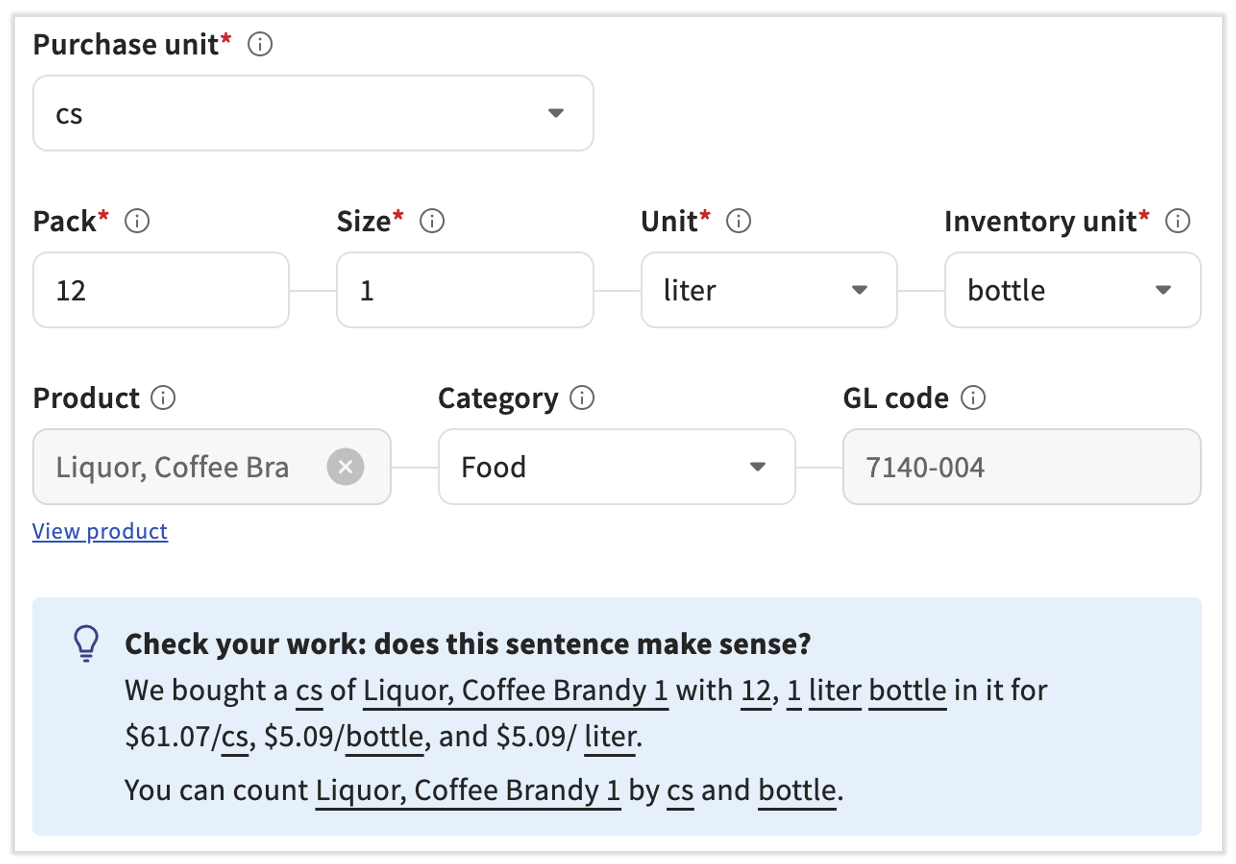
Licores por caso: Veamos un ejemplo de bebidas alcohólicas. En función de una factura, deberíamos conocer la unidad de compra de un artículo de factura. En este caso, si se compró por la caja o por la botella.
Si nuestra bebida alcohólica es comprada por la caja por $61.07, y hay 12 botellas de 1 litro dentro de ella, podríamos asumir con seguridad que el desglose es el siguiente:
| Unidad de compra | Pack | Tamaño | Unidad | Unidad de inventario |
| Caso | 12 | 1 | Litro | Botella |
Al ingresar esa misma información en la biblioteca de artículos, xtraCHEF puede desglosar el costo por caso de USD 61,07 en un costo por botella/costo por litro. En el futuro, xtraCHEF sabrá cómo calcular tus costos de valores de inventario y por volumen de recetas de cócteles.
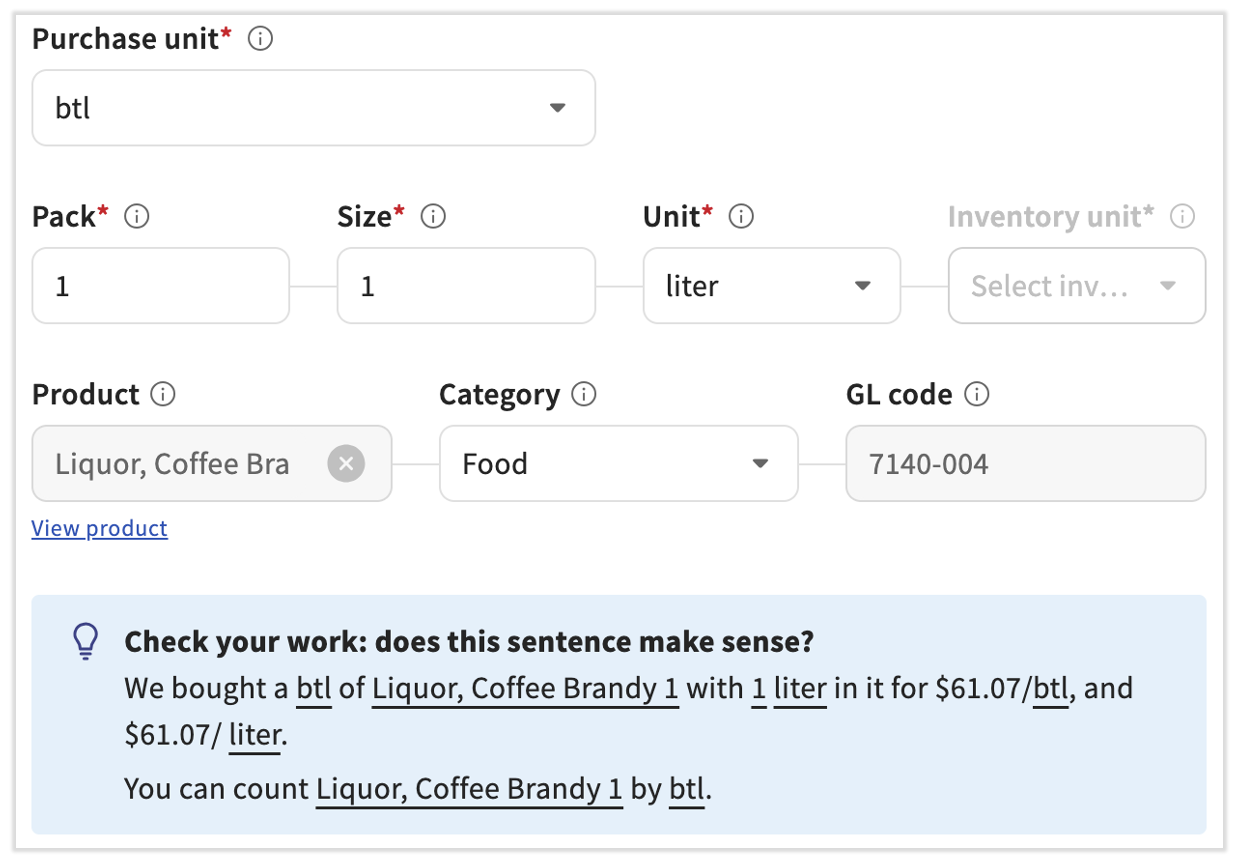
Licores por botella: Si la unidad de compra indica que el licor se compró con la botella, puedes simplificar el desglose de la biblioteca de artículos de la siguiente manera:
| Unidad de compra | Pack | Tamaño | Unidad | Unidad de inventario |
| Botella | 1 | 1 | Litro | N/A |
Vinos
Nota: Dado que el vino se vende comúnmente en botellas de 0.75 litros, recomendamos verificar todo el vino por cada una (en lugar de por litro/mililitro/onza líquida) para ayudar con la precisión y consistencia de los informes.
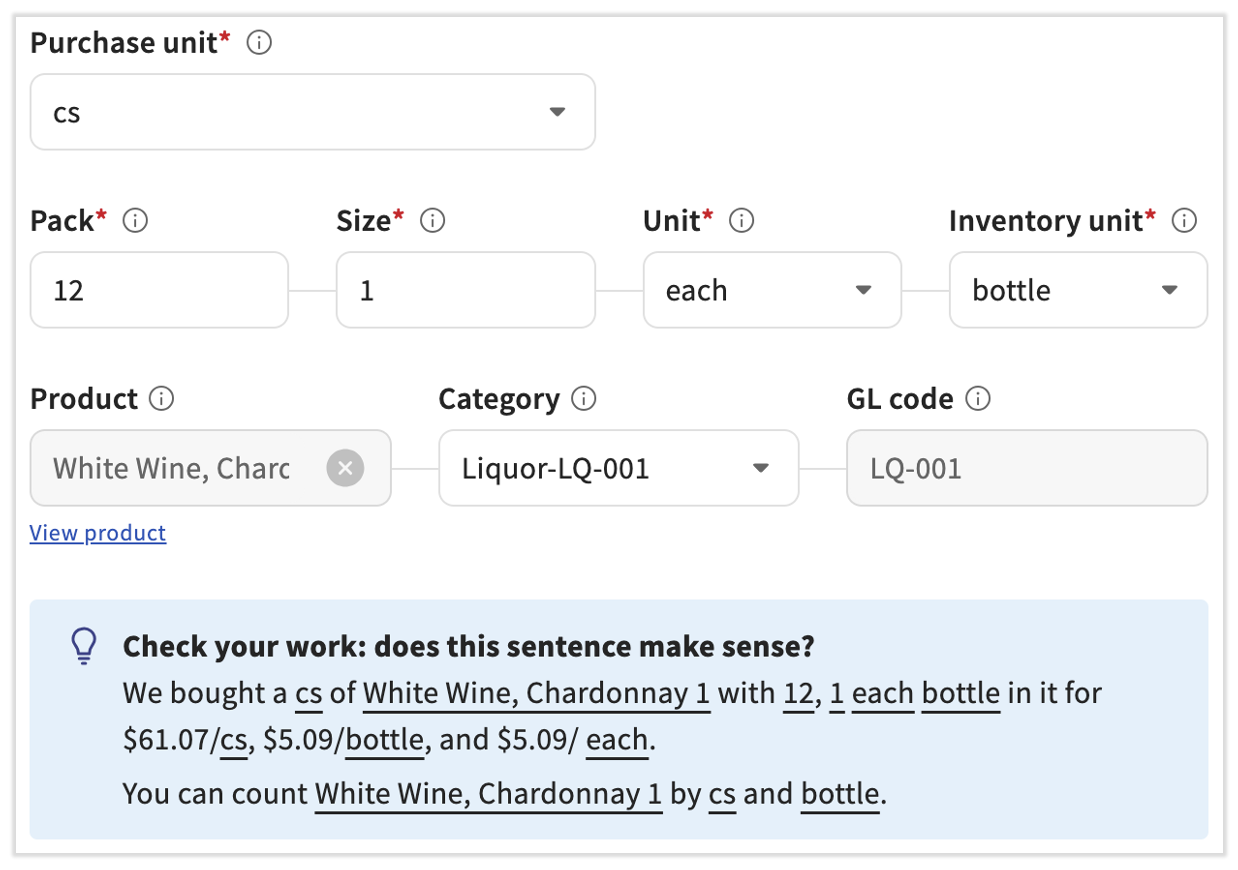
Vinos por caja: Si nuestro vino es comprado por la caja por USD 61,07, y hay 12 botellas dentro de ella, podríamos asumir con seguridad que el desglose es el siguiente:
| Unidad de compra | Pack | Tamaño | Unidad | Unidad de inventario |
| Caso | 12 | 1 | Each | Botella |
Al ingresar esa misma información en la biblioteca de artículos, xtraCHEF puede convertir el costo de USD 61,07 por caja en un costo por caja y botella individual.
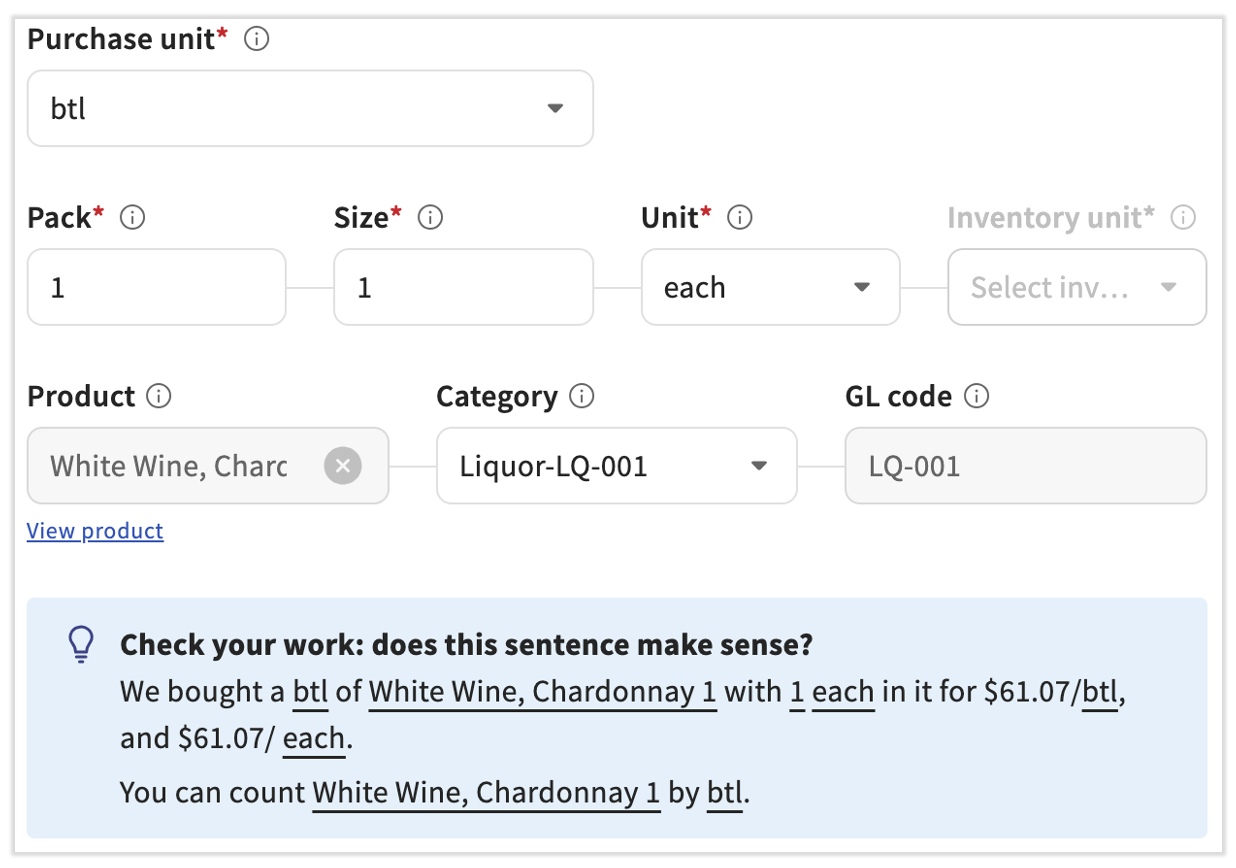
Vino por botella: Si la unidad de compra indica que el vino se compró por botella, puedes simplificar el desglose de la biblioteca de artículos de la siguiente manera:
| Unidad de compra | Pack | Tamaño | Unidad | Unidad de inventario |
| Botella | 1 | 1 | Each | N/A |
Al ingresar esa misma información en la biblioteca de artículos, xtraCHEF puede desglosar el costo de la botella.
1/2 barril:
| Unidad de compra | Pack | Tamaño | Unidad | Unidad de inventario |
| Barril | 1 | 15.5 | Gal | Barril |
Un barril de 1/4:
| Unidad de compra | Pack | Tamaño | Unidad | Unidad de inventario |
| Barril | 1 | 7.75 | Gal | Barril |
Un barril de 1/6:
| Unidad de compra | Pack | Tamaño | Unidad | Unidad de inventario |
| Barril | 1 | 5.2 | Gal | Barril |
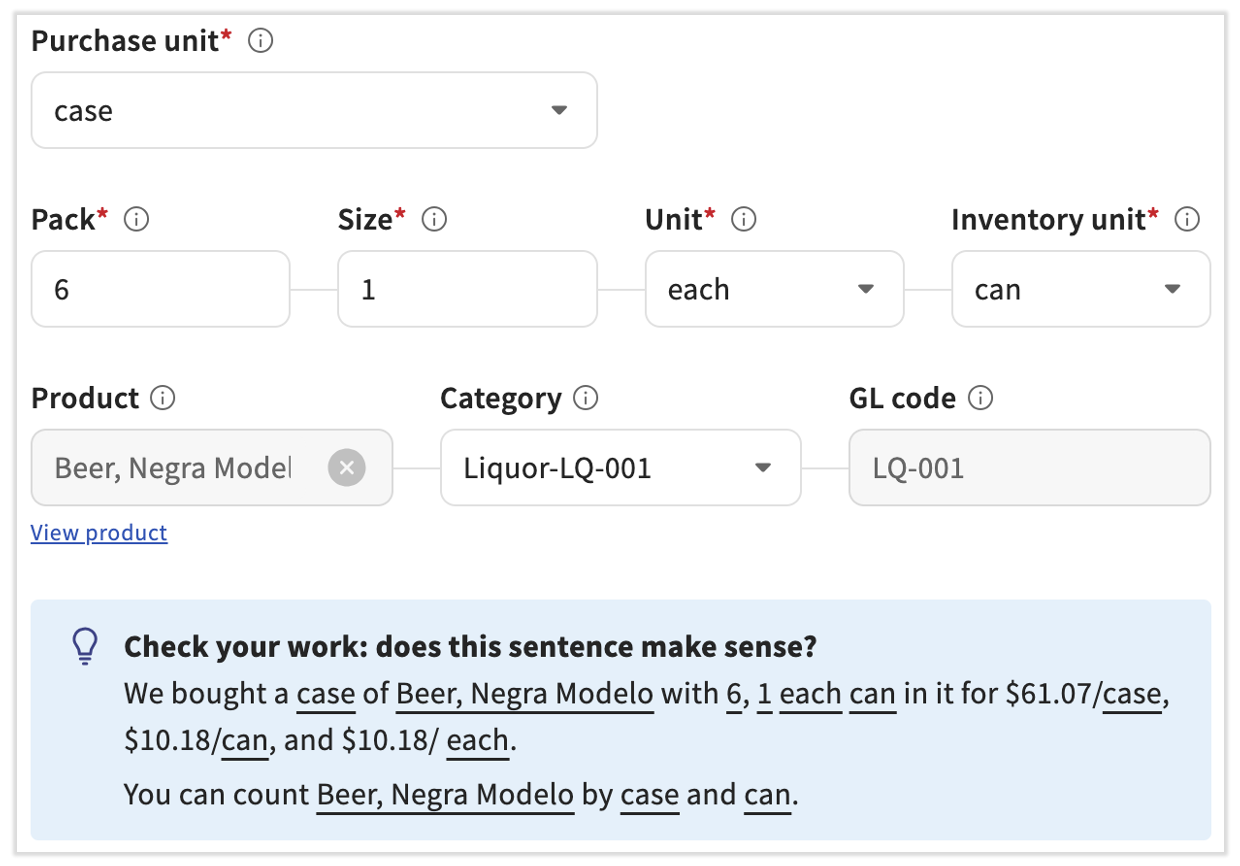
En la mayoría de los casos de botellas/latas, la unidad de compra indicará que tus artículos los compró la caja. En estos casos, configuraremos nuestra unidad de compra en Estuche, Pack en el número de latas o botellas dentro del estuche, Tamaño en 1 y Unidad en cada uno. También puedes configurar la unidad de inventario en lata o botella para describirla mejor.
A continuación, verás un ejemplo de una caja de 6 latas.
| Unidad de compra | Pack | Tamaño | Unidad | Unidad de inventario |
| Caso | 6 | 1 | Each | Puede |
Al ingresar esa misma información en la biblioteca de artículos, xtraCHEF puede desglosar el costo tanto del caso como del caso.
Ejemplos continuados
Una caja de manzanas de 10 libras. Este artículo de factura se puede configurar de dos maneras según cómo quieras hacer el inventario:
| Unidad de compra | Pack | Tamaño | Unidad | Unidad de inventario |
| Caso | 10 | 1 | Lb | Lb |
| Caso | 1 | 10 | Lb | N/A |
Una bolsa de 5 libras de azúcar. Este artículo de factura se puede configurar de dos maneras según cómo quieras hacer el inventario:
| Unidad de compra | Pack | Tamaño | Unidad | Unidad de inventario |
| Bolsa | 5 | 1 | Lb | Lb |
| Bolsa | 1 | 5 | Lb | N/A |
Editar detalles del artículo de la factura
Al seleccionar un artículo de factura aprobado en la biblioteca de artículos, puedes profundizar en los detalles asociados y cambiarlos, si es necesario. Si este artículo está marcado como Revisar, usa estos pasos para aprobar los artículos y sus detalles.
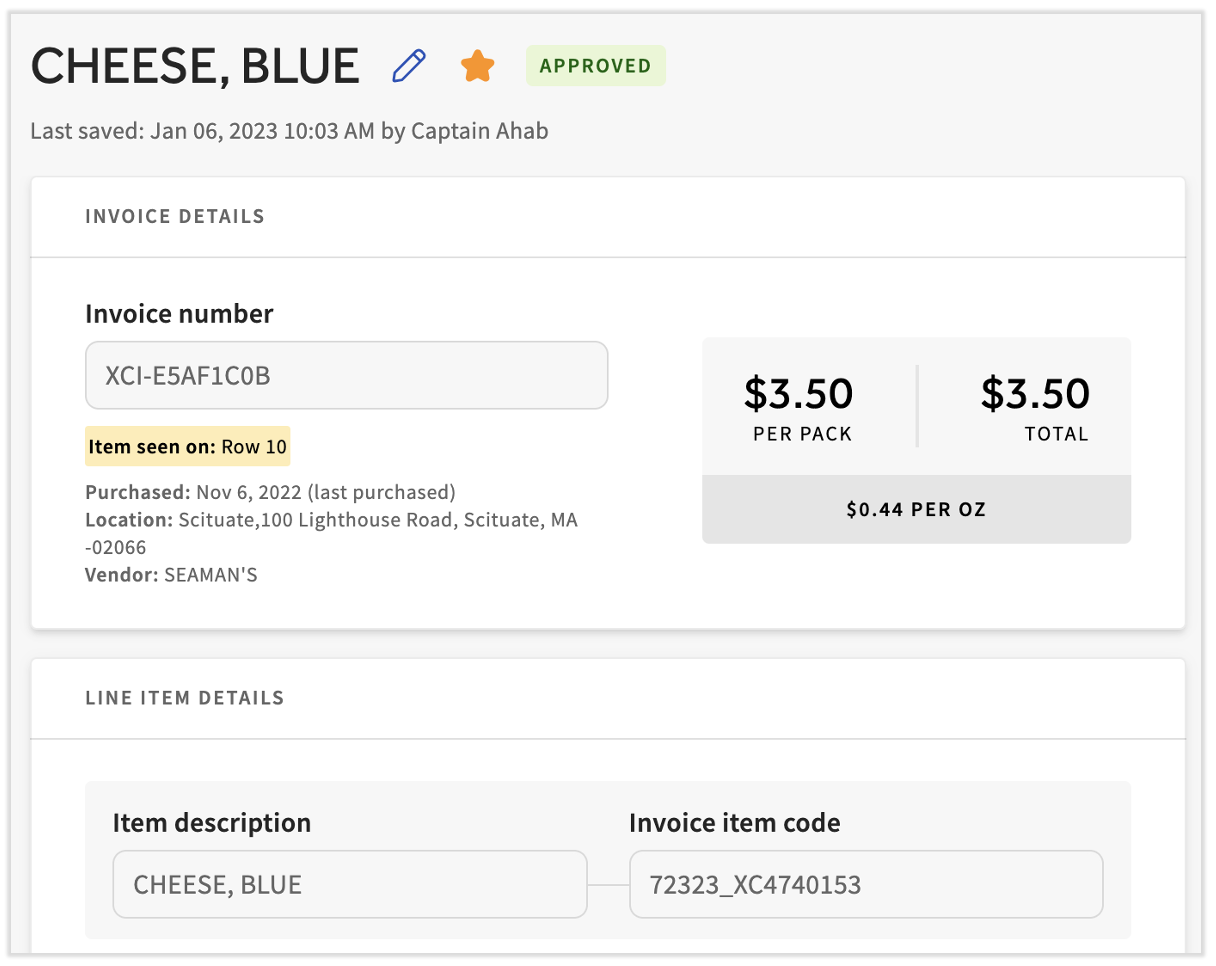
Desde aquí, desplázate hacia abajo hasta el mosaico Detalles del artículo de línea y notarás que los campos Unidad de compra, Paquete, Tamaño, Unidad, Unidad de inventario (si corresponde), Producto y Categoría se pueden editar. Incluso puedes agregar un nuevo producto directamente en esta página escribiendo su nombre directamente en el campo Producto.
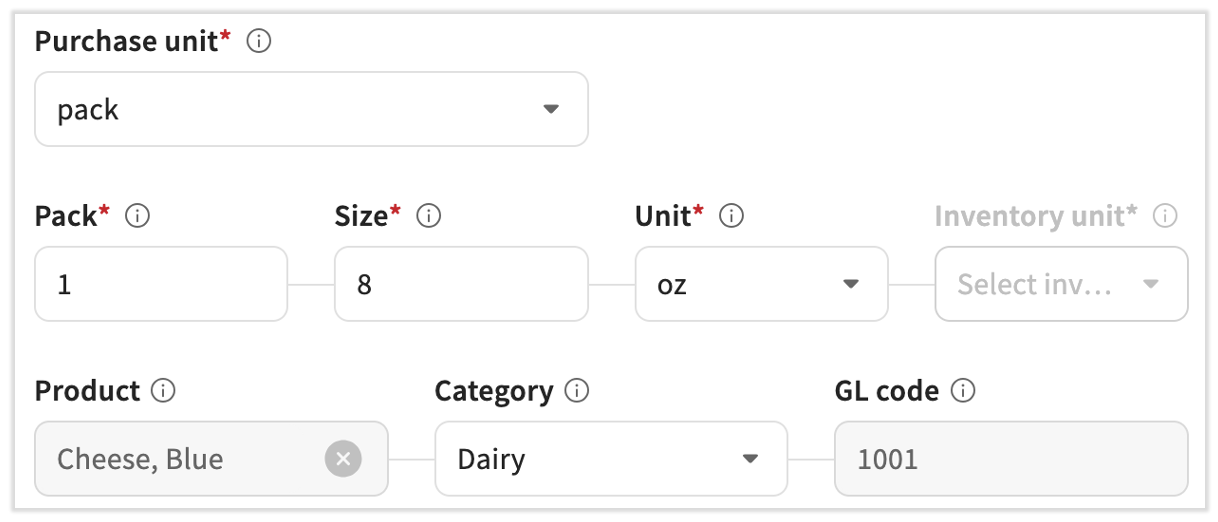
Nota: Si editas el campo Categoría, se cambiará el campo de código de LM. Si el campo de tu Categoría está vacío, es posible que este artículo de factura esté esperando acción en Mapear artículos de factura.
Una vez que hayas hecho las modificaciones en este artículo de factura, puedes verificar tu trabajo usando la frase del cuadro azul en la parte inferior. Si no estás de acuerdo con la estructura del extracto, sigue haciendo modificaciones hasta que sea correcto en función del artículo de la factura en sí y de cómo se te envía.

Ver tus productos
En xtraCHEF, los productos se refieren a tus ingredientes y artículos de inventario. A medida que empieces, tu lista de productos será la base para que tu restaurante comience a usar las funciones de recetas e inventario. Después de crear tus productos, puedes comenzar inmediatamente a crear tus recetas y recuentos de inventario. Para obtener más información sobre los productos y cómo crearlos, lee xtraCHEF: Primeros pasos con los productos y xtraCHEF: Crear productos. Los productos también te permiten agrupar rubros de tus facturas que sustituyen al mismo rubro. De esta manera, te asegurarás de que los costos de los platos y los valores de inventario se calculen correctamente, independientemente de los reemplazos.
Para ver o cambiar los detalles del producto, selecciona Ver productos en la parte superior de la biblioteca de artículos.
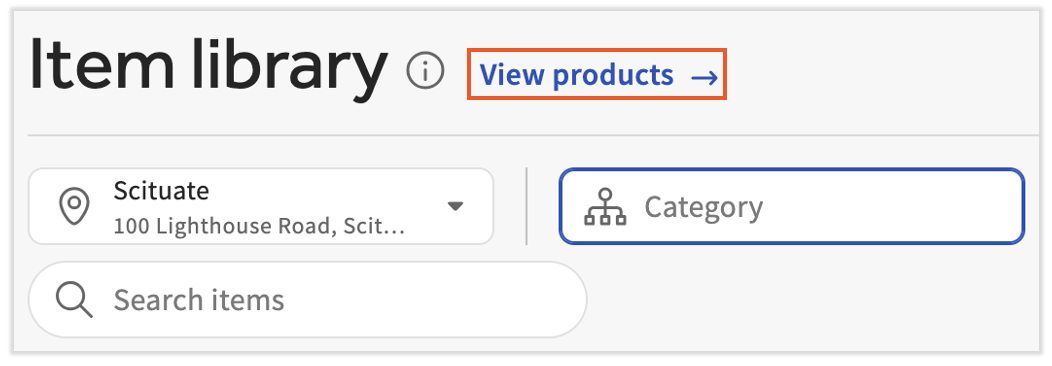
Se volverá a cargar la página para ver todos tus productos actuales.
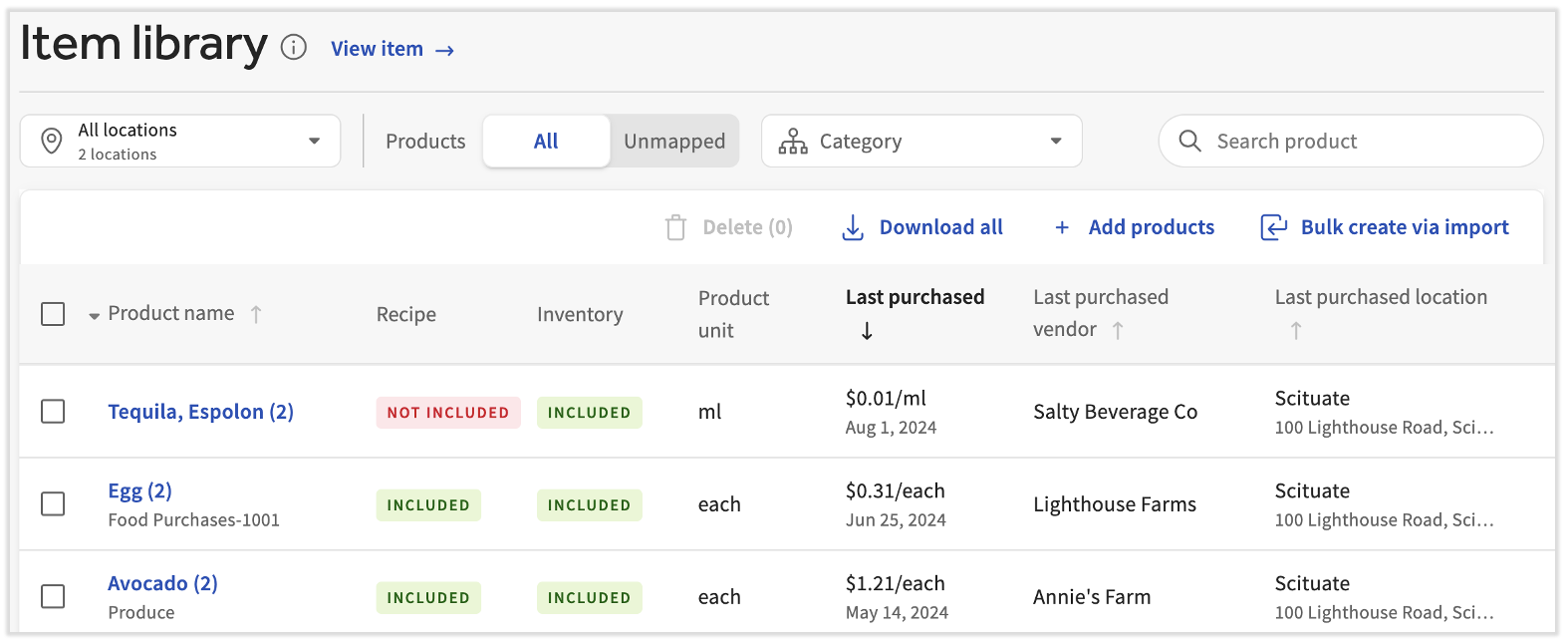
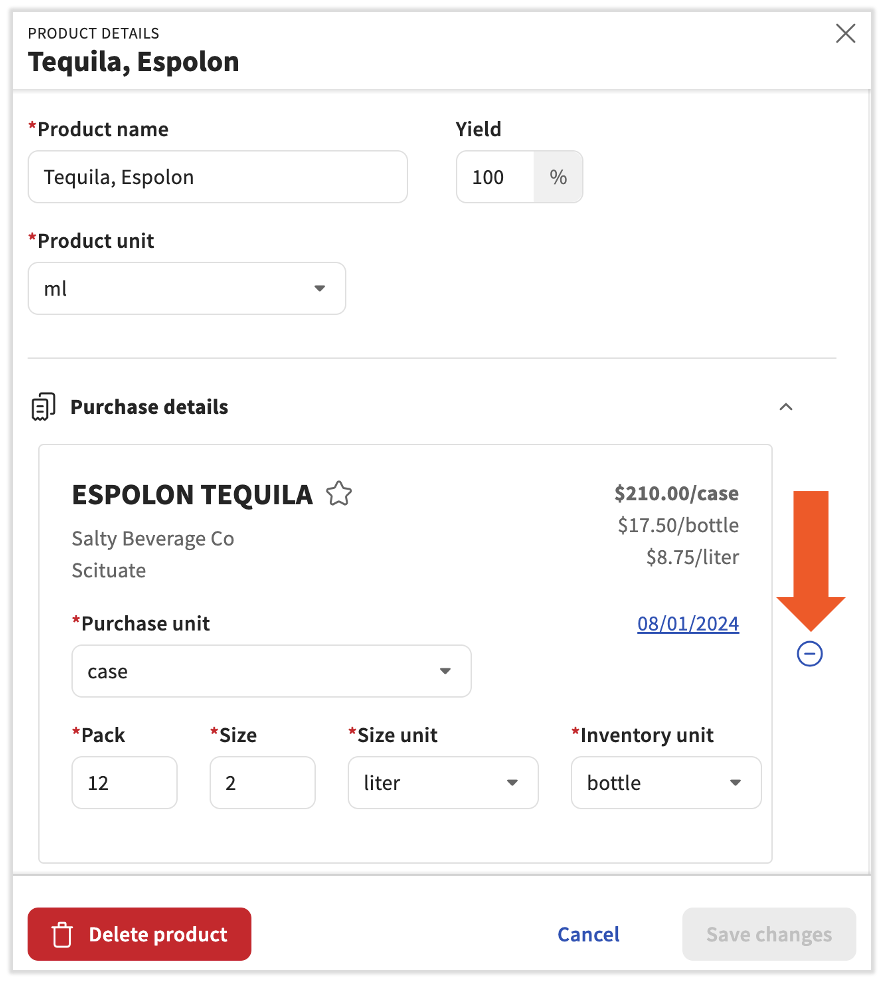
Seleccionar un nombre de productoname te permite ver todos los artículos de la factura vinculados a ese producto y hacer cambios en el producto o los artículos de la factura. También puedes realizar varias acciones después de seleccionar Editar producto:
- Personaliza o cambia el nombre del producto, el rendimiento, la unidad o la conversión de la calculadora de densidad (en la parte inferior de la barra lateral) seleccionando los campos correspondientes y realizando los cambios antes de seleccionar Guardar cambios.
- Puedes editar directamente la información de la factura de un producto en esta barra lateral. Esto incluye la unidad de compra, el paquete, el tamaño, la unidad de tamaño y la unidad de inventario. Lee cómo interactúan estos términos en la sección Definiciones de biblioteca de artículos de arriba. Selecciona Guardar cambios cuando hayas terminado aquí.
- Si decides que ya no necesitas un determinado producto, selecciona Eliminar producto para eliminarlo.
- De manera similar, al seleccionar el ícono azul menos, se eliminará un artículo de factura individual de este producto.
Nota: Para eliminar un artículo por completo, selecciona Ver productos en la parte superior de la biblioteca de artículos, selecciona el producto y, luego, selecciona Eliminar producto. Para eliminar un solo artículo de factura de un producto sin eliminar todo el producto, usa el ícono azul menos junto a ese artículo.
Por último, desde la página Producto en la biblioteca de artículos, selecciona los tres puntos a la derecha del producto. Hay un par de opciones aquí:
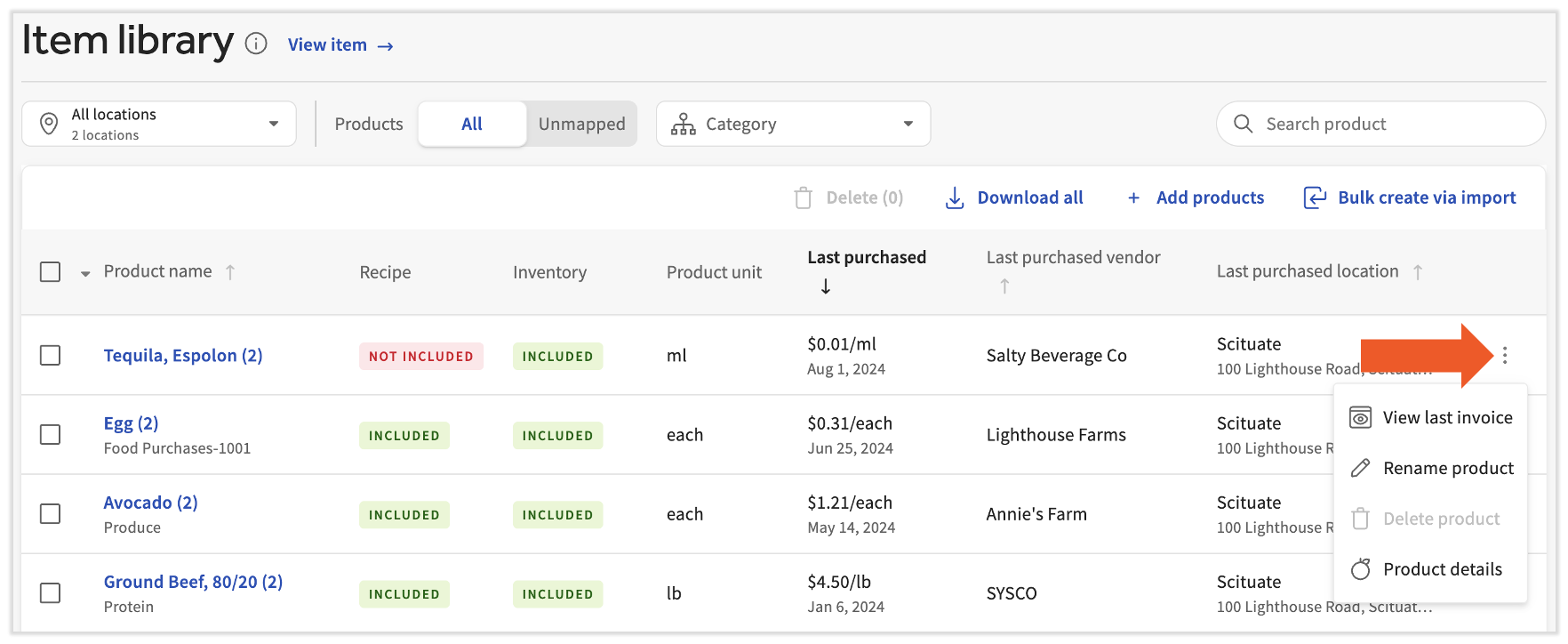
- Selecciona Ver última factura para extraer la factura más reciente con un artículo asociado con ese producto.
- Selecciona Nombrar producto para darle un nuevo nombre.
- Selecciona Detalles del productopara ver más de cerca los artículos de factura, las recetas y las listas de recuento de inventariocon las que está asociado este producto.
- Este es un método rápido para conciliar dónde vive este producto y cómo fluye a través de xtraCHEF.
Recursos adicionales
- Biblioteca de artículos a pedido de xtraCHEF
- xtraCHEF: Primeros pasos con los productos
- xtraCHEF: Crear productos