上次更新时间:2025年9月22日 11:03
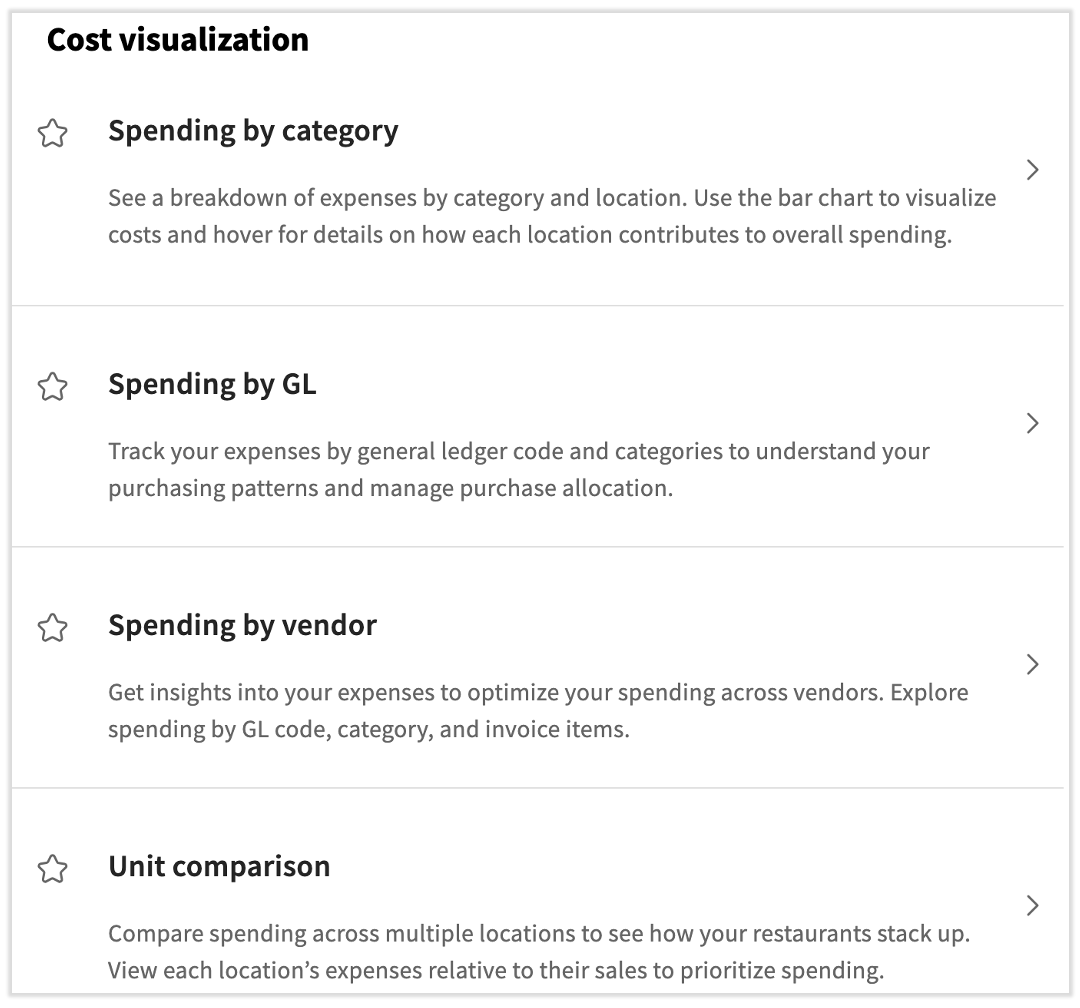
These four reports revolve around your expenses and offer different ways to compare and track when compared to your overall spending.
To access the new comprehensive reporting page and locate cost visualization reports, select Reporting from the left-hand menu and scroll down a bit. Keep in mind that you can select the star icon and the report will be saved to the Favorites menu on the left side of this page.
As a side note, the GL distribution and GL summary reports are both replaced by the Invoice summary by GL report.
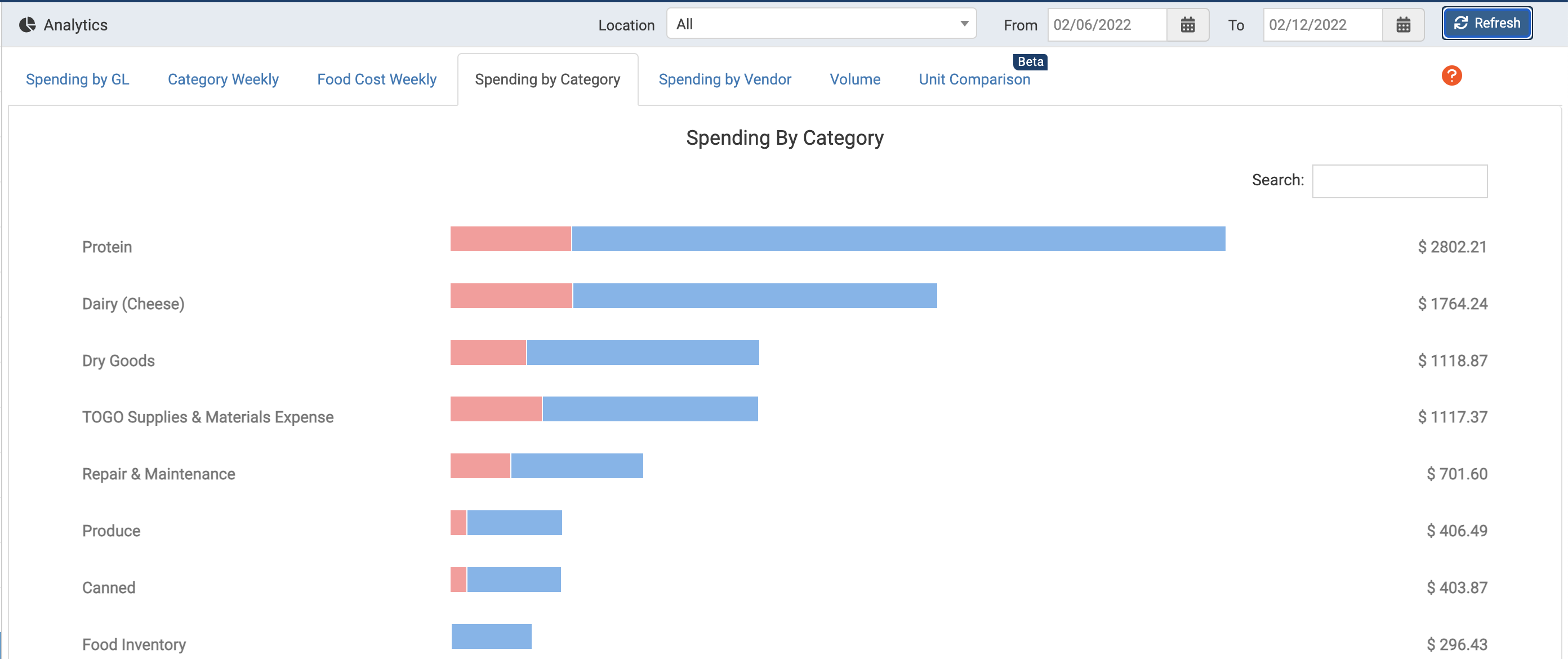
The first report we'll cover is Spending by category. As you might have guessed, this report focuses on how your spending is distributed across different xtraCHEF categories within certain location(s) and date ranges.
A full breakdown of this report can be found in .
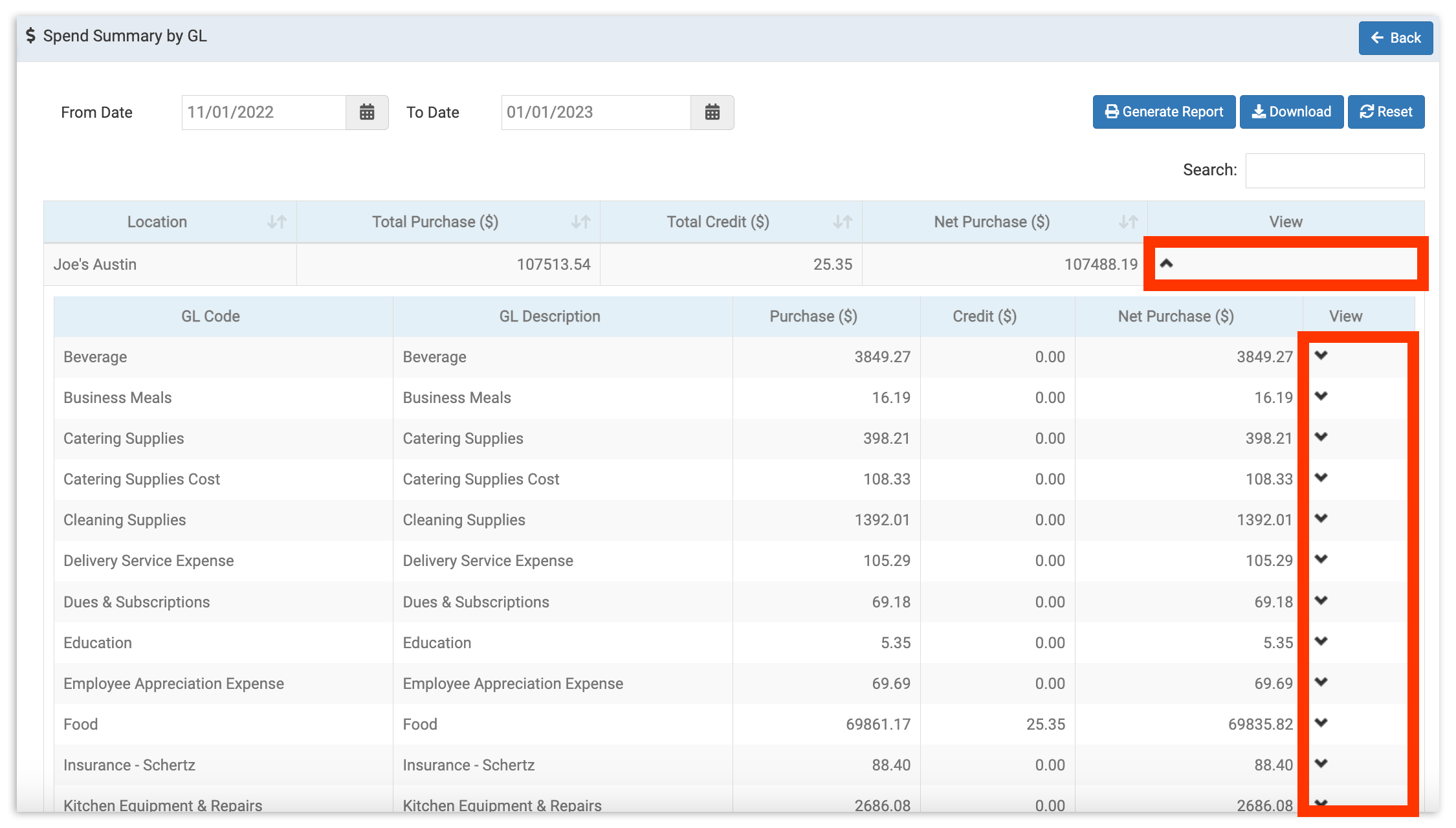
Formerly called the Spend Summary by GL, this report gives you an overview of all your spending across locations for a certain time period. To get started, choose your date range then select Generate Report. Once populated, you'll see your total purchases and credits for each of your locations. View a more detailed report for each location by selecting the downward arrow button in the View column.
This will launch a list of all GL codes and their dollar amount totals for the period. To view the spend per category, select View on the GL code row to view a purchase breakdown by category. Read for more information.
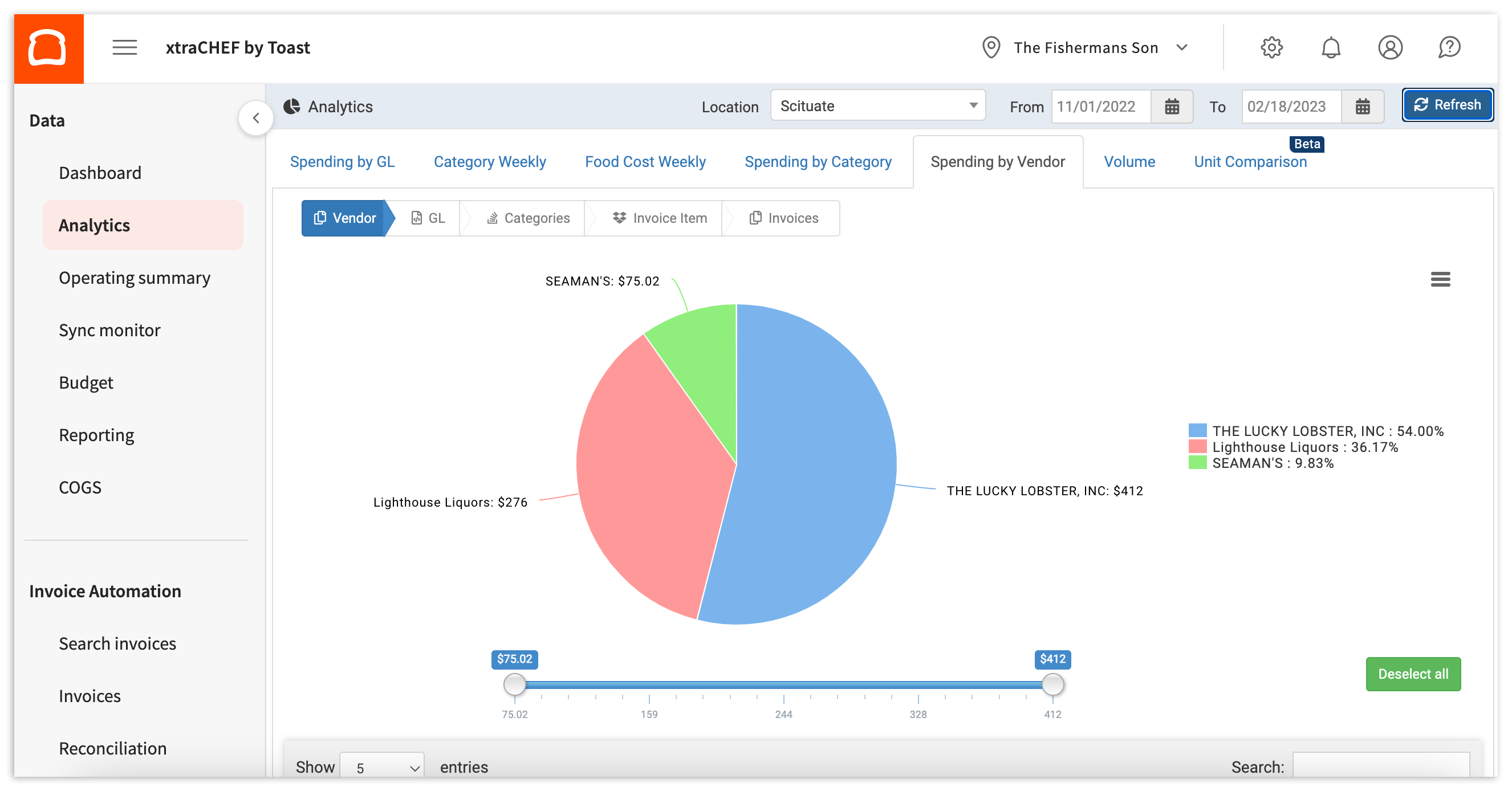
This report breaks out your spending by vendor between a set date range. Here, you can monitor or explore which vendors you spend the most with and the GL codes, , and that eat up the majority of those expenses.
You can learn more by navigating to .
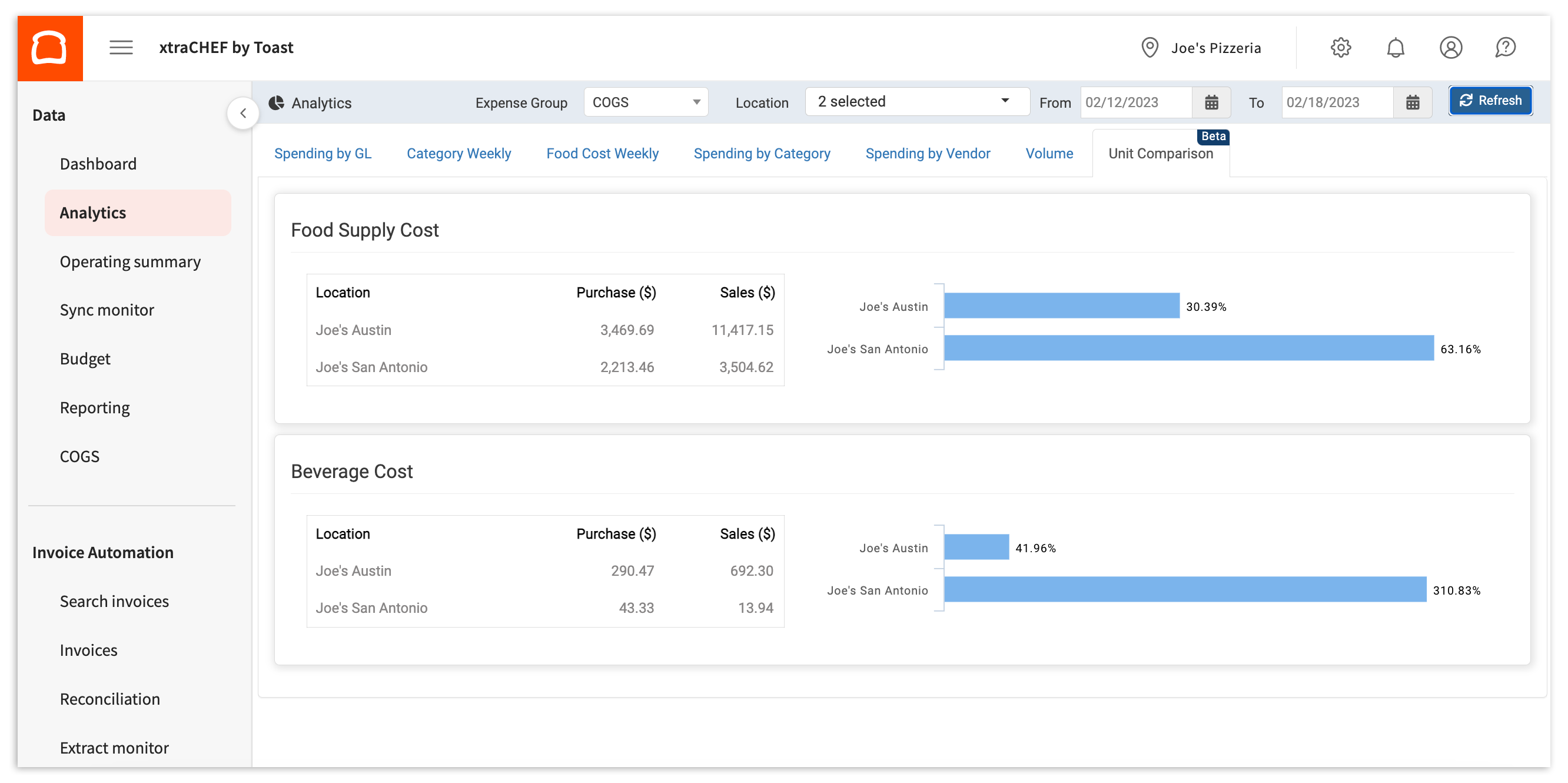
This analytics set is particularly beneficial if you have more than one location under your xtraCHEF account. Unit Comparison allows you to compare your spending by location and see how your individual restaurants stack up against one another.
For more information, check out .