Sling by Toast: Employee Manual
Last updated: Jun 9, 2026, 11:46 AM
Learn how to use Sling as an employee.
- Join Your Company’s Sling Account
- Switch Accounts
- Messages
- Unavailability and Time Off
- Available Shifts, Shift Swaps, and Shift Offers
- Clock In and Out
- Timesheets
- Download the Sling Mobile App
- Frequently Asked Questions
- Related Articles
To find out details about the cancellation of a shift, company policies, management details, your payment, or direct deposit, you'll need to speak with your employer. If your company has enabled the message feature and given permission for employees to start a message, you will be able to use Sling's Messaging feature to contact a manager or admin who would have the answer(s) you need.
Join Your Company’s Sling Account
Your employer will need to invite you to join the company’s Sling account. If you have not yet received an invitation, you will need to reach out to your manager.
For more information about joining your company’s Sling account, check out How Do I Join My Company On Sling?
Switch Accounts
If you need to manage multiple accounts with one login, you can use the same email address and password for multiple employers or organizations.
If you are joined to more than one account using the same email address, when you first log into Sling, you will be asked to choose which company you want to access.
It is also possible to switch between accounts without logging out.
From the web:
- Select your name at the top right corner of the screen.
- Select the account you want to view.
From the mobile app:
- Select More.
- Select Switch Companies.
- From the pop-up window, select the account you want to view.
Messages
Employees can use the messages feature. Check out Sling by Toast: Team Communication to learn how to use the messages feature. If there are permission limitations and you are unable to use the message feature, you will need to contact your organization directly.
Unavailability and Time Off
If entering or editing unavailability is disabled, you will need to contact your manager to update your unavailability.
If you are unable to request time off, your employer does not have this feature enabled on the account. Contact your manager to update your time off.
To learn more about unavailability and time off, check out Sling by Toast: Unavailability and Time Off.
Available Shifts, Shift Swaps, and Shift Offers
To learn about available shifts, shift swaps, and shift offers, check out Sling by Toast: Available Shifts, Shift Swaps, and Shift Offers.
View Available Shifts
To view available shifts, you must be assigned to the same position and location as the shift. Check your profile to confirm your assigned locations and positions. If updates are needed, contact a manager or admin, as employees cannot modify these fields.
If assignments are correct, verify your filters from the mobile app:
- Go to the Shifts tab.
- Select the Available tab.
- Select the filter icon in the top left.
- Ensure available shifts are included in the filter settings.
- Select Apply filters.
Some organizations fill available shifts quickly after publishing. If needed, contact your manager to confirm eligibility for shifts.
Clock In and Out
Employees on Premium and Business accounts can use the time clock feature if enabled. The time clock can be accessed from the mobile app or the web version of Sling.
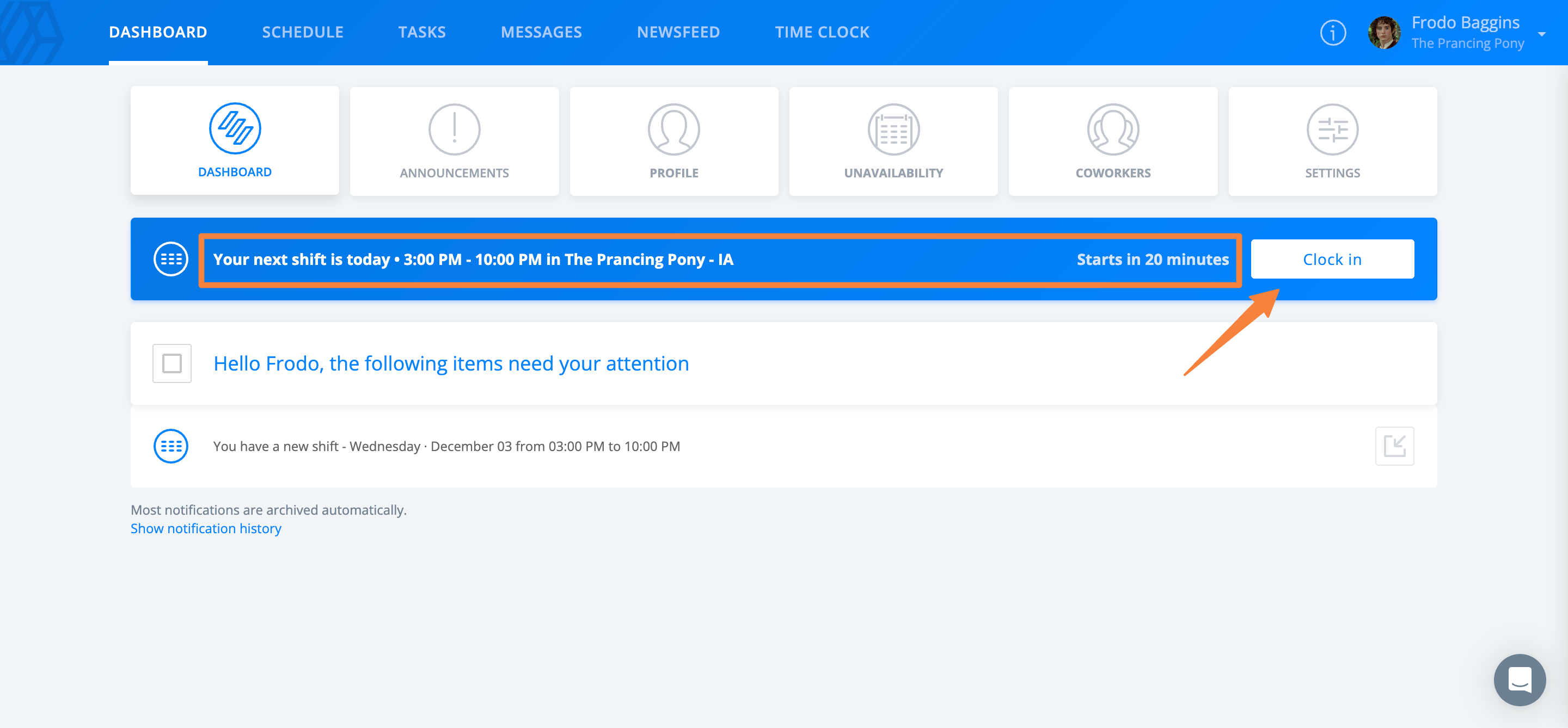
Clock in from the web:
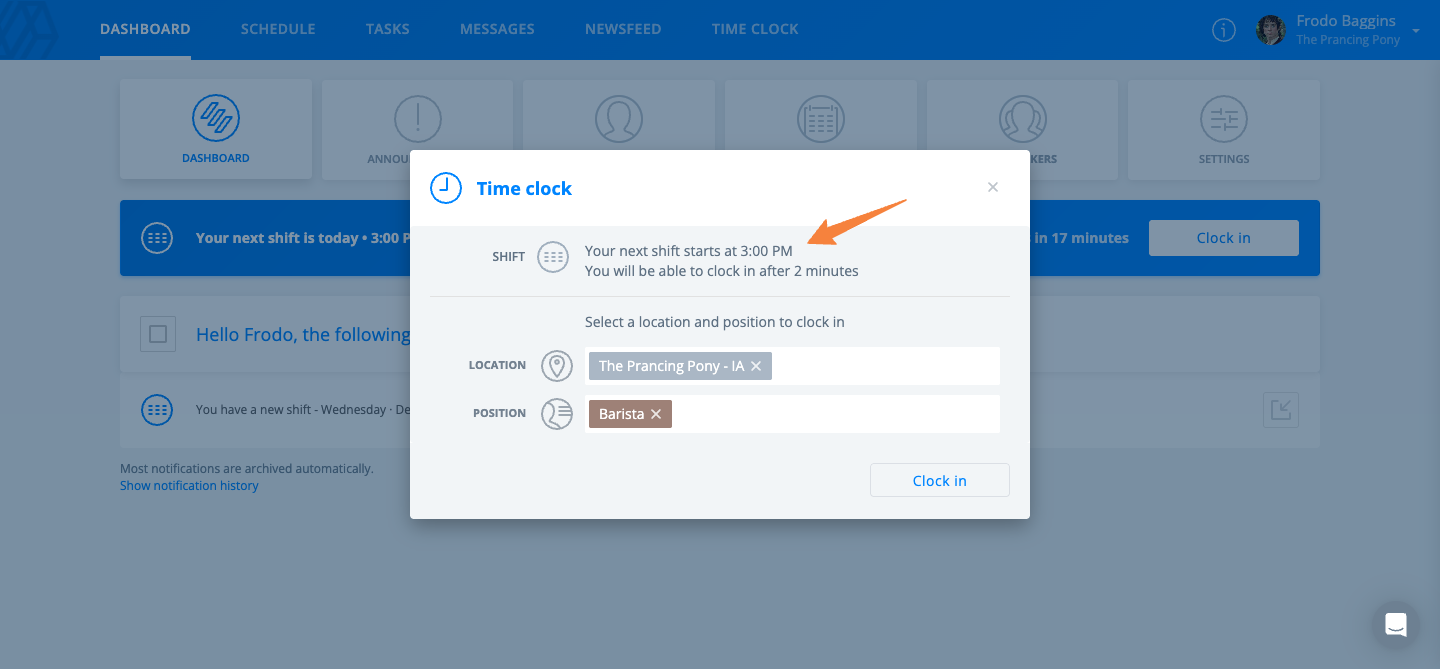
- Access the Dashboard. You'll see the option to clock into your upcoming shift, as well as the details of when the shift is scheduled to begin.
- To clock in, select Clock in.
- Your company may have some restrictions in place for how early you can clock into a shift. You may not be able to clock in early, depending on how the admin for your company's account has set up the time clock.
- You may also have permission to clock into an unscheduled shift, which means the shift is not yet on the schedule. In this case, you'll be prompted to select the Position and Location (from the ones assigned to your profile) that you are clocking in for.
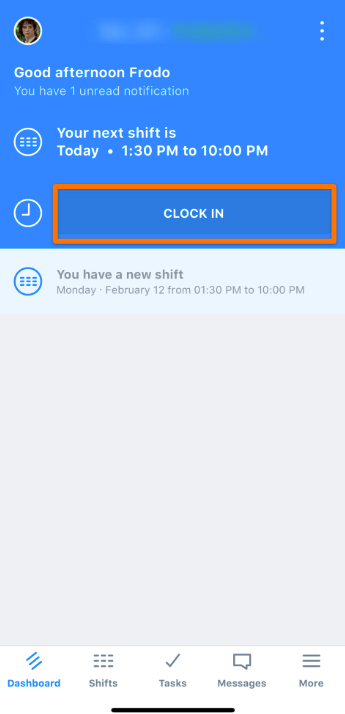
Clock in from the mobile app:
- Access the Dashboard.
- Select Clock in.
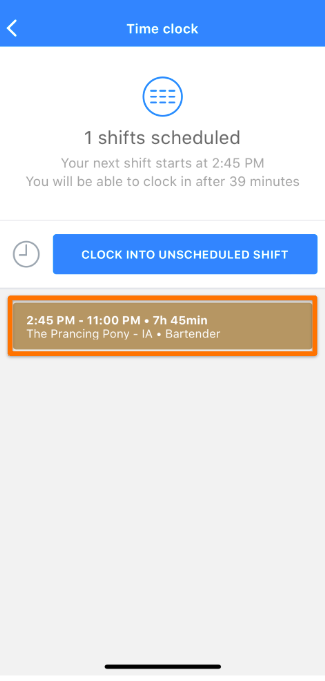
- Confirm the shift you're clocking in for, if scheduled.
- You may also see the option to clock in for an unscheduled shift if your company uses this function.
- You may see both options if you are scheduled, but are attempting to clock in early.
- To clock in, select the shift, which will open the details window, then select Clock in at the bottom of the page.
You'll get confirmation that you are clocked in. You will also see that your shift is in progress on the Dashboard.
Clock out from the web:
- Access the Dashboard.
- Select Clock out.
- From the pop-up window, select Clock out.
Clock out from the mobile app:
- Access the Dashboard.
- Select Clock out, then select Clock out at the bottom of the page.
After you've clocked out, you'll see a confirmation message and a summary of your shift.
Timesheets
Employees on Premium and Business accounts can use the timesheets feature if enabled. Your company may not allow employees to edit timesheets. If you do not have access to edit your timesheets, contact your manager for assistance.
To learn more about the timesheets feature, check out Sling by Toast: Timesheets.
Download the Sling Mobile App
Sling is already available on the web anywhere you have an internet connection, but you can also download the Sling mobile app to use on the go.
Download the iOS app from the App Store. Download the Android app from the Google Play Store.
Note: The Sling mobile app requires iOS 11 or later or Android 5 (API 21) or later. Some older devices may still have some compatibility issues, even with these versions installed.
Note: Certain actions cannot be performed through the mobile app and will still require you to log in to Sling using a desktop browser.
Frequently Asked Questions
Why can't I log into my Sling account?
If you're experiencing difficulties logging into your Sling account, the issue may stem from a few possible scenarios:
-
- Profile Deactivation - Your profile may have been deactivated by your manager or admin. Contact your manager or employer.
- Not Yet Invited - Contact your employer and request an invite.
- Email Verification Issues - If you are prompted to verify your email but haven’t received a verification link, your account might not be fully set up yet.
- If you’ve reset your password but still can’t log in, your profile might be inactive. Contact your manager or employer
- Using Toast Integration - A MyToast invite does not guarantee access to an organization’s Sling workspace. Ensure that your employer has sent you the proper Sling invitation to join their organization.
Why can't I see available shifts in the app?
To see available shifts, you must be assigned to the same position and location that are saved to a scheduled shift. You can check your profile to see your assigned locations and positions. If anything is missing, contact your manager to update your details. It is not possible to add locations and positions to your own employee profile. If you know you share the same position and location, check your app schedule filters.
Where can I view my schedule?
If your company uses Sling by Toast Scheduling, you can view your schedule on the MyToast app or the Sling app. The MyToast app is available to all employees of Toast restaurants, but employees can only see their upcoming schedules if their restaurant uses Sling by Toast. If your company does not use Toast, you can use the Sling app or the web version of Sling to view your shifts.
Related Articles
- Sling by Toast: Employee Mobile App Guide
- Sling by Toast: Employee Web Guide
- Sling by Toast: Start and End Breaks
- Sling by Toast: Preferences and Notifications
- Sling by Toast: Calendar Sync