Toast Payroll: Prepare to Run Payroll
Last updated: Apr 8, 2026, 11:56 AM
| If you are not yet using your Toast POS devices and handhelds, you must post payroll four days before your check date. Once you are live on Toast POS, this date becomes more flexible, but before going live, this deadline must be enforced for security reasons. |
- Paycheck Delivery Option
- Prepare Employee Profiles
- Prepare Tips
- Prepare Time Entries
- Other Considerations
- Timeline Recommendation
Paycheck Delivery Option
When an employee selects Paper check (not direct deposit or Toast Pay Card) as their payment method, you may choose to pay them in one of three different ways, known as the paycheck delivery option. Review and choose the paycheck delivery option that your company would like to use. This is a company-wide setting that an HR+ user typically sets one time and doesn't change.
Prepare Employee Profiles
Changes to employee profiles will not flow to payroll once you select the Preview button to start a payroll. Make these changes ahead of time to run payroll with ease:
Direct Deposit Status
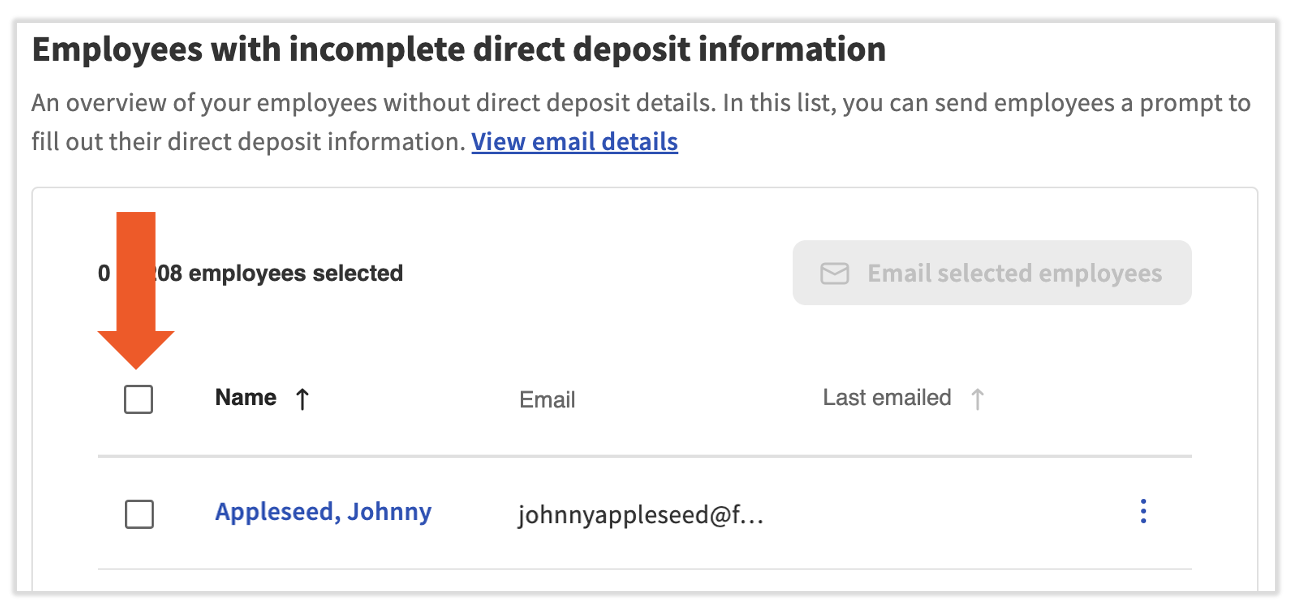
You can easily check the status of each employee's direct deposit. Navigate to Settings > Payroll > Direct Deposit and view the Employees with incomplete direct deposit information section to determine which employees need to finish their direct deposit setup. Employees in this tile will not be paid via direct deposit until they take action.
Toast Payroll recommends selecting the checkbox next to the Name column and selecting Email selected employees in order to alert all necessary employees. Review Toast Payroll: Get Help With Direct Deposit Accounts to view the steps on how you or your employee can add or update a direct deposit account.
Status Changes
- Was an employee added in Toast Web, but not Toast Payroll? Doing so does not create a Toast Payroll profile for them, so they will not be paid.
- To correct this, navigate to Team and locate the employee. They will have an Unpaid employee tag next to their name. Now select the three dots on the right and select Add employee to payroll. Follow these steps to complete their Toast Payroll profile.
- To onboard or hire an employee, navigate to Team > +Add team member. The employee must have a Hire Date that falls on or before the pay period end date in order to be included on that payroll.
- To terminate an employee, navigate to the employee's profile and select the > carat icon in the Status tile to begin the termination workflow. Terminated employees will not be included on payrolls beyond their termination date (the employee's last day of employment in the termination template).
Position and Job Updates
- Has an employee's position or position settings changed? Are they moving from hourly to salary or salary to hourly? Select the > carat icon from the Jobs & Pay tile on their profile. It is useful to maintain these settings when they happen to speed up payroll runs.
- Is an employee working a different or additional job? Select the > carat icon from the Jobs & Pay tile on their profile to add or edit the jobs assigned to them.
Tax Information
- Has an employee requested changes to their Form W-4 recently? Has an employee changed marital status or had a child?
- Encourage employees to make these changes themselves. If you need to do it on their behalf, navigate to their profile and choose Taxes & Documents > Tax Forms tab.
Changes in Pay Rates
- Were any employees given a raise? Was the minimum wage increased? Be sure the current rate is reflected on the employee's timesheet before approving it (if applicable).
- Pay changes are made by selecting Change pay for the appropriate job. Locate this link on the employee's profile in the Jobs & Pay tile.
Employee Deductions
- Have any recurring deductions changed? Make recurring deduction changes by navigating to an employee's profile and choosing the Recurring tab.
- Has your company received a garnishment order, lien, or levy against an employee? Even if it's an amendment to an existing garnishment order, send the entire order to us via the blue chat dot in the lower-right corner of any Toast Payroll page. The Customer Care team will install it for you.
Prepare Tips
Once you're ready to begin payroll, preparing tips and time entries is crucial to ensure a smooth payroll run.
- If your restaurant imports tip information from Toast Tips Manager, make sure it is fully set up and synchronized and ensure you have approved and sent the entire pay period's tips to Toast Payroll.
- If you attempt to start a payroll run without sending tips from Toast Tips Manager, you'll see an action item on the Preview Payroll step. You'll also get a notification before you advance past that step.
- If your restaurant directly syncs tips from Toast Web automatically, they will appear on employee timesheets in Toast Payroll. Confirm the figures on those timesheets before approving them (if necessary).
- If your business imports a spreadsheet containing tips, download the Payroll Export report from Toast Web (if necessary) and review the tip sums for accuracy prior to beginning a payroll run.
- Tips paid outside of payroll should align to a Tips Paid type of earning code while tips being paid through Toast Payroll should correspond to a Tips Owed type of earning code.
Prepare Time Entries
- If your restaurant uses the TAFW module with Toast Payroll Pro, don't forget to approve all applicable time away requests prior to approving timesheets and/or starting your payroll.
- Verify time entries in Toast Web. Select Labor summary from the Quick Actions tile for an overview of all hours worked by employees. Set the date range at the top of the page to match your pay period dates and select Update.
- If you see any discrepancies on the Labor Summary, navigate to Reports > Labor > Time entry management. Set the date range when using this report as well. Here, you can edit any necessary time entries and Toast will immediately sync any changes made over to Toast Payroll.
- Now that you've verified time entries, approve timesheets in Toast Payroll by navigating to the Time page. Easily approve multiple timesheets by filtering this page to a single payroll and selecting the checkbox in the left-hand corner of the gray headers bar. Then select Approve All at the bottom of the page, but be sure you're only approving timesheets for the intended payroll.
- If automatic timesheet approval is enabled, you'll skip this step, but don't forget to verify time entries anyways. It's better to catch an error now rather than once the payroll has been submitted.
- Are time entries missing for an employee? It might be as simple as remapping the employee between Toast Web and Toast Payroll.
- If you do not have automatic timesheet approval enabled and you attempt to start a payroll run without approving timesheets, you'll see an action item on the Preview Payroll step. You'll also get a notification before you advance past that step.
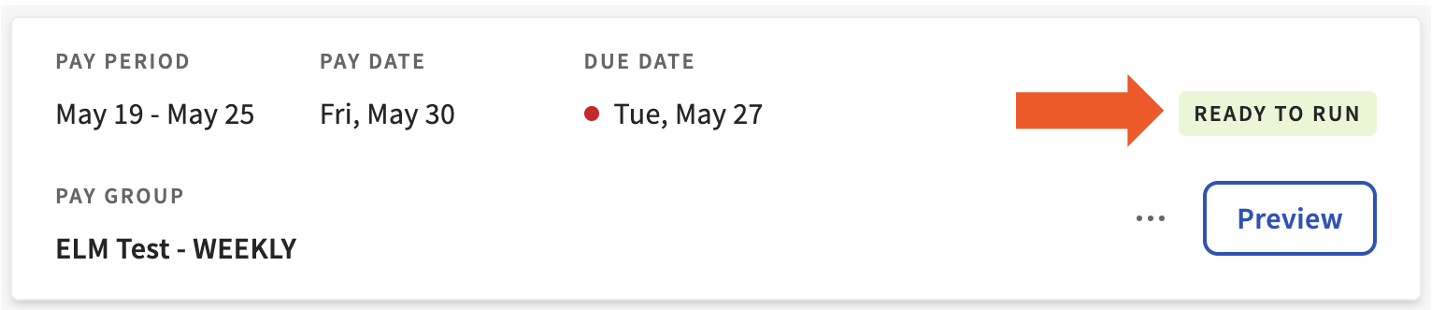
Once all tips and time entries have been approved, you'll see a Ready to run confirmation so you know you can continue.
| Once you're ready to begin running payroll, use this guide for step-by-step instructions. You can also check out these articles that dive into the specifics of each step: |
Other Considerations
- Quick Calcs: Any funds that were given to an employee outside of the regular payroll procedures, but not recorded on payroll can be added as a Quick Calc. This will make a record of payment received for reporting purposes, but it will not pay any funds through payroll.
- A common situation where a quick calc is used could be when hours were missed on payroll, but they were paid manually outside of payroll (in the form of cash, a manual or company check, or a payment app, among other things). In order to account for this on the upcoming payroll, a quick calc allows earnings, deductions, and taxes to be processed without actually paying an employee or recording hours.
- Non-regular payments or deductions: If you plan to give employees a bonus or a one-time deduction, you can enter these amounts ahead of time as a Payroll To Do in order to save time on the day of running payroll.
Timeline Recommendation
Toast suggests doing these things...
- Once:
- Paycheck delivery option
- As they happen:
- Status updates
- Position or Job changes
- Pay changes
- Tax information updates
- Employee deductions
- Employee mapping
- Once the pay period ends:
- Verify time entries
- Approve TAFW requests
- At least one day before payroll:
- Gather tip imports (if necessary)
- Approve timesheets (if necessary)
- Quick Calcs and Payroll To-Dos
Following this checklist should make running payroll most efficient and effortless on the day you process and submit it.
This content is for informational purposes and is not intended as legal, tax, HR, or any other professional advice. Please contact an attorney or other professional for advice.