Toast Payroll: Get Started With Onboarding and Implementation
本文章目前没有您语言对应的版本。正在显示默认语言。
Toast Payroll: Get Started With Onboarding and Implementation
上次更新时间:2025年12月17日 10:49
This page will guide you through your onboarding and implementation journey with Toast Payroll.
If you have not yet purchased Toast Payroll and you are looking to access Toast Payroll at your locations, visit Toast Shop or contact your Toast sales representative.
Welcome to Toast Payroll! This article offers a guided look into the steps you'll need to complete in order to properly configure your Toast Payroll system. Additionally, review common questions in Toast Payroll: New Customer Onboarding FAQ.
Begin by navigating to your email inbox where you'll find an email titled Welcome to the Toast Payroll family.
Select the Register link towards the bottom of the email. It's important to only select the Register link one time to avoid creating multiple profiles.
In Toast Payroll, create a password. Enter it twice to confirm it and select Register.
The system will bring you to the login page to enter your email address and password from scratch. Select Next.
If you are asked for a company code here too, this can be found in the email mentioned in step 1.
As the first user of your Toast Payroll database, the account you create here will automatically link to Toast Web so you can use the same email and password to log into both systems.
Next, you'll be brought to the Implementation Dashboard as described below.
Step 2: Complete the Implementation Dashboard
Toast Payroll's implementation dashboard is where you will enter initial information about your company. Getting this information entered in quickly and accurately is the key to running your first payroll in as little time as possible.
Important note: The user completing this step must be the owner or payroll administrator of the restaurant. This is the person who logged into Toast Payroll using the email and the steps above.
If you're continuing from above, you'll already be at the Implementation Dashboard. If you need to get there, navigate to payroll.toasttab.com and login with the information you used in above.
Review the three milestones of the Implementation Dashboard and what's required from you during each step. Select Begin first step once you're ready.
Have the following information on hand in order to reduce the time to complete your company setup:
Company code: This is the code that you will create to label your Toast Payroll database. We recommend using something broad and easy to remember. A company code must be one word without spaces or special characters.
Tax account details: Federal employee identification number (FEIN) & state tax account numbers. Register for or locate your state tax account numbers by state .
If you do not have your state tax account numbers while you complete the implementation dashboard, as soon as you get them to avoid potential tax filing complications.
Business legal name: This is the name your company is registered as with the IRS.
Jobs: Jobs are the positions that employees use to clock in and out with
Payroll frequency: This is how often you will pay employees (weekly, bi-weekly, semi-monthly, or monthly)
Suggested first check date for Toast Payroll: When your employees will be paid from your first payroll submission
Bank account information: Let us know which bank accounts you will use to pay your employees and fund other payroll costs
Milestone 1: Tax Information
The first step of this milestone asks you to confirm or edit your company code. Your company code is the name of your database in Toast Payroll. Also, let us know if you have paid employees wages in the current year (from a previous payroll provider). Select Save and continue once complete.
On step 2, confirm how many FEINs your company uses. Select Save and continue.
For step 3, we'll ask you for the details of each FEIN. Fill these fields in and select Save and continue.
Step 4 asks you about your state tax accounts. Read the information in the blue box to confirm how many state tax accounts you have before selecting Save and continue.
Similarly to step 3, step 5 will ask you for the details of each state tax account. Add these and select Save and continue.
That's it for Milestone 1. Select Next milestone to move on.
Milestone 2: Locations & Jobs
Step 1 asks you to name your FEIN(s). Once you do, select Save and continue.
In step 2, you'll be asked to add locations to your account. These could be address abbreviations, parts of a town, different cities, or whatever you would like to use to identify each location. Select Save Location for each new location you add. Save and continue when ready.
Still on step 2, you'll match each location to a company by selecting the corresponding bubble. Any locations with the text "Please assign a company" still need to be matched. Select Save and continue once complete.
For step 3, add the address for each location by selecting Edit for all locations you have. Select Continue.
Step 4 asks for the job titles you will employ at each location. Job titles can be Manager, Server, Dishwasher, etc. Select the + Add job button to add more than three jobs. Add as many as you can think of; you can add more once the Implementation Dashboard is finished. Select Save and continue to move on.
Step 5 is a review step. Check the accuracy of all jobs in each location and select Save and continue. One milestone left.
Milestone 3: Payroll
Step 1 of milestone 3 is for pay groups. A is typically a set of employees who are paid on the same day and with the frequency (i.e. hourly and salaried pay groups, both paid biweekly), but companies can use pay groups in different ways. Select how many pay groups you would like with a minimum of one per FEIN. Name them and attribute them to an FEIN. Select Save and continue.
In step 2, choose your payroll preferences for each pay group you have. Select several options here:
When a check date (pay day) lands on a , the bank holiday setting will determine when the check date is automatically moved to (before or after).
The is how often you run payroll and how often your staff is paid.
The tells Toast Payroll when to begin counting employee hours in a week for the sake of overtime. This is a global setting for all of Toast Payroll and its based on the time entries it receives from Toast Web.
A similar setting also exists in Toast Web and we advise matching the two days of the week for identical reporting across both systems. These settings are not customer-facing after onboarding is complete, so ask your OC how this is set in Toast Web. If the work week start day is misaligned between Toast Web and Toast Payroll, discrepancies in overtime calculations, labor report matching, and other payroll data may occur.
The Day of Week Paid field indicates the typical weekday employees will receive their payroll wages. Based on different , the day of the week can change.
Your Preferred First Check Date is the estimated time you run your first payroll and have employees paid via Toast Payroll.
Lastly, set the Associated Pay Period to correspond to your first paycheck date. Double-check this page before selecting Save and continue.
The next step covers your bank account you will fund any payroll costs, including employee wages.
Begin by check-marking each pay group you'd like this bank account information to apply to.
The Check Number field allows you to set a custom starting check number to align with any check number systems you currently use.
Now select between connecting your bank account using Plaid and your online banking login credentials (Option A) or by filling in your bank information through a voided check (Option B).
For your check signature, submit either an electronic signature via Option A or download, sign, and re-upload the file in Option B.
Select Add Bank Account if necessary (we sometimes see this if you have more than one pay group).
Make sure to closely review this information before selecting .
Step 3: Complete the Payroll Setup Checklist
After completing the Implementation Dashboard in step 2 above, log into using the login credentials you set in step 1 above.
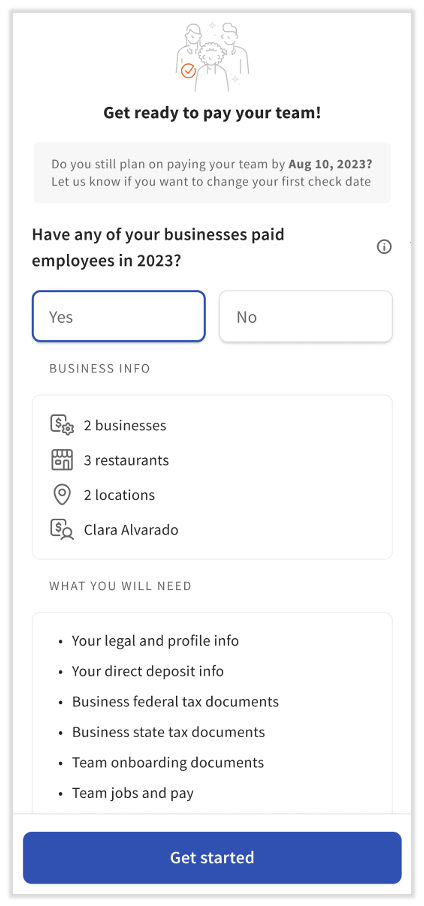
Once you're in Toast Payroll, you'll see a pop-up on the right side of your screen. Toggle Yes/No (not usually necessary) and select Get started.
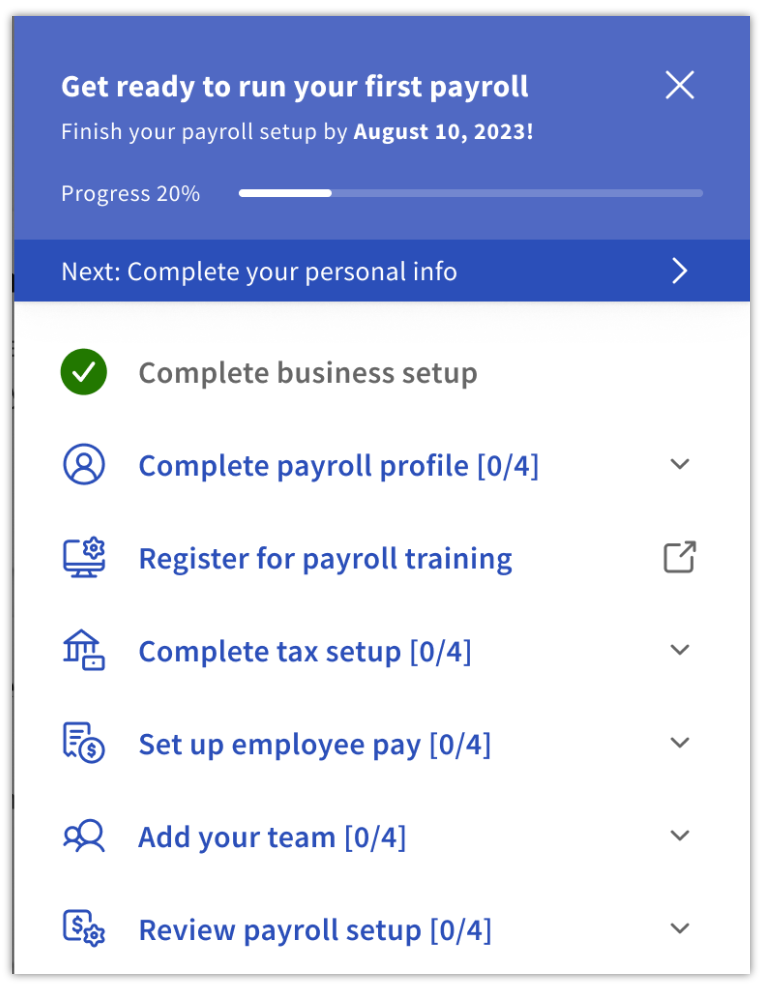
Now you'll see the Setup Checklist on the right side of the page (other users who log in to Toast Payroll will not see this checklist; only the user who completed the implementation dashboard). This checklist will guide you through several steps you need to take before running your first payroll. Most steps are your responsibility, but some steps will be completed already as part of your implementation dashboard, and others will need to be completed by your Onboarding Consultant.
As you're moving through this checklist, keep an eye on the Finish your payroll setup date at the top. This indicates your first payroll run in Toast Payroll. If you do not complete the checklist before that date, Toast will automatically move the date to your next payroll run due date.
Note: If you close this checklist at any time, you can reopen it by selecting the checklist icon in the upper-right corner of the Toast Payroll dashboard.
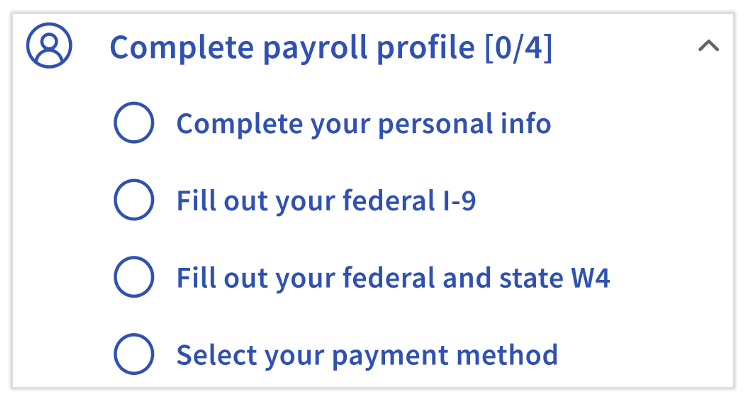
Complete payroll profile: The first section here prompts you to complete several tasks on your payroll profile. Select each of the four tasks to be taken to the appropriate place to complete them. The most important data we need from every staff member includes:
such as your social security number. Select Save changes at the bottom of the Personal Profile page.
.
for taxation purposes. Make sure to fill out all forms you're prompted to (federal, state, and local, if applicable).
information, such as details.
Register for payroll training: Select this section to register for our webinar. You'll learn how to easily set up your Toast Payroll system and gain the confidence to run your first payroll accurately.
Step 4: Sign Up for Toast Classroom
In addition to the on-demand training video in the last step of the payroll onboarding checklist, Toast highly recommends and advises all customers to sign up for Toast Classroom. This classroom-style experience exposes you to more sides of Toast Payroll, such as pre-payroll maintenance, running and processing payroll, payroll reconciliation & troubleshooting, employee management, and more. The best part is these remote sessions are led by a Toast Payroll expert, so you can ask questions and hear from others who may have similar questions.
Step 5: What's Next?
If you are switching from another payroll provider mid-quarter, Toast Payroll will debit your business bank account in the next two weeks to recover taxes due at the end of the quarter. These should not yet have been remitted by your prior payroll provider, but it is your responsibility to obtain the decision from that provider. Toast will not be responsible for any credits or double debits as a result of failing to address this.
You will continue to manage your company's payroll taxes in the . There are recurring quarterly or annual tasks, depending on the state you live in, that will help prevent tax filing amendments and rejections.
The Tax Center is a hub in Toast Payroll which contains tasks to be completed to help enable a successful quarterly tax filing. By frequently checking the Tax Center and completing these tasks, you can plan ahead for upcoming payroll tax filings and ensure Toast Payroll has the items necessary for your payroll tax filings. Navigate to Taxes in the left-hand navigation of Toast Payroll. Visit for more information.
On the Direct Deposit page under Settings > Payroll > Direct Deposit, you can view the employees with and send an email notification to alert them about . The second half of the report lists each employee who is successfully set up. Employees without direct deposit set up will be elected into the paper check payment method by default.
This content is for informational purposes and is not intended as legal, tax, HR, or any other professional advice. Please contact an attorney or other professional for advice.
Save and continue
Step 4 asks you to create your own personal profile. Each staff member in Toast Payroll has a profile.
Select whether or not you will receive a paycheck through Toast Payroll. Selecting No, I will not have a pay check will remove some options further down the page.
In Basics, select your Original Hire Date and Pay Type (if you selected Yes, I will have a paycheck).
The 1099 Misc pay type allows independent contractors to be paid and track wages through Toast Payroll, but Toast does not file taxes for individuals marked as 1099 Misc.
Under Jobs & Pay, select the primary Location you'll work at and choose the Job role you should be given.
The next two steps will only be present if you selected Yes, I will have a paycheck in step 4a above.
Next, mark if you'll be paid hourly or salaried, if applicable. This selection will ask you to enter your hourly rate or salaried wage depending on your prior choice.
Choose if you are exempt from overtime or not. Salaried individuals are not configured within the system as eligible for overtime at this time.
Lastly, select the pay group you should belong to. Select Save and continue to finish this milestone.
You may see a page that directs you to complete unfinished work. If you skipped any steps along the way, select Go to unfinished step to enter any missing information.
Otherwise, you'll see a Congratulations page letting you know you have completed the Implementation Dashboard. Select Complete Setup to save all work and create your Toast Payroll account and profile. Your Onboarding Consultant will reach out to you shortly.
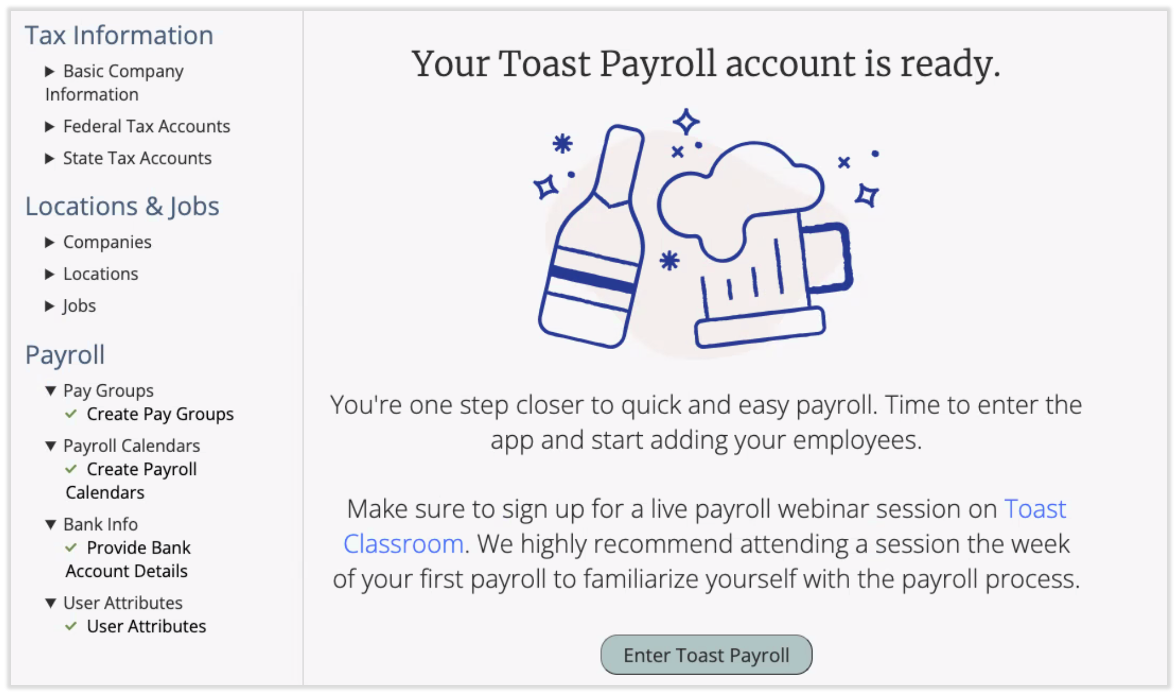
Once you've completed all steps, you will see a link to Enter Toast Payroll where you will complete individual onboarding paperwork and then add your employees so they can do the same. This must be completed before running your first payroll.
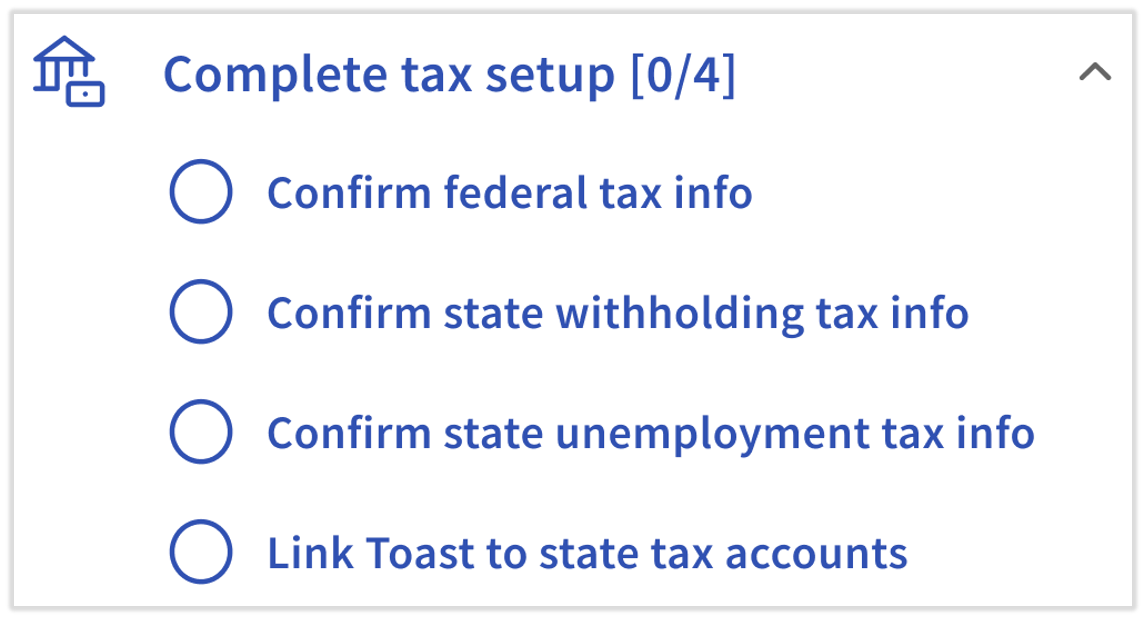
Complete tax setup: In this section, you'll review the tax identification data you entered in the Implementation Dashboard. It's vital to make sure Toast has this information as soon as possible. Contact your Onboarding Consultant if any of this information is incorrect.
If you entered Applied For during the state unemployment tax account or state withholding tax account steps in the Implementation Dashboard, return to the Tax Accounts page in Toast Payroll and enter these numbers (and the SUTA rate/withholding payment frequency) as soon as you get them.
If your business is missing any critical tax details, we will notify you to enter this information and anything else you're missing before the next quarterly filing deadline.
If your restaurant operates in a state without income tax, you will not see the Confirm state withholding tax info step.
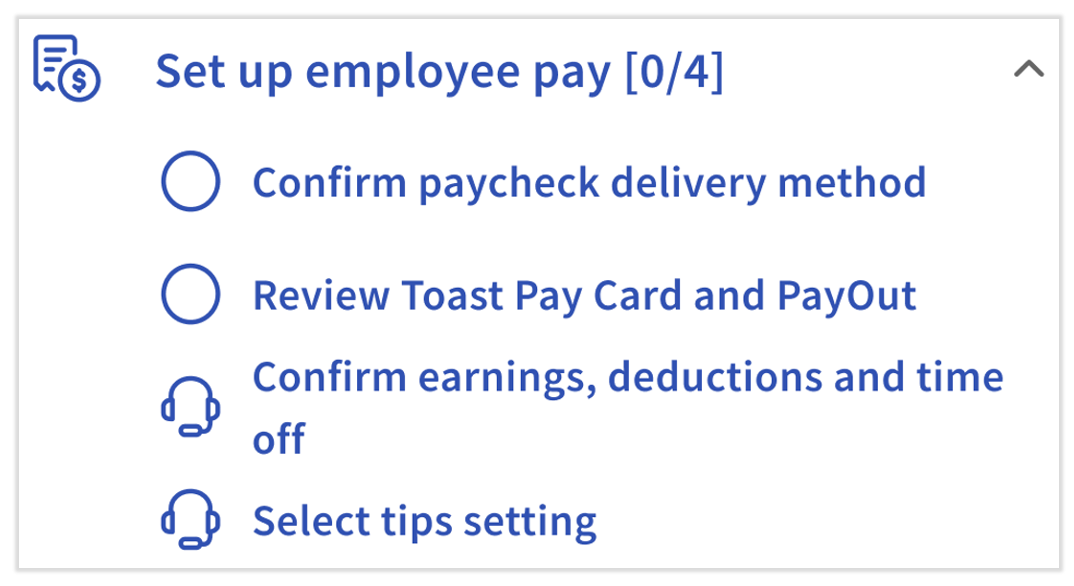
Set up employee pay: There are four steps in this section, but you're only responsible for the first two. Once you've set up your paycheck delivery method and checked out Toast Pay Cards and PayOuts, your Onboarding Consultant will step in to set up your earnings, deductions, time off, and tips settings.
Keep in mind the difference between paycheck delivery method and payment method. A payment method is the way an employee gets paid individually; they can choose between paper checks, direct deposit, and the Toast Pay Card (if you choose to offer it). On the other hand, paycheck delivery is a company-wide setting for any employee who opts into the paper check payment method. Paycheck delivery also offers three options: self-printed, self-written, and Toast-printed.
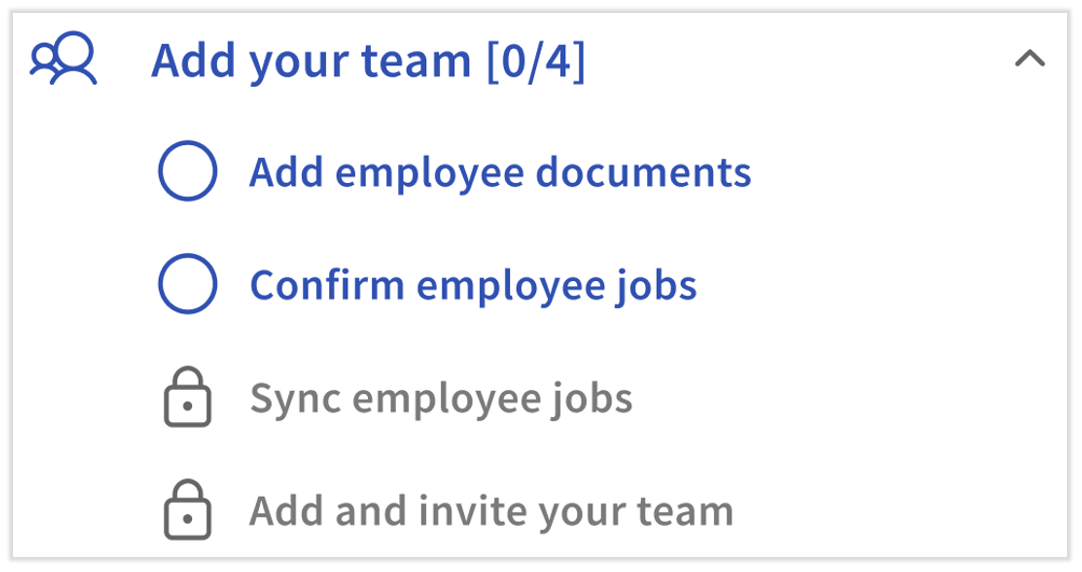
Add your team: Now that you've set up taxes and employee pay options, it's time to add your staff to Toast Payroll. The first task asks you to add employee documents you'd like your employees to receive during their own onboarding tasks. Next, add and/or confirm all jobs in your database. Jobs are added to Toast in Toast Web and assigned to employees in Toast Payroll. Once complete, the checklist will be back in the hands of your Onboarding Consultant for the third step. Finally, you can now add and invite staff to Toast Payroll.
Adding a new hire to Toast Payroll is a two-part process. Begin with the employer steps. At the end of those steps, Toast will automatically send your employee a "welcome email" to each employee you hired. Send this article to the employees you hire via the employer steps linked above so they can verify or fill out their own personal information as well.
If your Onboarding Consultant recently imported a large group of your staff to Toast Payroll, those individuals will not receive the automatic "welcome" email since they were not hired via the typical workflow. However, you can easily send out an "invite" email to all these employees at once (see the Send/Resend Invite Emails to Employees section of the linked article). This will prompt them to create or set their Toast email address and password for login. Employees who are imported should instead follow the steps in this imported new hire guide. It's vitally important for every imported employee to verify/add their social security number, fill out a Form W-4, and confirm their direct deposit information.
Remember to hire all employees in Toast Payroll, not Toast Web. Incorrectly hiring employees in Toast Web usually results in timesheet and tip syncing issues, duplicate employee profiles, and additional work to rectify this situation.
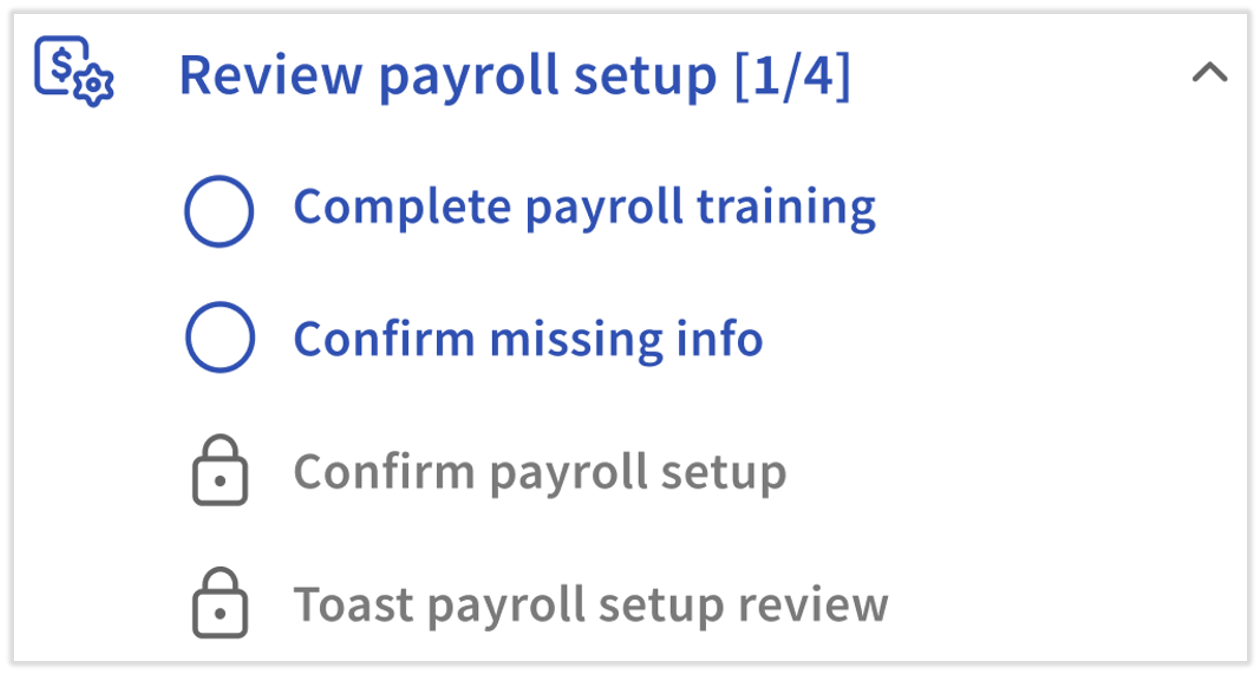
Review payroll setup: We highly recommend watching the payroll training video to begin familiarizing yourself with this system. Once you've seen an example payroll being run, you'll know what questions you need to ask your Onboarding Consultant when they guide you through your first payroll. Before you leave this checklist, the last steps guide you to visit the Missing Data page and the Company Summary page to review much of the important data you've entered or selected up to this point. Your Onboarding Consultant will complete the final step here.