Nómina de Toast: Obtenga ayuda con su nómina
Última actualización: 14 ago 2026, 2:38 p.m.
Encuentra la causa más común y la solución más rápida para los obstáculos de Toast Payroll antes, durante o después de ejecutar la nómina, incluyendo cuándo contactar al Servicio al Cliente.
- Antes de comenzar
- Solución rápida
- Antes de ejecutar la nómina
- Durante la nómina
- Elementos de acción y perspectivas
- Importar archivos
- La información salarial es incorrecta
- Ganancias o deducciones faltantes o incorrectas
- Las horas extras son incorrectas
- Los impuestos son incorrectos
- Empleado faltante en la nómina (no aparece)
- Nómina desbalanceada
- Aspectos destacados y excepciones
- Consejo de maquillaje
- Revisar Informes de Nómina
- Después de Ejecutar la Nómina
- Preguntas Frecuentes
- Antes de Contactar al Servicio al Cliente
- Artículos Relacionados
Antes de Comenzar
Aplica a: Nómina de Toast
Permisos necesarios:
- Usuario de HR+ con acceso al grupo de pago afectado
Lo que lograrás: Identificar y resolver bloqueos comunes de nómina en cada etapa del proceso de nómina: antes, durante o después de la presentación.
Solución Rápida
Utilice esta tabla para saltar a la causa más común y la solución más rápida para cada síntoma. La columna "¿Autoservicio?" le indica si puede resolver el problema por su cuenta o si necesita contactar al Servicio al Cliente.
| Síntoma | Causa más común | Solución rápida | ¿Autoservicio? |
|---|---|---|---|
| Empleado ausente de la nómina / no aparece | La fecha de contratación es después del inicio del período de pago, el empleado está de licencia o despedido, o el grupo de pago no coincide | Para resolver un empleado ausente de la nómina o que no aparece, verifique su fecha de contratación con respecto al inicio del período de pago, revise su estado de licencia o despido, y confirme que la configuración de su grupo de pago coincida. Pasos completos: consulte Empleado Ausente de la Nómina a continuación. | Sí |
| La hoja de tiempo no se pobló ni se sincronizó con la nómina | La hoja de tiempo no fue aprobada, o el empleado no estaba mapeado o fue desarchivado recientemente | Si una hoja de tiempo no se pobló ni se sincronizó con la nómina, verifique que la hoja de tiempo haya sido completamente aprobada, revise si el empleado no estaba mapeado, o confirme si fue desarchivado recientemente. Pasos completos: consulte Hojas de Tiempo Faltantes o Incorrectas a continuación. | Sí |
| Los salarios, el salario o la tarifa por hora son incorrectos | El cambio de pago no se aplicó antes de la nómina, o el campo de horas salariales no coincide con la frecuencia de pago | Para corregir un salario, salario o tarifa por hora incorrectos, verifique si el cambio de pago se aplicó antes de procesar la nómina o revise si el campo de horas salariales entra en conflicto con la frecuencia de pago. Pasos completos: consulte La Información del Salario es Incorrecta a continuación. | Sí |
| Las horas o la tarifa de horas extras son incorrectas | Las reglas de horas extras de tarifa única y combinada se aplican de manera diferente | Si tus horas o tarifas de horas extras son incorrectas, evalúa si tu configuración requiere reglas de horas extras de tarifa única o combinada, ya que se aplican de manera diferente. Pasos completos: consulta Horas Extras Son Incorrectas a continuación. | Sí |
| Los impuestos son incorrectos | Ubicación del impuesto laboral, configuraciones del Formulario W-4 o tablas de impuestos del IRS | Si los impuestos de los empleados son incorrectos, verifica la configuración de la ubicación del impuesto laboral, revisa las configuraciones individuales del Formulario W-4 y confirma el cumplimiento con las tablas de impuestos actuales del IRS. Pasos completos: consulta Los Impuestos Son Incorrectos a continuación. | Parcial — el asesoramiento fiscal requiere un CPA |
| Error de nómina fuera de balance | Desajuste del sistema entre los ingresos de los empleados y los pasos de revisión y envío | Si encuentras un error de nómina fuera de balance causado por un desajuste del sistema entre los ingresos de los empleados y las etapas de revisión y envío, contacta a Atención al Cliente de inmediato a través del punto de chat azul en la esquina inferior derecha. | No — se requiere acción del agente |
| La nómina fue enviada pero los empleados no fueron pagados | Depósito directo devuelto, cuenta bancaria bloqueada o salario establecido en $0 para una ubicación | Si se envió una nómina pero los empleados no fueron pagados debido a un depósito directo devuelto, una cuenta bancaria bloqueada o un error salarial, revisa tu estado de financiamiento interno. Pasos completos: consulta La Nómina Fue Incorrecta a continuación. | Parcial — los problemas del lado del banco requieren Atención al Cliente |
| Necesito reabrir, cancelar o editar una nómina enviada | La nómina no puede ser reabierta o cancelada una vez enviada | Debido a que una nómina no puede ser reabierta o cancelada manualmente una vez enviada, debes implementar un proceso de corrección de nómina aprobado. Instrucciones de solución alternativa: consulte Reabrir o Editar una Nómina Enviada a continuación. | Sí, elija la solución alternativa correcta. |
| Los cheques en vivo (en papel) no han llegado / se perdieron. | Retraso en el envío, mensajería de terceros o se necesita detener el pago. | Si sus cheques en papel en vivo no han llegado o se perdieron debido a retrasos de mensajería/envío, evalúe si se requiere detener el pago en su banco. Pasos completos: consulte Los Cheques en Papel Impresos por Toast No Han Llegado a continuación. | Parcial: se requieren pagos detenidos en su banco. |
| El empleado fue omitido en la ejecución de la nómina. | El empleado no fue agregado antes de que se enviara la nómina. | Si un empleado fue completamente omitido en la ejecución de la nómina porque no fue agregado antes de la presentación, procese una ejecución de nómina fuera de ciclo por separado. Pasos completos: consulte Nómina de Toast: Empleado Omitido o Pago Omitido en la Nómina a continuación. | Sí |
Antes de Ejecutar la Nómina
Hojas de Tiempo Faltantes o Incorrectas
Las hojas de tiempo deben ser verificadas y aprobadas antes de ejecutar la nómina, a menos que la función de aprobación automática de hojas de tiempo esté habilitada.
Si un empleado debería aparecer en la página de Tiempo pero no tiene entradas de tiempo visibles, puede estar desasignado.
Si una hoja de tiempo o entrada de tiempo necesita ediciones, o si una hoja de tiempo necesita ser desaprobada, los pasos dependen de si la aprobación automática está activada o desactivada. Consulte Nómina de Toast: Administre Hojas de Tiempo para los pasos que coincidan con su configuración.
Una vez que se ha iniciado la nómina, el paso de Vista Previa de Nómina resalta cualquier hoja de tiempo desaprobada asociada con esa nómina específica.
Incluso con las hojas de tiempo aprobadas automáticamente, aún recibirás notificaciones sobre excepciones, como un empleado que olvidó fichar al salir.
Si una hoja de tiempo no se pobló o no se sincronizó con la nómina:
- Confirma que la hoja de tiempo fue aprobada en la página de Tiempo (o que la aprobación automática está habilitada).
- Si el empleado fue recientemente desarchivado o recontratado, permite tiempo para que la sincronización se complete. Si la hoja de tiempo aún no aparece en el paso de Ganancias del Empleado después de la sincronización, contacta al Servicio al Cliente.
Cálculos Rápidos
Los cálculos rápidos se utilizan típicamente cuando un empleado recibe salarios fuera de Toast Payroll. Un cálculo rápido te permite registrar estos salarios, sin pagar al empleado a través de Toast, para fines fiscales y cumplimiento con el IRS.
Durante la Nómina
Elementos de Acción e Información
En el paso de Vista Previa de Nómina, puedes ver entradas listadas en el cuadro de Elementos de Acción o Información. Toast Payroll ha identificado estos como elementos a abordar antes de procesar la nómina. Los ejemplos incluyen empleados que no han fichado al salir o hojas de tiempo que no han sido aprobadas. Aborda cada elemento para procesar la nómina con éxito.
Importar Archivos
Los archivos importados en el paso de Ganancias del Empleado se utilizan comúnmente para importaciones de propinas, pero pueden contener cualquier ganancia, deducción o beneficio. Se debe crear una plantilla de importación dentro del sistema para permitir que Toast lea tu archivo. Luego puedes usar la plantilla para agregar datos a tu nómina. Los archivos importados deben estar en formato CSV.
Una vez que se ha creado una plantilla, modificar los encabezados de columna en la fila 1 de la plantilla generalmente resulta en un error de importación. No incluya el símbolo $ en su hoja de cálculo.
Muchos problemas de importación de propinas provienen de niveles faltantes en la hoja de cálculo o en la plantilla. Por ejemplo, si su negocio tiene múltiples ubicaciones, Toast Payroll necesita el nivel de ubicación en la hoja de cálculo y mapeado a su contraparte en Toast POS. De lo contrario, se predetermina al primer nivel de ubicación, incluso si el empleado no trabaja allí.
La información salarial es incorrecta
Si el salario o la tarifa por hora de un empleado es incorrecta o está desactualizada, puede aplicar un cambio de pago.
Para aplicar un cambio de pago solo a una nómina:
- Localice al empleado en el paso de Ganancias del Empleado.
- Seleccione los tres puntos (...) junto a la ganancia por hora o salario.
- Seleccione Editar Ganancia.
- Seleccione Opciones Avanzadas y desplácese hasta la parte inferior.
- Edite la Tasa de Ganancia.
Resultado esperado: La nueva tasa se aplica solo a esta nómina y no cambia el registro del empleado en el futuro.
Para aplicar un cambio de pago a todas las nóminas futuras, se requiere un cambio de pago. Navegue a la pestaña Empleo del perfil del empleado y seleccione Cambiar pago. Esto debe hacerse antes de comenzar la nómina si desea que el cambio se aplique a la nómina actual.
Si recientemente cambió su frecuencia de pago (por ejemplo, de quincenal a semanal) y los empleados asalariados no están recibiendo la cantidad correcta: el campo de horas salariales en el perfil de cada empleado asalariado puede seguir configurado para la antigua frecuencia. Confirme que el campo de horas coincida con la nueva frecuencia (por ejemplo, 40 horas para semanal, 80 horas para quincenal) y actualice a cada empleado asalariado afectado. Si el problema persiste, comuníquese con Atención al Cliente.
Si enviaste la nómina para múltiples ubicaciones y el cheque de una ubicación llegó a $0 o no llegó: confirma el salario registrado para la ubicación afectada. Un salario establecido en $0 para una ubicación mientras que otro está correctamente establecido no producirá un cheque para la ubicación de $0. Actualiza el salario para esa ubicación y utiliza un cálculo rápido o nómina fuera de ciclo para corregir el pago perdido.
Ganancias o Deducciones Faltantes o Incorrectas
Cuando una nómina específica tiene ganancias o deducciones incorrectas o faltantes, se pueden hacer cambios únicos directamente dentro de la nómina. Si la ganancia o deducción faltante o incorrecta es recurrente, cámbiala en el perfil del empleado en su lugar. Consulte Nómina de Toast: Agrega o Edita Ganancias y Deducciones para cualquiera de los escenarios.
Las Horas Extra Son Incorrectas
Cuando las horas o tarifas de horas extra son incorrectas, esto puede ser el resultado de varios factores diferentes.
- Si el empleado trabaja en un trabajo a una tarifa, comienza con Toast Payroll: Gestiona Horas Extra.
- Si las horas extra del empleado se calculan con diferentes trabajos que pagan a diferentes tarifas, se aplica el tiempo extra combinado (también conocido como tiempo extra de promedio ponderado).
Los Impuestos Son Incorrectos
Toast Payroll calcula los impuestos de los empleados utilizando tres cosas: la ubicación fiscal de trabajo del empleado, sus configuraciones del Formulario W-4 y las tablas de impuestos proporcionadas por el IRS. Cuando los impuestos no aparecen como se esperaba, revisa cada uno de estos.
Nota: Toast Payroll no puede asesorar más allá de esto. Contacta a un CPA o especialista en impuestos para obtener más asesoramiento.
Empleado Faltante en la Nómina (No Aparece)
También preguntado como: "Empleado ausente de la nómina," "un empleado no está apareciendo," "el empleado no recibió información en el último ciclo"
Si un miembro del personal no aparece en el paso de Ganancias del Empleado de la nómina, revise estos puntos en orden. La mayoría de los casos se resuelven verificando el grupo de pago, la elegibilidad del período de pago y el estado de empleo.
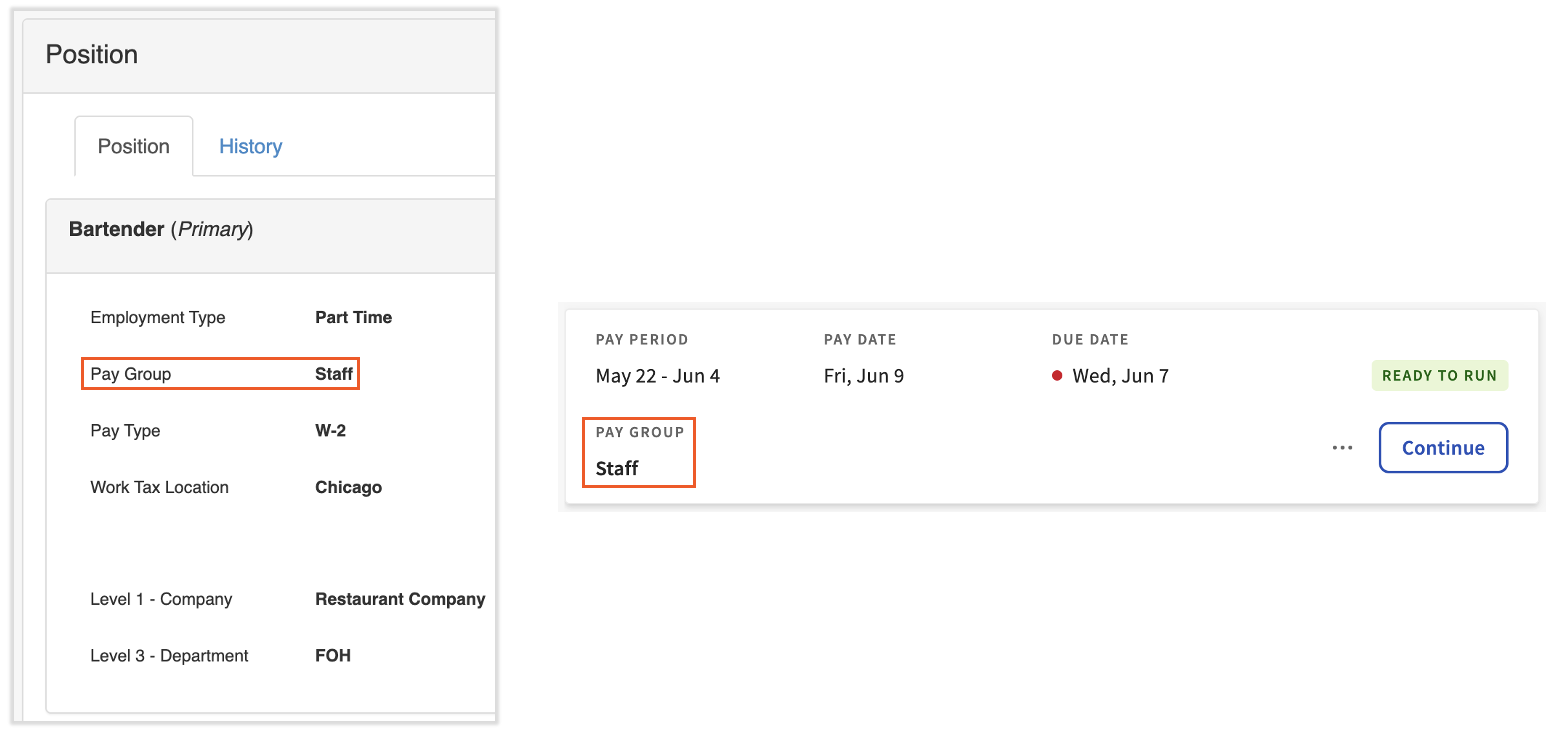
Paso 1: Confirme que el grupo de pago del empleado coincida con el grupo de pago de la nómina.
El grupo de pago del empleado está en su página de Posición. El grupo de pago asignado a la nómina está en el Tablero del Ciclo de Pago. Estos deben coincidir para que el empleado forme parte del proceso de nómina.
Paso 2: Confirme que el empleado estuvo activo durante alguna parte del período de pago.
Si el empleado fue contratado después del período de pago, terminado antes del período de pago, o estuvo de licencia durante todo el período, no aparecerá en la lista de empleados disponibles. Esta es la causa más común cuando un empleado recién contratado está ausente.
- Abra el perfil del empleado y verifique la fecha de inicio de la Posición.
- Si la fecha de inicio es después del inicio del período de pago, el empleado no se sincronizará automáticamente con la nómina. Puede agregarlos manualmente a este proceso de nómina como una solución temporal, pero la fecha de inicio debe corregirse para futuras nóminas.
- Para cambios de estado, consulte Toast Payroll: Realice un Cambio de Estado de LOA.
Paso 3: Si el empleado está en el grupo de pago correcto y estuvo activo durante el período de pago, agréguelo manualmente.
Puede agregar manualmente un empleado a una única ejecución de nómina. Utilice esto solo como una solución temporal; investigue por qué el empleado no se sincronizó automáticamente para corregirlo en futuras ejecuciones.
Resultado esperado: El empleado aparece en el paso de Ganancias del Empleado de la nómina actual, y la causa ha sido documentada para futuras nóminas.
Nómina Fuera de Balance
Es posible recibir este error al calcular una nómina entre el paso de Ganancias del Empleado y el paso de Revisión y Envío.
El autoservicio no está disponible para este error. Contacte al Servicio al Cliente a través del punto de chat azul en la esquina inferior derecha de su página. Cuando contacte al Servicio al Cliente, comparta el nombre de su grupo de pago, la fecha del cheque de nómina y cualquier mensaje de error o captura de pantalla.
Destacados y Excepciones
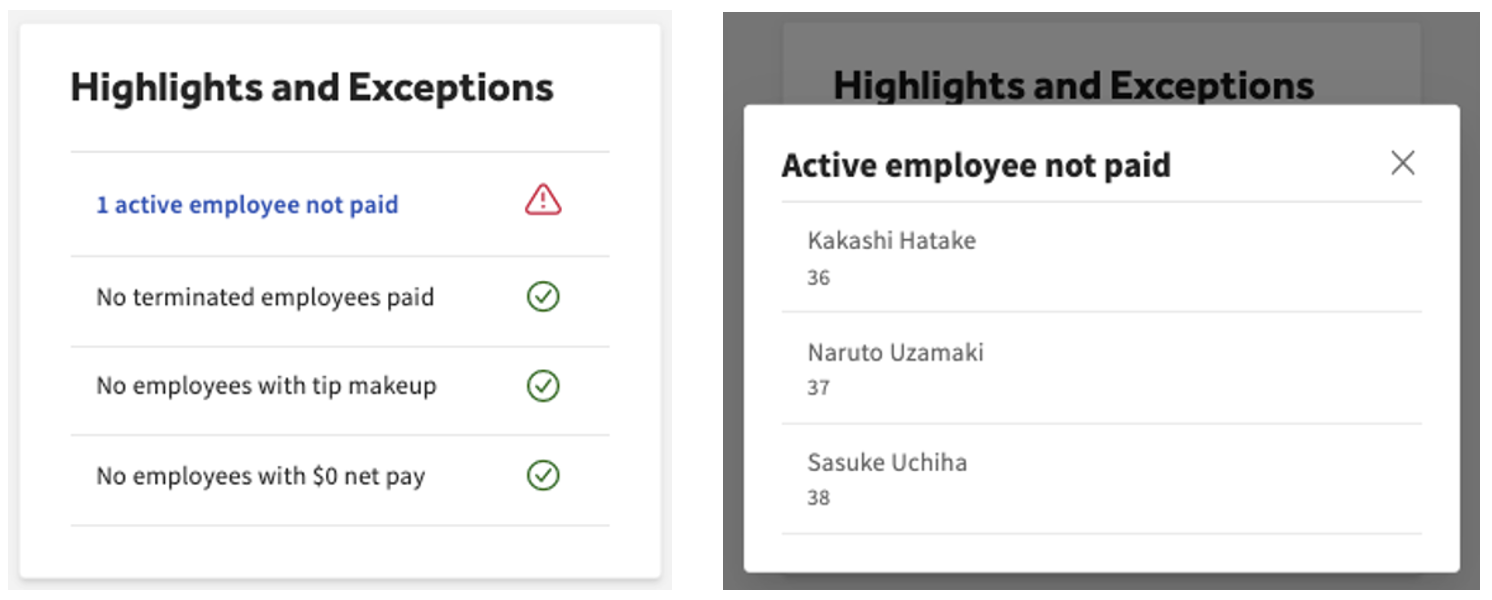
Este cuadro aparece en el paso de Revisión y Envío de la nómina. Si alguna de las cuatro categorías en este cuadro está hipervinculada, seleccione el enlace para mostrar los empleados afectados por esa categoría. Este es un punto de auditoría importante que le ayuda a detectar errores comunes antes de publicar la nómina. Vea Consejo sobre Propinas a continuación si los empleados se están llenando con maquillaje de propinas.
Maquillaje de Propinas
El maquillaje de propinas es la cantidad adicional de ganancias que un empleado que recibe propinas necesita para alcanzar el salario mínimo basado en sus horas, salarios y montos de propinas actuales. El sistema de nómina aplica esta ganancia automáticamente para cumplir con la normativa y no puede eliminarla a menos que se actualicen las horas, salarios o montos de propinas.
Revisar Informes de Nómina
Este no es un paso de solución de problemas, pero es una buena práctica revisar sus informes de nómina antes de publicar cada nómina. Los informes le dan una última mirada a cada empleado, sus tasas salariales, ganancias, deducciones e impuestos. También puede ver los impuestos del empleador, los cheques de proveedores y el método por el cual los empleados recibirán sus salarios.
Después de Ejecutar la Nómina
Reabrir o Editar una Nómina Enviada
Importante: Toast no puede hacer cambios a una nómina una vez que ha sido enviada. Esto incluye nóminas que aún no han sido procesadas.
Si descubre un error después de enviar la nómina, tiene dos caminos principales:
- Si accidentalmente dejó a un empleado fuera de una ejecución de nómina, Toast Payroll ofrece tres opciones para pagarle. Consulte Nómina de Toast: Empleado Perdido o Pago Perdido en la Nómina para el procedimiento completo.
- Si se envió un depósito directo a la cuenta bancaria incorrecta, puede ser posible un retorno de fondos o una reversión ACH.
Verificar que la Nómina Fue Enviada (¿La Publiqué?)
Verifique que su nómina fue publicada visitando la pestaña de Nóminas Pasadas en el Tablero del Ciclo de Pago. Si la nómina aparece allí, ha sido enviada con éxito.
Errores con la Integración de QuickBooks Online
Toast Payroll y QuickBooks Online tienen una integración directa llamada Sincronización de Contabilidad de Nómina. Para saber si es elegible, consulte Comenzar con la Sincronización de Contabilidad de Nómina. Si ya está utilizando la sincronización y necesita ayuda con un error específico, consulte Obtener Ayuda con la Sincronización de Contabilidad de Nómina.
Los errores de sincronización generalmente se indican en el correo electrónico de seguimiento o en la página de Actividad Contable en Toast Web. En muchos casos, el error involucra un código GL no mapeado. El correo electrónico, la página de Actividad Contable en Toast Web y el artículo Obtener Ayuda con la Sincronización de Contabilidad de Nómina incluyen instrucciones sobre cómo corregir esto.
Cuándo se les paga a los empleados
Diferentes escenarios determinan cuándo los empleados reciben su pago según cuándo se publicó la nómina. Consulte Nómina de Toast: Obtenga ayuda con Cuándo se les paga a los empleados para los detalles completos sobre el tiempo.
La nómina fue incorrecta (las personas no fueron pagadas)
También se pregunta como: "las personas no fueron pagadas," "no recibí un cheque," "la nómina fue enviada pero no hay depósito directo"
A veces, la nómina se envía solo para descubrir un error después.
Importante: Toast no puede detener o cancelar una nómina que ha sido enviada.
Tiene algunas opciones para corregir un error en una nómina enviada. Elija el camino que coincida con su situación.
Si un empleado fue sobrepagado o subpagado por una pequeña cantidad y la próxima nómina está en el mismo trimestre:
- El camino más fácil es contabilizar la diferencia en la próxima nómina. Por ejemplo, si un empleado fue sobrepagado por $100, puede crear una tarea de nómina para recordarle que elimine manualmente $100 en salarios de su próximo cheque de pago.
Si el error no se puede corregir en una nómina futura, elija uno de:
- Ejecutar una nómina fuera de ciclo.
- Crear un cálculo rápido.
- Realizar un pago detenido a través de su banco.
- Solicitar una reversión de ACH a través de su banco.
Nota: Los pagos detenidos y las reversiones de ACH se completan a través de su institución financiera, no a través de Toast Payroll.
Si se envió la nómina, verá "Nómina publicada con éxito," pero los empleados no fueron pagados (sin depósito directo, sin débito de su cuenta bancaria):
- Esto es, con mayor frecuencia, un problema del lado del banco: por ejemplo, su banco retuvo o rechazó la transacción, o una cuenta en archivo está bloqueada. El autoservicio no está disponible para este escenario. Contacta al Servicio al Cliente a través del punto de chat azul en la esquina inferior derecha de cualquier página de Toast Payroll. Lleva la información listada en Antes de Contactar al Servicio al Cliente.
Los Cheques Impresos por Toast No Han Llegado
Cuando se selecciona la opción de entrega de cheques impresos por Toast, el usuario principal de nómina recibe un correo electrónico cuando se envía la nómina. Este correo electrónico se recibe típicamente el día antes de que lleguen los cheques, ya que Toast utiliza envío al día siguiente. El correo electrónico incluye un número de seguimiento para referencia en línea sobre el estado del paquete.
Nota: Toast Payroll no garantiza información de seguimiento ni fechas y horas de llegada porque utilizamos un tercero para entregar cheques en vivo.
Cualquier paquete enviado por UPS crea un número de seguimiento que se puede ver en Toast Payroll. El número aparece en el paso de Revisión de la nómina alrededor de las 7 p.m. CST el día en que se publicó la nómina. Selecciona el número de seguimiento para ver más detalles. Los paquetes enviados a través de FedEx o mensajería en bicicleta no muestran un número de seguimiento.
Si los cheques fueron entregados pero han desaparecido o se perdieron en tránsito:
- Se debe iniciar una detención de pago o reversión de ACH a través de tu institución financiera. Toast Payroll no puede colocar una detención de pago en cheques en vivo.
- Contacta al Servicio al Cliente a través del punto de chat azul en la esquina inferior derecha para que puedan registrar el problema y ayudarte a decidir si emitir cheques de reemplazo a través de cálculo rápido o nómina fuera de ciclo.
Preguntas Frecuentes
¿Puedo agregar horas después de que se ha enviado la nómina?
No se pueden agregar horas a una nómina después de que ha sido enviada. Para pagar a un empleado por horas no trabajadas, elija una de las tres opciones en Toast Payroll: Horas no trabajadas del empleado o pago no recibido en la nómina: realice un cálculo rápido y pague manualmente, ejecute una nómina fuera de ciclo o agregue las horas a la próxima nómina programada.
¿Qué debo hacer si un empleado fue sobrepagado incorrectamente?
Si un empleado fue sobrepagado, tiene algunas opciones dependiendo del tiempo. Si la próxima nómina programada está en el mismo trimestre, la solución más fácil es eliminar el monto del sobrepago de su próximo cheque de pago. Si la próxima nómina está en un trimestre diferente, puede solicitar una reversión ACH a través de su banco, realizar una detención de pago o ejecutar una nómina fuera de ciclo para corregir el registro. Vea Reabrir o Editar una Nómina Enviada para obtener detalles sobre cada opción.
¿Cómo puedo saber si una reversión ACH fue exitosa?
Las reversiónes ACH se procesan a través de su institución financiera, no a través de Toast Payroll. Para confirmar si una reversión fue exitosa, consulte con su banco sobre la transacción revertida. Si la reversión falló, su banco le notificará.
¿Por qué no se está populando la hoja de tiempo de mi empleado en la nómina?
Una hoja de tiempo que no se pobló es causada más a menudo por una hoja de tiempo no aprobada, un empleado no mapeado en la página de Tiempo, o un empleado que fue recientemente desarchivado o recontratado y cuyos datos aún no se han sincronizado. Confirme que el empleado esté mapeado, que la hoja de tiempo esté aprobada y que cualquier cambio reciente en el perfil haya tenido tiempo para sincronizarse. Si la hoja de tiempo aún no se pobló, comuníquese con Atención al Cliente.
¿Puedo cancelar o reabrir una nómina después de enviarla?
No. Una vez que la nómina ha sido enviada, Toast no puede reabrirla o cancelarla, incluso antes de que sea procesada. Para corregir un error, use una de las opciones en Reabrir o Editar una Nómina Enviada o en La Nómina Fue Incorrecta.
¿Por qué mis empleados asalariados no recibieron la cantidad correcta después de cambiar la frecuencia de pago?
Cuando cambia la frecuencia de pago (por ejemplo, de quincenal a semanal), el campo de horas salariales en el perfil de cada empleado asalariado puede seguir reflejando la antigua frecuencia. Actualice el campo de horas para que coincida con la nueva frecuencia: por ejemplo, 40 horas para semanal o 80 horas para quincenal, para cada empleado asalariado afectado.
Antes de contactar al servicio al cliente
Si su problema es uno de los escenarios solo para agentes mencionados anteriormente (nómina desbalanceada, nómina enviada pero los empleados no fueron pagados, cheques perdidos o faltantes que requieren detener el pago, cambios de FEIN o grupo de pago por transferencias de propiedad), reúna esta información primero para que el agente de servicio al cliente pueda resolver su caso más rápido:
- El nombre del grupo de pago y la fecha del cheque para la nómina afectada.
- Cualquier texto de mensaje de error: copie la redacción exacta o adjunte una captura de pantalla.
- Los nombres o IDs de empleados de los empleados afectados.
- Su código de acceso POS (a menudo requerido para verificación).
- Un breve resumen de lo que ya ha intentado.
- Para problemas del lado del banco, la cuenta bancaria registrada y si ya ha contactado a su banco.
Para contactar al servicio al cliente, seleccione el punto de chat azul en la esquina inferior derecha de cualquier página de nómina de Toast.
Artículos relacionados
- Nómina de Toast: Ejecute su nómina
- Nómina de Toast: Obtenga ayuda con errores en el procesamiento de nómina
- Nómina de Toast: Empleado perdido o pago perdido en la nómina
- Nómina de Toast: Verifique que la nómina fue enviada
- Nómina de Toast: Preguntas frecuentes sobre el procesamiento de nómina y recibos de pago
Este contenido es solo para fines informativos y no está destinado como asesoría legal, fiscal, de recursos humanos o de ningún otro tipo profesional. Por favor, contacte a un abogado u otro profesional para obtener asesoría.